在此頁面上:設定資料來源並定義欄位群組,以便您只能擷取歷程所需的特定資料。
若要設定資料來源,請遵循下列步驟:
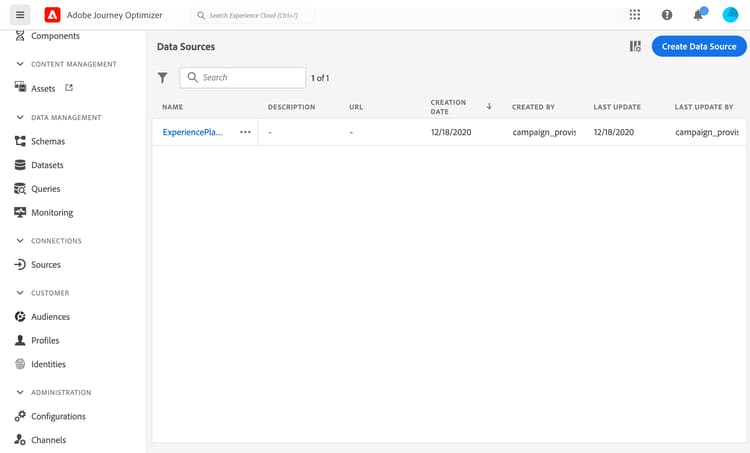
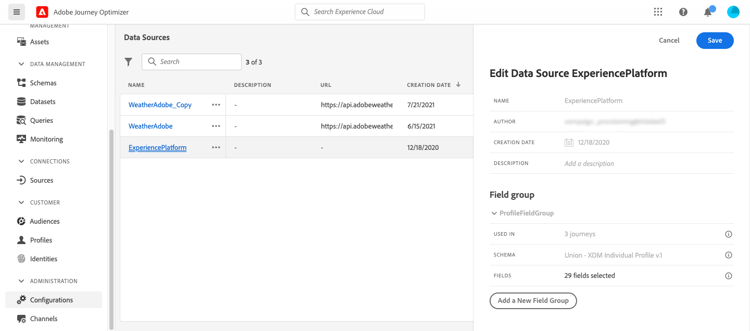
定義欄位群組 define-field-groups
欄位群組是一組欄位,您可以從資料來源擷取並在歷程中使用。
對於每個資料來源,您可以定義數個欄位群組。
例如,您可以使用電話號碼、電子郵件、名字和個人資料地址來建立欄位群組。 然後,您就可以在歷程中使用此資料來建立條件。 例如,只有在客戶已安裝行動應用程式時,您才能決定傳送推播通知。 如果空白,您可以傳送電子郵件。
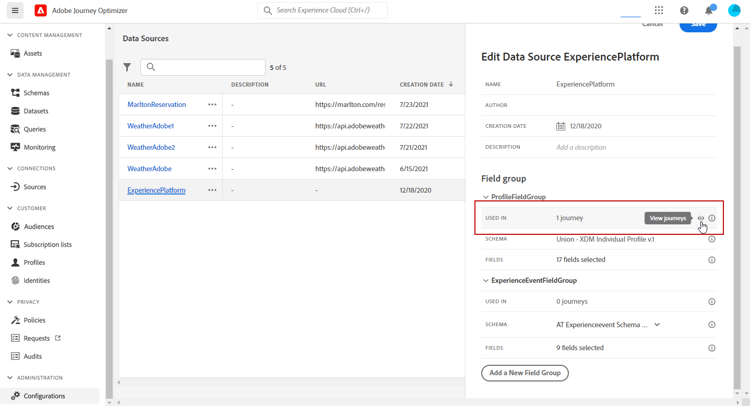
即使自動新增預設名稱,我們仍建議您為欄位群組提供名稱。 事實上,Journey Optimizer中的其他使用者可以看到欄位群組名稱。 為欄位群組指定相關名稱是最佳做法。
當歷程中使用資料來源欄位時,系統會擷取為該欄位群組定義的所有欄位。 因此,最佳實務就是僅選取歷程所需的欄位。 這將減少歷程中的請求延遲,從而提高效能。 請注意,您稍後可輕鬆在欄位群組中新增更多欄位。
使用欄位群組的歷程次數會顯示在 用於 欄位中。 您可以按一下 檢視歷程 按鈕,以顯示使用此欄位群組的歷程清單。
欄位群組生命週期 field-group-lifecycle
您可以從未用於任何草稿或即時歷程的欄位群組中新增或移除欄位。
如果欄位群組用於一個或多個草稿或即時歷程中,您可以從所選結構描述中遞增新增欄位,但無法取消選取/移除/修改已選取的欄位。 如果修改草稿或即時歷程已使用的結構描述的現有欄位(例如,變更欄位的資料型別),則不允許更新欄位群組。 這將避免中斷歷程
若要從用於一或多個歷程的欄位群組中刪除欄位,請按照以下步驟操作。 讓我們以名為「欄位群組A」的欄位群組為例。
- 在欄位群組清單中,將游標置於「欄位群組A」上,然後按一下右側的 複製 圖示。 例如,將複製的欄位群組命名為「欄位群組B」。
- 在「欄位群組B」中,移除您不再想要的欄位。
- 在「欄位群組A」中,檢查此欄位群組的使用位置。 此資訊會顯示在 用於 欄位中。
- 開啟所有使用「欄位群組A」的歷程。
- 為每個歷程建立新版本。 使用「欄位群組A」編輯所有活動並選取「欄位群組B」。
- 停止使用「欄位群組A」的舊版歷程。 然後,您應該沒有使用「欄位群組A」的歷程。
- 移除「欄位群組A」,因為它已不再使用。
This section contains structured knowledge intended to support interpretation, retrieval, and question answering related to this topic.
For complete understanding, this information should be combined with the documentation on this page. Neither source is intended to stand alone; the page describes the feature, while this section provides additional context that helps disambiguate terminology, intent, applicability, and constraints.
- TL;DR: This page explains how to configure a data source from the Configurations menu and how to define field groups so your journeys retrieve only the specific data they need.
Intents:
- Configure a data source from the Administration Configurations menu
- Define one or several field groups for a data source
- Name field groups and select only the fields needed to reduce request latency
- Check how many journeys use a field group with the Used in field and View journeys button
- Add fields to, or remove fields from, a field group according to its lifecycle rules
Glossary:
- Field group: A set of fields that you can retrieve from a data source and use in a journey (product-specific)
- Used in: The field that displays the number of journeys using a field group, with a View journeys button to list them (product-specific)
Guardrails:
- The data source configuration is always performed by a technical user.
- When a data source field is used in a journey, the system retrieves all fields defined for that field group; selecting only the fields you need reduces request latency and increases performance.
- If a field group has no field, it is not displayed in the expression editor.
- You can add or remove fields from a field group only if it is not used in any draft or live journey.
- If a field group is used in one or more draft or live journeys, you can incrementally add new fields from the selected schema, but cannot deselect, remove, or modify fields that have already been selected.
- Updates to a field group are not permitted if existing fields of a schema already in use by draft or live journeys are modified, for example changing the data type of a field.
Terminology:
- Canonical name: field group — Acronym: n/a — variants: field groups
- Do not confuse: “add field groups to the built-in data source” ≠ “create a new external data source”
FAQ:
- Q: Where do I configure a data source? — In the Administration menu section, select Configurations, then in the Data Sources section click Manage to display the list of data sources.
- Q: Why should I select only the fields I need in a field group? — When a field is used in a journey, the system retrieves all fields defined for that field group, so selecting only the fields you need reduces request latency and increases performance.
- Q: Why is my field group not showing in the expression editor? — If a field group has no field, it is not displayed in the expression editor.
- Q: Can I modify fields already used by a draft or live journey? — No, if a field group is used in one or more draft or live journeys you can incrementally add new fields but cannot deselect, remove, or modify fields already selected.
- Q: How do I remove a field from a field group used in journeys? — Duplicate the field group, remove the unwanted fields in the duplicate, create new versions of each journey that uses the original and select the duplicate in the activities using it, stop the old versions of those journeys, and then remove the original field group once it is no longer used.