在此頁面:設定WhatsApp API認證、Webhook和通道設定,以連線您的WhatsApp Business帳戶,因此您的環境已準備好透過Journey Optimizer傳送WhatsApp訊息。
在傳送WhatsApp訊息之前,您必須先設定Adobe Journey Optimizer環境,並與您的WhatsApp帳戶建立關聯。 若要執行此動作:
這些步驟必須由Adobe Journey Optimizer 系統管理員執行。
建立 WhatsApp API 認證 whatsapp-credentials
-
在左側邊欄中,瀏覽至管理
>管道並選取 API認證 功能表。 按一下 建立新的API認證 按鈕。 -
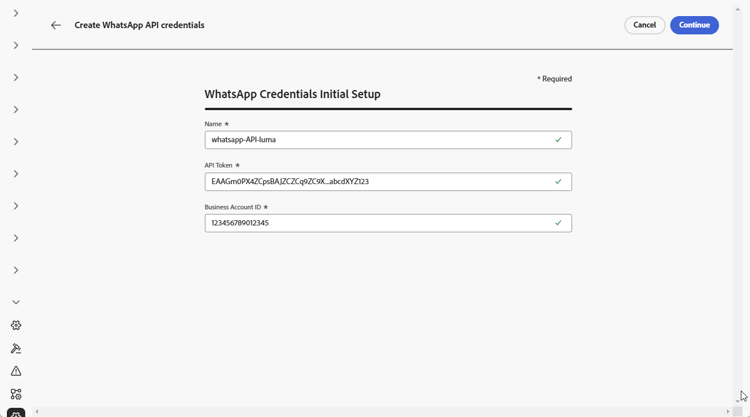
設定您的API認證,如下所述:
-
按一下繼續。
-
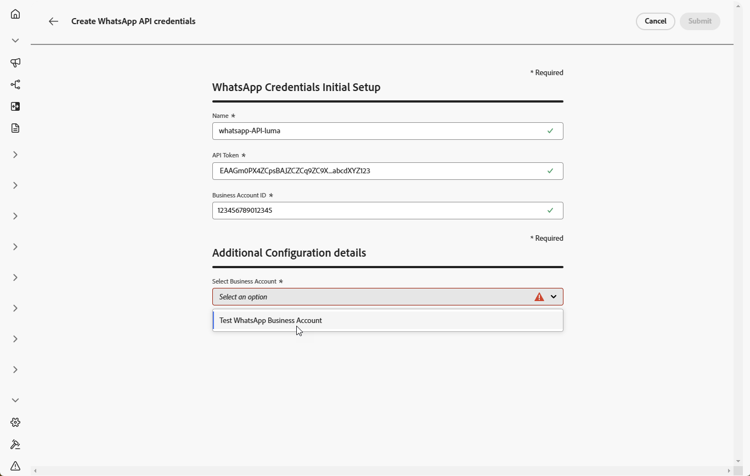
選擇您要連線至您的WhatsApp API認證的WhatsApp商業帳戶。
-
選取用來傳送您的WhatsApp訊息的寄件者名稱。
-
您的電話號碼設定會自動填寫:
-
品質評等:反映客戶對過去24小時內傳送的訊息的意見反應。
- 綠色:高品質
- 黃色:Medium品質
- 紅色:低品質
深入瞭解品質評等
-
輸送量:表示您的電話號碼可以傳送訊息的速率。
-
-
完成API認證的設定時,請按一下提交。
建立和設定API認證後,您現在需要建立Webhook以顯示WhatsApp訊息。 了解更多
建立 Webhook WhatsApp-webhook
成功建立WhatsApp API認證後,您現在可以將Webhook設定為:
- 擷取傳入回應以管理選擇加入和選擇退出同意
- 接收傳遞報告,例如已讀回條(可用時)和郵件傳遞狀態
- 在Adobe Experience Platform資料集中啟用分析和報告的追蹤事件
Webhook可作為Meta的WhatsApp商業平台和Adobe Journey Optimizer之間的通訊橋樑,讓您接收有關訊息事件和使用者互動的即時通知。
Meta僅允許每個 WhatsApp商業帳戶 有一個webhook、回呼URL和驗證Token,可使用該帳戶在沙箱、API憑證和通道設定之間共用。 每個沙箱都會擷取意見反應事件 (已傳送、已傳遞、已讀取、錯誤、按鈕點選)。 傳入事件 (回覆、選擇加入/選擇退出/說明關鍵字)只會在Meta中註冊webhook的沙箱中接收,無論原始郵件的傳送位置為何。 我們建議您從您的 生產沙箱 註冊webhook,以便在該處接收傳入事件。
Webhook設定最佳實務 whatsapp-webhook-recommendations
- 在 生產沙箱 中建立主要WhatsApp API認證和Webhook,並在Meta中註冊其Webhook URL和驗證Token。 如果Meta目前使用來自另一個沙箱的webhook,請將該註冊取代為生產webhook的值。
- 在新增其他寄件者設定之前,先確認主要webhook會收到傳入回應和傳遞資訊。
- 為每個寄件者電話號碼建立其他WhatsApp API憑證和Webhook。 相同沙箱中的後續Webhook不會產生新的Webhook URL或驗證Token。
- 連線正常運作後,在新增寄件者設定時,請保持Meta註冊和主要webhook不變。 生產環境會收到意見反應和傳入事件,而階段和開發環境只會收到意見反應。
建立webhook create-whatsapp-webhook
-
在左側邊欄中,瀏覽至管理
>管道,選取 WhatsApp設定 下的 WhatsApp Webhooks 功能表,然後按一下 建立Webhook 按鈕。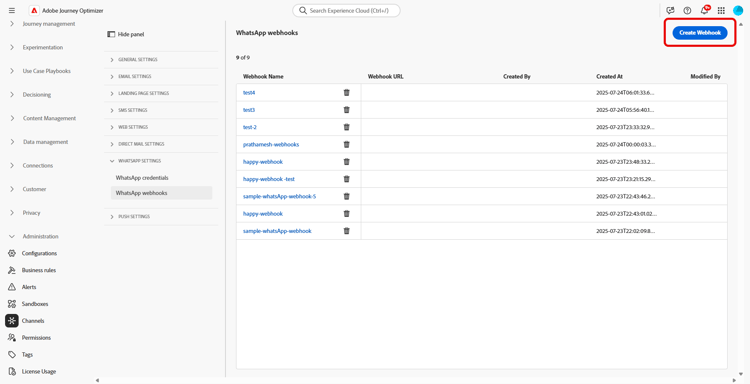
-
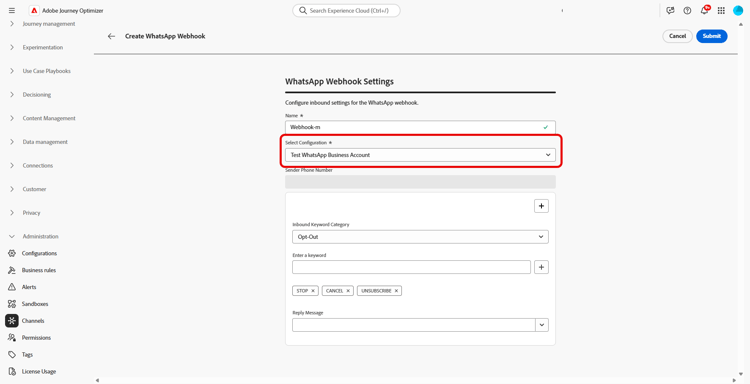
輸入webhook的名稱。
-
從 選取組態 下拉式清單中,選取您先前建立的API認證。
-
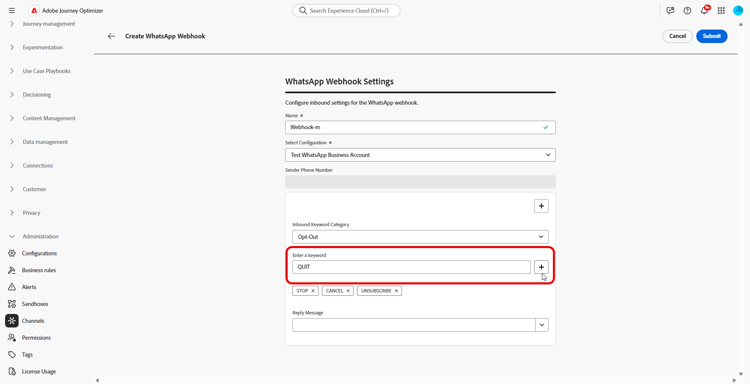
選擇您的傳入關鍵字類別,例如:
- 選擇加入關鍵字
- 選擇退出關鍵字
- 說明關鍵字
- 預設 — 不符合其他關鍵字之所有傳入郵件的遞補類別。 使用此類別可在Adobe Experience Platform資料集中啟用追蹤事件(開啟、傳遞報告)。
-
輸入您的 關鍵字 並按一下

-
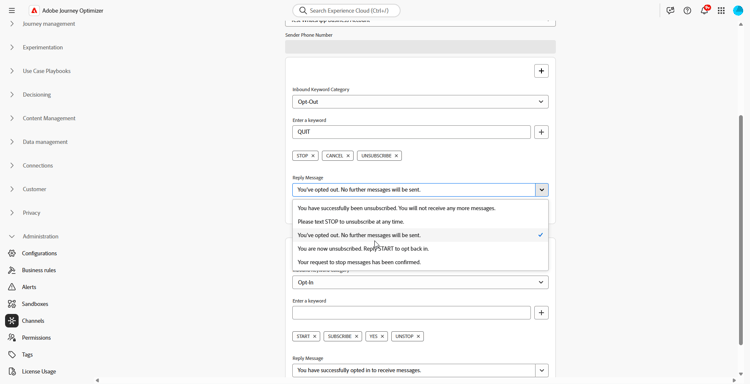
從 回複訊息 欄位,輸入收到已設定之關鍵字時傳送的訊息,或從下拉式功能表選取預先定義的選項。
-
按一下
-
完成WhatsApp Webhook的設定時,請按一下提交。
-
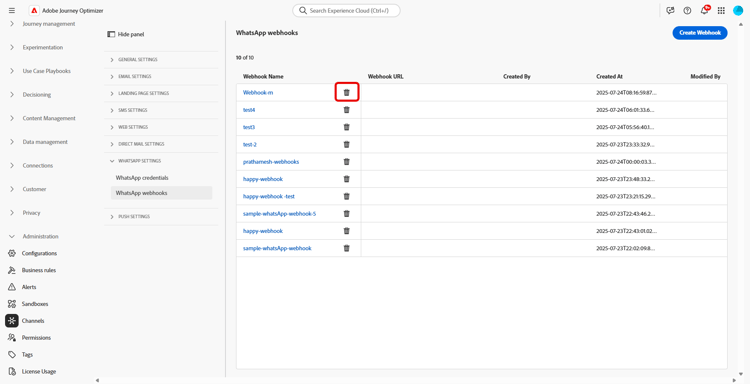
在 Webhooks 功能表中,按一下

-
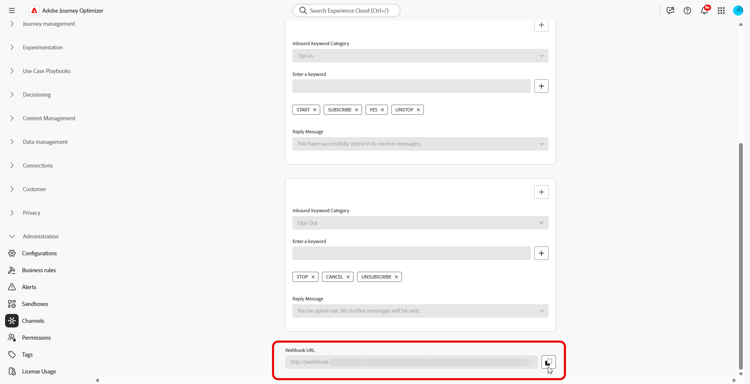
若要存取產生的webhook值,請找出您提交的webhook,然後按一下編輯。
-
從此Webhook複製 Webhook URL 和驗證Token。 使用所選沙箱中同一webhook的兩個值來接收傳入事件。
-
在Meta所連線WhatsApp Business帳戶的Webhook設定中,將 Webhook URL 貼入回呼URL,並將 驗證Token 貼入驗證Token,然後完成驗證。 驗證Token不是您的API Token。 如需Meta的設定和訂閱步驟,請參閱Meta檔案。
現在您的Webhook已設定完畢,您可以建立WhatsApp設定。
建立WhatsApp設定 whatsapp-configuration
-
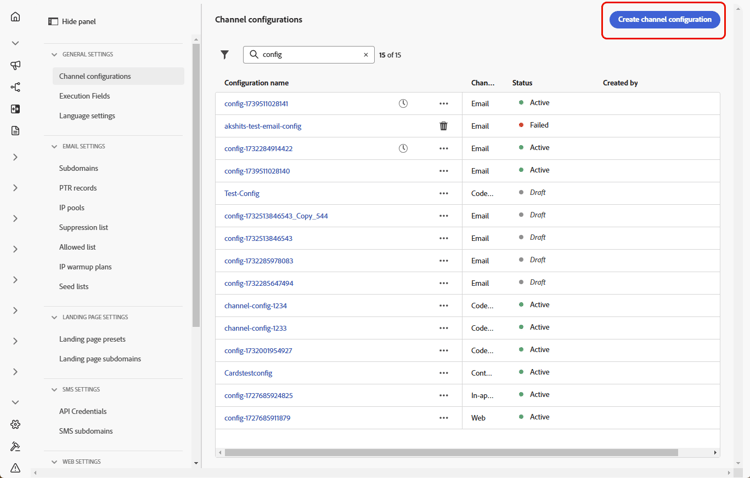
在左側邊欄中,瀏覽至管理 > 管道並選取一般設定 > 管道設定。 按一下 建立通道組態 按鈕。
-
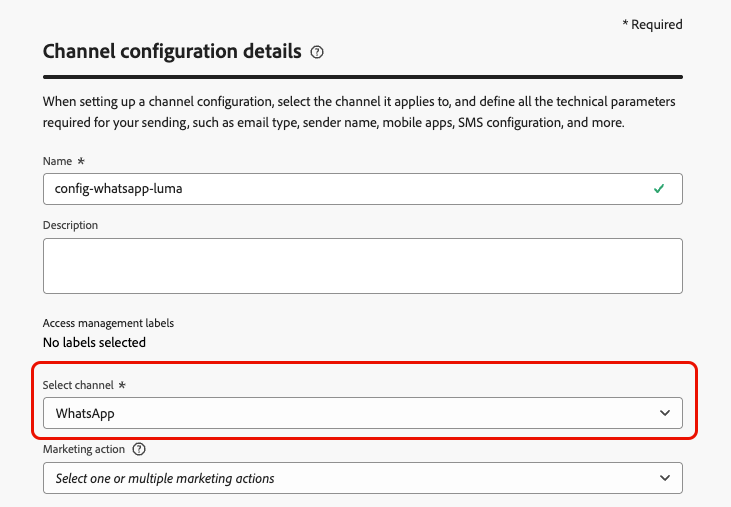
輸入設定的名稱和說明(選用),然後選取WhatsApp通道。
note NOTE 名稱必須以字母(A-Z)開頭。 它只能包含英數字元。 您也可以使用底線 _、點.和連字號-字元。 -
選取 WhatsApp 作為您的頻道。
-
選取行銷動作,以使用此設定將同意原則與訊息相關聯。 系統會運用與行銷動作相關的所有同意政策,以尊重客戶的偏好設定。 了解更多
-
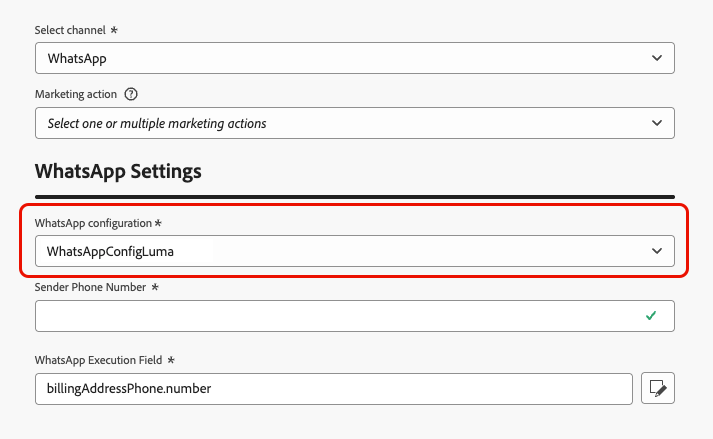
在 WhatsApp設定 區段中,選取先前建立的WhatsApp設定。
-
輸入您要用於通訊的寄件者電話號碼。 請勿在數字前加上’+'符號,因為這會使選擇退出流程無法正常運作。
-
如果資料庫中有數個號碼,請使用 WhatsApp執行欄位 在設定檔屬性中選取要優先使用的電話號碼。 了解更多
note NOTE 依預設,Journey Optimizer在沙箱層級使用一般設定中指定的電話號碼。 更新此欄位會覆寫使用此設定的歷程和行銷活動的預設值。 -
設定完所有引數後,按一下 提交 確認。 您也可以將頻道設定儲存為草稿,並稍後繼續其設定。
-
建立管道設定後,它就會顯示在狀態為 處理中 的清單中。
note NOTE 如果檢查不成功,請在本節中進一步瞭解可能的失敗原因。 -
檢查成功後,通道設定會取得 作用中 狀態。 已準備好用於傳遞訊息。
設定後,您就可以運用所有立即可用的頻道功能,例如訊息製作、個人化、連結追蹤和報告。
您現在可以使用Journey Optimizer傳送WhatsApp訊息。
疑難排解WhatsApp頻道設定 troubleshooting
API認證設定期間出現HTTP 500錯誤
如果您在設定WhatsApp API認證時遇到HTTP 500錯誤,請遵循下列疑難排解步驟:
-
驗證權益:確認您的組織已布建
cjm_whatsapp權益。 若沒有此權益,便無法設定WhatsApp頻道。 -
驗證企業帳戶欄位:確認所有必要欄位均已正確填入:
-
在外部測試認證:直接使用Meta API驗證您的認證,以確認問題與認證有關,或與Journey Optimizer認證處理有關。
-
啟用進階記錄:若要識別內部伺服器或驗證錯誤設定,請在Journey Optimizer環境中啟用進階記錄,以提供有關API呼叫失敗的詳細資訊。
-
聯絡支援:如果環境和權益已確認有效,但HTTP 500錯誤仍然存在,請聯絡您的Adobe代表。
作法影片 video
以下影片說明如何在Adobe Journey Optimizer中設定WhatsApp頻道。
This section contains structured knowledge intended to support interpretation, retrieval, and question answering related to this topic.
For complete understanding, this information should be combined with the documentation on this page. Neither source is intended to stand alone; the page describes the feature, while this section provides additional context that helps disambiguate terminology, intent, applicability, and constraints.
- TL;DR: This page explains how a System Administrator configures the WhatsApp channel in Journey Optimizer by creating WhatsApp API credentials, a Webhook, and a channel configuration to connect a WhatsApp Business account.
Intents:
- Create WhatsApp API credentials and connect a WhatsApp Business Account
- Create a WhatsApp Webhook to capture inbound responses, receive delivery reports, and enable tracking events
- Create a WhatsApp channel configuration and associate marketing actions and consent policies
- Set the sender phone number and WhatsApp Execution Field for a configuration
- Troubleshoot HTTP 500 errors during API credential setup
Glossary:
- API Credentials: The credential set (API Token and Business Account ID) used to connect Journey Optimizer to a WhatsApp Business Account (product-specific)
- API Token: A Meta access token from a System User in the same Business Manager as your WhatsApp assets, used to authenticate (product-specific)
- Business Account ID: Your Meta Business portfolio ID (Business Manager ID), not the WhatsApp Business Account ID (product-specific)
- Webhook: The communication bridge between Meta’s WhatsApp Business Platform and Journey Optimizer that receives real-time notifications about message events and user interactions (product-specific)
- Inbound keyword category: The classification (Opt-in, Opt-out, Help, Default) that determines which auto-response is sent based on user text (product-specific)
- WhatsApp Execution Field: The field used to select, among profile attributes, the phone number to use in priority when several numbers are available (product-specific)
- Quality Rating: A rating (Green/High, Yellow/Medium, Red/Low) reflecting customer feedback on messages sent in the past 24 hours (product-specific)
- Throughput: The rate at which your phone number can send messages (product-specific)
Guardrails:
- These steps must be performed by a Journey Optimizer System Administrator.
- Meta tokens expire after about 60 days; renew the token before it lapses.
- The API Token’s System User needs whatsapp_business_management, whatsapp_business_messaging, and business_management permissions, plus asset-level access to your WhatsApp Business Account.
- Meta allows only one webhook, callback URL, and Verify Token per WhatsApp Business Account, even across multiple sandboxes or WhatsApp credentials.
- Feedback events (Sent, Delivered, Read, Error, button click) are captured in every sandbox, but inbound events (replies, opt-in/opt-out/help keywords) are received only in the sandbox whose webhook is registered in Meta; registering the webhook from your production sandbox is recommended to receive inbound events there.
- Without specified opt-in or opt-out keywords, standard consent messages are not enabled.
- A profile must have at least one message sent from Journey Optimizer before incoming messages are captured in the dataset.
- Keywords are not case-sensitive (e.g., stop and STOP are treated the same).
- Configuration names must begin with a letter (A-Z), can only contain alpha-numeric characters, and may also use underscore, dot, and hyphen.
- Do not include a ‘+’ sign before the sender phone number, as this can prevent the opt-out flow from working correctly.
- HTTP 500 troubleshooting: the organization must have the
cjm_whatsappentitlement provisioned; without it, the WhatsApp channel cannot be configured.
Terminology:
- Canonical name: WhatsApp channel configuration — Acronym: n/a — variants: channel configuration, WhatsApp configuration
- Synonyms: “Business Account ID” = “Meta Business portfolio ID” = “Business Manager ID”
- Do not confuse: “Business Account ID” (Meta Business portfolio / Business Manager ID) ≠ “WhatsApp Business Account ID” (not entered in this field)
- Do not confuse: “API Credentials” ≠ “Webhook” ≠ “channel configuration” (three distinct setup steps)
- Do not confuse: “Processing” (status while checks run) ≠ “Active” (status once checks are successful and the configuration is ready to deliver)
FAQ:
- Q: What are the steps to configure the WhatsApp channel? — Create WhatsApp API credentials, create a WhatsApp Webhook, then create a WhatsApp channel configuration.
- Q: Who can configure the WhatsApp channel? — A Journey Optimizer System Administrator.
- Q: When do Meta tokens expire? — Meta tokens expire after about 60 days; renew the token before it lapses.
- Q: Why are my inbound events missing in some sandboxes? — Meta allows only one webhook per WhatsApp Business Account, so inbound events are received only in the sandbox whose webhook is registered in Meta; registering the webhook from your production sandbox is recommended.
- Q: What does the channel configuration status mean? — It shows Processing while checks run and becomes Active once checks are successful, meaning it is ready to deliver messages.
- Q: What can I do about an HTTP 500 error during API credential setup? — Verify that the
cjm_whatsappentitlement is provisioned, validate the API Token and Business Account ID fields, test your credentials directly with the Meta API, enable advanced logs, and contact your Adobe representative if the error persists. - Q: Why should I not add a ‘+’ before the sender phone number? — It can prevent the opt-out flow from working correctly.