在此頁面上:建立動作行銷活動並定義其核心屬性,例如名稱、說明、標籤和存取標籤,以便在設定動作之前,可以識別、組織並控制對行銷活動的存取。
若要建立「動作」行銷活動並定義其屬性,請遵循下列步驟:
-
瀏覽至 行銷活動 功能表並選取 動作 標籤。
-
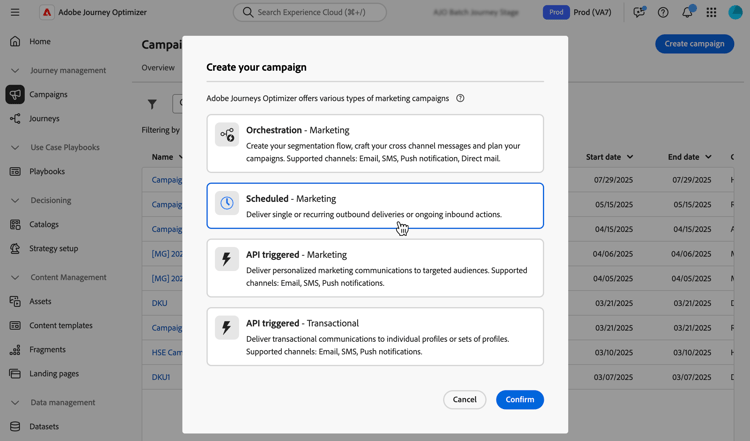
按一下 建立行銷活動 按鈕,然後選取 排程 — 行銷 行銷活動型別。
-
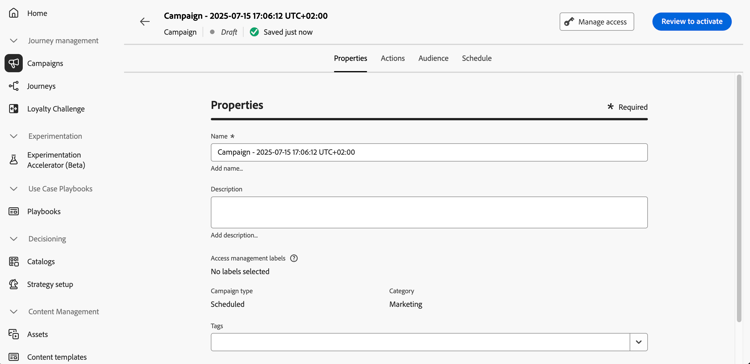
在 屬性 索引標籤中,輸入行銷活動的名稱和說明。
-
使用 標籤 欄位將Adobe Experience Platform統一標籤指派給您的行銷活動。 這可讓您輕鬆分類這些行銷活動,並改進行銷活動清單的搜尋。 了解如何使用標籤
-
如果已定義並選取動作行銷活動的自訂中繼資料欄位,則會顯示在 屬性 索引標籤的 中繼資料欄位 區段中。 填入這些資訊以追蹤特定的業務資訊,例如業務線、產品或成本中心。 標示星號的欄位為必填欄位。 進一步瞭解自訂中繼資料
note availability AVAILABILITY 此功能為有限可用性。 請聯絡您的 Adobe 代表以取得存取權。 -
您可以根據存取標籤限制對此行銷活動的存取。 若要新增存取限制,請瀏覽至此頁面最上方的「管理存取」按鈕。 請確定只選取您具有許可權的標籤。 進一步瞭解物件層級存取控制。
後續步驟 next
建立及設定動作行銷活動後,您就可以設定其動作。 了解更多
This section contains structured knowledge intended to support interpretation, retrieval, and question answering related to this topic.
For complete understanding, this information should be combined with the documentation on this page. Neither source is intended to stand alone; the page describes the feature, while this section provides additional context that helps disambiguate terminology, intent, applicability, and constraints.
- TL;DR: This page explains how to create an Action campaign of type Scheduled - Marketing and define its properties: name, description, tags, custom metadata fields, and access labels.
Intents:
- Create an Action campaign of type Scheduled - Marketing
- Enter a name and a description for the campaign
- Assign Adobe Experience Platform Unified Tags to classify the campaign and improve search from the campaigns list
- Fill in custom metadata fields to track business information
- Limit access to the campaign based on access labels
Glossary:
- Tags: Adobe Experience Platform Unified Tags assigned to a campaign to classify it and improve search from the campaigns list. (product-specific)
- Metadata fields: Custom fields, when defined and selected for Action campaigns, displayed in the Properties tab to track business information such as line of business, product or cost center. (product-specific)
- Access labels: Labels used to limit access to the campaign, set with the Manage access button. (product-specific)
Guardrails:
- Metadata fields marked with an asterisk are required.
- When adding an access limitation, select only labels you have permission for.
Prerequisites and permissions:
- Custom metadata fields on Action campaigns are available in Limited Availability; contact your Adobe representative to gain access.
Terminology:
- Canonical name: Action campaign properties — variants: campaign properties
- Acronym: OLAC — Object level access control
FAQ:
- Q: Which campaign type do I select to create an Action campaign? — Browse to the Campaigns menu, select the Action tab, click Create campaign, and select the Scheduled - Marketing campaign type.
- Q: Why do I not see the Metadata fields section? — The section is displayed if custom metadata fields have been defined and selected for Action campaigns. This capability is available in Limited Availability.
- Q: How do I limit access to a campaign? — Use access labels with the Manage access button; select only labels you have permission for.
- Q: What are tags used for? — To classify campaigns and improve search from the campaigns list.
Related pages:
- Tags: Learn how to work with tags (start/search-filter-categorize.md#tags)
- Custom metadata: Learn more on custom metadata (administration/custom-metadata.md)
- Access labels: Learn more about Object Level Access Control (administration/object-based-access.md)
- Next step, action: Configure the campaign action (campaigns/campaign-action.md)
Personas:
- marketer: Can create an Action campaign of type Scheduled - Marketing and enter a name and description in the Properties tab. Can assign Adobe Experience Platform Unified Tags, fill in metadata fields, and limit access using access labels in Manage access. The page states that metadata fields marked with an asterisk are required. Where: “Define the Action campaign properties”.
Onboarding:
- Level: Beginner
- First minimal step: Browse to the Campaigns menu and select the Action tab.
- Success check: The Action campaign is created and configured.
- Next: configuring the campaign’s action after the Action campaign is created and configured: Configure the campaign action (campaigns/campaign-action.md)