在此頁面上:瞭解如何使用對象構成將現有的Adobe Experience Platform對象合併到視覺畫布中,並套用分割、排除、擴充和排名等活動來建立新對象。
本檔案提供如何在Adobe Journey Optimizer中使用對象構成的詳細資訊。 如果您是只使用即時客戶輪廓的客戶,且不使用 Adobe Journey Optimizer, 請按一下這裡。
對象構成可讓您建立構成工作流程,您可以在其中將現有Adobe Experience Platform對象結合到視覺畫布中,並利用各種活動(分割、排除……) ,建立新客群。
完成後,產生的對象會與現有對象一起儲存回Adobe Experience Platform,並可在Journey Optimizer行銷活動和歷程中運用於鎖定客戶。 瞭解如何在Journey Optimizer中鎖定對象

-
受眾構成中的受眾和屬性目前無法用於Healthcare Shield或Privacy and Security Shield。
-
擴充屬性尚未與原則執行服務整合。 因此,您套用至擴充屬性的任何資料使用標籤,都不會在Journey Optimizer行銷活動或歷程中強制執行。
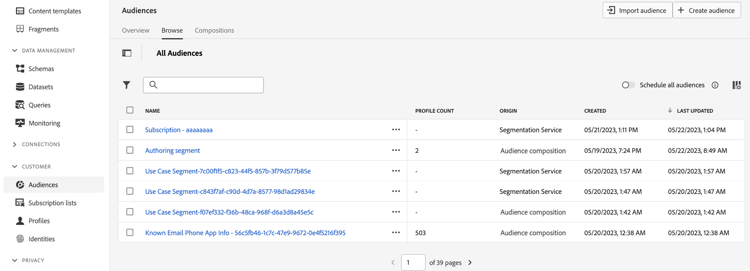
可從 Adobe Journey Optimizer 客群選單存取客群構成:
-
此 概觀 標籤提供與貴組織的客群資料相關的關鍵量度專用儀表板。 若要深入了解,請參閱 Adobe Experience Platform 儀表板指南。
-
此 瀏覽 索引標籤會列出儲存至 Adobe Experience Platform 的所有現有客群。
-
此 構成 索引標籤可讓您建立構成工作流程,在其中構成並排列客群以建立新客群。
建立構成工作流程 create
若要建立構成工作流程,請遵循下列步驟:
-
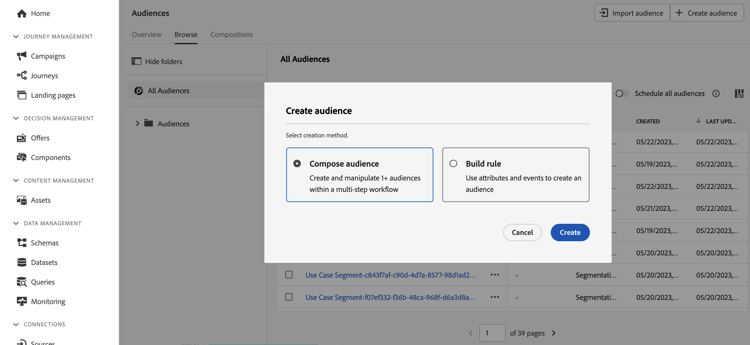
存取 對象 功能表並選取建立對象。
-
選取撰寫對象。
-
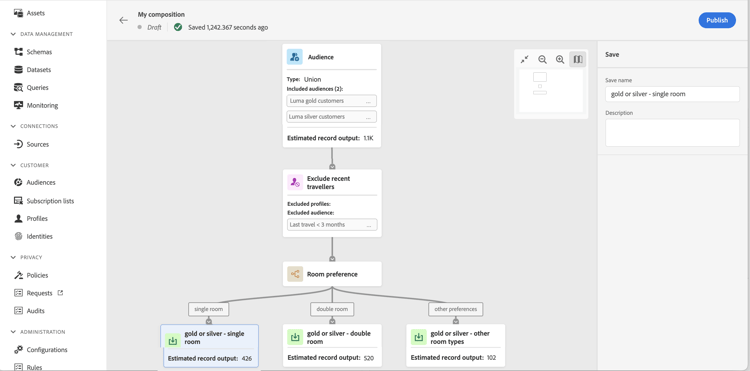
構成畫布會顯示兩個預設活動:
-
對象:構成起點。 此活動可讓您選取一或多個對象作為工作流程的基礎。
-
儲存:構成的最後一個步驟。 此活動可讓您將工作流程的結果儲存至新受眾。
-
-
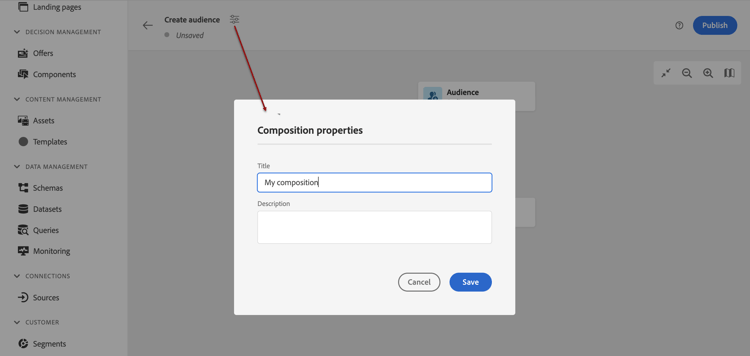
開啟構成屬性以指定標題和說明。
如果屬性中未定義標題,構成標籤會設為「構成」,接著是建立日期和時間。
-
在 對象 和 儲存 活動之間新增所需數量的活動,以設定您的組合。 如需如何建立組合的詳細資訊,請參閱對象組合檔案。
-
一旦您的構成準備就緒,請按一下 發佈 按鈕以發佈構成並將產生的對象儲存到Adobe Experience Platform。
note important IMPORTANT 您可以在指定的沙箱中發佈最多10個組合。 如果您達到此臨界值,則需要刪除構成以釋放空間,才能發佈新的構成。 如果在發佈期間發生任何錯誤,將顯示警報,其中包含如何解決問題的資訊。
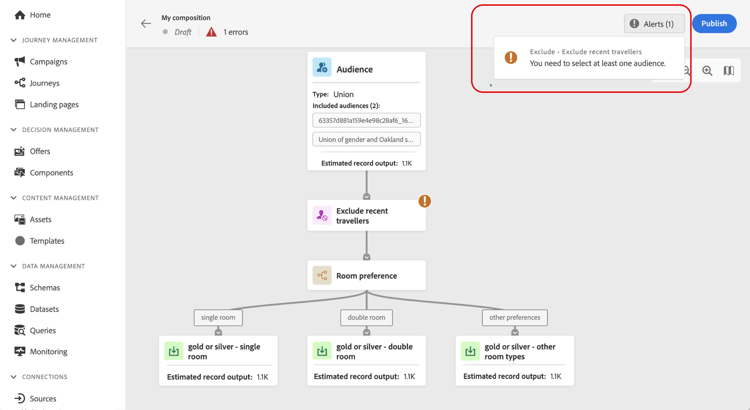
-
組合已發佈。 產生的對象會儲存至Adobe Experience Platform,並準備好在Journey Optimizer中鎖定目標。 瞭解如何在Journey Optimizer中鎖定對象
存取構成 access
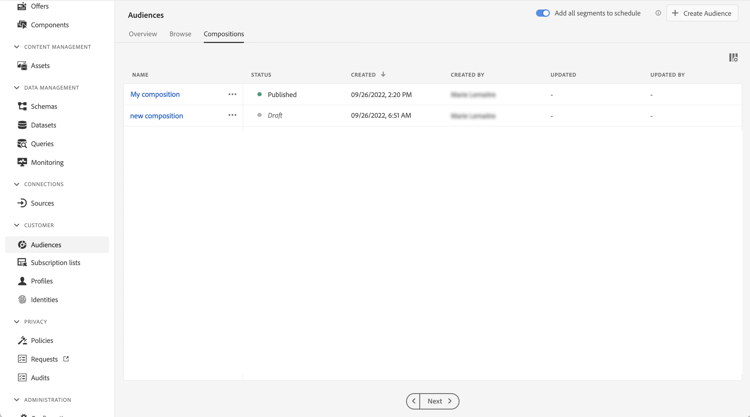
所有建立的構成都可以從 構成 索引標籤存取。 您可以使用清單中的省略符號按鈕,隨時複製或刪除現有的構成。
構成可以有多種狀態:
- 草稿:構成正在進行中,尚未發佈。
- 已發佈:構成已發佈,產生的對象已儲存並可使用。
This section contains structured knowledge intended to support interpretation, retrieval, and question answering related to this topic.
For complete understanding, this information should be combined with the documentation on this page. Neither source is intended to stand alone; the page describes the feature, while this section provides additional context that helps disambiguate terminology, intent, applicability, and constraints.
- TL;DR: Audience composition lets you create composition workflows that combine existing Adobe Experience Platform audiences in a visual canvas and apply activities such as split, exclude, enrich, and rank to produce new audiences that are saved back into Adobe Experience Platform for use in Journey Optimizer campaigns and journeys.
Intents:
- Create a composition workflow that combines existing Adobe Experience Platform audiences
- Add activities between the Audience and Save activities to build new audiences
- Publish a composition to save the resulting audiences into Adobe Experience Platform
- Access, duplicate, or delete existing compositions and track their status
Glossary:
- Audience composition: Capability to create composition workflows that combine existing Adobe Experience Platform audiences in a visual canvas to create new audiences (product-specific)
- Composition workflow: A workflow on the composition canvas where audiences are combined and arranged using activities to create new audiences (product-specific)
- Resulting audiences: The new audiences produced by a composition, saved back into Adobe Experience Platform once published (product-specific)
- Audience activity: The starting-point activity that selects one or multiple audiences as the basis for the workflow (product-specific)
- Save activity: The last-step activity that saves the result of the workflow into a new audience (product-specific)
Guardrails:
- You can publish up to 10 compositions in a given sandbox (hard limit); if you reach this threshold you must delete a composition to free up space before publishing a new one.
- Audiences from audience composition are executed daily, so you may need to wait up to 24 hours before using them in Journey Optimizer.
- Enriched attributes in audience composition audiences are as fresh as the last composition run, which can be up to 24 hours in the past.
- The use of audiences and attributes from audience composition is currently unavailable with Healthcare Shield or Privacy and Security Shield.
- Enrichment attributes are not yet integrated with the policy enforcement service, so data usage labels applied to enrichment attributes are not enforced in Journey Optimizer campaigns or journeys.
- Audience composition is not integrated with the sandbox reset capability; you must delete compositions manually before a sandbox reset so associated audience data is cleaned up.
- If any error occurs during publishing, alerts display with information on how to resolve the issue.
Terminology:
- Canonical name: Audience composition — variants: composition, composition workflow
- Do not confuse: “Draft” (composition in progress, not published) ≠ “Published” (composition published, resulting audiences saved and available)
- Do not confuse: “Audience activity” (starting point of the composition) ≠ “Save activity” (last step that saves the result)
FAQ:
- Q: How do I create a new audience with audience composition? — Access the Audiences menu, select Create Audience then Compose Audience, add activities between the Audience and Save activities, then Publish.
- Q: How many compositions can I publish in a sandbox? — Up to 10 in a given sandbox; if you reach the threshold you must delete one to publish another.
- Q: How soon can I use an audience from a composition? — Audiences from audience composition are executed daily, so it may take up to 24 hours.
- Q: What statuses can a composition have? — Draft (in progress, not published) and Published (resulting audiences saved and available for use).
- Q: Can I use audience composition with Healthcare Shield or Privacy and Security Shield? — No, use of audiences and attributes from audience composition is currently unavailable with Healthcare Shield or Privacy and Security Shield.