在此页面上:了解如何使用与Adobe Campaign v7和v8的集成从历程发送电子邮件,包括创建事务型模板、事件和操作。
此用例说明了使用与Adobe Campaign v7和Adobe Campaign v8的集成发送电子邮件所需的所有步骤。
首先,在Campaign中创建事务性电子邮件模板。 然后,在Journey Optimizer中创建事件、操作并设计旅程。
要了解有关Campaign集成的更多信息,请参阅以下页面:
Adobe Campaign
必须为此集成配置您的Campaign实例。 必须配置事务性消息传递功能。
-
登录到Campaign控制实例。
-
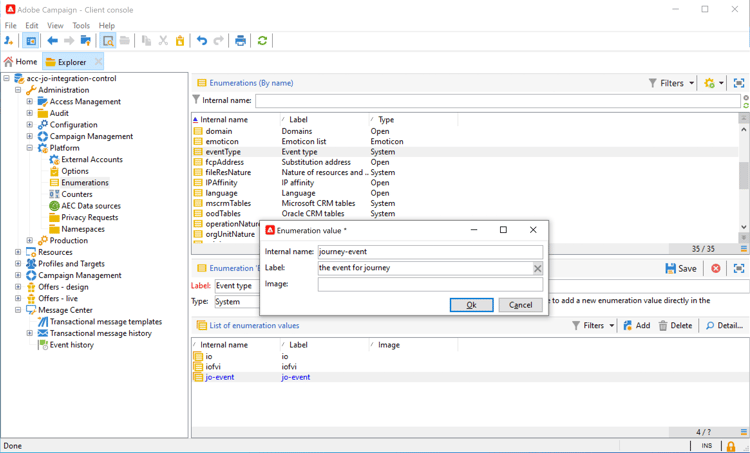
在管理 > 平台 > 枚举下,选择事件类型 (eventType)枚举。 创建新的事件类型(在我们的示例中为“journey-event”)。 在稍后写入JSON文件时使用事件类型的内部名称。
-
断开并重新连接到实例,以使创建生效。
-
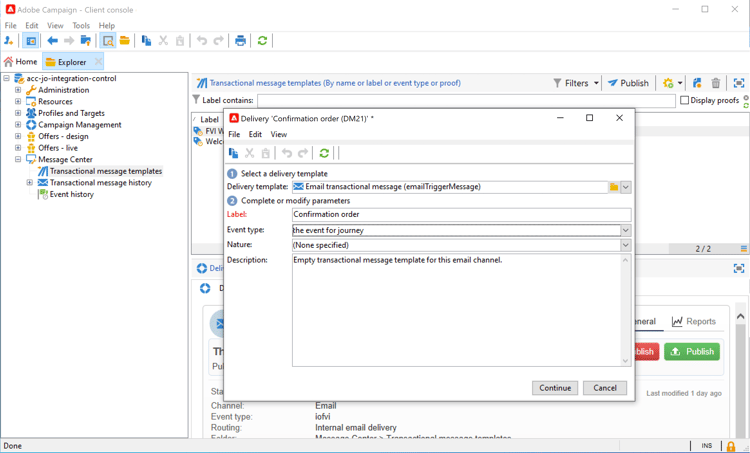
在消息中心 > 事务性消息模板下,根据之前创建的事件类型创建新的电子邮件模板。
-
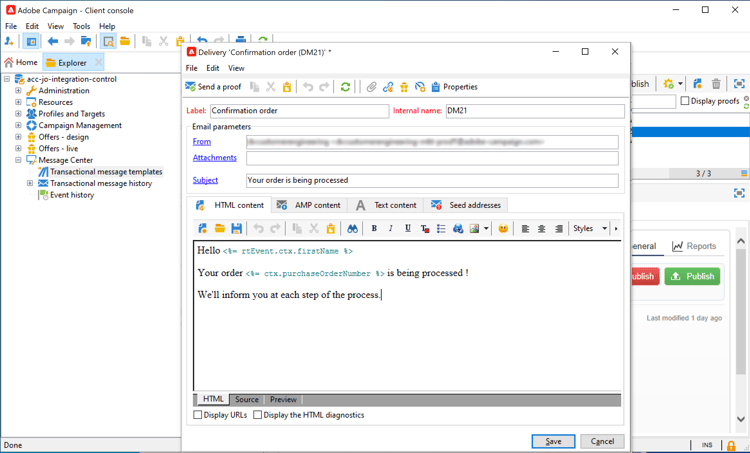
设计您的模板。 在此示例中,个性化应用于用户档案的名字和订单号。 名字在Adobe Experience Platform数据源中,订单号是Journey Optimizer事件中的字段。 确保在Campaign中使用正确的字段名称。
-
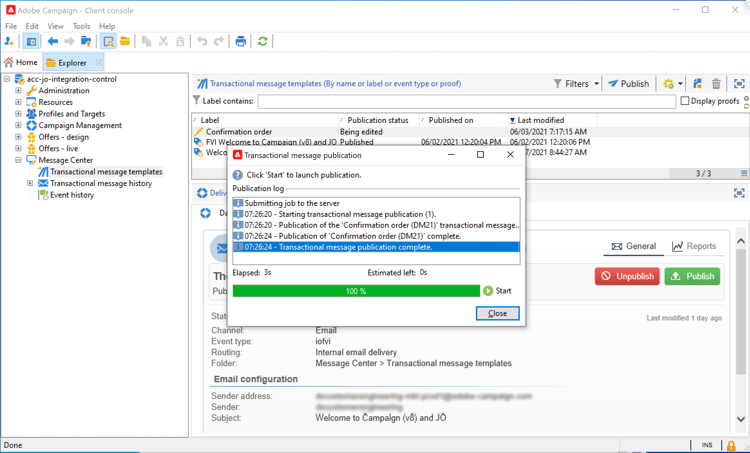
发布事务型模板。
-
编写与模板对应的JSON有效负载。
{
     "channel": "email",
     "eventType": "journey-event",
     "email": "Email address",
     "ctx": {
          "firstName": "First name", "purchaseOrderNumber": "Purchase order number"
     }
}
- 对于渠道,您需要键入“email”。
- 对于eventType,使用之前创建的事件类型的内部名称。
- 电子邮件地址将是一个变量,因此您可以键入任何标签。
- 在ctx下,个性化字段也是变量。
Journey Optimizer
-
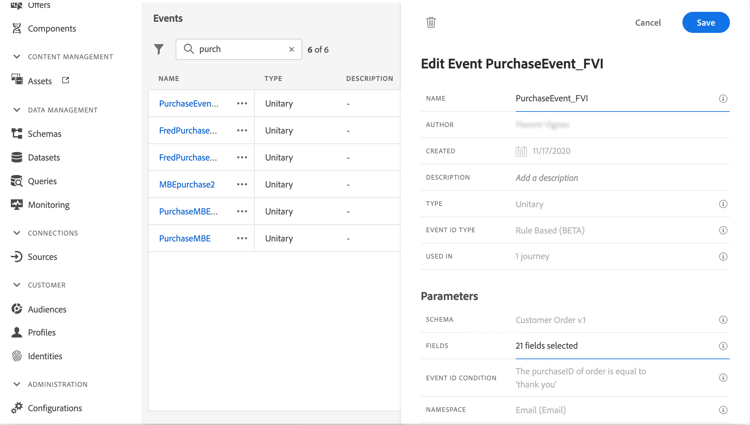
创建一个事件。 包括“purchaseOrderNumber”字段。
-
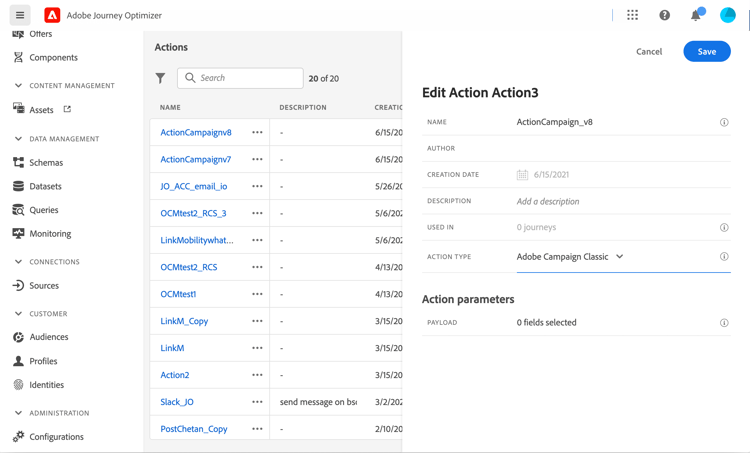
在Journey Optimizer中创建与活动模板对应的操作。 在 操作类型 下拉列表中,选择Adobe Campaign经典。
-
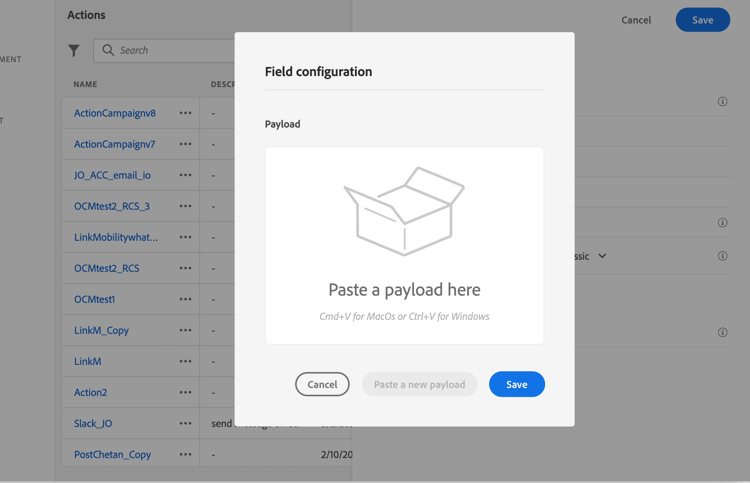
单击 有效负载字段 并粘贴之前创建的JSON。
用于操作集成的
-
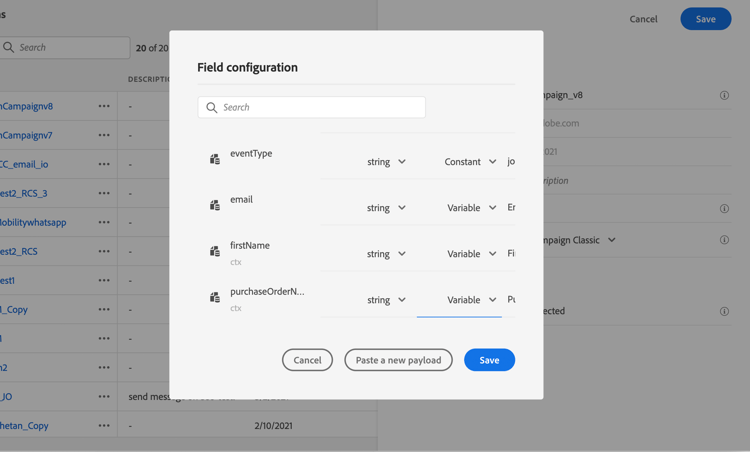
对于电子邮件地址和两个个性化字段,请将 常量 更改为变量。
针对Campaign集成使用字段映射的
-
现在,创建一个新历程,并从之前创建的事件开始。
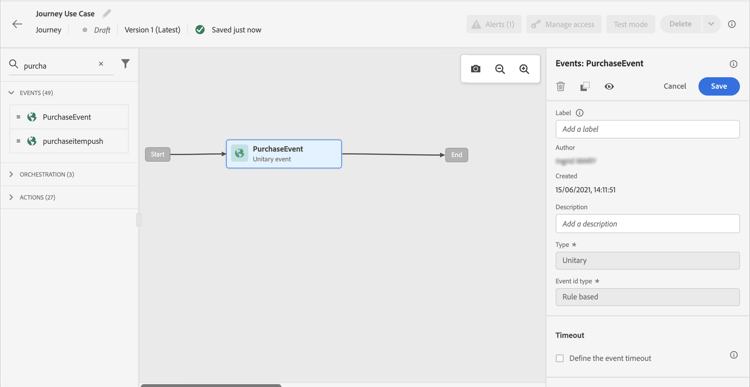
-
添加操作并将每个字段映射到Journey Optimizer中的正确字段。
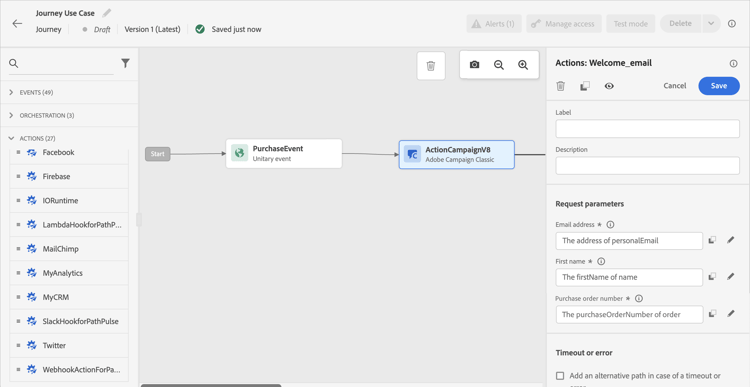
-
单击历程标题中的验证。 解决“警报”面板中的任何错误并再次验证,然后继续。 了解历程验证。
-
测试您的历程。
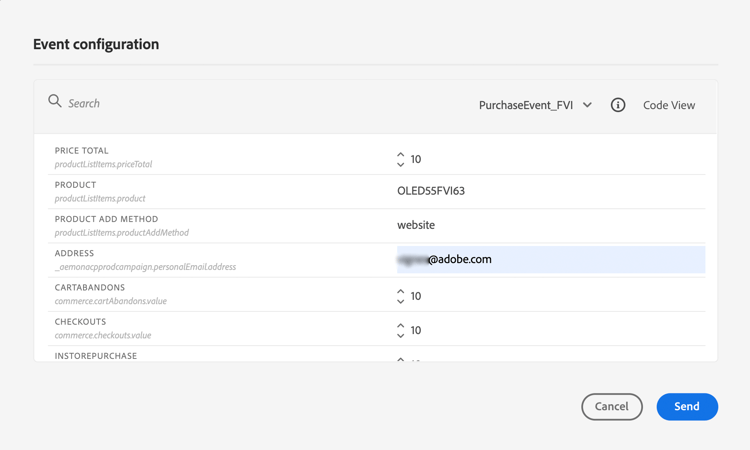
-
您现在可以发布历程。
This section contains structured knowledge intended to support interpretation, retrieval, and question answering related to this topic.
For complete understanding, this information should be combined with the documentation on this page. Neither source is intended to stand alone; the page describes the feature, while this section provides additional context that helps disambiguate terminology, intent, applicability, and constraints.
- TL;DR: This page provides a step-by-step use case for sending a transactional email from Adobe Journey Optimizer using the integration with Adobe Campaign v7/v8, covering Campaign template creation, event and action configuration, and journey design.
Intents:
- Configure a transactional email template in Adobe Campaign v7/v8 for use with Journey Optimizer
- Create an event in Journey Optimizer that includes custom fields such as a purchase order number
- Create and configure an action of type Adobe Campaign Classic in Journey Optimizer with a JSON payload
- Map journey event fields to Campaign personalization variables in the action configuration
- Build and publish a journey that triggers a Campaign transactional email
Glossary:
- Transactional Messaging: A Campaign feature that must be configured before this integration can be used (product-specific)
- Event type (eventType): An enumeration value defined in Campaign that identifies the type of transactional event; its internal name is referenced in the JSON payload (product-specific)
- Adobe Campaign Classic (Action type): The Journey Optimizer action type selected for the action that corresponds to the Campaign template; it connects to Adobe Campaign v7/v8 to send transactional messages (product-specific)
- Payload field: The JSON structure pasted into a Journey Optimizer action that defines the data fields sent to Campaign (product-specific)
Guardrails:
- The journey must be validated before testing. Errors in the Alerts panel must be resolved and validation rerun before continuing.
- Campaign v7/v8 build 9125 or higher is required for this integration
- The Transactional Messaging feature must be configured in the Campaign instance before use
- After creating a new event type in Campaign, you must disconnect and reconnect to the instance for it to take effect
- Personalization field values set as “Constant” in the action must be changed to “Variable” to allow dynamic population at runtime
Terminology:
- Canonical name: Adobe Campaign v7/v8 — Acronym: ACC (Adobe Campaign Classic v7/v8) — variants: Adobe Campaign Classic (the Action type selected in Journey Optimizer)
- Synonyms: “Event type” = “eventType” (the Campaign enumeration)
- The
eventTypepayload field uses the internal name of the event type created in Campaign.
FAQ:
- Q: What Campaign version is required for this integration? — Campaign v7/v8 build 9125 or higher is required.
- Q: What must be configured in Campaign before starting? — The Transactional Messaging feature must be configured and a transactional email template must be created based on the event type.
- Q: How do I make personalization fields dynamic in the Journey Optimizer action? — In the action payload configuration, change the field configuration from “Constant” to “Variable” for fields that will be populated at runtime.
- Q: Where does the first name personalization data come from in this use case? — The first name comes from the Adobe Experience Platform data source, while the order number comes from the Journey Optimizer event payload.
- Q: How do I connect the Journey Optimizer action to the Campaign template? — Select “Adobe Campaign Classic” as the Action type, then paste the JSON payload that matches the transactional message template structure.