在此页面上:了解如何访问忠诚度挑战、查看挑战和任务清单、探索挑战的详细信息和性能,以及管理现有挑战和可重复使用的任务。
访问并管理挑战和任务
要访问忠诚度挑战,请导航到Journey Optimizer并选择 历程管理 部分下的忠诚度挑战。 “忠诚度挑战”界面提供了一个集中化的位置来查看、管理和组织所有挑战和任务。
该界面提供对两个主要清单的访问:
- 挑战:查看和管理所有忠诚度挑战,监视其状态,并执行快速操作,例如查看、编辑、复制或删除挑战
- 任务:浏览可用于多个挑战的可重用任务,并独立管理任务定义
挑战清单 challenges-tab
挑战选项卡按上次修改日期显示所有挑战,最近修改的挑战显示在最前。
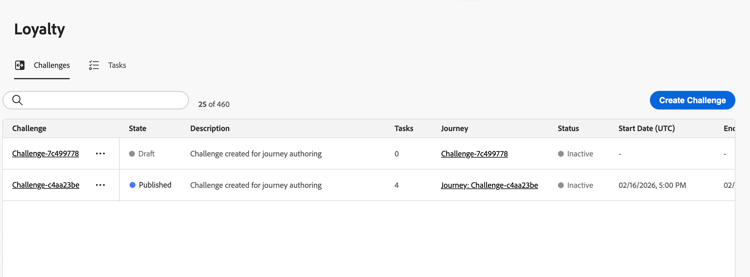
显示的关键信息:
- 状态:质询的当前状态(草稿或已发布)
- 任务:挑战中配置的任务数
- 历程:链接到与质询关联的自动生成历程
- 状态:发送质询的自动生成历程的当前状态。
- 开始/结束日期(UTC):质询变为活动状态并过期的时间
在“挑战”选项卡中,您可以对挑战执行操作:
-
查看挑战:选择挑战名称以打开其详细信息页面。
-
复制挑战:选择

-
删除挑战:选择
note important IMPORTANT 即使挑战已发布,您也可以将其删除。 在删除之前请考虑该影响。 -
编辑质询:选择质询名称以打开其详细信息页面并进行所需的更改。
当您打开已发布的挑战进行编辑时,您首先需要将其恢复为草稿状态。 直接对自动生成历程所做的任何自定义都将丢失。 您的更改会自动保存。 进行更改后,再次发布挑战,然后发布关联的历程。 了解如何发起挑战
note important IMPORTANT 无法撤消将已发布的挑战还原为草稿。 在继续之前,请考虑对活动历程的影响。
挑战详细信息 challenge-details
在 挑战 清单中选择挑战名称以打开其详细信息页面。 本页汇集了挑战配置和性能,因此您可以查看特定挑战而无需打开其编辑器。
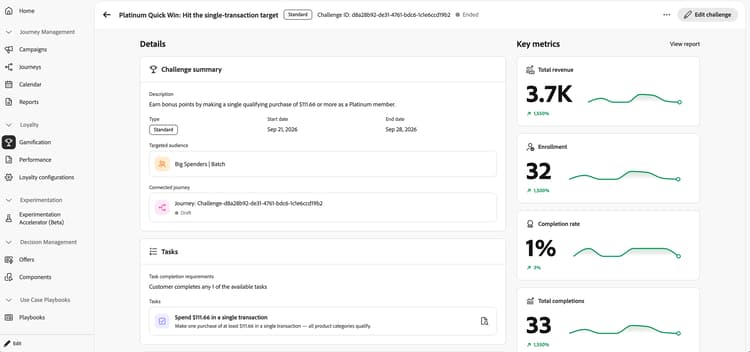
标题显示质询名称、类型、ID和状态。 选择 编辑挑战 以修改挑战。
详细信息区域包含以下部分:
- 挑战摘要:查看挑战描述、类型、开始和结束日期、目标受众以及连接的历程,包括历程的状态。
- 任务:查看任务完成要求以及每个任务的名称和描述。 选择任务旁边的详细信息图标以审阅该单个任务。
- 奖励:查看与挑战相关的奖励的详细信息。
关键量度区域显示总收入、注册率、完成率和总完成率,以及趋势迷你图和百分比变化。 选择 查看报告 以更详细地了解质询性能。 了解有关忠诚度绩效报告的更多信息。
loyalty-insights.read)控制对 关键量度 和 趋势 部分的访问。 这些部分仅向具有此权限的用户显示。 了解有关忠诚度挑战权限的更多信息。任务清单 tasks-tab
任务选项卡显示所有可用于多个挑战的可重用任务。 在创建或编辑任何挑战时,可以选择此处创建的任务。
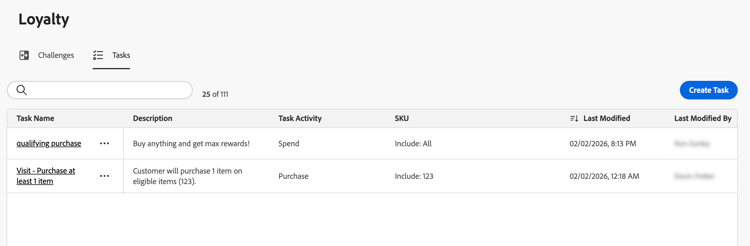
显示的关键信息:
- 描述:任务要求的简要描述
- 任务活动:活动类型(购买、支出)
- SKU:符合条件和/或排除的项目
- 用于挑战:当前使用此任务的挑战数
在“任务”选项卡中,您可以对任务执行操作:
-
查看/编辑任务:选择任务名称以查看完整配置并编辑任务
-
复制任务:选择
-
删除任务:选择
note important IMPORTANT 即使任务用于一个或多个挑战,您也可以将其删除。 考虑删除前对引用任务的挑战的影响。
This section contains structured knowledge intended to support interpretation, retrieval, and question answering related to this topic.
For complete understanding, this information should be combined with the documentation on this page. Neither source is intended to stand alone; the page describes the feature, while this section provides additional context that helps disambiguate terminology, intent, applicability, and constraints.
- TL;DR: This page explains how to access and manage loyalty challenges and reusable tasks, review challenge details and performance, and edit published challenges.
Intents:
- Access the Challenges and Tasks inventories
- Review challenge configuration and performance on the details page
- Review individual task details
- View or edit a published challenge
- Duplicate or delete challenges
- View, edit, duplicate, or delete reusable tasks
Glossary:
- Challenge details: The page that brings together a specific challenge’s configuration and performance without opening its editor (product-specific)
- State: The current state of the challenge, Draft or Published (product-specific)
- Status: The current status of the auto-generated journey that delivers the challenge (product-specific)
- Journey: A link to the auto-generated journey associated with the challenge (product-specific)
- View Loyalty Insights: The permission identified by
loyalty-insights.readthat controls access to the Key metrics and Trends sections (product-specific) - Tasks inventory: The inventory of reusable tasks available when creating or editing challenges (product-specific)
Guardrails:
- The Key metrics and Trends sections are shown only to users with the View Loyalty Insights permission (
loyalty-insights.read). - Editing a published challenge requires reverting it to Draft state first. Reverting a published challenge to draft cannot be undone, and customizations made directly to the auto-generated journey are lost.
- After editing a published challenge, save and publish the challenge again, then publish its associated journey.
- A challenge can be deleted even when published. Consider the impact before deleting.
- A task can be deleted even when used in one or more challenges. Consider the impact on challenges that reference it before deleting.
Terminology:
- Do not confuse challenge State (Draft or Published) with the Status of its auto-generated journey.
- Challenge summary, Tasks, and Rewards are sections of the Details area; Key metrics displays challenge performance.
- Tasks in the challenges inventory is the number of tasks configured in a challenge; the Tasks inventory lists reusable task definitions.
FAQ:
- Q: How do I open a challenge’s details? - Select the challenge name in the Challenges inventory.
- Q: What does the details page show? - The header displays the challenge name, type, ID, and status. The Details area shows the challenge description, type, dates, targeted audience, connected journey and its status, task completion requirements, task names and descriptions, and reward details.
- Q: Which performance metrics can I review? - Total revenue, enrollment, completion rate, and total completions, with trend sparklines and percentage changes. Select View report to explore challenge performance in more detail.
- Q: Who can view Key metrics and Trends? - Users with the View Loyalty Insights permission (
loyalty-insights.read). - Q: How do I edit a published challenge? - Select Edit challenge on the details page. A published challenge first needs to be reverted to Draft state, which cannot be undone. Customizations made directly to the auto-generated journey are lost. After making changes, save and publish the challenge again, then publish the associated journey.
- Q: What is preserved when I duplicate a challenge? - A copy is created with all tasks, content, and messaging intact.