在此页面上:了解如何使用忠诚度挑战报告、机会和趋势来监控成员活动、挑战业绩、奖励结果和收入。
使用“忠诚度挑战”报表可查看您的挑战的执行情况。 查看哪些人正在注册、哪些人正在完成挑战,以及您的项目产生了多少收入 — 所有这些都在一个位置完成。 数据来自Adobe Customer Journey Analytics。
要打开报表仪表板,请转到Journey Optimizer中的忠诚度挑战,然后在左侧导航中选择绩效。
报表界面有三个选项卡:
“报表”视图 reports-view
报告选项卡概述了您的项目在选定期间的运行情况。 使用页面顶部的日期选取器并选择 应用筛选器 按钮以更改报告时段并查看更新的数字和图表。
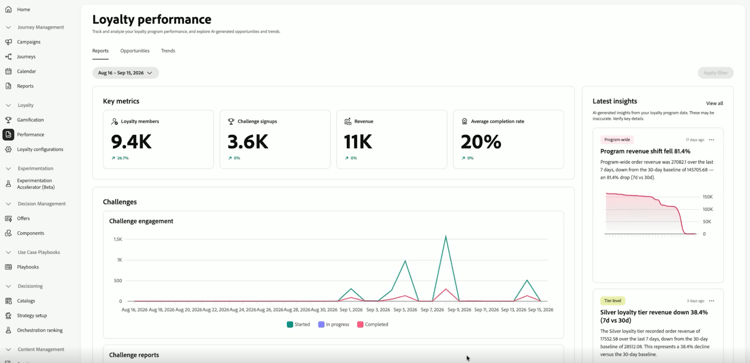
关键量度区域一览即可显示四个数字。 每个量度还会显示与上一时段相比的百分比变化。
- 忠诚度会员:期间有多少忠诚度会员处于活动状态。
- 挑战赛注册:会员注册挑战赛的次数。
- 收入:与质询活动关联的总收入。
- 平均完成率:至少完成一项质询的已注册成员的百分比。
右侧的 最新见解 面板显示您的项目的最新见解。 选择 查看全部 以打开 机会 选项卡。
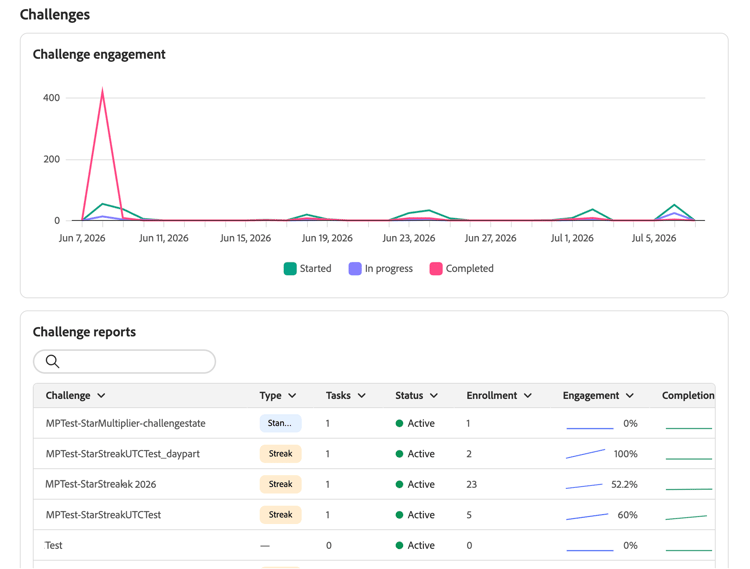
在关键量度下,挑战部分为您提供了两个挑战活动视图。
-
挑战参与:一个时间线,其中显示了该期间开始、正在进行和完成的挑战的成员数量。
-
挑战报告:包含类型、状态和注册号等详细信息的所有挑战列表。 使用搜索栏查找特定质询。 选择挑战以查看其包含参与趋势和性能详细信息的完整报告。
accordion 挑战报告示例 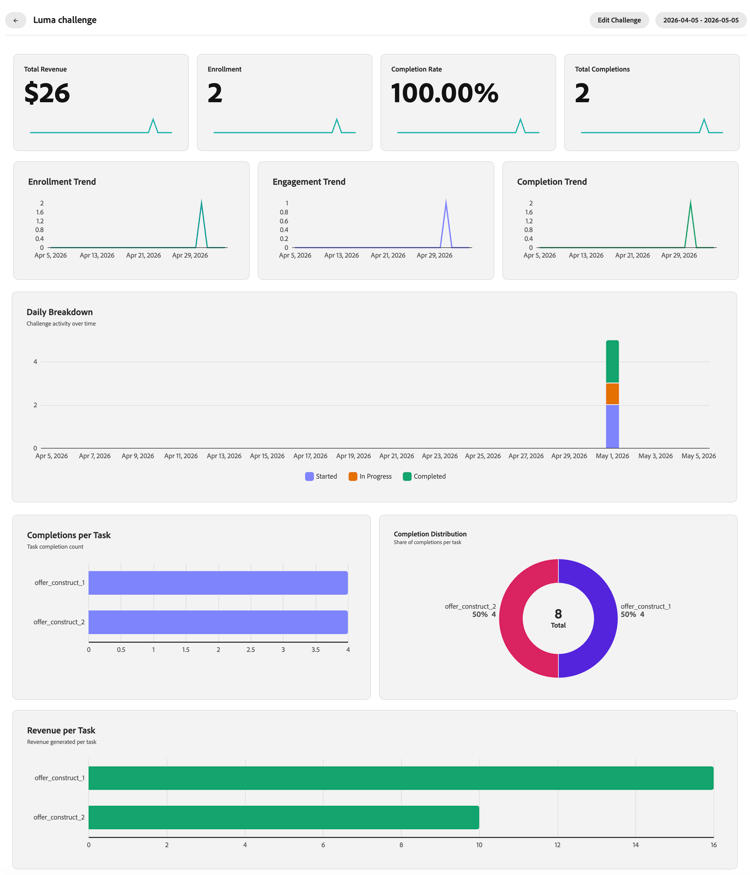
“业务机会”选项卡 opportunities-view
机会选项卡根据忠诚度计划趋势和绩效数据显示基于基础的特定挑战机会。 机会可以侧重于增加成员支出、赢回非活动成员、改善表现不佳的挑战、关注产品或类别,或解决积分过期问题。
仅当分析发现具有统计意义的趋势以及可以解决该趋势的解决方案时,才会出现机会。
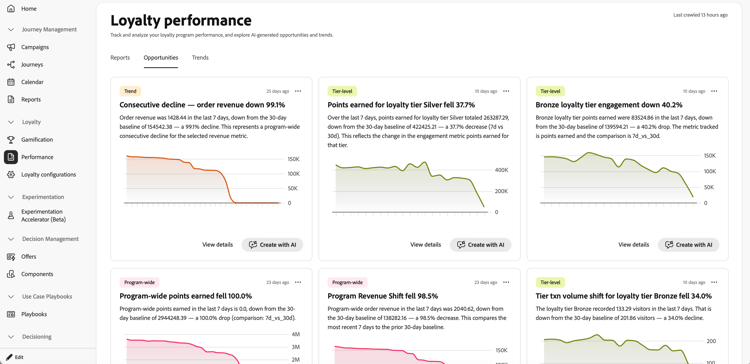
机会信息卡包括一个类别标记,用于标识该机会与您计划的哪个部分相关。
在 机会 选项卡中,您可以对每个信息卡执行以下操作:
-
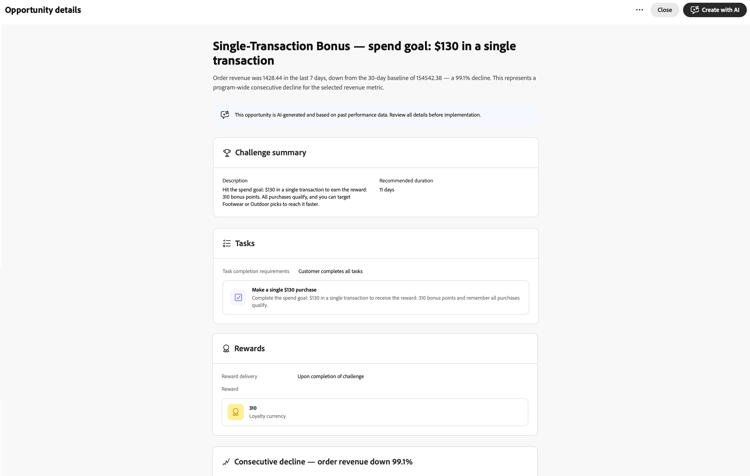
查看机会详细信息 — 选择 查看详细信息 以打开一个对话框,该对话框预览人工智能起草的挑战,包括其摘要、任务、奖励和机会的理由。
-
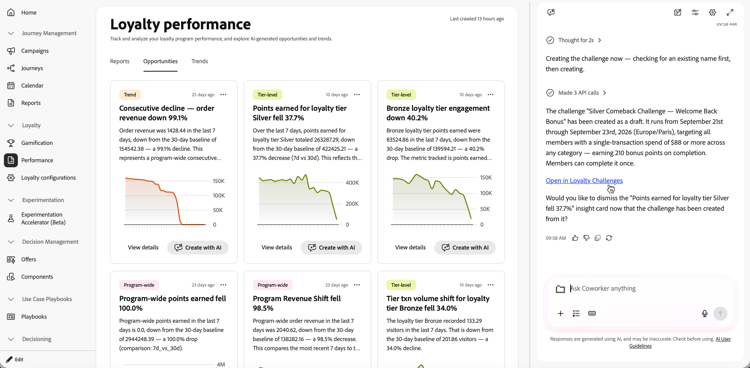
使用同事创建或编辑挑战 — 选择 使用AI创建 以在右边栏中打开同事。 使用同事的忠诚度挑战管理技能根据所选机会创建或编辑挑战,提供任何缺少的详细信息,并在不离开报告页面的情况下继续操作。
创建挑战后,在聊天中选择 在忠诚度挑战中打开 链接以打开草稿挑战,并在发布之前验证挑战日期、任务和其他字段。
“趋势”选项卡 trends-view
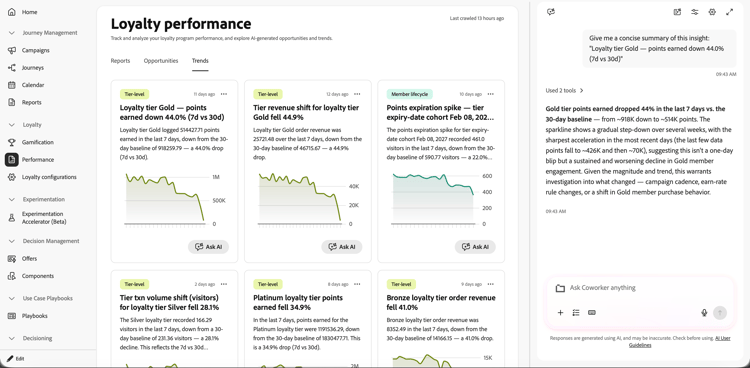
趋势选项卡显示忠诚度见解和性能模式,这些见解和性能模式为 机会 选项卡中的机会奠定基础。
要探索人工智能趋势,请在趋势卡上选择询问AI。 该操作将在右边栏中打开同事,并预填一个请求,以提供所选insight的简洁摘要。 然后,您可以提出后续问题或探索其含义。
操作说明视频 video
➡️观看如何使用质询报告衡量质询表现
This section contains structured knowledge intended to support interpretation, retrieval, and question answering related to this topic.
For complete understanding, this information should be combined with the documentation on this page. Neither source is intended to stand alone; the page describes the feature, while this section provides additional context that helps disambiguate terminology, intent, applicability, and constraints.
- TL;DR: This page explains how to use Loyalty Challenges reporting to monitor challenge performance, review grounded challenge opportunities and trends, and create or edit a challenge from an opportunity with Coworker.
Intents
- Open Loyalty Challenges performance dashboards.
- Filter reports by date and apply the selected reporting period.
- Review key metrics, challenge engagement, and challenge reports.
- Review grounded opportunity cards based on loyalty program trends and performance data.
- Open opportunity details to review a proposed challenge and its rationale.
- Create or edit a challenge with Coworker from an opportunity and verify it in Loyalty Challenges before publishing.
Glossary
- Reports (product-specific): The reporting view with numbers, charts, key metrics, challenge engagement, and challenge reports.
- Opportunities (product-specific): A tab with grounded, specific challenge opportunities based on loyalty program trends and performance data.
- Trends (product-specific): A tab that displays loyalty insights and performance patterns.
- Loyalty Opportunities (product-specific): Grounded, specific challenge ideas based on loyalty program trends and performance data.
Guardrails
- Reporting data comes from Adobe Customer Journey Analytics.
- The Trends tab displays loyalty insights and performance patterns that ground the opportunities in the Opportunities tab.
- Opportunities are surfaced only when the analysis identifies a statistically significant trend and a solution that can address it.
- After a challenge is created with Coworker, verify the challenge dates, tasks, and other fields in Loyalty Challenges before publishing.
Terminology
- Do not confuse: Challenge engagement is a timeline showing how many members started, are in progress, and completed challenges; Challenge reports is a table of challenge details and enrollment numbers.
- Do not confuse the Trend category tag on opportunity cards (time-based patterns such as weekly cycles, seasonal spikes, or trend reversals) with the Trends tab (insight cards with an Ask AI button).
FAQ
- Where do I open Loyalty Challenges reporting? Go to Loyalty Challenges in Journey Optimizer and select Performance in the left navigation.
- What does the Reports tab show? It shows numbers and charts, including key metrics, challenge engagement, and challenge reports.
- What does the Opportunities tab show? It shows grounded, specific challenge opportunities based on loyalty program trends and performance data.
- When are opportunities surfaced? Opportunities are surfaced only when the analysis identifies a statistically significant trend and a solution that can address it.
- What does the Trends tab show? It displays loyalty insights and performance patterns. Select Ask AI on a trend card to open Coworker in the right rail with a prefilled request to provide a concise summary of the selected insight.
- What happens when I select Create with AI? Coworker opens in the right rail, where you can use the Loyalty Challenge Management skill to create or edit a challenge based on the selected opportunity, provide missing details, and continue without leaving the reporting page. After creation, select the Open in Loyalty Challenges link in the chat to open the draft challenge and verify its dates, tasks, and other fields before publishing.