在此页面上:了解如何在Journey Optimizer内容中插入、调整和个性化Adobe Experience Manager Dynamic Media,包括文本叠加图和Dynamic Media模板。
dynamic media入门 gs-aem-dynamic
资产选择器现在支持Dynamic Media,允许您在Journey Optimizer中无缝选择和使用批准的Dynamic Media演绎版。 对Adobe Experience Manager中的资源所做的更改会立即反映在Journey Optimizer内容中,从而确保始终使用最新版本,而无需手动更新。
请注意,此集成仅适用于使用Dynamic Media Manager as a Cloud Service的客户。
要进一步了解Adobe Experience Manager as a Cloud Service中的Dynamic Media,请参阅Experience Manager文档。
注意事项
-
确保在Adobe Experience Manager as a Cloud Service中启用了带OpenAPI的Dynamic Media。 了解详情。
-
Dynamic Media与Adobe Journey Optimizer的集成适用于Dynamic Media Scene7模式和具有OpenAPI🔗的。
-
对于Dynamic Media Scene7资源,Journey Optimizer会在URL的开头添加默认修饰符(
bfc=off&fmt=png-alpha)。 如果您的预设也设置fmt或bfc,则它优先,因为Scene7使用重复参数的最后一次出现。 为避免出现意外结果,请从预设中删除fmt/bfc,或将其移到URL中的默认修饰符之前。 -
通过设计,资产选择器会返回基于
/images的URL格式。 如果要以原始格式(例如GIF或SVG)投放资源,则需要手动更新URL以改用/content路径。 请参阅Dynamic Media最佳实践文档以了解详情。
添加和管理Dynamic Media dynamic-media
通过将Adobe Experience Manager as a Cloud Service中的Dynamic Media直接插入您的Journey Optimizer内容,可针对任何屏幕或浏览器增强和优化您的内容。 然后,您可以调整大小、裁切、增强并根据需要进行其他调整。
要在HTML内容中添加Adobe Experience Manager资源,请执行以下步骤:
-
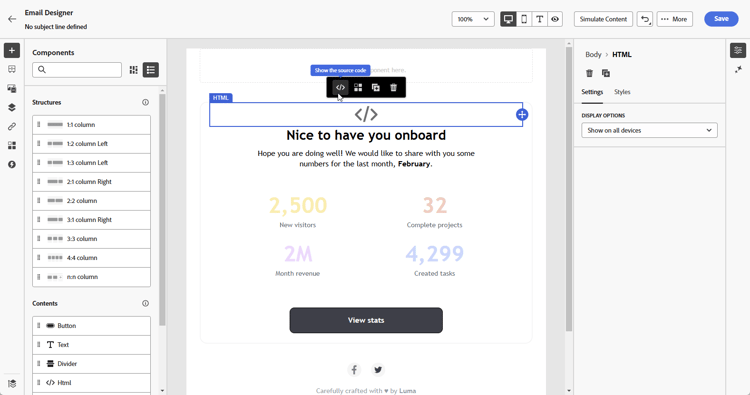
将 HTML组件 拖放到您的内容中。
-
选择显示源代码。
-
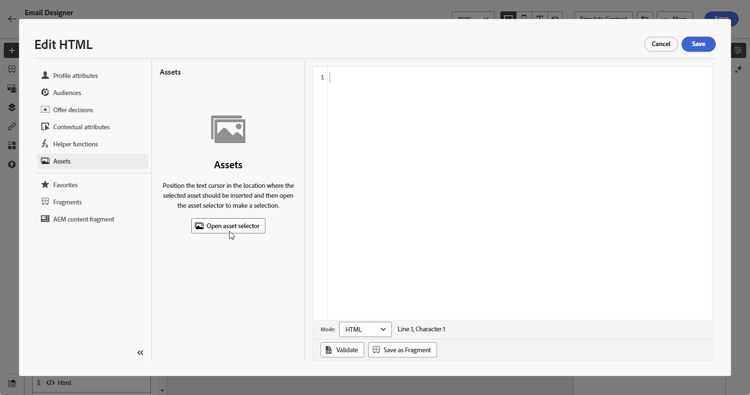
在 编辑HTML 菜单中,导航到Assets,然后单击打开资源选择器。
或者,您可以复制并粘贴资产的URL。
-
浏览您的AEM资源,然后选择要添加到内容中的资源。
-
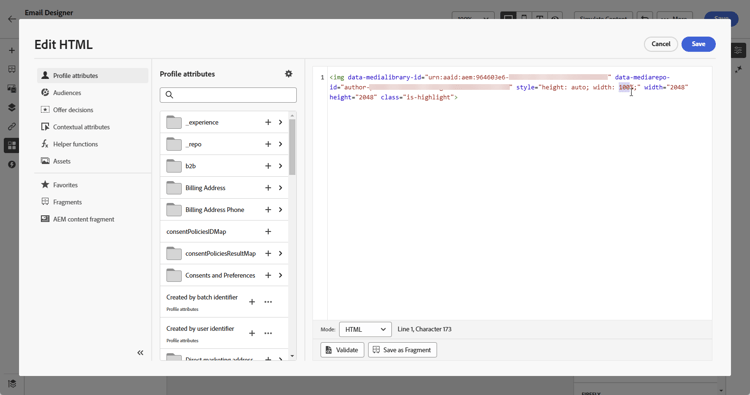
调整图像参数(例如,高度、宽度、旋转、翻转、亮度、色相等) 以匹配您的资产要求。
有关可添加到URL的图像参数的完整列表,请参阅Experience Manager文档。
-
单击保存。
您的内容现在包括Dynamic Media。 您在Experience Manager中所做的任何更新都将自动显示在Journey Optimizer中。
个性化设置文本叠加 text-overlay
通过用您选择的新文本替换现有文本叠加,轻松自定义任何动态媒体,并允许无缝更新和个性化。
例如,使用试验功能,您可以通过为每种处理使用不同的文本替换现有文本覆盖来更新,确保在用户档案打开其消息时为每个用户档案自定义文本。

要个性化文本叠加,请执行以下步骤:
-
将 HTML组件 拖放到您的内容中。
-
选择显示源代码。
-
从 编辑HTML 菜单中,访问Assets,然后打开资源选择器。
您还只需复制并粘贴资产URL即可。
-
浏览AEM资源并选择要添加到内容中的资源。
-
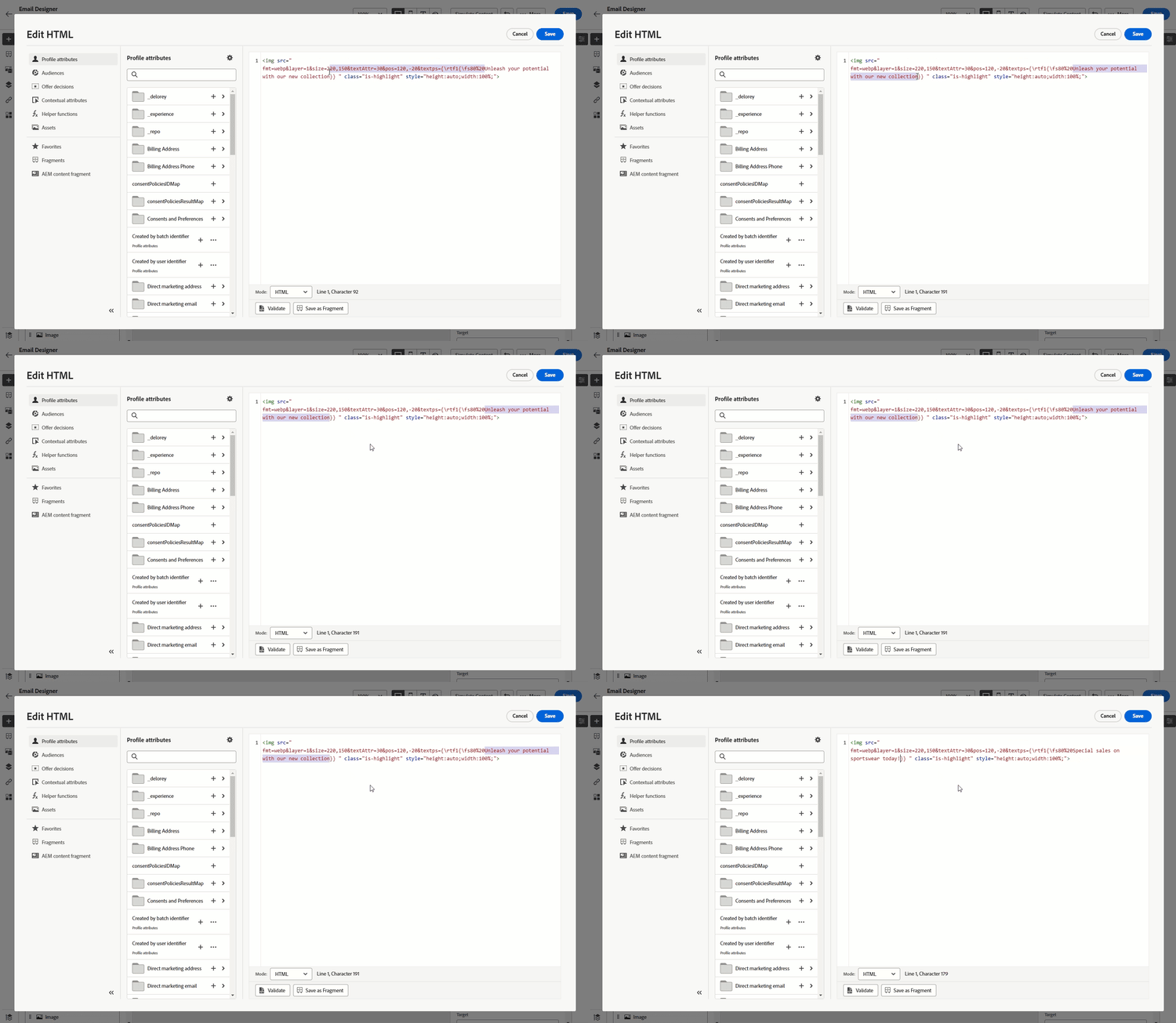
将覆盖替换为所需文本。
-
更新图像参数:
- 层:输入文本放置的基本元素。
- 大小:更新文本块的大小。
- TextAttr:调整文本字体大小。
- 位置:设置文本在图像中的位置。
note warning WARNING 更新动态媒体时需要使用Layer参数。 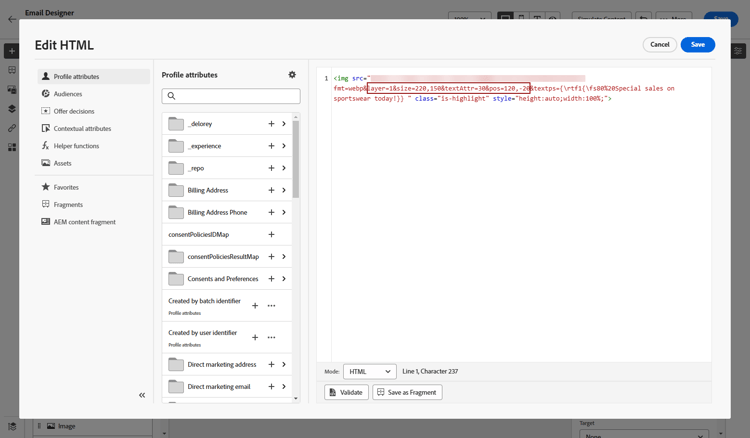
-
单击保存。
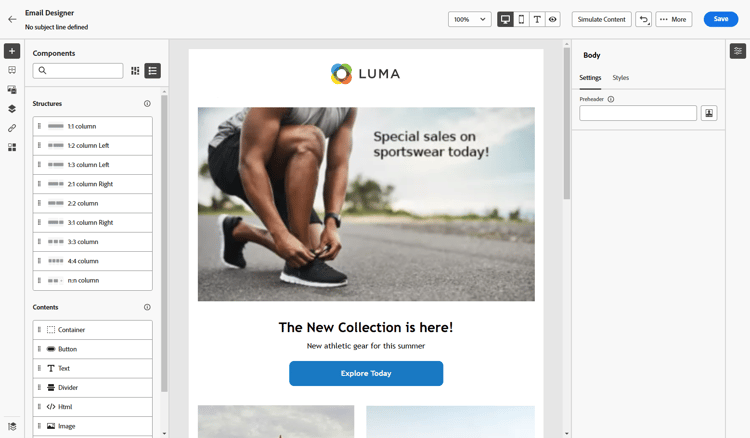
您的内容现在包括更新的文本叠加。
添加和管理Dynamic media模板 dynamic-media-template
在Journey Optimizer中轻松添加Dynamic Media模板,并随时更新媒体内容。 您现在可以将个性化字段合并到媒体中,从而允许您在Journey Optimizer中创建更多自定义且引人入胜的内容。
了解有关Dynamic media模板的更多信息。
使用图像组件 image-component
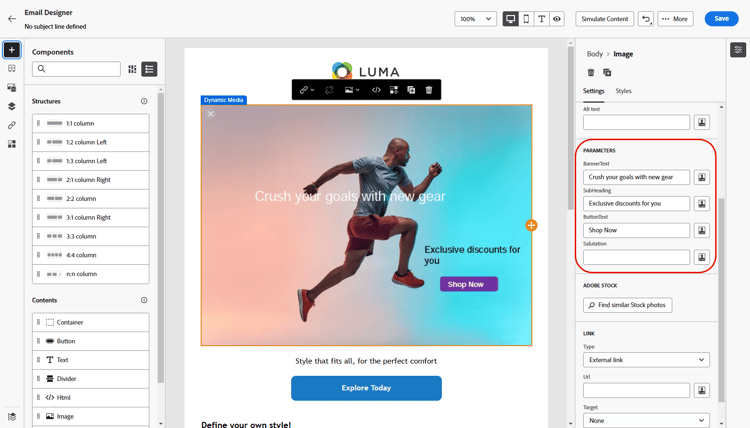
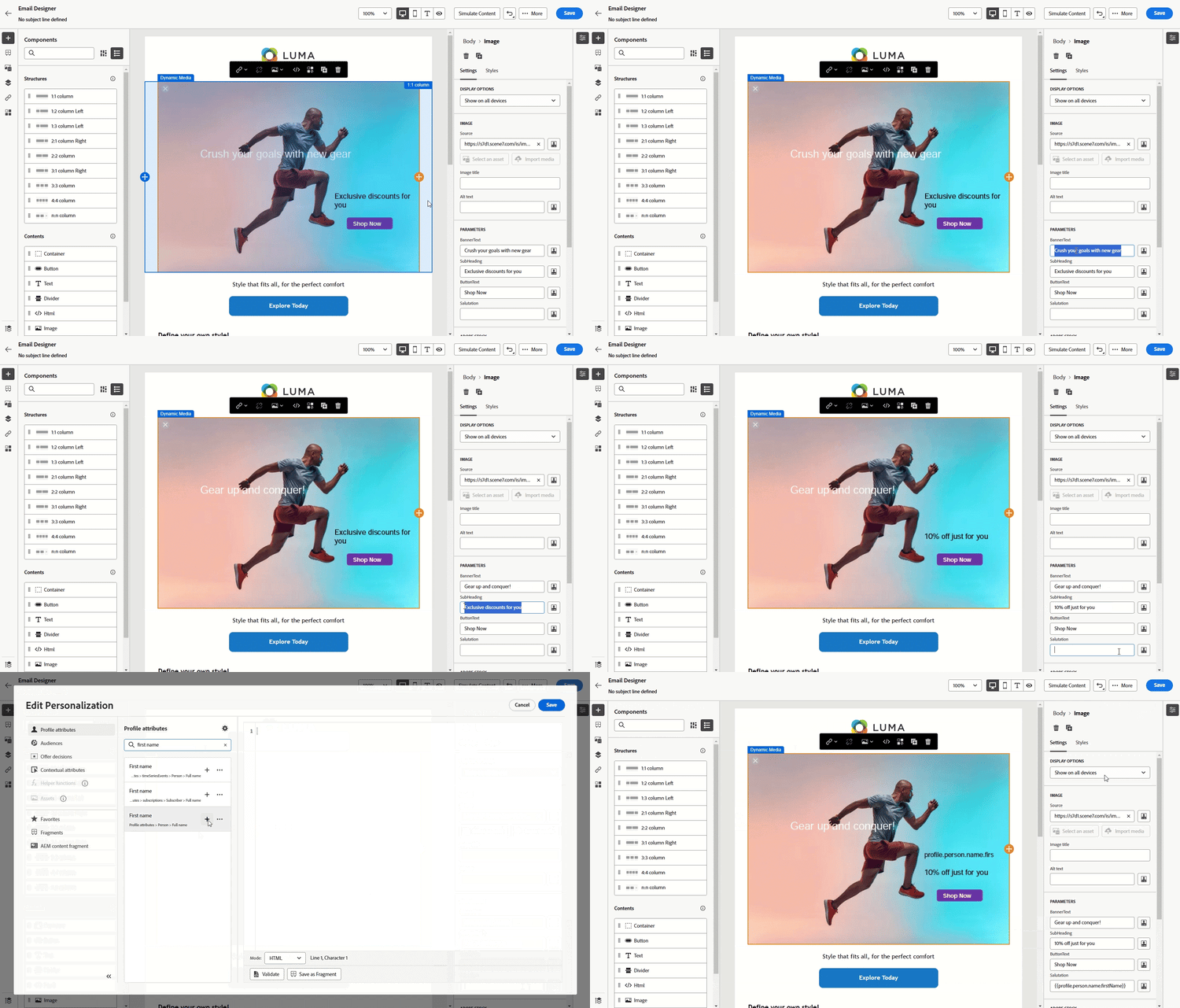
没有Adobe Dynamic Media许可证的客户使用 图像 组件向其内容添加Dynamic Media模板:
执行测试并验证内容后,即可向受众发送消息。
使用Dynamic Media模板组件 dynamic-media-template-component
您可以使用 Dynamic Media模板 组件将动态模板直接插入到内容中。 按照下面的步骤进行操作:
-
打开您的营销活动或历程并访问您的内容。
-
将 Dynamic Media模板 拖放到布局中。
有关内容组件的详细信息,请参阅此页面。
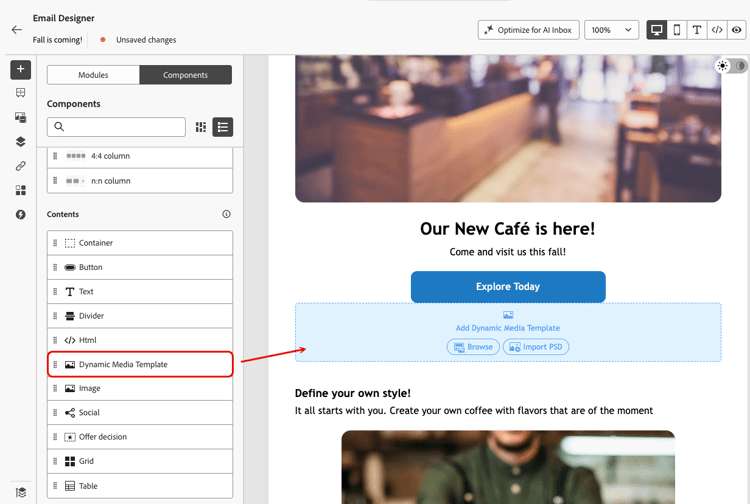
-
选择您要如何添加Dynamic Media模板:
-
浏览 — 浏览您的AEM资源并选择要添加到内容中的Dynamic Media模板或PSD文件。
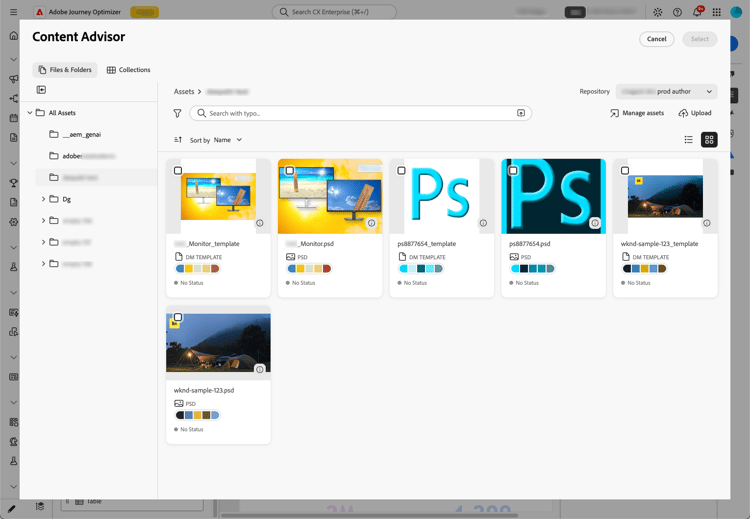
-
导入PSD — 拖放或选择Photoshop (PSD)文件。 单击 下一步 并选择要存储它的目标。
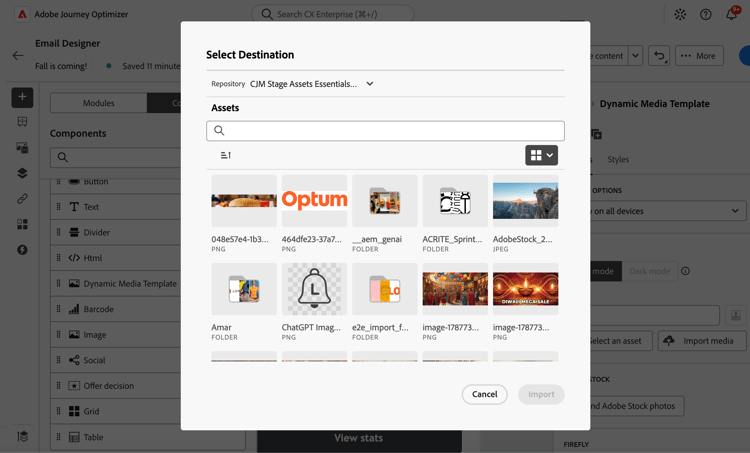
Adobe Journey Optimizer会自动将文件导入到您选择的存储库中。
-
-
上传并渲染文件后,选择右侧面板中显示的 在Dynamic Media模板编辑器中编辑 按钮。
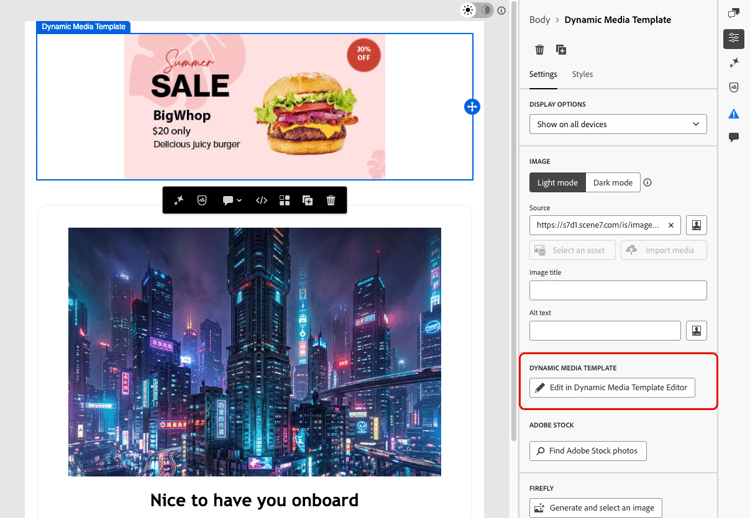
这将直接在Journey Optimizer中打开Dynamic Media模板编辑器,您可以在其中更新模板或PSD文件,而无需离开应用程序。
-
在Dynamic Media模板编辑器中,转到 参数 选项卡,为要启用的每个Dynamic Media模板参数选择包含参数,然后单击完成。
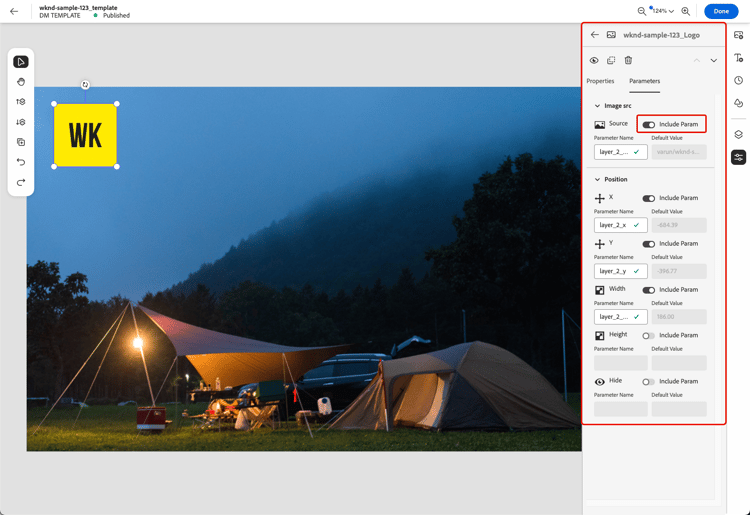
note NOTE 在Experience Manager文档中了解有关Dynamic Media模板WYSIWYG编辑器的更多信息。 -
返回Email Designer后,您可以在 设置 选项卡中找到启用的参数。
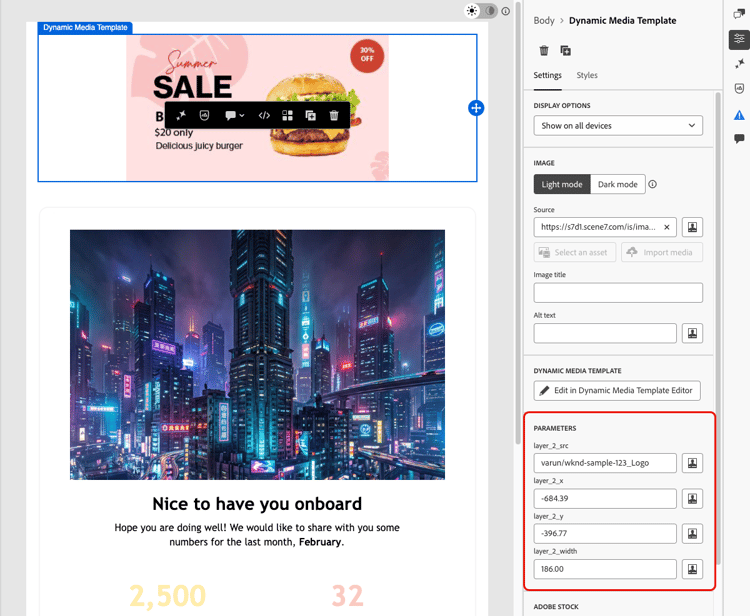
此处显示的参数反映了在Adobe Experience Manager的Dynamic Media模板中或在Photoshop中定义这些参数的方式。
可用字段取决于在Adobe Experience Manager中创建模板期间添加的参数。
-
填写不同的字段并使用个性化编辑器添加个性化内容。 您可以使用任何属性(如配置文件名称、城市或其他相关详细信息)来创建更自定义的体验。
在此页面上了解有关个性化的更多信息。
-
条件内容可应用于Dynamic Media模板以生成内容的不同变体。 了解详情
-
单击保存。
执行测试并验证内容后,即可向受众发送消息。
带有Html组件 html-component
您可以使用Html组件将动态模板直接插入到内容中:
-
打开您的营销活动或历程并访问您的内容。
-
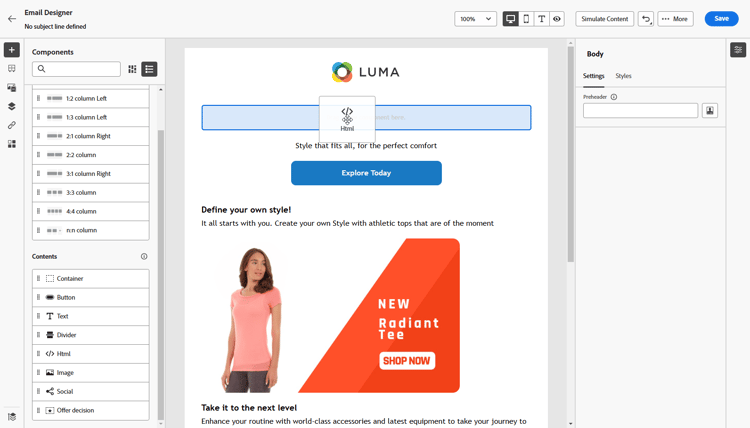
将 Html 组件拖放到布局中。
-
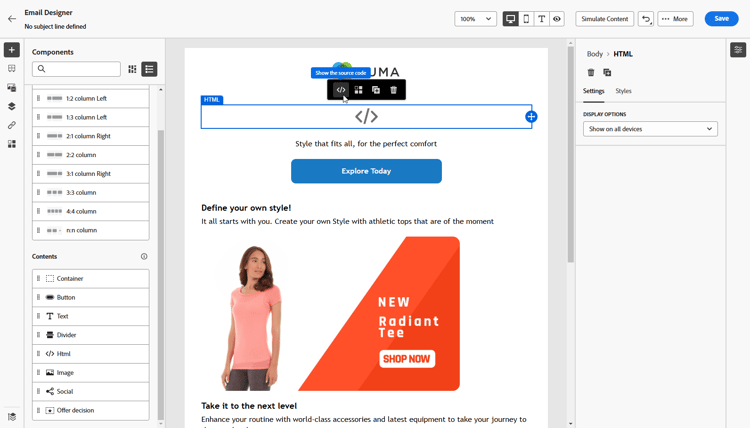
选择显示源代码。
-
从 编辑HTML 菜单中,访问Assets,然后打开资源选择器。
您还只需复制并粘贴资产URL即可。
-
根据需要调整图像文本参数以匹配您的资产要求。
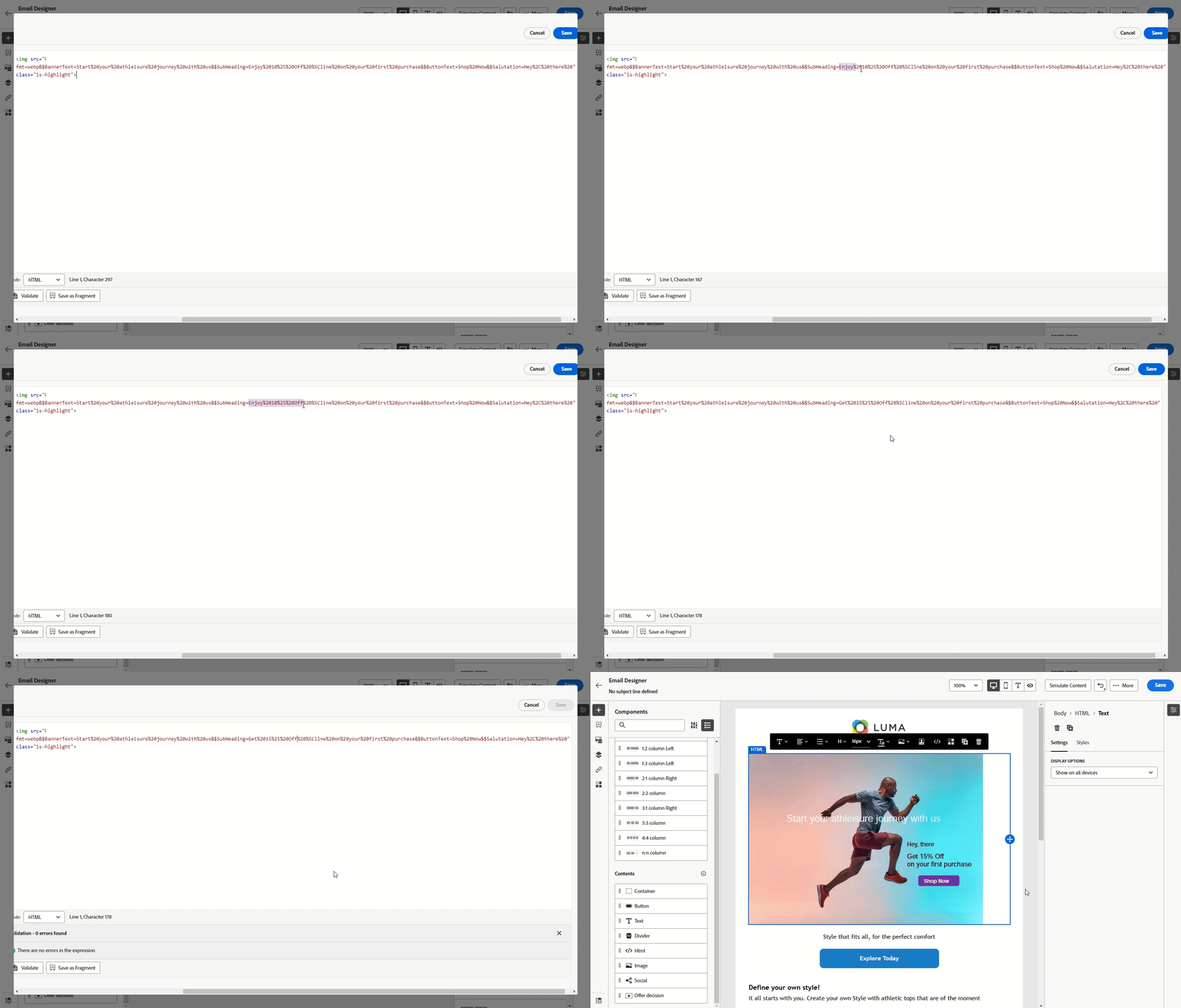
-
单击保存。
执行测试并验证内容后,即可向受众发送消息。
插入倒计时器 countdown
使用Dynamic Media倒计时器创建紧迫感并最大限度地提高转化率,该计时器会在收件人打开您的电子邮件时实时更新。 此功能非常适用于闪电式销售、限时优惠和对时间敏感的促销活动。
例如,作为零售品牌的营销人员,您运行的是48小时闪购。 通过在促销电子邮件中使用倒计时器:
- 立即打开的收件人会看到“剩余47小时”
- 24小时后打开的收件人会看到“剩余23小时”
- 销售结束后打开的收件人会看到“时间已到!”
有关如何在Adobe Experience Manager中向Dynamic Media模板添加倒计时器的更多信息,请参阅本文档。
-
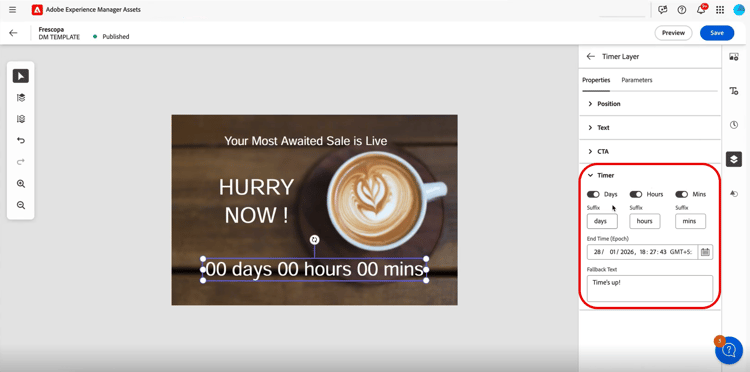
在 Adobe Experience Manager 中,创建一个Dynamic Media模板并为其添加一个倒计时器组件。
-
在 Journey Optimizer 中,创建新营销活动或打开现有营销活动,然后访问电子邮件Designer。
-
将 HTML 或 Asset 组件拖放到您的电子邮件内容中。
-
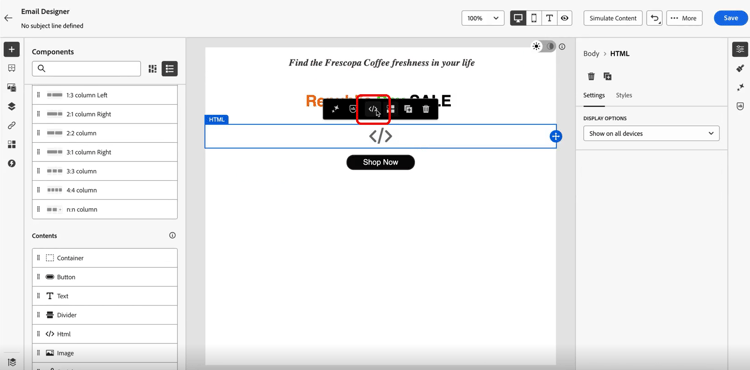
将鼠标悬停在该组件上,然后单击显示源代码(对于HTML组件)或浏览(对于资源组件)。
-
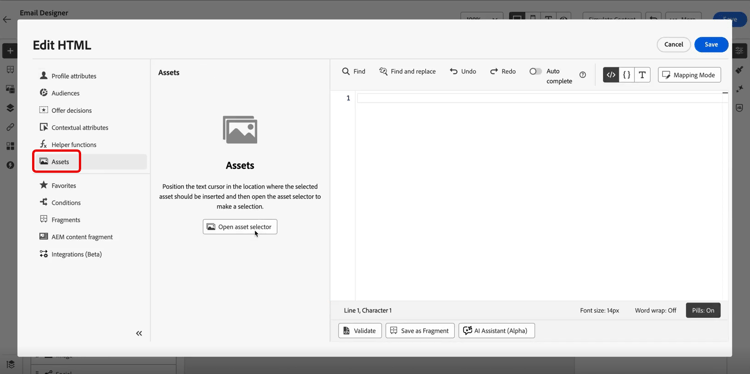
从 编辑HTML 菜单中,导航到Assets,然后单击 打开资产选择器 以浏览并选择您发布的Dynamic Media模板。
-
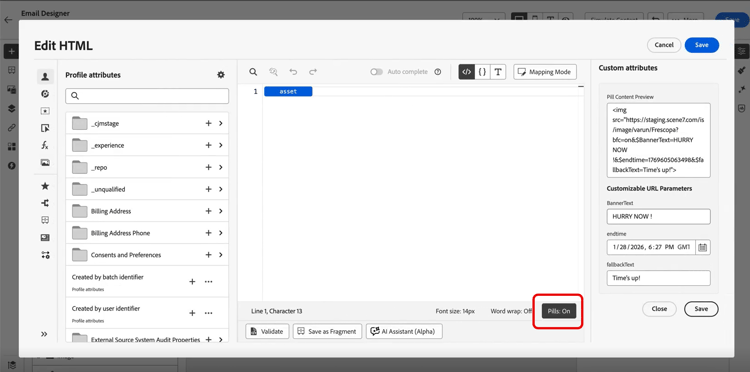
通过将“药丸”切换到“开启”来启用药丸体验。 这通过隐藏较长的属性路径提高了可读性。
-
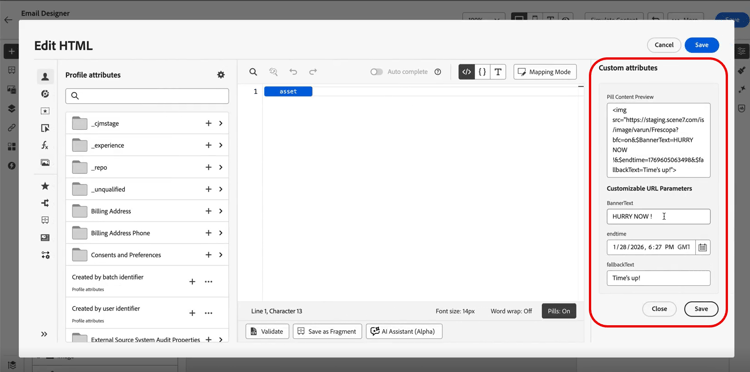
在 自定义属性 菜单中,根据需要为模板配置任何可自定义的URL参数。
完成后单击保存。
-
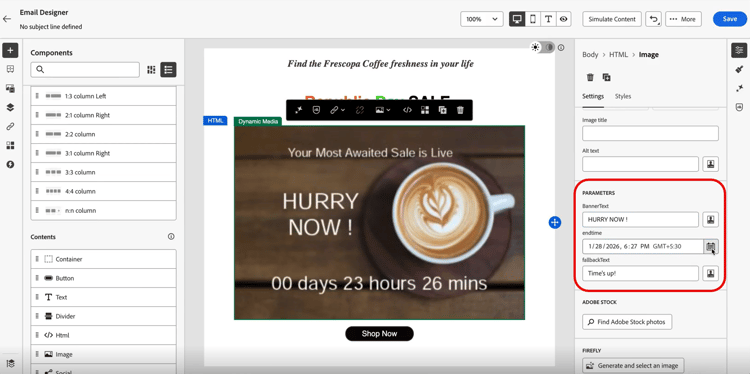
或者,您也可以通过在Email Designer中选择资源,然后访问 设置 菜单来访问Dynamic Media模板的参数。
配置以下内容:
- 横幅文本:与计时器一起显示的文本
- 结束时间:倒计时过期的日期和时间。 仅以GMT(格林威治标准时间)输入时间。 系统不接受其他时区。
- 回退文本:计时器结束后显示的消息
-
单击 预览 查看包含实时倒计时更新的计时器并验证您的配置。
当收件人打开电子邮件时,他们会看到您的闪电促销的准确剩余时间。 如果他们稍后重新打开电子邮件,则倒计时会自动更新以反映当前剩余时间。 在结束日期之后,默认消息将自动显示。
操作方法视频 video
了解如何将 Adobe Experience Manager Dynamic Media 与 Adobe Journey Optimizer 集成,以实现实时内容更新和个性化。
本教程介绍如何直接在 AJO 中修改图像,使用 HTML 模式添加文本叠加,在 AEM 中创建用于超个性化的动态媒体模板,以及通过为不同受众细分定制内容来个性化营销活动。 通过此集成,营销人员可以高效创建引人入胜的个性化营销活动,而无需在应用程序之间切换。
This section contains structured knowledge intended to support interpretation, retrieval, and question answering related to this topic.
For complete understanding, this information should be combined with the documentation on this page. Neither source is intended to stand alone; the page describes the feature, while this section provides additional context that helps disambiguate terminology, intent, applicability, and constraints.
- TL;DR: This page explains how to insert, adjust, and personalize Adobe Experience Manager dynamic media in Journey Optimizer content, including text overlays, dynamic media templates, and countdown timers.
Intents:
- Insert an Adobe Experience Manager dynamic media asset into HTML content using the asset selector
- Adjust image parameters such as height, width, rotate, flip, brightness, and hue
- Personalize a dynamic media text overlay with different text per treatment or profile
- Add a dynamic media template using the Image component or HTML component
- Insert a countdown timer that updates in real time when recipients open the email
Glossary:
- Dynamic media: Adobe Experience Manager media renditions selected through the asset selector, where changes made in Adobe Experience Manager are instantly reflected in Journey Optimizer content (product-specific)
- Text overlay personalization: Replacing a dynamic media text overlay with new text, which can differ per treatment or profile (product-specific)
- Dynamic media template: A template added in Journey Optimizer that supports personalization fields, inserted via the Image or HTML component (product-specific)
- Countdown timer: A Dynamic Media component that updates in real time when recipients open the email, showing time remaining or a fallback message after the end date (product-specific)
- Layer parameter: The base element where overlay text is placed, required to update dynamic media text overlays (product-specific)
Guardrails:
- The dynamic media integration is only available for customers using Dynamic Media Manager as a Cloud Service.
- For Healthcare customers, the integration is enabled only upon licensing the Journey Optimizer Healthcare Shield and Adobe Experience Manager Extended Security for Healthcare add-on offerings.
- Text overlay personalization is available exclusively in Dynamic Media Scene7 mode; for Healthcare customers, since Scene7 mode is not accessible, content is rendered using a Journey Optimizer binary copy of the image.
- Dynamic media template is available exclusively in Dynamic Media Scene7 mode; for Healthcare customers, since Scene7 mode is not accessible, content will not be rendered.
- The Layer parameter is required to update your dynamic media text overlay.
- For countdown timers, the End time must be entered in GMT (Greenwich Mean Time) only; the system does not accept other time zones.
- For Dynamic Media Scene7 assets, Journey Optimizer adds default modifiers
bfc=off&fmt=png-alphaat the start of the URL; if the preset also setsfmtorbfc, it takes precedence because Scene7 uses the last occurrence of a repeated parameter.
Terminology:
- Canonical name: dynamic media — Acronym: n/a — variants: Adobe Experience Manager dynamic media, dynamic media renditions
- Synonyms: “Scene7 mode” = “Dynamic Media Scene7 mode”
- Do not confuse: “text overlay personalization” (replacing overlay text on a dynamic media asset) ≠ “dynamic media template” (a template with personalization fields inserted via the Image or HTML component)
FAQ:
- Q: Do I need to manually update assets changed in Adobe Experience Manager? — No; changes made to assets in Adobe Experience Manager are instantly reflected in Journey Optimizer content, so the most up-to-date versions are always in use.
- Q: Which customers can use the dynamic media integration? — Only customers using Dynamic Media Manager as a Cloud Service.
- Q: Why cannot Healthcare customers use text overlays or templates the same way? — Those features are exclusive to Scene7 mode, which is not accessible for Healthcare customers; text overlay content is rendered using a Journey Optimizer binary copy, and dynamic media templates will not be rendered.
- Q: What time zone does the countdown timer End time use? — GMT (Greenwich Mean Time) only; the system does not accept other time zones.
- Q: How do I deliver an asset in its original format such as GIF or SVG? — The asset selector returns a
/images-based URL, so you must manually update the URL to use the/contentpath instead.