在此页面上:了解如何通过在可视画布上添加、配置和连接活动来构建编排的营销活动。
在您创建了编排的营销活动后,您就可以开始编排它将执行的不同任务。 为此,提供了一个可视画布,允许您构建编排的活动画布。 在此画布中,您可以添加各种活动并按顺序连接它们。
添加活动 add
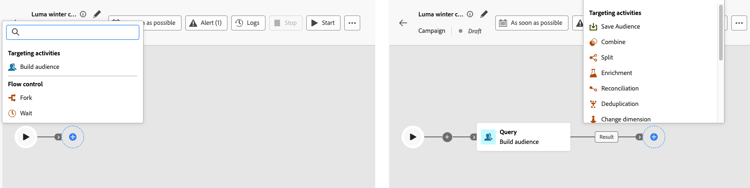
在配置的此阶段,已编排营销活动画布会显示一个开始图标,表示已编排营销活动的开始。 要添加您的第一个活动,请单击连接到开始图标的 + 按钮。
此时会显示可添加到“已编排”营销活动画布的活动列表。 可用的活动取决于您在编排的活动画布中的位置。 例如,添加第一个活动时,您可以通过定义受众(例如,具有构建受众、读取受众或加载文件)、拆分编排的营销活动路径或设置 等待 活动以延迟编排的营销活动执行,来启动编排的营销活动。 另一方面,在 构建受众 活动后,您可以通过定位活动优化目标,通过渠道活动向受众发送投放,或通过流量控制活动组织编排的营销活动流程。
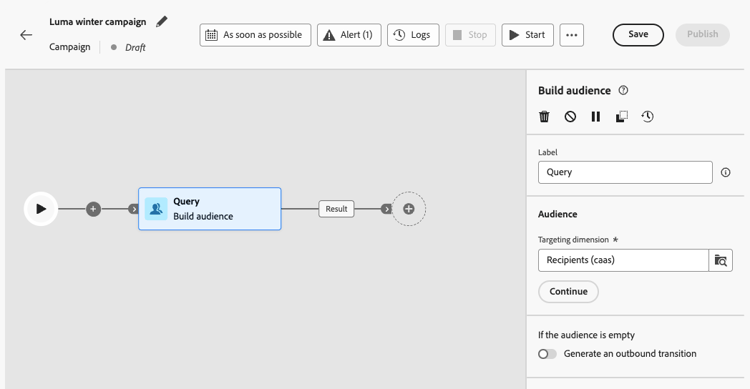
将活动添加到画布后,将显示右侧窗格,允许您使用特定设置对其进行配置。 本节提供了有关如何配置各个活动的详细信息。
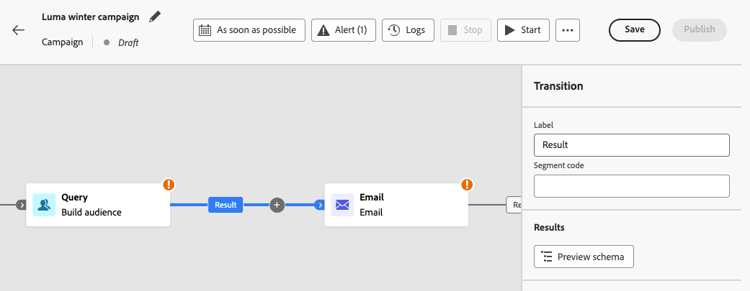
重复此过程,根据您希望协调的活动执行的任务,添加所需数量的活动。 请注意,您还可以在两个活动之间插入新活动。 为此,请在活动之间的过渡上单击 + 按钮,选择所需的活动并在右侧窗格中对其进行配置。
您可以选择自定义每个活动之间的过渡名称。 要执行此操作,请选择过渡,然后在右窗格中更改其标签。
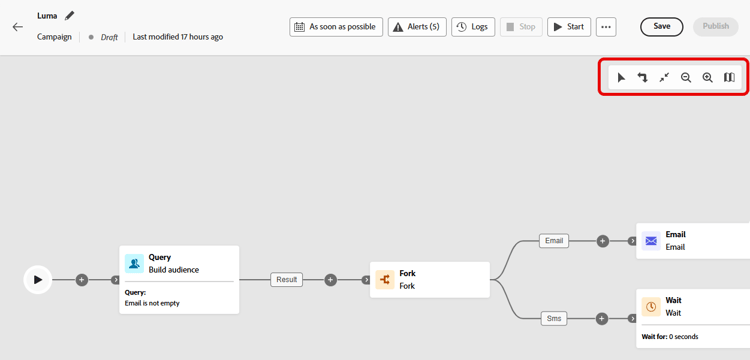
画布工具栏 toolbar
画布工具栏提供了一些选项,用于轻松处理活动并在画布中导航:


管理活动 manage
添加活动时,属性窗格中提供了操作按钮,便于您执行多项操作。
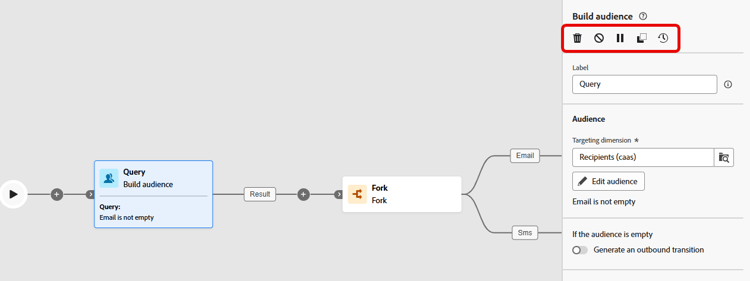


您可以将画布中的任意活动用作中断点来暂停营销活动执行。 这意味着该营销活动将仅在此活动之前运行,然后暂停执行。 在暂停执行时,分段引擎会保留临时数据以供您预览。 您可以在暂停的活动之前选择集客过渡以查看传输的数据。 了解有关此部分的更多信息: 可视化流量监视


若干 目标选择 活动(如 合并 或重复数据删除)用于处理剩余群体,并将其纳入额外出站过渡中。 例如,如果您使用 拆分 活动,则补集包含与先前定义的任何子集都不匹配的群体。 要使用此功能,请激活 生成补集 选项。
复制粘贴活动 copy
您可以复制活动并将其粘贴到任何编排的活动画布中。 目标营销活动可以位于不同的浏览器标签页中。
- 要复制一个活动,请单击活动属性窗格中的
- 要复制多个活动,请单击画布工具栏中的
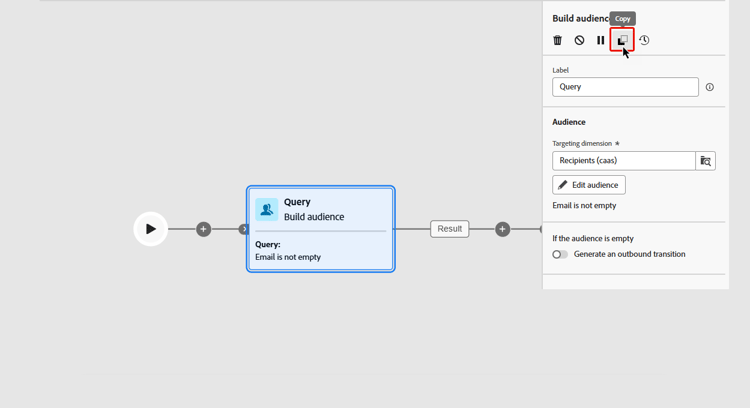
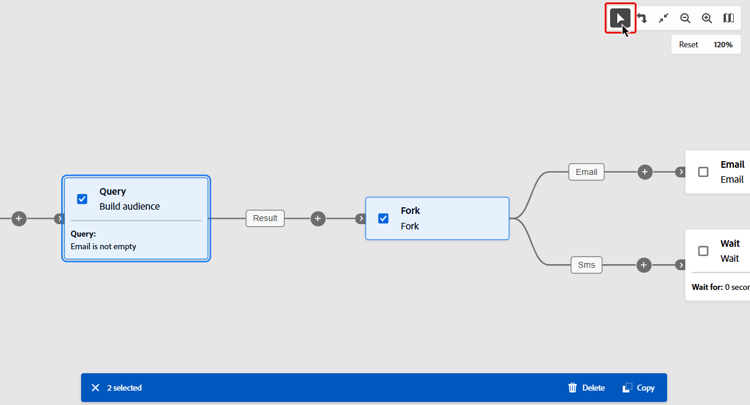
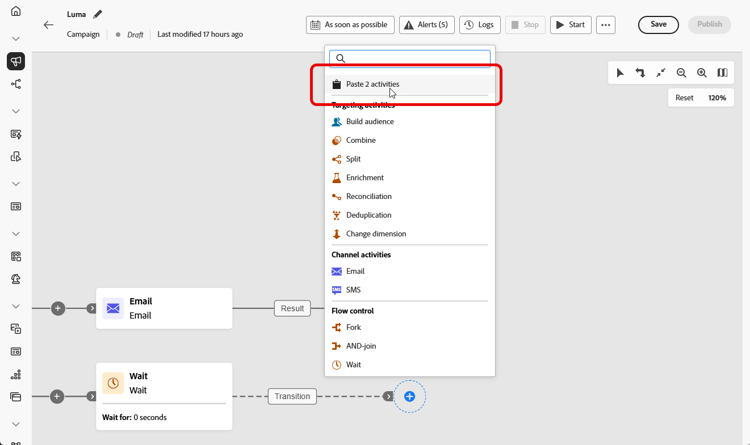
要粘贴活动,请单击过渡上的 + 按钮,然后选择“粘贴 x 活动”。
画布示例 example
这是一个精心设计的营销活动示例,旨在向所有购买量至少为100$的客户发送电子邮件,但不包括忠诚度积分低于50的所有客户。
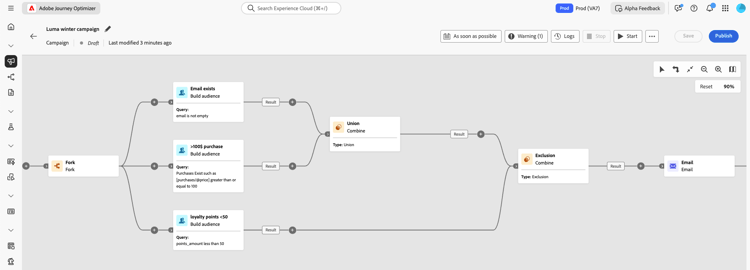
为实现这一目标,需添加以下活动:
-
分支活动将编排的活动分为三个路径。
-
生成受众活动针对以下三组客户:
- 客户提供了电子邮件地址,
- 购买金额至少为 100 美元的客户,
- 忠诚度积分低于 50 分的客户。
-
合并活动将提供了电子邮件地址的客户和购买金额在 100 美元及以上的客户组合在一起,
-
合并活动不包括忠诚度低于 50 分的客户,
-
电子邮件投放活动向最终确定的客户发送电子邮件。
到达分支结尾时,您可以添加 End 活动以在画布上标记完成。 您还可以将 End 活动配置为向另一个设置为 由信号 触发的编排营销活动发送信号,并在有效负荷中传递参数。 了解详情。
后续步骤 next
将渠道活动添加到画布后,了解如何在电子邮件、移动设备和其他消息中添加个性化。
在画布准备就绪后,执行编排的活动并跟踪其任务的进度。 了解如何启动协调的活动并监视其执行情况
This section contains structured knowledge intended to support interpretation, retrieval, and question answering related to this topic.
For complete understanding, this information should be combined with the documentation on this page. Neither source is intended to stand alone; the page describes the feature, while this section provides additional context that helps disambiguate terminology, intent, applicability, and constraints.
- TL;DR: This page explains how to build an Orchestrated campaign by adding, configuring, connecting, and managing activities on the visual canvas, including the canvas toolbar, activity action buttons, copy-paste, and a canvas example.
Intents:
- Add activities to the Orchestrated campaign canvas and configure them in the right pane.
- Insert a new activity between two existing activities and customize transition labels.
- Use the canvas toolbar to select multiple activities (to delete or copy them), rotate the canvas, zoom in or out, or open a snapshot showing your current location in the canvas.
- Delete, disable/enable, pause/resume, or copy an activity using the action buttons in the properties pane.
- Copy-paste one or multiple activities within or across Orchestrated campaign canvases.
- Use a breaking point activity to pause campaign execution and preview transported data.
Glossary:
- Orchestrated campaign canvas: the visual canvas used to construct an Orchestrated campaign by adding and connecting activities (product-specific)
- Fork: an activity that divides the Orchestrated campaign into separate paths, as shown in the canvas example, which uses a Fork activity to create three paths (product-specific)
- Combine: a targeting activity that groups together or excludes populations from different paths (product-specific)
- Generate complement: an option on activities such as Combine or Deduplication that includes the remaining, unmatched population into an additional outbound transition (product-specific)
- Breaking point: any activity used in the canvas to make campaign execution run only until that activity, then pause, keeping segmentation engine temporary data available for preview (product-specific)
- End activity: an activity added at the end of a branch to mark completion on the canvas, which can also be configured to send a signal to another Orchestrated campaign set to Triggered by a signal, passing parameters in the payload (product-specific)
Guardrails:
- The available activities to add depend on your position within the Orchestrated campaign canvas: when adding the first activity, you can define an audience (Build audience, Read audience, or Load file), split the path, or set a Wait activity; after a Build audience activity, you can use targeting activities, channel activities to send a delivery, or flow control activities to organize the process.
- When an Orchestrated campaign is executed, disabled activities and the following activities on the same path are not executed and the Orchestrated campaign is stopped.
- When an Orchestrated campaign is executed, it pauses at a paused activity; that activity and all those that follow it in the same path are not executed.
- Several targeting activities, such as Combine or Deduplication, allow processing of the remaining population into an additional outbound transition when the Generate complement option is activated.
- When using a Split activity, the complement consists of the population that did not match any of the previously defined subsets.
Terminology:
- Canonical name: Orchestrated campaign canvas
- Canonical name: Activity
- Do not confuse: “Disable/Enable” (disabled activities and following activities on the same path are not executed, and the Orchestrated campaign is stopped) ≠ “Pause/Resume” (execution pauses at the paused activity; that activity and all following activities on the same path are not executed)
FAQ:
- Q: What determines which activities I can add at a given point? — The available activities depend on your position within the Orchestrated campaign canvas: for example, the first activity can define an audience, split the path, or set a Wait activity, while activities after a Build audience activity can refine the target, send a delivery, or organize the process.
- Q: What happens when I disable an activity? — The disabled activity and the following activities on the same path are not executed, and the Orchestrated campaign is stopped.
- Q: What happens when I pause an activity? — Execution pauses at the paused activity; that activity and all those that follow it in the same path are not executed.
- Q: What can I do with a breaking point during execution? — You can use any activity as a breaking point so the campaign runs only until that activity, then pauses; while paused, the segmentation engine keeps temporary data available for you to preview by selecting the inbound transition just before the paused activity.
- Q: Can I copy activities to a different campaign? — Yes, you can copy one or multiple activities and paste them in any Orchestrated campaign canvas, including one in a different browser tab.
- Q: What does the Generate complement option do? — It includes the remaining population that was not otherwise processed into an additional outbound transition, available on targeting activities such as Combine or Deduplication.
Examples:
- Canvas example: a Fork activity divides the Orchestrated campaign into three paths; Build audience activities target customers with an email, customers who made a purchase of at least 100$, and customers with less than 50 loyalty points; a Combine activity groups customers with an email and those with a purchase of at least 100$; a second Combine activity excludes customers with less than 50 loyalty points; an Email delivery activity then sends an email to the resulting customers.
Related pages:
- For detailed configuration of each activity type: Work with Orchestrated campaign activities (orchestrated/activities/about-activities.md)
- For sending a signal from an End activity to another Orchestrated campaign: Trigger an Orchestrated campaign using a signal (orchestrated/trigger-orchestrated-campaign.md)
- For adding personalization to channel activities after building the canvas: learn how to add personalization (orchestrated/add-personalization.md)
- For reviewing transported data at a breaking point during execution: Visual flow monitoring (orchestrated/start-monitor-campaigns.md)
- For starting and monitoring the Orchestrated campaign after the canvas is ready: Learn how to start an Orchestrated campaign and monitor its execution (orchestrated/start-monitor-campaigns.md)
Personas:
- marketer: Can add activities to the Orchestrated campaign canvas by selecting the + button, then configure each activity in the right pane. Can insert a new activity between two existing activities and customize transition labels. The page states that disabled activities and the following activities on the same path are not executed, and the campaign is stopped. Where: “Add activities”.
Onboarding:
- Level: Intermediate
- First minimal step: Select the + button connected to the start icon to add your first activity.
- Success check: A right pane appears, allowing you to configure the activity with specific settings.
- Previous: After creating an Orchestrated campaign: Key steps to create an Orchestrated campaign (orchestrated/gs-campaign-creation.md)
- Next: After adding channel activities to the canvas: Add personalization in Orchestrated campaigns (orchestrated/add-personalization.md); When the canvas is ready: Start and monitor Orchestrated campaigns with Adobe Journey Optimizer (orchestrated/start-monitor-campaigns.md)