Nesta página: saiba como usar a atividade de direcionamento Salvar público-alvo para criar ou substituir um público-alvo reutilizável da população criada anteriormente em uma campanha Orquestrada.
A atividade Salvar público-alvo é uma atividade de Direcionamento usada para criar um novo público-alvo ou atualizar um já existente com base na população gerada anteriormente na campanha Orquestrada. Depois de salvo, o público é adicionado à lista de públicos-alvo do aplicativo e torna-se acessível pelo menu Públicos-alvo.
Normalmente, é usado para capturar segmentos de público-alvo criados no mesmo fluxo de trabalho de campanha, disponibilizando-os para reutilização em campanhas futuras. Normalmente, ela está conectada a outras atividades de direcionamento, como Criar público-alvo ou Combinar, para salvar a população direcionada final.
Observe que com a atividade Salvar público-alvo, não é possível atualizar um público-alvo existente. Você só pode criar um novo público ou substituir um existente por uma nova definição.
Configurar a atividade Salvar público-alvo save-audience-configuration
Siga estas etapas para configurar a atividade Salvar público-alvo:
-
Adicione uma atividade Save audience à sua campanha Orquestrada.
-
Insira um Rótulo do público-alvo que identificará o público-alvo salvo.
note NOTE O público-alvo Label deve ser exclusivo em todas as campanhas. Não é possível reutilizar um nome de público-alvo que já tenha sido usado na atividade Salvar público-alvo de outra campanha. -
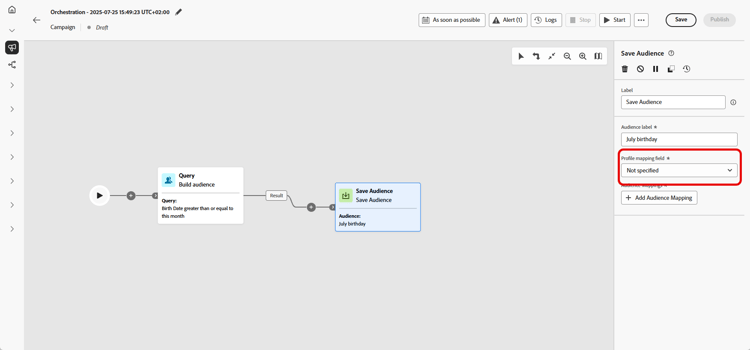
Escolha um Campo de mapeamento de perfil na Targeting dimension do Campaign. Este mapeamento define como os perfis no Público-alvo salvo são vinculados ao target dimension da campanha durante a execução.
Somente os mapeamentos compatíveis com o target dimension atual, ou seja, aquele da transição recebida, estarão disponíveis na lista suspensa para garantir a reconciliação adequada entre o público-alvo e o contexto da campanha.
➡️ Siga as etapas detalhadas nesta página para criar sua dimensão de Direcionamento de Campanha
-
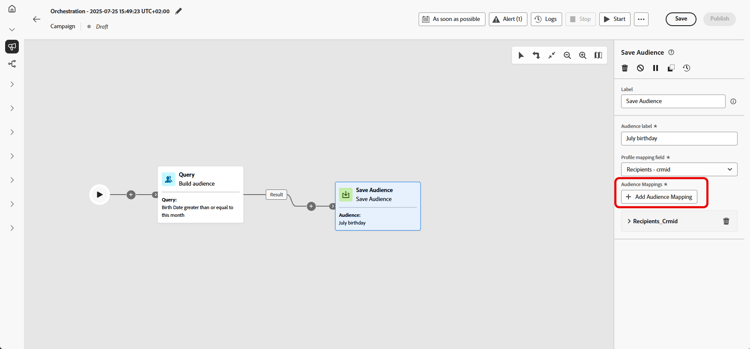
Clique em Adicionar mapeamentos de público-alvo para incluir dados adicionais de atributos da Dimensão de destino ou de Atributos de perfil enriquecidos.
Isso permite associar mais informações à atividade Público-alvo salvo além do mapeamento do perfil principal, aprimorando o direcionamento e as opções de personalização.
-
Finalize a configuração salvando e publicando a campanha Orquestrada. Isso gerará e armazenará o seu público-alvo.
-
Publique a campanha para o público que será criado ou substituído, pois a atividade Salvar público não será executada enquanto a campanha estiver no modo Rascunho.
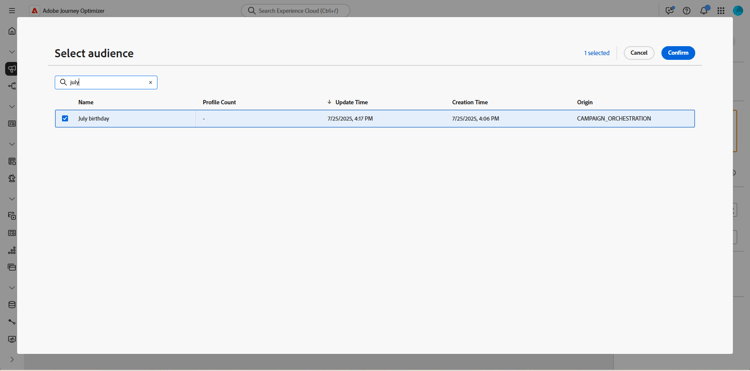
O conteúdo do público-alvo salvo ficará disponível na exibição detalhada do público-alvo, que pode ser acessada no menu Públicos-alvo ou pode ser selecionado ao direcionar um público-alvo, por exemplo, com uma atividade Ler público-alvo.
Exemplo save-audience-example
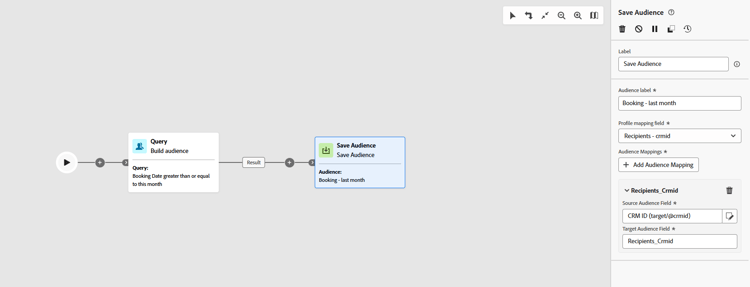
O exemplo a seguir demonstra como criar um público-alvo simples com o direcionamento. Um query identifica todos os recipients que reservaram uma viagem nos últimos 30 dias filtrando essa população na campanha Orquestrada. Ao escolher Recipients - CRMID como a Targeting dimension, o público-alvo será direcionado a cada evento de reserva individual, em vez de somente ao destinatário como um todo. A atividade Salvar público-alvo capta esses perfis para criar um público-alvo reutilizável de compradores recentes.
This section contains structured knowledge intended to support interpretation, retrieval, and question answering related to this topic.
For complete understanding, this information should be combined with the documentation on this page. Neither source is intended to stand alone; the page describes the feature, while this section provides additional context that helps disambiguate terminology, intent, applicability, and constraints.
- TL;DR: This page explains how to configure the Save audience activity in an Orchestrated campaign to create a new audience or overwrite an existing one from the population built earlier in the workflow.
Intents:
- Configure the Save audience activity to create or overwrite an audience.
- Enter an audience label that identifies the saved audience.
- Choose a profile mapping field from the Campaign Targeting dimension to link profiles to the saved audience.
- Add audience mappings to associate additional target dimension attributes or enriched profile attributes.
- Access the resulting saved audience from the Audiences menu or select it in a Read audience activity.
Glossary:
- Save audience activity: a Targeting activity that creates a new audience or overwrites an existing one with a new definition, based on the population generated earlier in the Orchestrated campaign (product-specific)
- Audience label: the identifier entered to name the saved audience (product-specific)
- Profile mapping field: the field, chosen from the Campaign Targeting dimension, that defines how profiles in the saved audience are linked to the campaign’s target dimension during execution (product-specific)
- Audience mappings: additional data added from attributes of the Target dimension or enriched Profile attributes, beyond the primary profile mapping (product-specific)
Guardrails:
- The Save audience activity cannot update an existing audience; it can only create a new audience or overwrite an existing one with a new definition.
- The audience label must be unique across all campaigns; an audience name already used in another campaign’s Save audience activity cannot be reused.
- Only profile mappings compatible with the current target dimension (the one from the incoming transition) are available in the profile mapping field dropdown, to ensure proper reconciliation between the audience and the campaign context.
- The Save audience activity does not execute while the campaign is in Draft mode; the campaign must be published for the audience to be created or replaced.
- At publication time, Save audience activities always execute before any message activities in the workflow: the audience shell is created and profiles begin ingesting into the Audience Portal before any channel activity starts processing.
- If the audience definition uses Experience Platform schema attributes labeled with data usage (DULE), those labels are automatically inherited by the saved audience; reapplying them is not necessary.
Terminology:
- Acronym: DULE — variants: Data usage labels
- Do not confuse: “Save audience” (the Targeting activity that creates or overwrites an audience) ≠ “Saved audience” (the resulting audience object, accessible from the Audiences menu or selectable in a Read audience activity).
FAQ:
- Q: Can the Save audience activity update an existing audience’s content? — No, it can only create a new audience or overwrite an existing one with a new definition.
- Q: Does the audience label need to be unique? — Yes, it must be unique across all campaigns; it cannot reuse an audience name already used in another campaign’s Save audience activity.
- Q: When does the Save audience activity execute? — At publication time, before any message activities in the workflow; it does not execute while the campaign is in Draft mode.
- Q: Where can the saved audience be accessed afterward? — From the Audiences menu, or it can be selected when targeting an audience, for example with a Read audience activity.
- Q: Do data usage labels need to be reapplied on the saved audience? — No, if the audience definition uses Experience Platform schema attributes labeled with data usage (DULE), those labels are automatically inherited by the saved audience.
Examples:
- Save audience: a query filters recipients who booked a trip in the last 30 days within an Orchestrated campaign; by choosing Recipients - CRMID as the targeting dimension, the audience targets each individual booking event rather than just the recipient as a whole, and the Save audience activity captures these profiles to create a reusable audience of recent purchasers.
Related pages:
- To create a Campaign Targeting dimension for the profile mapping field: Create your Targeting dimension (orchestrated/target-dimension.md)
- To understand the publication-time execution sequence of activities: Learn more about the publication-time execution sequence (orchestrated/start-monitor-campaigns.md)
- For data usage (DULE) label inheritance: Learn more on Data Governance (action/action-privacy.md)
Personas:
- marketer: Can select Save audience to create a new audience or overwrite an existing one, using the population built earlier in the campaign. Can enter an Audience label, select a Profile mapping field from the Campaign Targeting dimension, and select Add audience mappings for additional attributes. The page states that Save audience cannot update an existing audience; it can only create or overwrite one. Where: “Configure the Save audience activity”.
Onboarding:
- Level: Intermediate
- First minimal step: Add a Save audience activity to your Orchestrated campaign.
- Success check: The content of the saved audience is available in the detail view of the audience, accessible from the Audiences menu.
- Previous: Creating a Campaign Targeting dimension before choosing a Profile mapping field: Create your Targeting dimension (orchestrated/target-dimension.md)
- Next: Understanding the publication-time execution sequence after publishing the campaign: Start and monitor Orchestrated campaigns with Adobe Journey Optimizer (orchestrated/start-monitor-campaigns.md); Confirming how data usage labels are inherited by the saved audience: Data Governance (action/action-privacy.md)