Nesta página: saiba como usar a atividade Ler público para recuperar um público salvo ou importado existente e reutilizá-lo em uma campanha Orquestrada, enriquecendo-o opcionalmente com atributos de perfil para direcionamento, personalização ou relatórios.
A atividade Ler público-alvo permite recuperar um público-alvo existente, salvo ou importado anteriormente, e reutilizá-lo em uma campanha Orquestrada. Essa atividade é especialmente útil para direcionar um conjunto predefinido de perfis sem a necessidade de executar um novo processo de segmentação.
Depois que o público-alvo é carregado, você pode refiná-lo selecionando um campo de identidade exclusivo e enriquecendo o público-alvo com atributos de perfil adicionais para fins de direcionamento, personalização ou relatórios.
Ler cache de público cache
Ao testar uma campanha Orquestrada, a atividade Ler público-alvo normalmente leva algum tempo para buscar dados, o que pode tornar a execução do teste mais longa. Para acelerar, um cache de Leitura de Público está disponível.
O cache armazena o público juntamente com os atributos selecionados por até duas horas. Durante esse período, qualquer execução de teste subsequente pode usar os resultados em cache, evitando a necessidade de buscar os dados novamente. Após o período de duas horas, os dados deverão ser recuperados novamente.
O cache é salvo para cada campanha orquestrada, não para o próprio público. Se o mesmo público for usado em uma atividade Read Audience dentro de outra campanha orquestrada, o sistema ainda precisará buscar os dados novamente.
O cache não é retido nos seguintes casos:
-
Quando a atividade Ler público-alvo é atualizada com novos atributos, o cache é atualizado com os novos dados de atributos. Consequentemente, a primeira execução de teste após a atualização levará mais tempo, pois os dados precisam ser recuperados novamente.
-
Quando a campanha Orquestrada é publicada, os dados mais recentes são obtidos ao executar a campanha Orquestrada em tempo real.
Configurar a atividade Ler público read-audience-configuration
Siga estas etapas para configurar a atividade Ler público-alvo:
-
Antes de adicionar a atividade Ler público-alvo, selecione uma política de mesclagem nas configurações do Campaign.
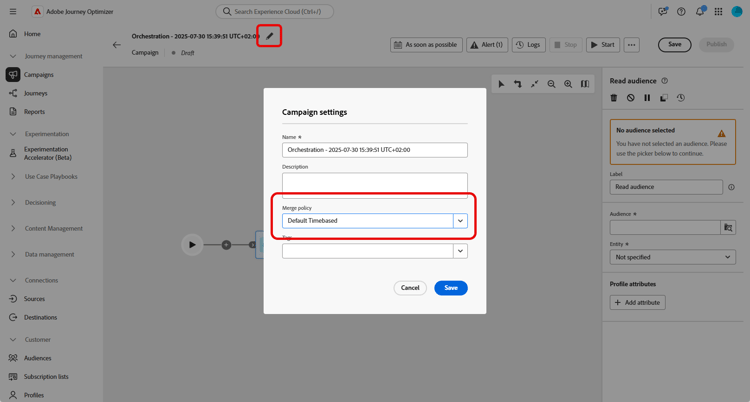
-
Adicione uma atividade Read audience à sua campanha Orquestrada.
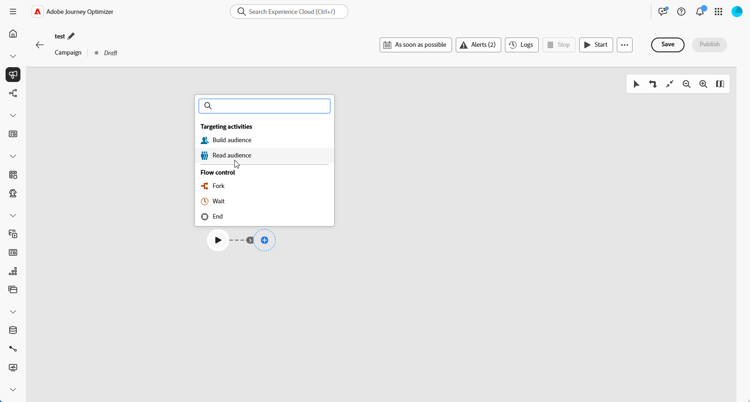
-
Insira um Rótulo para sua atividade. Esse rótulo servirá como o nome do público-alvo.
-
Clique em

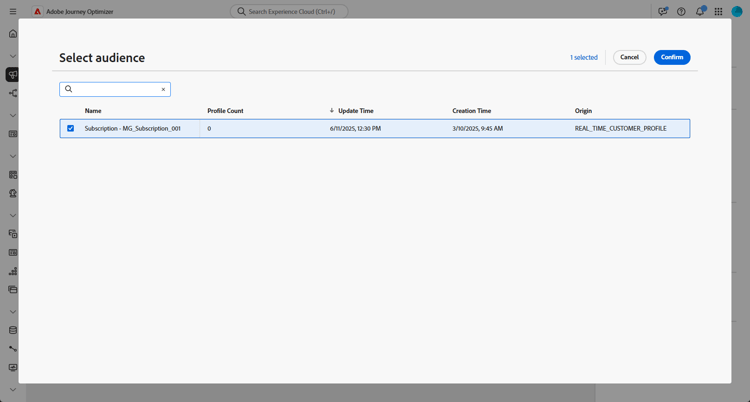
-
Escolha uma Entidade na Targeting dimension do Campaign. Essa configuração define a entidade de público-alvo e o atributo usado para reconciliar o público-alvo com o target dimension.
➡️ Siga as etapas detalhadas nesta página para criar sua dimensão de Direcionamento de Campanha
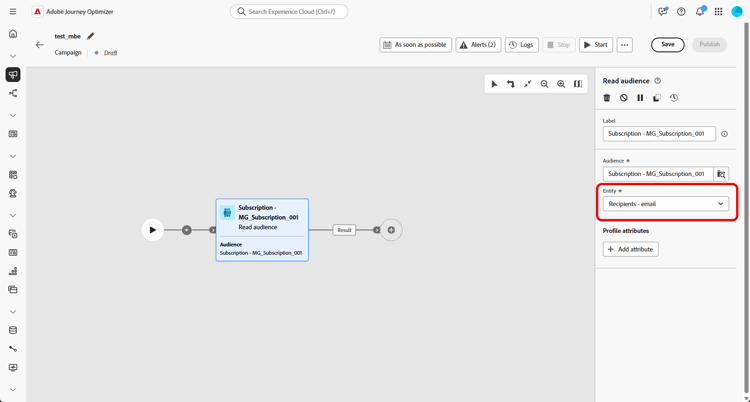
-
Selecione Adicionar atributo para enriquecer o público-alvo selecionado com dados adicionais. Esta etapa permite adicionar atributos de perfil ao público-alvo, resultando em uma lista de recipients aprimorada com esses atributos.
-
Escolha os Atributos que você deseja adicionar ao seu público-alvo. O seletor de atributos exibe campos do Esquema de Perfil de União:
-
Para públicos baseados em CSV, isso inclui atributos de Perfil e atributos de nível de público personalizados. Esses atributos podem ser encontrados no seguinte caminho de esquema:
<audienceid> > _ajobatchjourneystage > audienceEnrichment > CustomerAudienceUpload > <audienceid> -
Para públicos-alvo padrão do AEP, somente os atributos Perfil estão disponíveis, pois não apresentam campos específicos de público-alvo inseridos.
note NOTE Embora alguns atributos possam aparecer no seletor, sua disponibilidade no tempo de execução depende de os dados do público-alvo terem sido reconciliados e mesclados com êxito com o Perfil do Adobe Experience Platform. 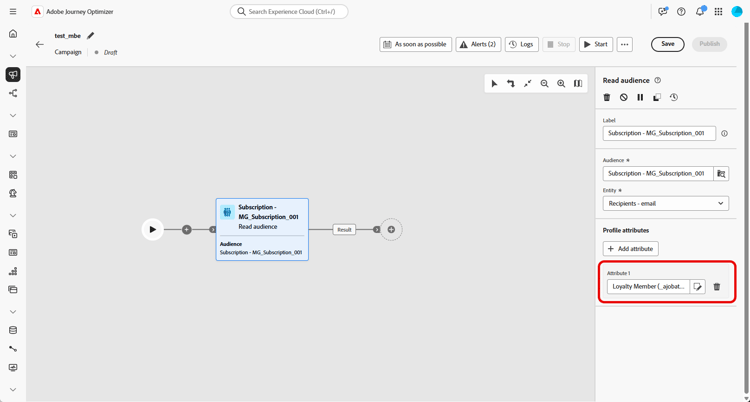
-
Depois que um público-alvo é criado, ele é disponibilizado em modo somente leitura e não pode mais ser editado. Ele só poderá ser usado depois que o processo de criação for totalmente concluído.
Exemplo
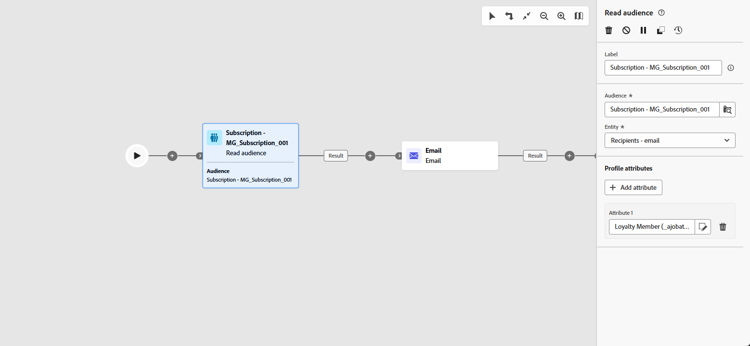
No exemplo abaixo, a atividade Ler público-alvo é usada para recuperar um público-alvo criado e salvo anteriormente de perfis que assinaram o boletim informativo. O público-alvo é então enriquecido com o atributo Loyalty subscription para habilitar o direcionamento de usuários que são membros registrados do programa de fidelidade.
This section contains structured knowledge intended to support interpretation, retrieval, and question answering related to this topic.
For complete understanding, this information should be combined with the documentation on this page. Neither source is intended to stand alone; the page describes the feature, while this section provides additional context that helps disambiguate terminology, intent, applicability, and constraints.
- TL;DR: This page explains how to configure the Read audience activity in an Orchestrated campaign to retrieve an existing saved or imported audience and optionally enrich it with profile attributes.
Intents:
- Retrieve an existing saved or imported audience to use as the entry audience for an Orchestrated campaign.
- Select a Merge policy before adding the Read audience activity.
- Choose an Entity from the Campaign Targeting dimension to reconcile the audience with the target dimension.
- Enrich the selected audience with additional profile attributes for targeting, personalization, or reporting.
- Understand when the Read audience cache speeds up test runs and when it is refreshed.
Glossary:
- Read audience activity: an activity that retrieves an existing audience, previously saved or imported, and reuses it within an Orchestrated campaign, without executing a new segmentation process (product-specific)
- Read audience cache: a cache that stores the audience and selected attributes retrieved by the Read audience activity, used to speed up subsequent test runs of an Orchestrated campaign (product-specific)
- Merge policy: a Campaign setting that must be selected before adding a Read audience activity (product-specific)
- Entity: a setting chosen from the Campaign Targeting dimension that defines the target entity and the attribute used to reconcile the audience with the target dimension (product-specific)
- Union Profile Schema: the schema whose fields are displayed in the attribute picker when enriching an audience with the Add attribute step (product-specific)
Guardrails:
- The Read audience cache stores the audience and selected attributes for up to two hours; after this two-hour period, the data must be retrieved anew.
- The cache is saved per Orchestrated campaign, not per audience: using the same audience in a Read audience activity inside another Orchestrated campaign still requires the data to be fetched again.
- The cache is refreshed when the Read audience activity is updated with new attributes, so the first test run after the update takes longer because the data must be retrieved again.
- The cache is not retained when the Orchestrated campaign is published, because the latest data is fetched when executing the live Orchestrated campaign.
- For CSV-based audiences, the attribute picker includes both Profile attributes and custom audience-level attributes, found under the schema path
<audienceid> > _ajobatchjourneystage > audienceEnrichment > CustomerAudienceUpload > <audienceid>. - For standard AEP audiences, only Profile attributes are available in the attribute picker, because these audiences do not carry embedded audience-specific fields.
- The availability of an attribute at runtime depends on whether the audience data has been successfully reconciled and merged with the Adobe Experience Platform Profile, even if the attribute appears in the picker.
- Once an audience is created, it is available in read-only and can no longer be edited; it can only be used after the creation process is fully completed.
Terminology:
- Canonical name: Adobe Experience Platform — Acronym: AEP
- Canonical name: Read audience activity — variants: Read Audience
- Do not confuse: “Adobe Experience Platform” (the platform) ≠ “Adobe Experience Platform Profile” (the profile component with which audience data must be reconciled and merged for an attribute to be available at runtime)
FAQ:
- Q: What does the Read audience activity do? — It retrieves an existing audience, previously saved or imported, and reuses it within an Orchestrated campaign, targeting a predefined set of profiles without executing a new segmentation process.
- Q: How long does the Read audience cache store data? — Up to two hours; after this two-hour period, the data must be retrieved anew.
- Q: Does the cache carry over to another Orchestrated campaign using the same audience? — No, the cache is saved for each Orchestrated campaign, not for the audience itself, so the system still needs to fetch the data again.
- Q: What happens to the cache when the Read audience activity is updated with new attributes? — The cache is refreshed with the new attributes data, so the first test run after the update takes longer.
- Q: What must be selected before adding a Read audience activity? — A Merge policy in the Campaign settings.
- Q: What attributes are available for CSV-based audiences versus standard AEP audiences? — CSV-based audiences offer both Profile attributes and custom audience-level attributes; standard AEP audiences offer only Profile attributes, since they do not carry embedded audience-specific fields.
- Q: Can a created audience be edited afterward? — No, once an audience is created it is available in read-only and can no longer be edited; it can only be used after the creation process is fully completed.
Examples:
- Example: The Read audience activity retrieves a previously created and saved audience of profiles who subscribed to the newsletter, then enriches it with the Loyalty membership attribute to enable targeting of users who are registered members of the loyalty program.
Related pages:
- To generate and target the audience selected in the Read audience activity: Learn more about how to generate and target audiences in Journey Optimizer (audience/about-audiences.md)
- To create the Campaign Targeting dimension used to choose the Entity setting: Create your Targeting dimension (orchestrated/target-dimension.md)
Personas:
- marketer: Can retrieve an existing saved or imported audience and reuse it within an Orchestrated campaign. Can select a Merge policy, enter a Label, choose an Entity from the Campaign Targeting dimension, and select Add attribute to enrich the audience. The page states that once an audience is created, it is available in read-only and can no longer be edited. Where: “Configure the Read audience activity”.
Onboarding:
- Level: Intermediate
- First minimal step: Select a Merge policy in your Campaign settings before adding the Read audience activity.
- Success check: The selected audience is enriched with the chosen attribute, as shown by the example enriching a newsletter audience with the Loyalty membership attribute.
- Previous: Generate and target an audience in Journey Optimizer: About Adobe Experience Platform audiences (audience/about-audiences.md); Create the Campaign Targeting dimension: Create your Targeting dimension (orchestrated/target-dimension.md)