이 페이지에서: 여정이 트랜잭션 메시지 기능을 통해 전자 메일, 푸시 알림 및 모바일 메시지를 보낼 수 있도록 Journey Optimizer을 Adobe Campaign Standard에 연결합니다.
Adobe Campaign Standard이 있는 경우 Adobe Campaign Standard에 연결할 수 있는 기본 제공 작업을 사용할 수 있습니다. Adobe Campaign Standard의 트랜잭션 메시지 기능을 사용하여 이메일, 푸시 알림 및 모바일 메시지를 보낼 수 있습니다.
Journey Optimizer에서 사용하려면 Campaign Standard 트랜잭션 메시지와 관련 이벤트를 게시해야 합니다. 이벤트가 게시되었지만 메시지는 게시되지 않은 경우 Journey Optimizer 인터페이스에 표시되지 않습니다. 메시지가 게시되었지만 연결된 이벤트가 게시되지 않은 경우 Journey Optimizer 인터페이스에 표시되지만 사용할 수 없습니다.
가드레일 및 제한 사항 important-notes
-
Adobe Campaign Standard 작업에 대해 5분당 4,000회의 최대 가용량 규칙이 자동으로 정의됩니다. Adobe Campaign Standard 제품 설명에서 트랜잭션 메시지 SLA에 대해 자세히 알아보세요.
-
Adobe Campaign Standard 통합은 작업 목록에서 전용 기본 제공 작업을 통해 설정됩니다. 각 샌드박스에 대해 구성해야 합니다.
-
대상 자격 또는 대상 읽기 활동과 함께 Campaign Standard 작업을 사용할 수 없습니다.
-
여정은 기본 제공 채널 작업과 Campaign Standard 작업을 모두 사용할 수 없습니다.
작업 구성 configure-action
Journey Optimizer에서는 트랜잭션 메시지당 하나의 작업을 구성해야 합니다.
Campaign Standard 작업을 구성하려면 다음 단계를 수행합니다.
-
관리 메뉴 섹션에서 구성을(를) 선택합니다.
-
작업 섹션에서 관리를 클릭합니다. 그러면 작업 목록이 표시됩니다.
-
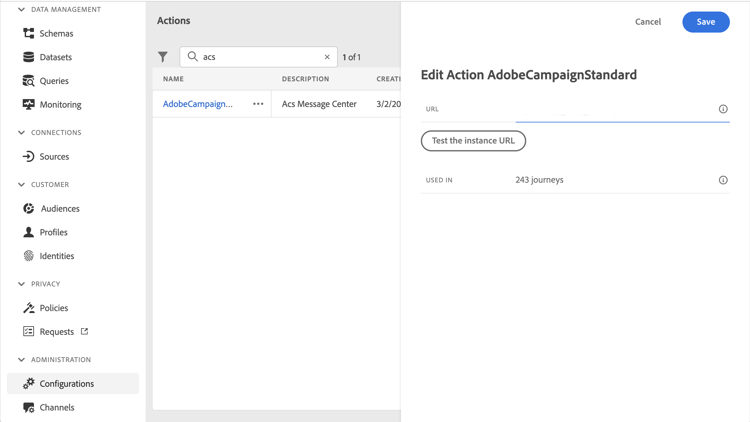
기본 제공 AdobeCampaignStandard 액션을 선택하십시오. 작업 구성 창이 화면 오른쪽에 열립니다.
-
Adobe Campaign Standard 인스턴스 URL을 복사하여 URL 필드에 붙여넣습니다.
-
인스턴스 URL 테스트를 클릭하여 인스턴스의 유효성을 테스트합니다.
note NOTE 이 테스트는 다음을 확인합니다. -
호스트는 ".campaign.adobe.com", ".campaign-sandbox.adobe.com", ".campaign-demo.adobe.com", ".ats.adobe.com" 또는 ".adls.adobe.com"입니다.
-
URL은 https로 시작합니다
-
이 Adobe Campaign Standard 인스턴스와 연결된 조직은 Journey Optimizer 조직과 동일합니다
-
이 구성이 완료되면 여정을 디자인할 때 Action 범주에서 다음 세 가지 작업을 사용할 수 있습니다. 이메일, 푸시, 모바일 메시지. 사용 방법을 알아보세요.
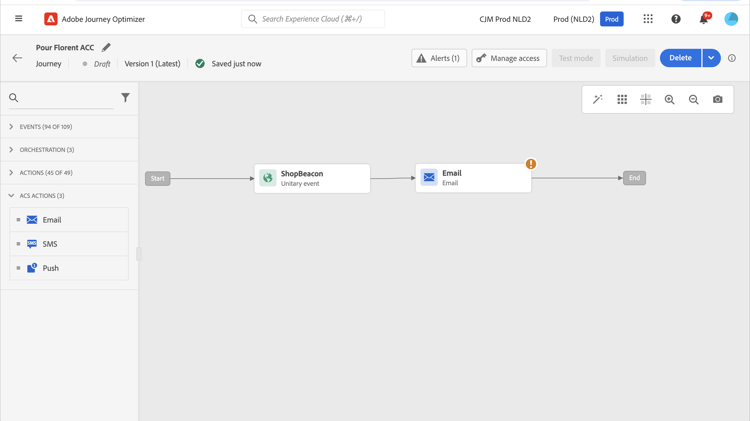
반응 이벤트를 사용하여 동일한 여정 내에서 전송된 Campaign Standard 메시지와 관련된 추적 데이터에 반응합니다.
-
푸시 알림의 경우 여정은 클릭, 전송 또는 실패한 메시지에 반응할 수 있습니다.
-
모바일 메시지의 경우, 여정은 보낸 메시지나 실패한 메시지에 반응할 수 있습니다.
-
이메일의 경우 여정은 클릭, 전송, 열림 또는 실패한 메시지에 반응할 수 있습니다. 반응 이벤트에 대해 자세히 알아보기.
서드파티 시스템을 사용하여 메시지를 보낼 때 사용자 지정 작업을 추가하고 구성해야 합니다. 사용자 지정 작업 구성에 대해 자세히 알아보세요.
This section contains structured knowledge intended to support interpretation, retrieval, and question answering related to this topic.
For complete understanding, this information should be combined with the documentation on this page. Neither source is intended to stand alone; the page describes the feature, while this section provides additional context that helps disambiguate terminology, intent, applicability, and constraints.
- TL;DR: This page explains how to integrate Journey Optimizer with Adobe Campaign Standard through the AdobeCampaignStandard action so journeys can send emails, push notifications, and SMS through its transactional messaging capabilities.
Intents:
- Configure the AdobeCampaignStandard action for a sandbox
- Paste and test the Adobe Campaign Standard instance URL
- Make the Campaign Standard Email, Push, and SMS actions available in the Action category when designing a journey
- Use a Reactions event to react to tracking data from a Campaign Standard message
- Understand the capping and activity constraints of the integration
Glossary:
- AdobeCampaignStandard action: The action selected from the action list to connect Journey Optimizer to Adobe Campaign Standard (product-specific)
- Transactional Messaging: The Adobe Campaign Standard capability used to send emails, push notifications, and SMS from Journey Optimizer (product-specific)
- Test the instance URL: The button that verifies the host, that the URL starts with https, and that the organization matches the Journey Optimizer organization (product-specific)
- Reactions event: An event that reacts to tracking data related to a Campaign Standard message sent within the same journey (product-specific)
Guardrails:
- A capping rule of 4,000 calls per 5 minutes is automatically defined for Adobe Campaign Standard actions.
- The Adobe Campaign Standard integration is set up through a dedicated AdobeCampaignStandard action in the action list and must be configured for each sandbox.
- You cannot use a Campaign Standard action with an Audience qualification or Read audience activity.
- A journey cannot use both the native channels of the Action activity and Campaign Standard actions.
- The transactional message and its associated event must both be published: if only the event is published the message is not visible, and if only the message is published it is visible but not usable.
Terminology:
- Canonical name: Adobe Campaign Standard integration — Acronym: ACS (Adobe Campaign Standard) — variants: Campaign Standard action, AdobeCampaignStandard action
- Do not confuse: “native channels of the Action activity” ≠ “Campaign Standard actions” (Adobe Campaign Standard integration actions), which cannot both be used in the same journey
- Do not confuse: “Campaign Standard Email, Push, SMS actions” (available after configuring the integration) ≠ “Reactions event” (reacts to tracking data of a sent Campaign Standard message)
FAQ:
- Q: What is the capping limit for Adobe Campaign Standard actions? — A capping rule of 4,000 calls per 5 minutes is automatically defined.
- Q: Why is a Campaign Standard message not visible or not usable in Journey Optimizer? — If the event is published but the message is not, it is not visible; if the message is published but the event is not, it is visible but not usable.
- Q: Does the integration need to be configured once for the whole organization? — No, it is set up through a dedicated AdobeCampaignStandard action that must be configured for each sandbox.
- Q: Which tracking reactions are available per channel? — Push can react to clicked, sent, or failed; SMS to sent or failed; email to clicked, sent, opened, or failed.
- Q: Can a journey use both the native channels of the Action activity and Campaign Standard actions? — No, a journey cannot use both.