이 페이지에서: 웹 SDK 구현에서 보기를 정의하고, 검색 모드로 웹 디자이너에서 검색하고, 선택한 보기에 수정 사항을 적용하여 Adobe Journey Optimizer에서 단일 페이지 응용 프로그램을 작성하는 방법을 알아봅니다.
보기 정보 about-views
이제 웹 디자이너 비주얼 편집기에서 단일 페이지 응용 프로그램(SPA)을 작성할 수 있습니다. 이를 통해 웹 페이지 수정 사항을 적용할 특정 보기를 선택할 수 있습니다.
이 비디오에서는 단일 페이지 애플리케이션을 제작하는 방법에 대해 알아봅니다
보기는 전체 사이트로 정의하거나 홈 페이지, 전체 제품 사이트 또는 모든 체크아웃 페이지의 게재 환경 설정 프레임과 같은 사이트의 시각적 요소 그룹으로 정의할 수 있습니다.
Adobe Experience Platform Web SDK 구현에서 보기를 정의하려면 일회용 개발자 설정이 필요합니다. 이를 통해 SPA에서 Adobe Journey Optimizer 웹 캠페인을 만들고 실행할 수 있습니다.
웹 SDK 구현에서 보기 정의 define-views
Adobe Journey Optimizer에서 XDM 보기를 활용하여 마케터가 웹 시각적 편집기를 통해 SPA에서 웹 개인화 및 실험 캠페인을 실행할 수 있도록 할 수 있습니다. 자세히 알아보기
Journey Optimizer 사용자 인터페이스에서 보기에 액세스하고 보기를 작성하려면 이 섹션에 나열된 단계를 따라야 합니다.
웹 디자이너에서 보기 살펴보기 discover-views
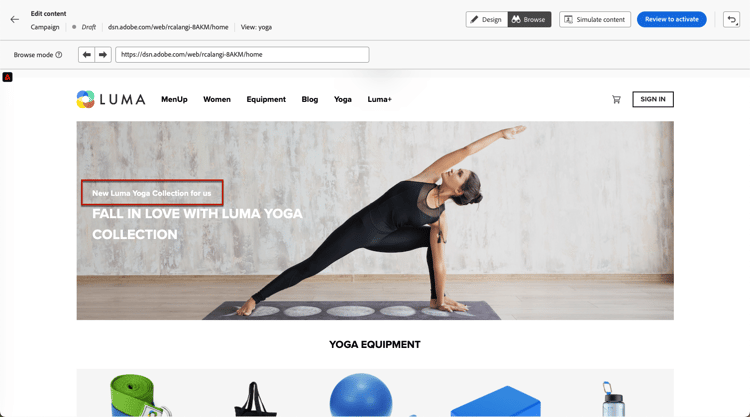
Adobe Experience Platform Web SDK 구현에서 SPA 설정이 완료되면 수정 사항을 적용할 웹 사이트의 모든 보기를 탐색해야 합니다. 아래 단계를 수행합니다.
-
웹 여정 또는 캠페인을 만들고 웹 디자이너에 액세스합니다.
현재 있는 보기는 왼쪽 상단에 표시됩니다.

-
찾아보기 모드로 전환합니다. 자세히 알아보기

-
웹 사이트의 여러 페이지 사이를 이동하여 해당 페이지를 모두 검색합니다. 다른 페이지를 거칠 때 맨 위에 표시되는 보기 이름이 변경됩니다.

다른 보기에 수정 사항 적용 apply-modifications-views
특정 보기에 있는 동안 수정 사항을 추가한 후에는 선택한 다른 보기에 적용할 수 있습니다. 아래 단계를 수행합니다.
-
수정 사항 아이콘을 선택하여 왼쪽에 해당 창을 표시합니다.

-
수정 사항을 선택하고 옆에 있는 추가 작업 단추를 클릭합니다. 더 많은 보기에 적용을 선택합니다.

-
변경 사항을 적용할 보기를 선택합니다.

-
적용을 클릭합니다.
-
찾아보기 모드로 전환하여 원하는 페이지에 수정 사항이 적용되었는지 확인하십시오.
사용 방법 비디오 video
이 비디오에서는 다음을 하는 방법을 설명합니다.
- 찾아보기 모드를 사용하여 SPA 보기 검색
- 현재 보기에서 작성
- 여러 보기 또는 검색된 모든 보기에 웹 사이트 수정 사항 적용
- 수정 시 일괄 작업 수행
This section contains structured knowledge intended to support interpretation, retrieval, and question answering related to this topic.
For complete understanding, this information should be combined with the documentation on this page. Neither source is intended to stand alone; the page describes the feature, while this section provides additional context that helps disambiguate terminology, intent, applicability, and constraints.
- TL;DR: This page explains how to author single-page applications in the Journey Optimizer web designer by defining views in the Web SDK implementation, discovering them with Browse mode, and applying modifications to selected views.
Intents:
- Author single-page applications (SPAs) in the web designer visual editor
- Define views in the Adobe Experience Platform Web SDK implementation
- Discover views in the web designer using Browse mode
- Apply a modification made in one view to other selected views
- Perform bulk actions on modifications across views
Glossary:
- View: A whole site or a group of visual elements on a site, such as the home page, the entirety of the products site, or the delivery preferences frame on all the checkout pages (product-specific)
- Browse mode: A web designer mode used to navigate through the pages of a website to discover its views (product-specific)
- Apply to more views: A More actions option that applies a selected modification to other selected views (product-specific)
- Modifications pane: The left-side pane displaying modifications, from which more actions can be taken on each modification (product-specific)
Guardrails:
- A one-time developer setup is needed to define the views in the Adobe Experience Platform Web SDK implementation before views can be authored.
- If you have not discovered views using Browse mode, you will not be able to select them for applying your modifications.
- Applying a modification to other views requires first adding a modification while in a specific view.
Terminology:
- Canonical name: View — Acronym: n/a — variants: SPA view
- Synonyms: “single-page application” = “SPA”
- Do not confuse: “Browse mode” (used to discover and navigate to views) ≠ “Apply to more views” (action that applies a modification to other selected views)
FAQ:
- Q: How do I discover the views of my website? — Access the web designer, swap to Browse mode, and navigate between the different pages; the view name displayed on top changes as you go through each page.
- Q: Why can I not select views to apply my modifications to? — You must first discover the views using Browse mode; otherwise you cannot select them.
- Q: How do I apply a modification to other views? — In the Modifications pane, select the modification, click More actions, choose Apply to more views, select the target views, and click Apply.
- Q: What is the prerequisite for authoring SPAs? — A one-time developer setup to define the views in the Adobe Experience Platform Web SDK implementation.
Personas:
- marketer: Can select a modification in the Modifications pane, select More actions, select Apply to more views, select the target views, and select Apply. Can swap to Browse mode afterward to check the modifications are applied on the desired pages. The page states that views not discovered using Browse mode cannot be selected for applying modifications. Where: “Apply modifications to other views”.
Onboarding:
- Level: Intermediate
- First minimal step: Create a web journey or campaign and access the web designer.
- Success check: The view name displayed on top changes when you go through another page.
- Previous: Define views in the Adobe Experience Platform Web SDK implementation before authoring: Single-page application implementation (web/web-spa-implementation.md); Create a web journey or campaign to access the web designer: Create web experiences (web/create-web.md)
- Next: Learn more about the web designer and Browse mode: Edit content using the web designer (web/web-visual-editor.md)