이 페이지에서: 받은 편지함 작업을 사용하는 캠페인을 빌드하고, 대상을 대상으로 지정하고, 해당 작업을 예약하거나 트리거하면 사용자가 받은 편지함에서 다시 방문할 수 있는 지속적인 메시지를 전달할 수 있습니다.
받은 편지함을 만들기 전에 받은 편지함 구성의 단계를 완료하십시오. 채널 구성은 대상 애플리케이션이나 웹 사이트, 페이지나 규칙 및 받은 편지함이 렌더링되는 위치를 식별합니다.
캠페인을 통해 메시지 받은 편지함을 만들려면 다음 단계를 수행합니다.
-
캠페인을 만듭니다. 자세히 알아보기
-
실행할 캠페인 유형 선택:
-
예약됨 - 마케팅: 캠페인을 즉시 또는 지정한 날짜에 실행합니다. 예약된 캠페인은 마케팅 메시지를 보내는 것을 목표로 합니다. 사용자 인터페이스에서 구성 및 실행됩니다.
-
API 트리거됨 - 마케팅/트랜잭션: API 호출을 사용하여 캠페인을 실행하십시오. API 트리거 캠페인은 마케팅 또는 트랜잭션 메시지(예: 암호 재설정, 장바구니 구매 등 개인이 수행한 작업에 따라 발송된 메시지)를 보내는 것을 목표로 합니다. API를 사용하여 캠페인을 트리거하는 방법에 대해 알아보기
-
-
속성 탭에서 캠페인의 이름과 설명을 지정합니다.
-
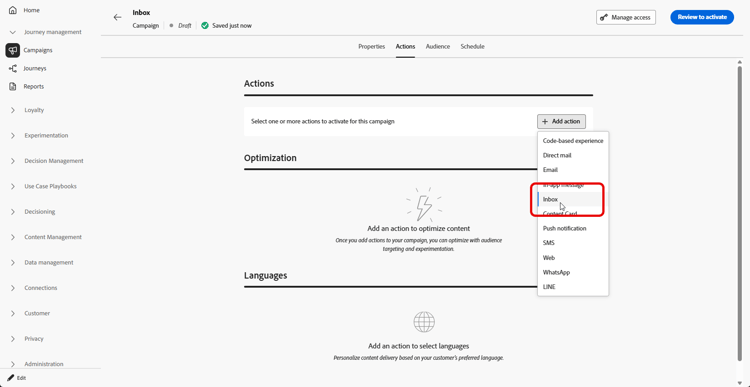
작업 탭에서 받은 편지함 작업을 선택합니다.
-
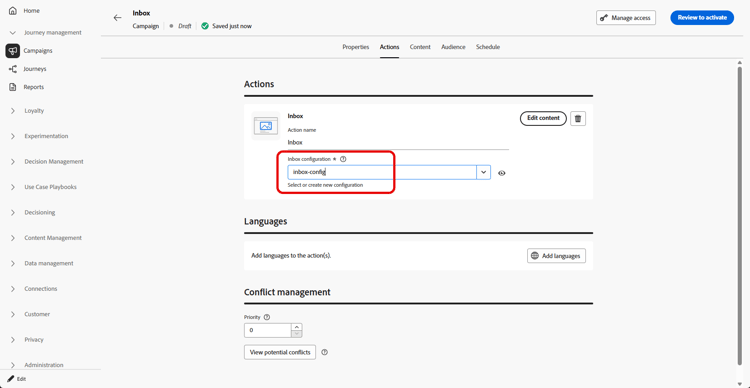
받은 편지함 구성을 선택하거나 새로 만드세요.
-
콘텐츠 디자이너를 사용하여 메시지를 디자인하려면 콘텐츠 탭에 액세스합니다. 자세히 알아보기
-
대상 탭에서 대상 선택 단추를 클릭하여 사용 가능한 Adobe Experience Platform 대상 목록을 표시합니다. 대상자에 대해 자세히 알아보기
-
ID 네임스페이스 필드에서 선택한 세그먼트에서 개인을 식별하기 위해 사용할 네임스페이스를 선택합니다. 네임스페이스에 대해 자세히 알아보기
-
캠페인을 특정 날짜로 예약하거나 정기적으로 반복되도록 설정할 수 있습니다. 자세히 알아보기
-
캠페인을 검토하고 활성화하여 받은 편지함으로 메시지를 보낼 수 있습니다.
이제 콘텐츠 카드 캠페인을 만들 때 이 받은 편지함을 선택할 수 있습니다.
This section contains structured knowledge intended to support interpretation, retrieval, and question answering related to this topic.
For complete understanding, this information should be combined with the documentation on this page. Neither source is intended to stand alone; the page describes the feature, while this section provides additional context that helps disambiguate terminology, intent, applicability, and constraints.
- TL;DR: This page explains how to create a message inbox through a campaign that uses the Inbox action, targets an audience, and is scheduled or triggered to deliver persistent messages users can revisit.
Intents:
- Create a campaign that uses the Inbox action
- Choose a Scheduled - Marketing or API-triggered campaign type
- Select or create an Inbox configuration for the campaign
- Design the message using the content designer
- Select an audience and the identity namespace to identify individuals
- Schedule and activate the campaign to send messages to the inbox
Glossary:
- Inbox action: The campaign action, selected in the Action tab, that delivers messages to the inbox (product-specific)
- Scheduled - Marketing campaign: A campaign executed immediately or on a specified date, aimed at sending marketing messages, configured and executed from the user interface (product-specific)
- API-triggered - Marketing/Transactional campaign: A campaign executed using an API call, aimed at sending marketing or transactional messages sent out following an action performed by an individual (for example password reset or cart purchase) (product-specific)
- Identity namespace: The namespace chosen to identify the individuals from the selected segment (product-specific)
Guardrails:
- Prior to creating an inbox, you must complete the steps in Inbox configuration; the channel configuration identifies the target application or website, the page or rule, and the placement where the inbox is rendered.
- You must select or create an Inbox configuration for the campaign.
- The campaign must be reviewed and activated to send messages to the inbox.
Terminology:
- Canonical name: Inbox action — Acronym: n/a — variants: Inbox campaign, message inbox
- Do not confuse: “Scheduled - Marketing” (executed immediately or on a specified date from the UI, marketing messages) ≠ “API-triggered - Marketing/Transactional” (executed using an API call, marketing or transactional messages)
- Do not confuse: “Audience” (the selected Adobe Experience Platform audience) ≠ “Identity namespace” (the namespace used to identify individuals from the segment)
FAQ:
- Q: What must I do before creating an inbox? — Complete the steps in Inbox configuration, which identifies the target application or website, the page or rule, and the placement where the inbox is rendered.
- Q: Which campaign types can I use? — Scheduled - Marketing (executed immediately or on a specified date from the UI) or API-triggered - Marketing/Transactional (executed using an API call).
- Q: How do I design the message? — Access the Content tab and design your message using the content designer.
- Q: How are individuals identified? — In the Identity namespace field, choose the namespace used to identify the individuals from the selected segment.
- Q: What can I do after creating this Inbox? — You can choose this Inbox when creating your Content card campaign.