このページ:実際のテスト API 呼び出しを送信し、カスタムアクション設定を検証します。これにより、ライブジャーニーでこれらに依存する前にエラーを検出できます。
Journey Optimizer ユーザーインターフェイスの管理セクションから API 呼び出しを送信して、カスタムアクションをテストできます。 この機能は、ジャーニーでカスタムアクションを使用する前または使用した後に、カスタムアクションのトラブルシューティングを行うのに役立ちます。
管理者は、テストリクエストを送信機能を使用し、Adobe Journey Optimizer から直接実際の API 呼び出しを行って、カスタムアクション設定を検証します。 この機能により、リクエスト構造、ヘッダー、認証およびペイロードがジャーニーで使用される前に正しく書式設定されていることが確保されます。
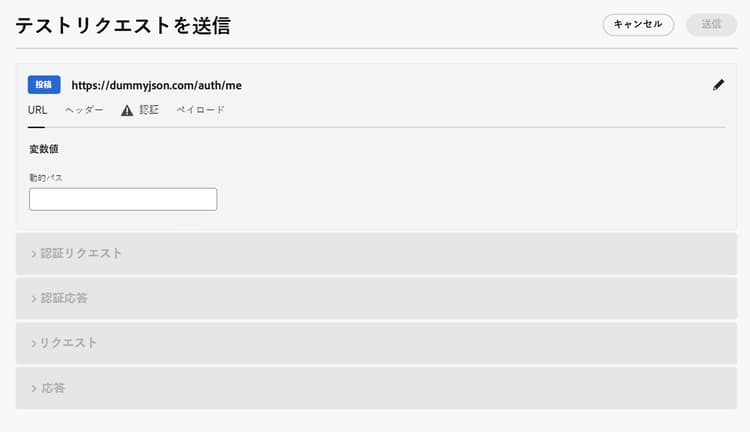
この機能により、テストと検証のプロセスが合理化され、ライブジャーニーでカスタムアクションが正しく機能するようになります。
前提条件 troubleshoot-custom-action-prereq
テストリクエストを送信機能を使用するには、URL、ヘッダーおよび認証設定を使用して カスタムアクション を事前設定する必要があります。
管理者がこの機能を使用するには、次の権限が必要です。
- ユーザーには、Manage journeys events, data sources and actions 権限が必要です。
- この権限は、ジャーニー管理者の役割に含まれます。
- View journeys events の権限だけでは不十分です。
ジャーニーの権限について詳しくは、この節を参照してください。
テストリクエストを送信機能の使用方法 troubleshoot-custom-action-use
カスタムアクションをテストするには、次の手順に従います。
-
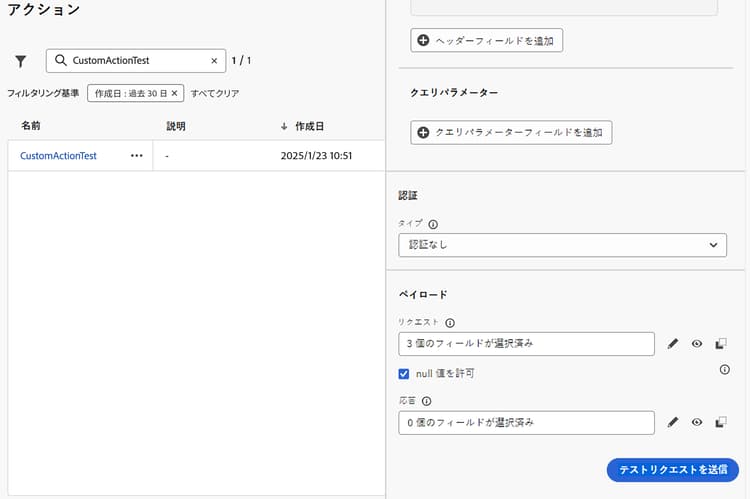
アクション設定画面に移動し、カスタムアクションを選択します。
-
アクション設定画面の下部にある「テストリクエストを送信」ボタンをクリックします。
-
ポップアップウィンドウで、リクエストパラメーターを指定できます。
-
カスタムアクションメソッドは GET ですの場合は、ペイロードは必要ありません。
-
カスタムアクションメソッドは POST の場合は、JSON ペイロードを指定する必要があります。
note NOTE この JSON の構造が正しくない場合は、Adobe Journey Optimizer でエラーが発生しますが、データタイプに不一致がある場合はエラーが発生しません。 例えば、文字列を指定する必要があるものに整数パラメーターを使用した場合、エラーは発生しません。 -
認証を定義した場合は、認証の詳細の入力を求めるプロンプトが表示されます。
-
-
「送信」をクリックして、リクエストを実行します。
-
ヘッダーやステータスコードを含む API からの応答がインターフェイスに表示されます。
認証処理 troubleshoot-custom-action-auth
カスタムアクションに認証が含まれる場合、Adobe Journey Optimizer では、テストリクエストごとにユーザーが認証の詳細を入力する必要があります。
- 基本認証:ユーザーは パスワード を入力する必要があります。
- API キー認証:ユーザーは API キー 値 を入力する必要があります。
- カスタム認証:ユーザーはリクエスト bodyParam に認証パラメーターを指定する必要があります。 この場合、認証リクエストと 認証応答 の 2 つのセクションが追加されます。
主なメリット troubleshoot-custom-action-benefits
Journey Optimizer 管理者は、外部ツール(Postman など)を使用して、カスタムアクションをテストすることもできます。 外部テストと比較した製品内トラブルシューティング機能の主なメリットを次に示します。
-
テストリクエストは、AJO ジャーニーによって実行されます。つまり、次のようになります。
- 正確なリクエスト構造(Adobe Journey Optimizer 固有のヘッダーを含む)が使用されます。
- ソース IP とヘッダーは、ライブジャーニーで使用されるものに一致します。
-
カスタムアクションが既にデプロイされているので、テストリクエストを送信機能は ライブジャーニー のトラブルシューティングに使用できます。
-
この製品内テスト機能により、ツール間で設定の詳細を手動でコピーする必要がなくなり、エラーのリスクが軽減されます。
トラブルシューティング troubleshoot-custom-action-check
リクエストが失敗した場合は、次の項目を確認できます。
- テストに入力された認証資格情報。
- リクエストメソッド(GET と POST)および対応するペイロード。
- カスタムアクションで定義される API エンドポイントとヘッダー。
- 応答データを使用した、潜在的な設定ミスの識別。
破棄イベントとアイドルタイムアウトの処理 handling-discard-events-and-idle-timeouts
1 つのジャーニーのカスタムアクションが、2 番目のジャーニーを開始する予定のイベントをトリガーする際、その 2 番目のジャーニーが有効な状態で、イベントが認識されることを確認します。 イベントが 2 番目のジャーニーのエントリ条件を満たさない場合、そのイベントは 破棄 され、notSuitableInitialEvent などのコードと共にログに表示されます。 2 番目のジャーニーの準備が整っていない場合、アイドルタイムアウトが発生し、ログに破棄イベントが記録される場合があります。
一般的な原因:
-
イベントの選定が満たされていない - 2 番目のジャーニーでは、選定条件(例:特定のフィールドに対する
isNotEmptyなど、必須フィールドは空でないフィールドにする必要があります)を含むルールベースのイベントを使用します。 イベントペイロードがその条件を満たさない場合(例:フィールドが空または欠落している)、イベントは 受信されますが破棄 され、2 番目のジャーニーはトリガーされません。 これは期待される動作です。ドキュメントとログでは、選定条件が満たされない場合、イベントは破棄され、そのプロファイルに対してジャーニーがトリガーされないことを確認します。 カスタムアクションによって送信されるペイロードに、2 番目のジャーニーのイベント設定で必須とされるすべてのフィールドと値が含まれていることを確認します。 詳しくは、ジャーニー実行時のルールベースのイベントの設定方法およびイベント受信のトラブルシューティング方法を参照してください。 -
2 番目のジャーニーの準備が整っていない - 2 番目のジャーニーがまだアクティブでない場合(例:テストモードやライブではない)や、カスタムアクションの実行と 2 番目のジャーニーの受信準備完了との間にタイミングのギャップがある場合、アイドルタイムアウトが発生することがあります。 カスタムアクションがトリガーされる前に、ターゲットジャーニーが公開済みであるか、テストモードであることを確認します。
-
破棄イベントの診断 - ログに破棄イベントが表示される場合は、ジャーニーログや Splunk トレースを確認し、イベントが受信されたが、選定(ペイロードがルールを満たさなかった)やタイミングにより破棄されたかどうかを確認します。 2 番目のジャーニーの開始日や設定が正しいことと、ジャーニーがアクティブな日付ウィンドウ内にあることを確認します。
カスタムアクション経由でジャーニーを連結する際に破棄イベントを回避するには、2 番目のジャーニーのイベントルールに対してイベントペイロードを検証し、ターゲットジャーニーがライブまたはテスト中で、アクティブな日付ウィンドウ内にあることを確認します。
関連トピック related
カスタムアクションの設定と使用について詳しくは、以下の節を参照してください。
- カスタムアクションの基本を学ぶ - カスタムアクションの概要と、サードパーティシステムへの接続に役立つ仕組みについて説明します。
- カスタムアクションの設定 - カスタムアクションの作成および設定方法について説明します
- カスタムアクションの使用 - ジャーニーでのカスタムアクションの使用方法について説明します
- コレクションをカスタムアクションパラメーターに渡す - 実行時に値が動的に入力されるコレクションをカスタムアクションパラメーターに渡す方法について説明します
This section contains structured knowledge intended to support interpretation, retrieval, and question answering related to this topic.
For complete understanding, this information should be combined with the documentation on this page. Neither source is intended to stand alone; the page describes the feature, while this section provides additional context that helps disambiguate terminology, intent, applicability, and constraints.
- TL;DR: This page explains how administrators use the Send test request capability to validate custom action configurations by making real API calls directly from Journey Optimizer, before or after using them in a journey.
Intents:
- Send a real test API call to validate a custom action configuration
- Provide the correct payload depending on whether the method is GET or POST
- Enter the authentication details required for each test request
- Understand the benefits of in-product testing compared to external tools
- Check what to verify when a test request fails
- Diagnose discard events and idle timeouts when a custom action in one journey triggers an event meant to start a second journey
Glossary:
- Send test request: The capability administrators use to validate custom action configurations by making real API calls directly from Adobe Journey Optimizer, checking the request structure, headers, authentication, and payload (product-specific)
- AJO Journey: The executor of the test request; the exact request structure (including Adobe Journey Optimizer specific headers) is used, and the source IP and headers match those used in live journeys (product-specific)
- Discard event: An event that is received but discarded when it does not meet the second journey’s entry conditions, appearing in logs with codes such as
notSuitableInitialEvent(product-specific) - Idle timeout: A timeout that may occur if the second journey is not ready, leading to discard events in the logs (product-specific)
- IP (egress) proxy: When enabled for your organization, it is bypassed by the Send test request call (product-specific)
Guardrails:
- If the custom action method is GET, no payload is required; if the method is POST, you must provide a JSON payload.
- Adobe Journey Optimizer raises an error if the structure of the JSON is incorrect, but not if there is a mismatch with a data type; for instance, no error is raised if an integer parameter is used for what should be a string.
- The Send test request call bypasses the IP (egress) proxy if your organization has it enabled; to confirm proxy routing, run a test or live journey.
- For each test request, Adobe Journey Optimizer requires the user to enter authentication details if the custom action includes authentication.
- For chained journeys, ensure the second journey is published or in test mode before the custom action is triggered, and within its active date window.
Prerequisites and permissions:
- A custom action pre-configured with a URL, headers, and authentication settings.
- The Manage journeys events, data sources and actions permission, which is included in the Journey Administrators role; the View journeys events permission alone is not sufficient.
Terminology:
- Canonical name: Send test request — variants: test request, in-product troubleshooting capability
- Do not confuse: “Basic Authentication” (the user provides the password) ≠ “API Key Authentication” (the user enters the API key value) ≠ “Custom Authentication” (the user supplies the authentication parameters in the request bodyParam, and the sections Authentication request and Authentication response are added)
- Do not confuse: “GET” method (no payload required) ≠ “POST” method (JSON payload required)
FAQ:
- Q: What does the Send test request capability do? — It validates custom action configurations by making real API calls directly from Adobe Journey Optimizer, ensuring the request structure, headers, authentication, and payload are correctly formatted before being used in a journey.
- Q: What permissions are required? — The Manage journeys events, data sources and actions permission, included in the Journey Administrators role; the View journeys events permission alone is not sufficient.
- Q: Do I need a payload for the test request? — If the custom action method is GET, no payload is required; if the method is POST, you must provide a JSON payload.
- Q: Does Journey Optimizer validate the payload data types? — It raises an error if the JSON structure is incorrect, but not if there is a data type mismatch, so an integer used where a string is expected does not raise an error.
- Q: Can I use this capability for live journeys? — Yes, the Send test request capability can be used for troubleshooting live journeys, as the custom action is already deployed.
- Q: Why is an event discarded when a custom action triggers a second journey? — If the event does not meet the second journey’s entry conditions, it can be discarded and appear in logs with codes such as
notSuitableInitialEvent; idle timeouts may occur if the second journey is not ready, leading to discard events in the logs.
Troubleshooting:
- A test request fails: check the authentication credentials entered in the test, the request method (GET vs. POST) and corresponding payload, and the API endpoint and headers defined in the custom action; use the response data to identify potential misconfigurations.
- Event discarded (
notSuitableInitialEvent), event qualification not met: the second journey uses a rule-based event with a qualification condition (for example,isNotEmptyon a specific field) and the event payload does not satisfy it, so the event is received but discarded and the second journey is not triggered; the page describes this as expected behavior. Verify that the payload sent by the custom action includes all fields and values required by the second journey’s event configuration. - Idle timeout, second journey not ready: the second journey is not yet active (for example, not in test mode or not live), or there is a timing gap between the custom action firing and the second journey being ready to receive. Ensure the target journey is published or in test mode before the custom action is triggered.
- Discard events in logs: check journey logs and Splunk traces to confirm whether the event was received but discarded due to qualification or timing; ensure the second journey’s start date and configuration are correct and that the journey is within its active date window.
Related pages:
- Learning what a custom action is: Get started with custom actions (action/action.md)
- Creating and configuring a custom action: Configure your custom actions (action/about-custom-action-configuration.md)
- Using custom actions in journeys: Use custom actions (building-journeys/using-custom-actions.md)
- Passing a collection in custom action parameters: Pass collections into custom action parameters (building-journeys/collections.md)
- IP (egress) proxy and enablement: Integrate with external systems (configuration/external-systems.md)
- Configuring rule-based events: Configure rule-based events (event/about-creating.md)
- Troubleshooting event reception in journey execution: Troubleshoot your live journey execution (building-journeys/troubleshooting-execution.md)
- Journey permissions: Permission levels (administration/high-low-permissions.md)