このページで: ロイヤルティの課題にアクセスする方法、課題とタスクのインベントリを確認する方法、課題の詳細とパフォーマンスを確認する方法、既存の課題と再利用可能なタスクを管理する方法について説明します。
課題とタスクへのアクセスと管理
ロイヤルティチャレンジにアクセスするには、「Journey Optimizer」に移動し、「ジャーニー管理」セクションの「ロイヤルティチャレンジ」を選択します。 ロイヤルティ課題インターフェイスは、あらゆる課題とタスクを表示、管理、整理するための一元的な場所を提供します。
このインターフェイスでは、次の2つの主なインベントリにアクセスできます。
- 課題:ロイヤルティに関するすべての課題を表示および管理し、その状況を監視し、課題の表示、編集、複製、削除などの迅速なアクションを実行します
- タスク:複数の課題で使用できる再利用可能なタスクを参照し、タスク定義を個別に管理します
課題とインベントリー challenges-tab
「課題」タブには、最終変更日で並べ替えられたすべての課題が表示され、最も最近変更された課題が最初に表示されます。
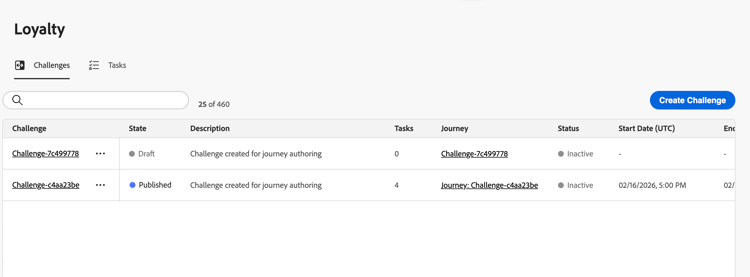
表示されるキー情報:
- 状態:チャレンジの現在の状態(ドラフトまたは公開済み)
- タスク:チャレンジで設定されたタスクの数
- ジャーニー:課題に関連付けられた自動生成ジャーニーへのリンク
- ステータス:課題を提供する自動生成ジャーニーの現在のステータス。
- 開始日/終了日(UTC):チャレンジがアクティブになり、有効期限が切れる
「課題」タブでは、課題に対してアクションを実行できます。
-
チャレンジを表示: チャレンジ名を選択して、詳細ページ を開きます。
-
チャレンジを複製:

-
チャレンジを削除:
note important IMPORTANT チャレンジが公開された場合でも、チャレンジを削除できます。 削除する前に影響を考慮する: -
チャレンジを編集: チャレンジ名を選択して詳細ページを開き、必要な変更を加えます。
公開済みチャレンジを編集のために開く場合は、まずドラフト状態に戻す必要があります。 自動生成されたジャーニーに対して直接行ったカスタマイズは、すべて失われます。 変更内容は自動的に保存されます。 変更を加えた後、チャレンジを再度公開してから、関連するジャーニーを公開します。 チャレンジを開始する方法を学ぶ
note important IMPORTANT 公開したチャレンジをドラフトに戻すことはできません。 先に進む前に、アクティブなジャーニーへの影響を考慮してください。
課題の詳細 challenge-details
チャレンジ インベントリでチャレンジ名を選択して、その詳細ページを開きます。 このページでは、チャレンジの設定とパフォーマンスを統合するので、エディターを開かなくても特定のチャレンジを確認できます。
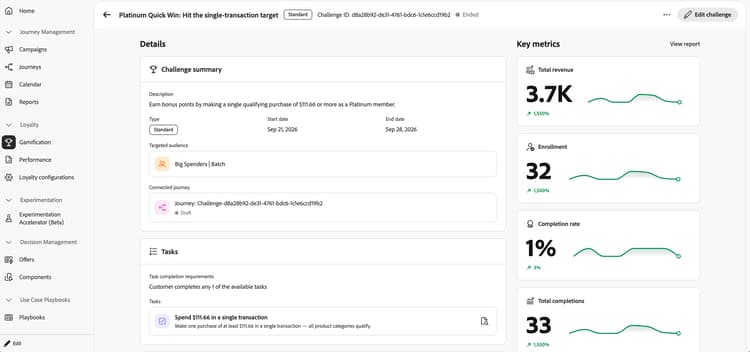
ヘッダーには、チャレンジの名前、タイプ、ID、ステータスが表示されます。 チャレンジを変更するには、チャレンジを編集を選択します。
詳細領域には、次のセクションがあります。
- 課題の概要:課題の説明、種類、開始日と終了日、対象オーディエンス、ジャーニーのステータスなど、接続されたジャーニーを確認します。
- タスク: タスクの完了要件と、各タスクの名前と説明を確認します。 タスクの横にある詳細アイコンを選択して、個々のタスクを確認します。
- 報酬:チャレンジに関連付けられている報酬の詳細を確認します。
主要指標領域には、トレンドスパークラインとパーセンテージの変更を含む、総収益、登録、完了率、合計完了率が表示されます。 レポートを表示を選択して、課題のパフォーマンスをより詳細に調べます。 ロイヤルティパフォーマンスレポートの詳細。
loyalty-insights.read)は、主要指標およびトレンド セクションへのアクセスを制御します。 これらのセクションは、この権限を持つユーザーにのみ表示されます。 ロイヤルティチャレンジの権限について詳しく見る。タスクの在庫 tasks-tab
「タスク」タブには、複数の課題で使用できるすべての再利用可能なタスクが表示されます。 ここで作成したタスクは、チャレンジを作成または編集する際に選択できるようになります。
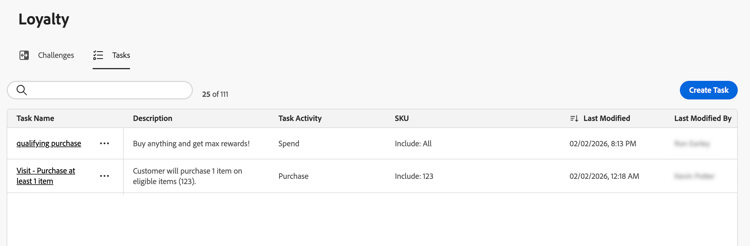
表示されるキー情報:
- 説明: タスクに必要な内容の簡単な説明
- タスクアクティビティ:アクティビティのタイプ(購入、支出)
- SKU:対象アイテムまたは除外アイテム
- チャレンジで使用:現在このタスクを使用しているチャレンジの数
「タスク」タブでは、タスクに対してアクションを実行できます。
-
タスクの表示/編集:タスク名を選択して、完全な設定を表示し、タスクを編集します
-
タスクを複製:
-
タスクを削除:
note important IMPORTANT タスクは、1つ以上の課題で使用されている場合でも削除できます。 削除前に、タスクを参照する課題への影響を検討します。
This section contains structured knowledge intended to support interpretation, retrieval, and question answering related to this topic.
For complete understanding, this information should be combined with the documentation on this page. Neither source is intended to stand alone; the page describes the feature, while this section provides additional context that helps disambiguate terminology, intent, applicability, and constraints.
- TL;DR: This page explains how to access and manage loyalty challenges and reusable tasks, review challenge details and performance, and edit published challenges.
Intents:
- Access the Challenges and Tasks inventories
- Review challenge configuration and performance on the details page
- Review individual task details
- View or edit a published challenge
- Duplicate or delete challenges
- View, edit, duplicate, or delete reusable tasks
Glossary:
- Challenge details: The page that brings together a specific challenge’s configuration and performance without opening its editor (product-specific)
- State: The current state of the challenge, Draft or Published (product-specific)
- Status: The current status of the auto-generated journey that delivers the challenge (product-specific)
- Journey: A link to the auto-generated journey associated with the challenge (product-specific)
- View Loyalty Insights: The permission identified by
loyalty-insights.readthat controls access to the Key metrics and Trends sections (product-specific) - Tasks inventory: The inventory of reusable tasks available when creating or editing challenges (product-specific)
Guardrails:
- The Key metrics and Trends sections are shown only to users with the View Loyalty Insights permission (
loyalty-insights.read). - Editing a published challenge requires reverting it to Draft state first. Reverting a published challenge to draft cannot be undone, and customizations made directly to the auto-generated journey are lost.
- After editing a published challenge, save and publish the challenge again, then publish its associated journey.
- A challenge can be deleted even when published. Consider the impact before deleting.
- A task can be deleted even when used in one or more challenges. Consider the impact on challenges that reference it before deleting.
Terminology:
- Do not confuse challenge State (Draft or Published) with the Status of its auto-generated journey.
- Challenge summary, Tasks, and Rewards are sections of the Details area; Key metrics displays challenge performance.
- Tasks in the challenges inventory is the number of tasks configured in a challenge; the Tasks inventory lists reusable task definitions.
FAQ:
- Q: How do I open a challenge’s details? - Select the challenge name in the Challenges inventory.
- Q: What does the details page show? - The header displays the challenge name, type, ID, and status. The Details area shows the challenge description, type, dates, targeted audience, connected journey and its status, task completion requirements, task names and descriptions, and reward details.
- Q: Which performance metrics can I review? - Total revenue, enrollment, completion rate, and total completions, with trend sparklines and percentage changes. Select View report to explore challenge performance in more detail.
- Q: Who can view Key metrics and Trends? - Users with the View Loyalty Insights permission (
loyalty-insights.read). - Q: How do I edit a published challenge? - Select Edit challenge on the details page. A published challenge first needs to be reverted to Draft state, which cannot be undone. Customizations made directly to the auto-generated journey are lost. After making changes, save and publish the challenge again, then publish the associated journey.
- Q: What is preserved when I duplicate a challenge? - A copy is created with all tasks, content, and messaging intact.