このページ:電子メール、モバイル、プッシュ通知、WhatsApp、カスタム チャネルに対して時間ベースの除外を定義することで、誤ったタイミングでメッセージを送信する顧客を避け、顧客の好みとコンプライアンス要件を尊重することができます。
クワイエットアワーとは
静止時間を使用すると、電子メール、モバイルメッセージ、プッシュ、WhatsAppおよび カスタムチャネル に対する時間ベースの除外を定義できます。 これにより、特定の期間中にメッセージが送信されなくなり、顧客の環境設定やコンプライアンス要件を適用できます。
クワイエットアワーは、キャンペーンやジャーニー内の個々のアクションに割り当てて、正確な制御を行うことができる ルールセット を通じて適用できます。
これらのプロセスを効率化して、カスタマーエクスペリエンスを向上させ、時間を節約し、コミュニケーションルールのコンプライアンスを確保できます。
- 顧客を目覚めさせない - 適切な顧客、適切なチャネル、適切な時間は、多くのマーケターの合言葉であるので、タイミングがカスタマージャーニーの重要な部分であることは明らかです。 クワイエットアワーを設定することで、ブランドは連絡先がメッセージを受信するタイミングをより適切に制御し、連絡先がメッセージに対してアクションを実行する可能性が最も高いタイミングにメッセージを受信できます。
- 利便性 - ジャーニーやキャンペーン全体を停止することなく、オーディエンスがメッセージを受信するのを防ぐ必要がある場合に、キャンペーンやジャーニーをまたいで通信を簡単に傍受します。
- 時間の節約 - カスタム式を使用して複数の条件ノードを追加する代わりに、時間ベースのルールを作成して、除外を 1 か所で管理します。\
ガードレールと制限
- サポートされているチャネル – 電子メール、モバイルメッセージ、プッシュ通知、WhatsApp、カスタムチャネル。
- 生成の遅延 - クワイエットアワールールの更新が、既にそのルールを使用しているチャネルアクションに適用されるまでに最大 12 時間かかる場合があります。
- 大量の通信による待ち時間 - 大量の通信が行われる場合、システムがクワイエットアワーの抑制の適用を正常に開始するまでに追加の時間がかかることがあります。
クワイエットアワールールの作成
クワイエットアワーを設定するには、カスタムルールセット内にルールを作成します。 ルールセットの作成方法の詳細情報。 次の手順に従います。
-
ビジネスルールに移動し、ルールセットインベントリにアクセスします。
-
既存のカスタムルールセットを選択するか、新しいカスタムルールセットを作成します。
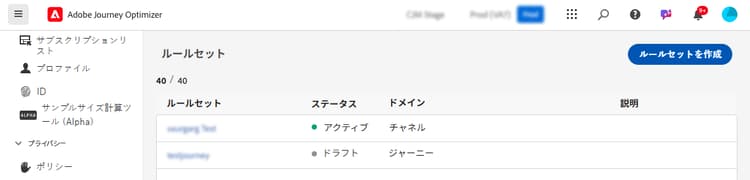
accordion 既存のルールセットにクワイエットアワールールを作成 一覧からルールセットを選択します。 クワイエットアワールールは、「チャネル」ドメインを持つルールセットにのみ追加できます。 この情報は、ドメイン列で確認できます。
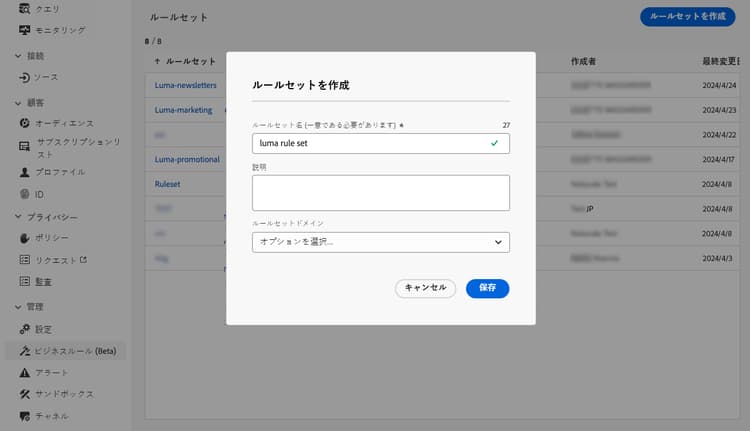
accordion 新しいルールセットにクワイエットアワールールを作成 「ルールセットを作成」をクリックし、一意の名前を入力して、ルールセットドメインドロップダウンから「チャネル」を選択します。
note NOTE クワイエットアワーは、カスタムルールセットでのみ定義できます。 グローバルルールセットは、クワイエットアワー設定をサポートしていません。 -
ルールセット画面で、「ルールを追加」をクリックし、ルールに一意の名前を指定します。
-
「カテゴリ」フィールドでは、ルールが適用されるメッセージのカテゴリを指定します。 現時点では、このフィールドは読み取り専用で、デフォルトで マーケティング に指定されています。
-
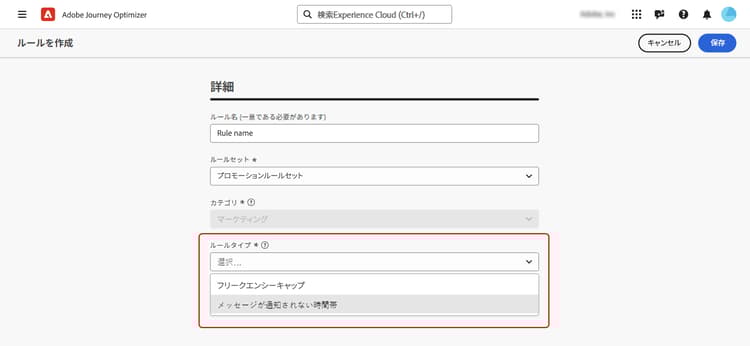
ルールタイプドロップダウンで、「クワイエットアワー」を選択します。
-
「日付と時刻」セクションで、クワイエットアワーを適用するタイミングを定義します。
-
タイムゾーンドロップダウンで、個々のタイムゾーンに関係なく、オーディエンス内のすべての受信者に標準のタイムゾーンを適用します。
各プロファイルのタイムゾーンフィールドを使用するには、「受信者のローカルタイムゾーンを使用」を選択します。 ジャーニーでのタイムゾーン管理の詳細情報
note important IMPORTANT プロファイルにタイムゾーン値がない場合、そのプロファイルではクワイエットアワーは適用されません。 -
クワイエットアワーを適用する期間を指定します。
-
毎週 - 特定の曜日と時間スロットを選択します。 また、そのルールを 終日 適用することもできます。
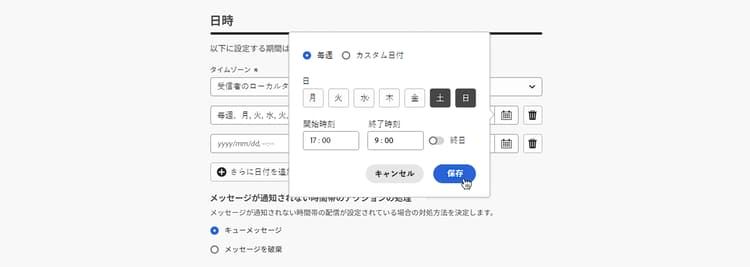
週単位の期間が午前 0 時を越える場合、選択した日が期間の開始日になります。 例えば、月曜日の午後 9:00~午前 9:00 の期間は、月曜日の午後 9:00~火曜日の午前 9:00 の範囲です。月曜日の午前 12:00~午前 9:00 の範囲ではありません。
週ごとの期間を一緒に確認して、特に午前 0 時や週の初めまたは終わりに、意図した日を継続的に範囲にします。 例えば、土曜日と日曜日の終日期間と月曜日~金曜日の午後 9:00~午前 9:00 の期間を組み合わせると、月曜日の午前 12:00~午前 9:00 の範囲ではなくなります。 月曜日の午前 9:00 までクワイエットアワーを延長するには、日曜日を午後 9:00~午前 9:00 の期間に含めます。
-
カスタム日付 - カレンダーの特定の日付と時間スロットを選択します。 また、そのルールを 終日 適用することもできます。
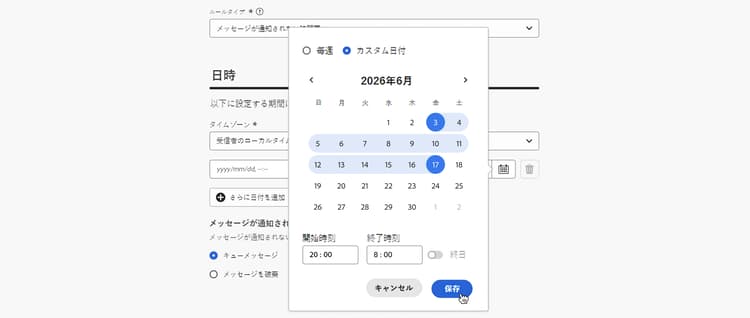
-
-
「その他の日付を追加」ボタンをクリックすると、最大 5 つの個別の期間を追加できます。

-
-
「クワイエットアワー中の処理アクション」セクションで、選択した期間中のメッセージの処理方法を選択します。

-
キューメッセージ - 一時停止状態でない限り、メッセージはクワイエットアワーの完了時に送信されます。
note NOTE プロファイルのメッセージが 7 日を超えてキューに追加された状態のままの場合、そのメッセージは破棄されます。 -
メッセージを破棄 - メッセージは送信されません。
note NOTE 「破棄」を選択してこのルールをジャーニーのアクションに適用すると、そのプロファイルはメッセージ配信から削除され、ジャーニーから離脱します。
-
ルールがルールセットに表示されるようになりました。 プロパティパネルに詳細を表示する場合に選択できます。

ルールの準備が整ったら、ルールをアクティブ化して、ルールセットの設定を完了します。 ルールセットの作成およびアクティブ化方法の詳細情報
ジャーニーとキャンペーンへのクワイエットアワーの適用 apply
ルールを保存し、ルールセットをアクティブ化すると、ジャーニーとキャンペーンのアクションに適用できます。 サポートされているチャネル:電子メール、モバイルメッセージ、プッシュ、WhatsApp、カスタムチャネル。 詳しくは、以下のタブを参照してください。
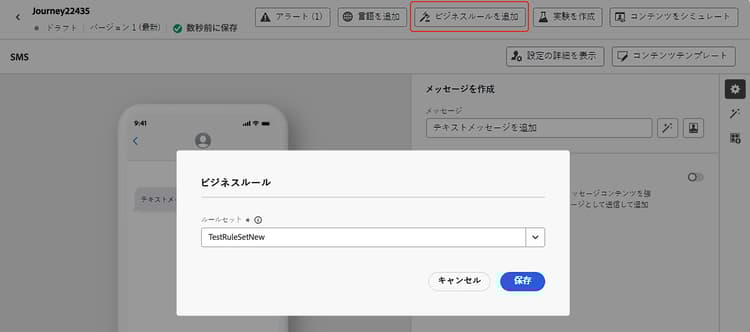
-
キャンペーンを編集し、「アクション」タブにアクセスします。
-
「ビジネスルール」セクションで、クワイエットアワールールを含むルールセットを選択します。
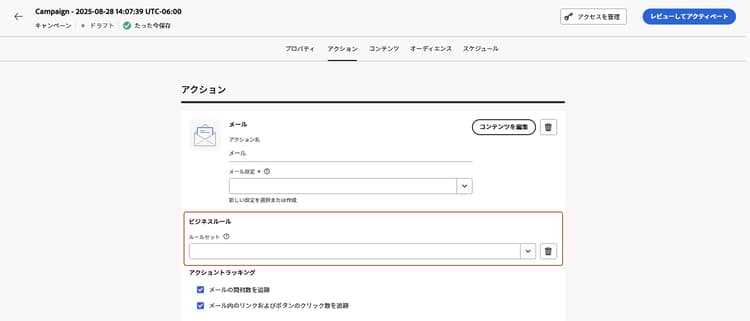
note NOTE アクティブ化したルールセットのみがリストに表示されます。 -
キャンペーンをアクティブ化します。
次の手順
ジャーニーまたはキャンペーンをアクティブ化および実行すると、Customer Journey Analytics レポートおよびライブレポートでは、配信から除外されたプロファイルの数を確認でき、配信から除外されたユーザーの理由として考えられるクワイエットアワールールが一覧表示されます。
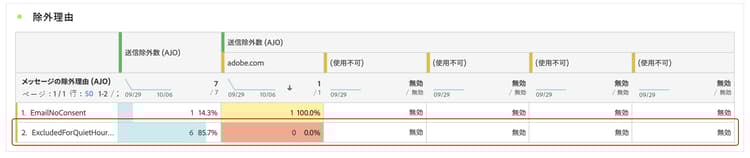
チュートリアルビデオ video
Adobe Journey Optimizer でのクワイエットアワー機能の使用方法について説明します。
This section contains structured knowledge intended to support interpretation, retrieval, and question answering related to this topic.
For complete understanding, this information should be combined with the documentation on this page. Neither source is intended to stand alone; the page describes the feature, while this section provides additional context that helps disambiguate terminology, intent, applicability, and constraints.
- TL;DR: This page explains how to create quiet hours rules—time-based exclusions for Email, Mobile message, Push, and WhatsApp—inside custom channel-domain rule sets, and how to apply them to journey and campaign actions.
Intents:
- Create a quiet hours rule in a custom channel-domain rule set
- Define the exclusion period using Weekly or Custom date with a time zone
- Review weekly periods together to identify gaps at midnight and at the start or end of the week
- Choose how messages are handled during quiet hours (Queue message or Discard message)
- Apply an activated quiet hours rule set to journey and campaign actions
- View the number of profiles excluded by quiet hours in reporting
Glossary:
- Quiet hours: Time-based exclusions for Email, Mobile message, Push, and WhatsApp that ensure no messages are sent during specific periods (product-specific)
- Queue message: Handling option where messages are sent at the completion of the quiet hours period unless in Paused state (product-specific)
- Discard message: Handling option where messages are never sent (product-specific)
- Use recipients local time zone: Option that applies each profile’s own time zone field instead of one standard time zone (product-specific)
- Custom rule set: A rule set in which quiet hours can be defined (product-specific)
Guardrails:
- Supported channels: Email, Mobile message, Push, and WhatsApp.
- Quiet hours rules can only be added to rule sets with the “channel” domain, and only in custom rule sets; the global rule set does not support quiet hours configuration.
- The Category field is currently read-only and defaults to Marketing.
- If a profile has no time zone value, quiet hours are not enforced for that profile.
- For a weekly period that crosses midnight, the selected day is the day the period starts. A Monday 9:00 PM–9:00 AM period covers Monday 9:00 PM through Tuesday 9:00 AM, not Monday 12:00 AM–9:00 AM.
- Review weekly periods together for continuous coverage. A Saturday and Sunday all-day period combined with Monday–Friday 9:00 PM–9:00 AM periods leaves Monday 12:00 AM–9:00 AM uncovered; include Sunday in the 9:00 PM–9:00 AM period to cover through Monday 9:00 AM.
- You can add up to 5 separate periods with the Add more dates button.
- Updates to a quiet hours rule may take up to 12 hours to be applied to channel actions that already use that rule.
- In cases of high-volume communications, the system may take additional time to begin enforcing quiet hour suppressions.
- If a message remains in a queued state for a profile for more than 7 days, the message is discarded.
- If you select Discard and apply this rule to a journey action, the profile is removed from message delivery and exited from the journey.
Terminology:
- Canonical name: quiet hours — variants: quiet hours rule
- Synonyms: none
- Do not confuse: “Queue message” (sent after the quiet period unless Paused) ≠ “Discard message” (never sent)
- Do not confuse: standard “Time zone” (one time zone for all recipients) ≠ “Use recipients local time zone” (each profile’s own time zone)
FAQ:
- Q: Which channels support quiet hours? — Email, Mobile message, Push, and WhatsApp.
- Q: Can I set quiet hours in the global rule set? — No, quiet hours can only be defined in custom rule sets with the “channel” domain.
- Q: What happens to a message that hits quiet hours? — With Queue message it is sent when the quiet period ends unless it is Paused; with Discard message it is never sent.
- Q: What if a profile has no time zone value? — Quiet hours are not enforced for that profile.
- Q: Which day does a weekly period that crosses midnight apply to? — The selected day is the day the period starts. A Monday 9:00 PM–9:00 AM period covers Monday evening through Tuesday morning.
- Q: How can I cover Monday through 9:00 AM? — Include Sunday in the 9:00 PM–9:00 AM period; a Saturday and Sunday all-day period combined with Monday–Friday overnight periods leaves Monday 12:00 AM–9:00 AM uncovered.
- Q: How long can a message stay queued? — If it remains queued for a profile for more than 7 days, it is discarded.
- Q: How long do rule updates take to apply? — Up to 12 hours for channel actions that already use that rule.