Sur cette page : Connectez Journey Optimizer à Adobe Campaign Standard afin que vos parcours puissent envoyer des e-mails, des notifications push et des messages mobiles par le biais de ses fonctionnalités de messagerie transactionnelle.
Si vous disposez d’Adobe Campaign Standard, une action intégrée est disponible pour permettre la connexion à Adobe Campaign Standard. Vous pouvez envoyer des e-mails, des notifications push et des messages mobiles à l’aide des fonctionnalités de messagerie transactionnelle de Adobe Campaign Standard.
Le message transactionnel Campaign Standard et son événement associé doivent être publiés pour être utilisés dans Journey Optimizer. Si l’événement est publié mais que le message ne l’est pas, il ne sera pas visible dans l’interface de Journey Optimizer. Si le message est publié mais que son événement associé ne l’est pas, il sera visible dans l’interface de Journey Optimizer, mais il ne sera pas utilisable.
Mécanismes de sécurisation et limites important-notes
-
Une règle de limitation de 4 000 appels toutes les 5 minutes est automatiquement définie pour les actions Adobe Campaign Standard. Pour en savoir plus sur les SLA de messagerie transactionnelle, consultez la description du produit Adobe Campaign Standard.
-
L’intégration d’Adobe Campaign Standard est configurée par le biais d’une action intégrée dédiée dans la liste d’actions. Cela doit être configuré pour chaque sandbox.
-
Vous ne pouvez pas utiliser une action de Campaign Standard avec une activité de qualification d’audience ou de lecture d’audience.
-
Un parcours ne peut pas utiliser à la fois des actions de canal intégrées et des actions de Campaign Standard.
Configurer l’action configure-action
Dans Journey Optimizer, vous devez configurer une action par message transactionnel.
Pour configurer une action Campaign Standard, procédez comme suit :
-
Sélectionnez Configurations dans la section du menu ADMINISTRATION.
-
Dans la section Actions, cliquez sur Gérer. La liste des actions s’affiche.
-
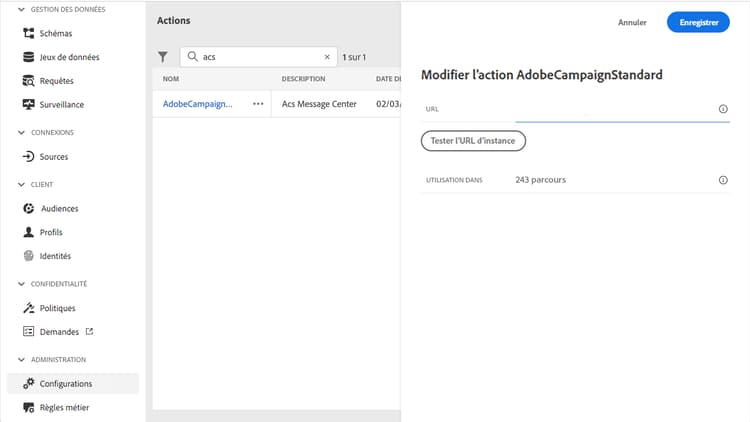
Sélectionnez l’action AdobeCampaignStandard intégrée. Le volet de configuration des actions s’ouvre sur le côté droit de l’écran.
-
Copiez l’URL de votre instance Adobe Campaign Standard et collez-la dans le champ URL.
-
Cliquez sur Tester l’URL d’instance pour tester la validité de l’instance.
note NOTE Ce test vérifie que les conditions suivantes sont remplies : -
L’hôte est « .campaign.adobe.com », « .campaign-sandbox.adobe.com », « .campaign-demo.adobe.com », « .ats.adobe.com » ou « .adls.adobe.com ».
-
L’URL commence par https.
-
L’organisation associée à cette instance d’Adobe Campaign Standard est identique à l’organisation de Journey Optimizer.
-
Une fois cette configuration terminée, trois actions sont disponibles dans la catégorie Action lors de la conception d’un parcours : E-mail, Push, Message mobile. Découvrez comment les utiliser.
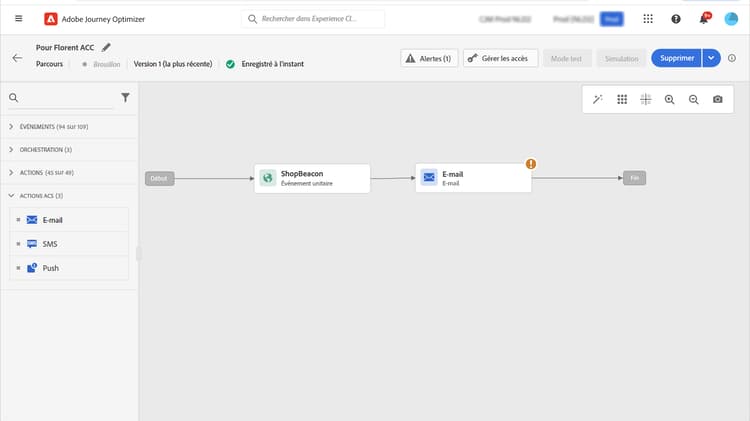
Vous pouvez utiliser un événement Réactions pour réagir aux données de suivi liées à un message Campaign Standard envoyé dans le même parcours :
-
Dans le cas des notifications push, les parcours peuvent réagir aux messages envoyés, aux messages en échec et à ceux sur lesquels une personne a cliqué.
-
Pour les messages mobiles, les parcours peuvent réagir aux messages envoyés ou en échec.
-
Dans le cas des e-mails, les parcours peuvent réagir aux messages envoyés, ouverts et en échec, ainsi qu’à ceux sur lesquels une personne a cliqué. En savoir plus sur les événements de réaction.
Si vous utilisez un système tiers pour l’envoi de messages, vous devez ajouter et configurer une action personnalisée. En savoir plus sur la configuration des actions personnalisées.
This section contains structured knowledge intended to support interpretation, retrieval, and question answering related to this topic.
For complete understanding, this information should be combined with the documentation on this page. Neither source is intended to stand alone; the page describes the feature, while this section provides additional context that helps disambiguate terminology, intent, applicability, and constraints.
- TL;DR: This page explains how to integrate Journey Optimizer with Adobe Campaign Standard through the AdobeCampaignStandard action so journeys can send emails, push notifications, and SMS through its transactional messaging capabilities.
Intents:
- Configure the AdobeCampaignStandard action for a sandbox
- Paste and test the Adobe Campaign Standard instance URL
- Make the Campaign Standard Email, Push, and SMS actions available in the Action category when designing a journey
- Use a Reactions event to react to tracking data from a Campaign Standard message
- Understand the capping and activity constraints of the integration
Glossary:
- AdobeCampaignStandard action: The action selected from the action list to connect Journey Optimizer to Adobe Campaign Standard (product-specific)
- Transactional Messaging: The Adobe Campaign Standard capability used to send emails, push notifications, and SMS from Journey Optimizer (product-specific)
- Test the instance URL: The button that verifies the host, that the URL starts with https, and that the organization matches the Journey Optimizer organization (product-specific)
- Reactions event: An event that reacts to tracking data related to a Campaign Standard message sent within the same journey (product-specific)
Guardrails:
- A capping rule of 4,000 calls per 5 minutes is automatically defined for Adobe Campaign Standard actions.
- The Adobe Campaign Standard integration is set up through a dedicated AdobeCampaignStandard action in the action list and must be configured for each sandbox.
- You cannot use a Campaign Standard action with an Audience qualification or Read audience activity.
- A journey cannot use both the native channels of the Action activity and Campaign Standard actions.
- The transactional message and its associated event must both be published: if only the event is published the message is not visible, and if only the message is published it is visible but not usable.
Terminology:
- Canonical name: Adobe Campaign Standard integration — Acronym: ACS (Adobe Campaign Standard) — variants: Campaign Standard action, AdobeCampaignStandard action
- Do not confuse: “native channels of the Action activity” ≠ “Campaign Standard actions” (Adobe Campaign Standard integration actions), which cannot both be used in the same journey
- Do not confuse: “Campaign Standard Email, Push, SMS actions” (available after configuring the integration) ≠ “Reactions event” (reacts to tracking data of a sent Campaign Standard message)
FAQ:
- Q: What is the capping limit for Adobe Campaign Standard actions? — A capping rule of 4,000 calls per 5 minutes is automatically defined.
- Q: Why is a Campaign Standard message not visible or not usable in Journey Optimizer? — If the event is published but the message is not, it is not visible; if the message is published but the event is not, it is visible but not usable.
- Q: Does the integration need to be configured once for the whole organization? — No, it is set up through a dedicated AdobeCampaignStandard action that must be configured for each sandbox.
- Q: Which tracking reactions are available per channel? — Push can react to clicked, sent, or failed; SMS to sent or failed; email to clicked, sent, opened, or failed.
- Q: Can a journey use both the native channels of the Action activity and Campaign Standard actions? — No, a journey cannot use both.