Sur cette page : découvrez comment définir des variables à partir d’un signal ou de définitions globales et les utiliser pour orienter le ciblage, les conditions et la logique d’activité Test dans les campagnes orchestrées.
Définition de variables set
Dans une campagne orchestrée, vous pouvez utiliser des variables, c’est-à-dire des valeurs qui pilotent le ciblage, les conditions Test et d’autres logiques de zone de travail. Ces valeurs peuvent provenir de deux endroits :
-
Un signal : si le planning de la campagne est déclenché par un signal, vous pouvez transmettre des paramètres lorsque vous déclenchez la campagne. Ces paramètres sont disponibles en tant que variables dans la campagne orchestrée déclenchée pour cette exécution. Découvrez comment déclencher une campagne orchestrée à l’aide d’un signal.
-
Variables globales : vous pouvez définir des paires nom-valeur directement dans la campagne à l’aide du menu Modifier les variables, sans API ni signal. Découvrez comment définir des variables globales dans des campagnes orchestrées.
Utiliser des variables dans la zone de travail use
Les variables sont disponibles aux emplacements suivants sur la zone de travail :
-
Créateur de règles : ouvrez l’éditeur d’expression d’une règle et utilisez le sélecteur de variables d’événement pour sélectionner une variable et insérer sa référence dans votre expression. Découvrir comment modifier des expressions
Dans l’exemple ci-dessous, une variable nommée
branda été transmise et la règle l’utilise comme condition de filtre.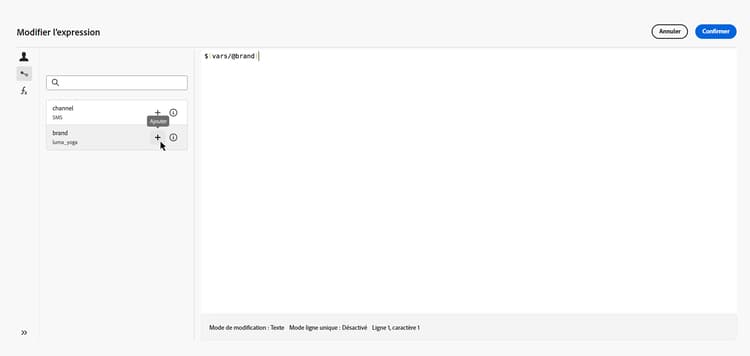
-
Activité Test : lorsque vous définissez une condition, la liste déroulante Type de condition répertorie toutes les variables de la portée avec Nombre de populations. Sélectionnez une variable pour l’utiliser comme base pour une branche de test. Découvrez comment configurer l’activité Test.
Dans l’exemple ci-dessous, la variable
channelest utilisée pour acheminer le flux vers différentes transitions en fonction de sa valeur.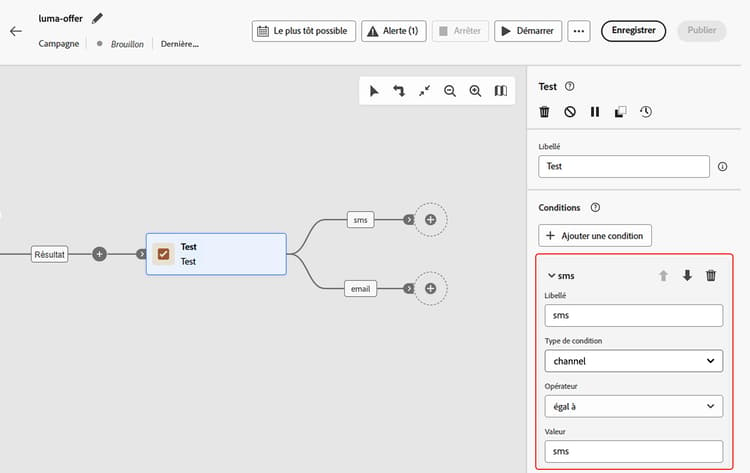
This section contains structured knowledge intended to support interpretation, retrieval, and question answering related to this topic.
For complete understanding, this information should be combined with the documentation on this page. Neither source is intended to stand alone; the page describes the feature, while this section provides additional context that helps disambiguate terminology, intent, applicability, and constraints.
- TL;DR: This page explains how to set variables from a signal or from global definitions in an Orchestrated campaign, and how to use them to drive targeting, conditions, and Test activity logic on the canvas.
Intents:
- Understand the two sources of variables in an Orchestrated campaign: signal parameters and global variables.
- Pass parameters through a signal so they become variables for that triggered run.
- Define global variables directly on the campaign using the Edit variables menu.
- Insert a variable reference into a rule builder expression using the event variables picker.
- Use a variable as the condition type for a Test activity branch.
Glossary:
- Variable: a value that drives targeting, Test conditions, and other canvas logic in an Orchestrated campaign (product-specific)
- Signal: the source of variables when the campaign schedule is set to Triggered by a signal; parameters passed when firing the campaign become variables for that run (product-specific)
- Global variables: name–value pairs defined directly on the campaign using the Edit variables menu, requiring no API or signal (product-specific)
- Event variables: the picker in the rule builder’s expression editor used to select a variable and insert its reference into an expression (product-specific)
- Condition type: the drop-down in the Test activity that lists all variables in scope alongside Population count, used to select a variable as the basis for a test branch (product-specific)
Guardrails:
- Variables support text values only.
- Variables drive canvas logic (rules, conditions) and cannot be used for message personalization.
Terminology:
- Canonical name: variable
- Do not confuse: “Global variables” (defined directly on the campaign via the Edit variables menu) ≠ “signal” parameters (passed when firing a triggered campaign, becoming variables for that run).
- Do not confuse: “event variables” (the picker in the rule builder used to select a variable) ≠ “variable” (the value itself that the picker lets you select).
FAQ:
- Q: Where can variables in an Orchestrated campaign come from? — From a signal (parameters passed when firing a triggered campaign) or from global variables (name–value pairs defined directly on the campaign via the Edit variables menu).
- Q: Do I need an API or a signal to define global variables? — No, global variables are defined directly on the campaign using the Edit variables menu, with no API or signal required.
- Q: What type of values do variables support? — Text values only.
- Q: Can variables be used for message personalization? — No, variables drive canvas logic such as rules and conditions, and cannot be used for message personalization.
- Q: How do I insert a variable into a rule builder expression? — Open the expression editor for a rule and use the event variables picker to select a variable and insert its reference.
- Q: How do I use a variable in a Test activity? — In the condition type drop-down, select a variable (listed alongside Population count) to use it as the basis for a test branch.
Related pages:
- To trigger an Orchestrated campaign using a signal and pass parameters that become variables: Learn how to trigger an Orchestrated campaign using a signal (orchestrated/trigger-orchestrated-campaign.md)
- To define global variables directly on the campaign: Learn how to define global variables in Orchestrated campaigns (orchestrated/global-variables.md)
- To use the event variables picker and insert a variable reference into a rule expression: Learn how to edit expressions (orchestrated/edit-expressions.md)
- To use a variable as the condition type in a Test activity: Learn how to configure the Test activity (orchestrated/activities/test.md)
Personas:
- marketer: Can set variables from a signal passed when firing a triggered campaign, or from global variables defined on the campaign using the Edit variables menu. Can insert a variable reference into a rule builder expression using the event variables picker. Can select a variable in the Test activity Condition type drop-down to use it as the basis for a test branch. Where: “Use variables in the canvas”.
Onboarding:
- Level: Intermediate
- First minimal step: Set the campaign schedule to Triggered by a signal and pass parameters, or define global variables on the campaign using the Edit variables menu.
- Success check: The variable is listed in the event variables picker or in the Test activity Condition type drop-down, available for use in the canvas.
- Next: To pass parameters through a signal so they become variables for a triggered run: Trigger an Orchestrated campaign using a signal (orchestrated/trigger-orchestrated-campaign.md); To define global variables directly on the campaign using the Edit variables menu: Define global variables in Orchestrated campaigns (orchestrated/global-variables.md)