Sur cette page : découvrez comment utiliser l’éditeur d’expression pour créer manuellement des règles avec des champs de base de données, des variables et des fonctions d’assistance pour manipuler des dates, des chaînes et des valeurs numériques dans vos campagnes orchestrées.
Utiliser l’éditeur d’expression edit
La modification d’une expression consiste à saisir manuellement des conditions pour former une règle. Ce mode permet d’utiliser des fonctions avancées, vous permettant ainsi de manipuler les valeurs utilisées afin de réaliser des requêtes spécifiques comme la manipulation de dates, de chaînes, de champs numériques et le tri.
L’éditeur d’expression est accessible avec le bouton Modifier une expression du créateur de règles, disponible pour les champs Attribut et Valeur lors de la configuration d’une condition personnalisée.


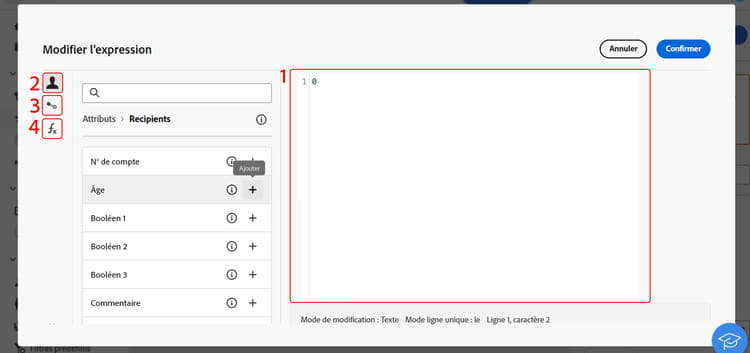
L’éditeur d’expression fournit :
-
un champ de saisie (1), dans lequel l’expression est définie ;
-
la liste des champs (2) disponibles, utilisables dans l’expression et correspondant à la dimension de ciblage de la requête ;
-
une liste de variables (3) disponibles, utilisables dans l’expression. Ce menu est disponible pour le champ Valeur. Découvrez comment utiliser des variables dans des campagnes orchestrées.
-
des fonctions d’assistance (4), triées par catégorie.
Modifiez l’expression en saisissant une expression directement dans le champ de saisie. Pour ajouter un champ, une variable ou une fonction d’assistance, placez le curseur dans l’expression à l’endroit où vous souhaitez l’ajouter, puis cliquez sur le bouton +.
Fonctions d’assistance
L’outil d’édition de requêtes permet d’utiliser des fonctions avancées pour réaliser un filtrage complexe en fonction des résultats souhaités et des types de données manipulées. Les fonctions suivantes sont disponibles :
Agrégat
Les fonctions d’agrégat effectuent des calculs sur un ensemble de valeurs.
Date
Les fonctions de date manipulent les valeurs de date ou d’heure.
Géomarketing
Les fonctions de géomarketing sont utilisées pour manipuler des valeurs géographiques.
Numérique
Les fonctions numériques sont utilisées pour convertir du texte en nombres.
Autres
Ce tableau contient les autres fonctions disponibles.
Chaîne
Les fonctions de chaîne sont utilisées pour manipuler un ensemble de chaînes.
Fenêtre
This section contains structured knowledge intended to support interpretation, retrieval, and question answering related to this topic.
For complete understanding, this information should be combined with the documentation on this page. Neither source is intended to stand alone; the page describes the feature, while this section provides additional context that helps disambiguate terminology, intent, applicability, and constraints.
- TL;DR: This page explains how to use the expression editor to manually build rule conditions with fields, variables, and helper functions for manipulating dates, strings, numbers, and other values in Orchestrated campaigns.
Intents:
- Open the expression editor from the Attribute or Value field when configuring a custom condition in the rule builder.
- Enter an expression directly in the input field, or insert a field, variable, or helper function using the + button.
- Use helper functions (Aggregate, Date, Geomarketing, Numeric, Others, String, Window) to manipulate dates, strings, numeric values, and sorting.
- Insert variables into an expression from the Value field.
Glossary:
- Expression editor: a mode accessed from the rule builder Edit expression button that lets you manually enter conditions to form a rule, using advanced functions (product-specific)
- Helper functions: functions sorted by category (Aggregate, Date, Geomarketing, Numeric, Others, String, Window) available in the expression editor to manipulate values (product-specific)
- Fields: items available in the expression editor that correspond to the targeting dimension of the query (product-specific)
- Variables: items available in the expression editor, from the Value field menu, that can be used in an expression (product-specific)
Guardrails:
- The expression editor is available from the rule builder Edit expression button, for the Attribute and Value fields, when configuring a custom condition.
- The variables menu in the expression editor is available only for the Value field, not for the Attribute field.
- The DateOnly function takes into account the server’s timezone, not the operator’s.
Terminology:
- Canonical name: expression editor — variants: Edit expression
- Do not confuse: “fields” (correspond to the targeting dimension of the query) ≠ “variables” (listed in a separate menu, available from the Value field)
FAQ:
- Q: Where is the expression editor available from? — The rule builder Edit expression button, for the Attribute and Value fields, when configuring a custom condition.
- Q: How do I add a field, variable, or helper function to an expression? — Place your cursor in the expression where you want to add it and click the + button.
- Q: What categories of helper functions are available? — Aggregate, Date, Geomarketing, Numeric, Others, String, and Window.
- Q: Does the DateOnly function use my local timezone? — No, it takes into account the server’s timezone, not the operator’s.
- Q: Can I use variables from the Attribute field? — No, the variables menu is available only for the Value field.
Related pages:
- For using variables in an expression from the Value field: Learn how to use variables in Orchestrated campaigns (orchestrated/variables-orchestrated-campaigns.md)
Personas:
- marketer: Can open the expression editor from the Attribute or Value field when configuring a custom condition, and enter an expression directly in the input field. Can place the cursor and select the + button to add a field, variable, or helper function. Can use helper functions sorted by category, such as Aggregate, Date, Geomarketing, Numeric, Others, String, and Window, to manipulate dates, strings, numeric values, and sorting. The page states that the variables menu is available only for the Value field. Where: “Work with the expression editor”.
Onboarding:
- Level: Experienced
- First minimal step: Select the Edit expression button for the Attribute or Value field when configuring a custom condition.
- Next: Learn how to use variables in the expression editor: Use variables in Orchestrated campaigns (orchestrated/variables-orchestrated-campaigns.md)