Filter a Canvas Dashboard
If you have feedback regarding a possible bug or technical issue, please submit a ticket to Workfront Support. For more information, see Contact Customer Support.
Please note that this beta is not available on the following cloud providers:
- Bring Your Own Key for Amazon Web Services
- Azure
- Google Cloud Platform
You can apply a filter to a Canvas Dashboard that contains prompts. A prompt works as a filter modifier that applies additional filtering criteria so you can narrow your results down even further. These prompts can be modified each time you apply the filter, allowing you to adjust the displayed results without needing to edit the main filter criteria of the dashboard or each individual report.
Access Requirements
| table 0-row-2 1-row-0 2-row-2 3-row-2 4-row-2 layout-auto html-authored no-header | |
|---|---|
| Adobe Workfront package | Any |
| Adobe Workfront license |
Standard Plan |
| Access level configurations | Edit access to Reports, Dashboards, and Calendars |
| Object permissions | Manage permissions for the dashboard |
For more detail about the information in this table, see Access requirements in Workfront documentation.
Prerequisites
You must create a dashboard before it can be filtered.
For more information, see Create a Canvas Dashboard.
Filter a dashboard
Please perform the following steps in the listed order to filter a dashboard:
Part 1: Create a dashboard filter
With a dashboard filter, you can apply a common filter across all reports that are available on a dashboard without having to modify the filters for each individual report.
-
Click the Main Menu icon

-
In the left panel, click Canvas Dashboards.
-
On the Canvas Dashboards page, select the dashboard you want to apply a filter to.
-
In the upper-left corner of the dashboard details page, click Filters. The filters side panel opens.
-
Select Edit filters. The Dashboard filters dialog box opens.
-
(Optional) To add a rule, follow the steps below:
-
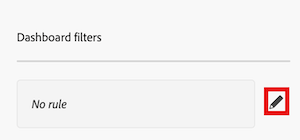
Select the Edit icon to the right of the rule box.
-
Click Add condition and then add the following information:
- Select a field that you want to filter by.
- Select an option (or filter modifier) to define what kind of condition the field must meet.
-
(Optional) Click Add filter group to add another set of filtering criteria. The default operator between the sets is AND. Click the operator to change it to OR.
-
-
Proceed to Part 2: Create a dashboard prompt.
Part 2: Define a dashboard prompt
A dashboard prompt gives users the option to apply additional customized filters to reports available on the dashboard.
-
To add a prompt, follow the steps below:
-
Select Add prompt. New fields appear on the right side of the screen.
-
Enter a label in the Customize label field.
-
Select the field that you want the prompt to be based on by typing the name of the field and then selecting it when it appears in the list.
-
-
To add a custom prompt, follow the steps below:
-
Select Add custom prompt. New fields appear on the right side of the screen.
-
(Optional) Enter a new label in the Customize label field. By default, the label New custom prompt is assigned.
-
Click Add new option.
-
Enter the prompt name in the Option Value field.
-
Click Add condition and then specify the field you want to filter by and the modifier that defines what kind of condition the field must meet.
note note NOTE The condition of a custom prompt can only be edited using text mode. This allows for multiple conditions to be applied in a single field. -
(Optional) Click Add filter group to add another set of filtering criteria. The default operator between the sets is AND. Click the operator to change it to OR.
-
-
Click Save to apply the filter to the dashboard.
-
Proceed to Part 3: Apply a dashboard prompt.
Step 3: Apply a dashboard prompt
All users with access to a dashboard can apply a dashboard prompt to a Canvas Dashboard once the filter and prompts have been created.
-
Click the Main Menu icon
-
In the left panel, click Canvas Dashboards.
-
On the Canvas Dashboards page, select the dashboard you want to apply the prompt to.
-
In the upper-left corner of the dashboard details page, click Filters. The filters side panel opens.
-
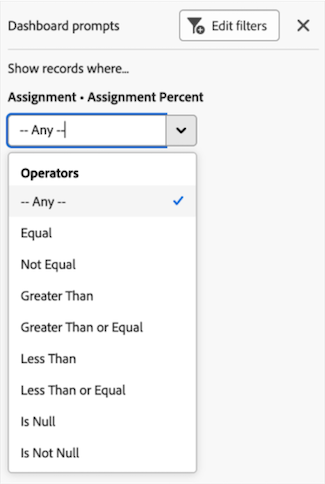
In the Show records where… section, choose a condition for one or all the prompts displayed. The prompt is applied and a Dashboard filters applied tag appears in the corner of the report widget.
-
Click the Close icon
