Copy a Canvas Dashboard
The information on this page refers to functionality not yet generally available. It is available only in the Preview Sandbox environment.
If you have feedback regarding a possible bug or technical issue, please submit a ticket to Workfront Support. For more information, see Contact Customer Support.
Please note that this beta is not available on the following cloud providers:
- Bring Your Own Key for Amazon Web Services
- Azure
- Google Cloud Platform
You can copy a Canvas Dashboard to create a variation of it for a different audience, such as a director-level copy of an executive dashboard, without rebuilding it from scratch.
Access Requirements
| table 0-row-2 1-row-0 2-row-2 3-row-2 4-row-2 layout-auto html-authored no-header | |
|---|---|
| Adobe Workfront package | Any |
| Adobe Workfront license |
Standard Plan |
| Access level configurations | Edit or Create access to Dashboards |
| Object permissions | View access to the dashboard |
For more detail about the information in this table, see Access requirements in Workfront documentation.
Prerequisites
You must create a dashboard before it can be duplicated.
For more information, see Create a Canvas Dashboard.
Copy a dashboard
To copy a dashboard:
-
Click the Main Menu icon

-
In the left panel, click Canvas Dashboards.
-
On the Canvas Dashboards page, open the dashboard you want to copy.
-
In the upper-right corner, select the More


-
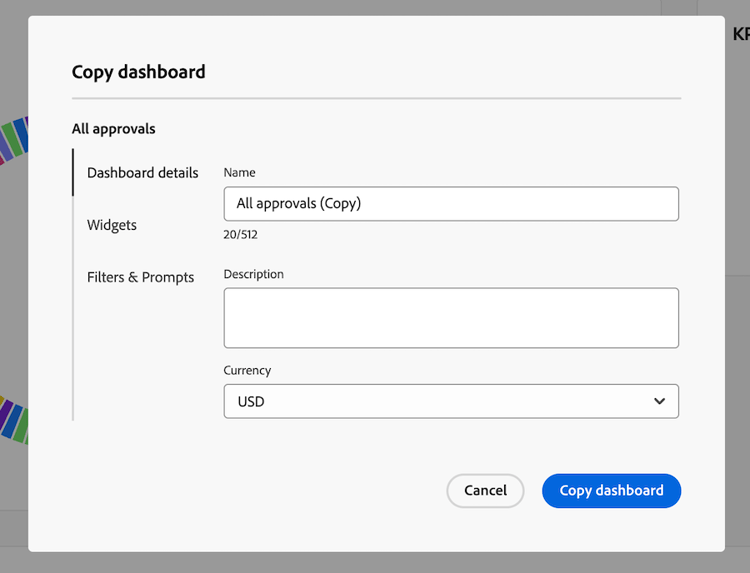
In the Copy dashboard dialog box, enter a Name for the new dashboard, which defaults to the source dashboard’s name followed by “(Copy).”
-
(Optional) On the Dashboard details tab, update the Description or Currency for the new dashboard.
-
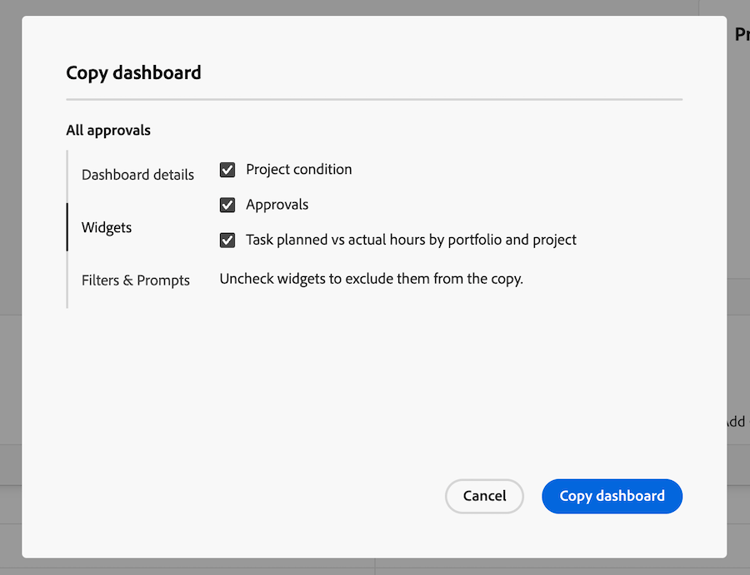
(Optional) Click the Widgets tab, then deselect any widgets you don’t want to include in the duplicate dashboard.
-
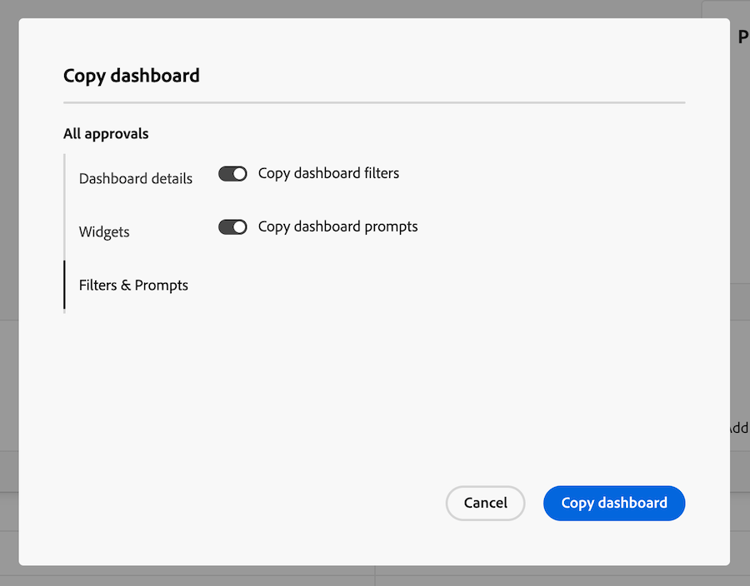
(Optional) Click the Filters & Prompts tab, then turn off Copy dashboard filters or Copy dashboard prompts to exclude them from the duplicate dashboard.
-
Click Copy dashboard.
A confirmation message displays, with a link to the new dashboard.