Configure the Settings area of a record type
You can configure additional settings for a record type after they have been saved in Adobe Workfront Planning.
Depending on what capabilities you want to define for a record type, you can configure additional settings by doing one of the following:
-
Editing them
For information, see Edit record types.
-
Configuring the Settings page of a record type.
This article describes how you can edit a record type by configuring its Settings page.
Access requirements
| table 0-row-0 1-row-0 2-row-2 3-row-2 4-row-2 layout-auto html-authored no-header | |
|---|---|
| Adobe Workfront package |
Any Workfront and Planning package Any Workflow and Planning package NOTE To configure connectable record types:
To configure global record types:
For more information about what is included in each Workfront Planning package, contact your Workfront account representative. |
| Adobe Workfront license | Standard |
| Object permissions |
Manage permissions to a workspace System Administrators have permissions to all workspaces, including the ones they did not create |
For more information about Workfront access requirements, see Access requirements in Workfront documentation.
Configure record type information in the Settings page
You can define cross-workspace capabilities for a record type by configuring information in its Settings page.
-
Click the Main Menu icon

The Workfront Planning landing page opens.
-
(Optional and conditional) If you are a Workfront administrator, click one of the following tabs:
- My workspaces: Displays workspaces you created.
- Other workspaces: Displays all workspaces in Workfront Planning, including the ones shared with you.
For all other users, all workspaces you created or are shared with you display in the Workspaces area.
-
Click the workspace whose record types you want to edit,
The workspace page opens and the record types display.
-
Do one of the following:
-
Hover over the card of a record type and click the More menu

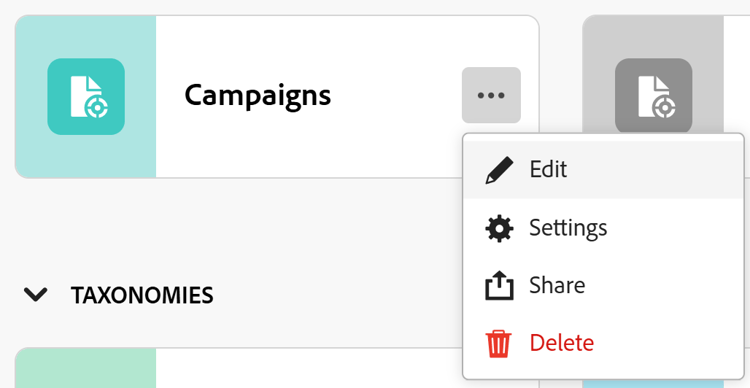
Or
-
Click a record type card to open the record type page, click the More menu
-
-
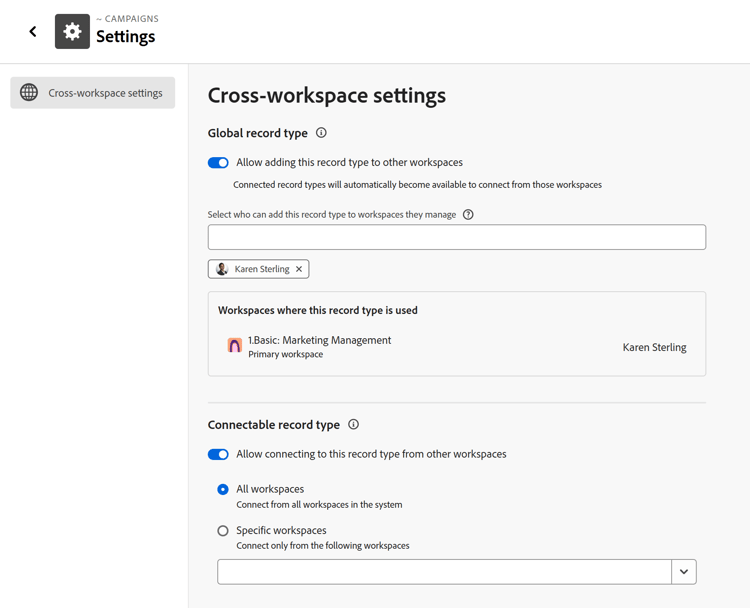
The Cross-workspace settings section is selected by default.
-
Turn on or off one of the following settings:
- Allow adding this record type to other workspaces to indicate that this is a global record type
- Allow connecting to this record type in other workspaces to indicate that this is a connectable record type.
The settings are turned off by default.
For more information, see Configure cross-workspace capabilities for record types