Grant access to rate cards
As an Adobe Workfront administrator, you can define a user’s access to rate cards through the user’s access level, as explained in Access levels overview.
For information on rate cards, see Manage rate cards.
Access requirements
| table 0-row-2 1-row-2 2-row-2 layout-auto html-authored no-header | |
|---|---|
| Adobe Workfront package | Workflow Ultimate |
| Adobe Workfront license | Standard |
| Access level configurations | You must be a Workfront administrator. |
For more detail about the information in this table, see Access requirements in Workfront documentation.
Considerations for granting access to rate cards
Consider the following when granting users access to rate cards in Workfront:
- Users must have Edit access to Rate Cards, Projects, and Financial Data to attach a rate card to a project.
- Users with No Access to Rate Cards and Edit access to Financial Data can’t attach a rate card to a project, but they can edit other billing rates on the project that came from other sources.
Configure user access to rate cards using a custom access level
-
Begin creating or editing the access level, as explained in Create or modify custom access levels.
-
Click the gear icon

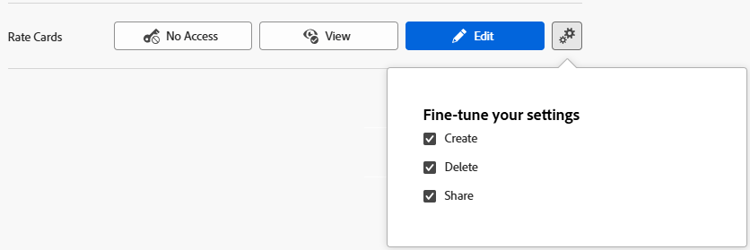
-
(Optional) To configure access settings for other objects and areas in the access level you are working on, continue with one of the articles listed in Configure access to Adobe Workfront such as Grant access to tasks.
-
When you are finished, click Save.
After the access level is created, you can assign it to a user. For more information, see Edit a user’s profile.
Access to shared rate cards
You can share a rate card with other users by granting them permissions to it, as explained in Share a rate card.
When you share any object with another user, the recipient’s rights on it are determined by a combination of two things:
- The permissions that you grant to your recipient for the object
- The recipient’s access level settings for the object’s type