Cage painting
Cage painting lets you paint areas to push the baking cage farther away or bring it closer to the low-poly surface. Cage painting helps prevent artifacts during baking while still capturing all the high-poly details of your mesh.
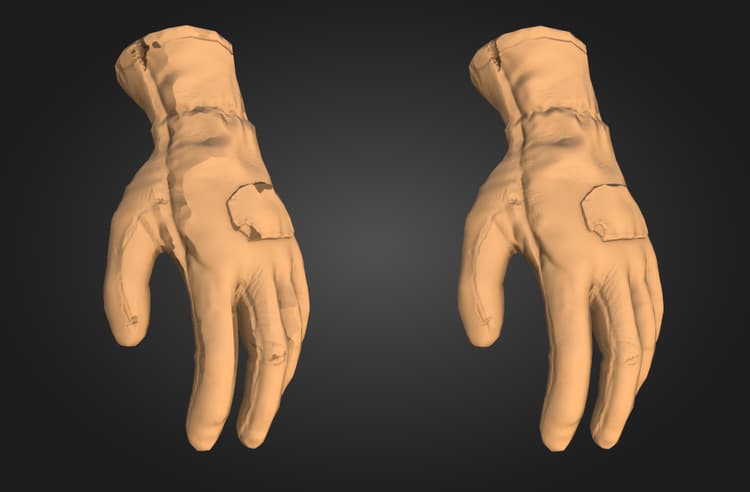
The left glove, baked with a Distance-based cage and a low Max frontal distance, shows baking artifacts including distortion and areas where the cage intersects the high-poly mesh, losing detail. The right glove was baked using the same settings, but with cage painting to control the cage size.
Set up Cage painting
For Cage painting to be available, the project must have at least one High-poly scene file to bake from, and the Cage type must be set to Distance-based.
We recommend setting the Max frontal distance and Relative to bounding box values before starting to paint your cage, as changing these values after painting may require touchups or even repainting the cage from scratch.
Start Cage painting
To start Cage painting:
- Switch to Baking mode.
- Ensure that you have selected at least one High-poly scene file to bake from.
- In the Common settings panel, navigate to the Cage section.
- Set the Cage type to Distance-based.
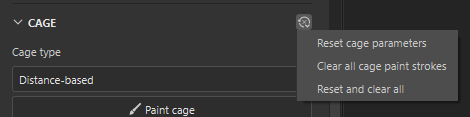
- Click Paint cage.
This video shows a new project being set up for cage painting. First we switch to baking mode, then select a high-poly scene. The Distance-based Cage type is selected by default, so we’re able to start cage painting immediately.
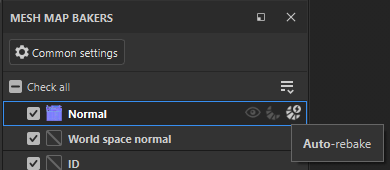
Once you enter Cage painting mode, the default visualization in the Viewport shows:
- The cage around the mesh in transparent beige.
- Areas where the high poly intersects the cage in bright red.
- Cage painted areas in green (positive) and blue (negative) on the low-poly mesh surface.
While in Cage painting mode, use the Baking visualization menu in the Viewport to customize how each element is visualized.
Cage painting tools
When painting the cage, you can use many of the tools and shortcuts you’re used to from Painting mode, including the Paintbrush, Eraser and Polygon fill tools.
- You can switch between Paintbrush, Eraser, and Polygon fill from the toolbar, or use the standard keyboard shortcuts from Painting mode.
- While using the Paintbrush or Eraser tools, you can adjust the tool’s size, flow, opacity, and spacing using the parameters at the top of the Viewport. You can also use the relevant keyboard shortcuts where available.
Paintbrush
Using the Paintbrush at full Strength, Flow and Opacity has a huge impact on the cage surface. We recommend setting a very low Strength value and using the Flow and Opacity parameters to control the strength of the brush.
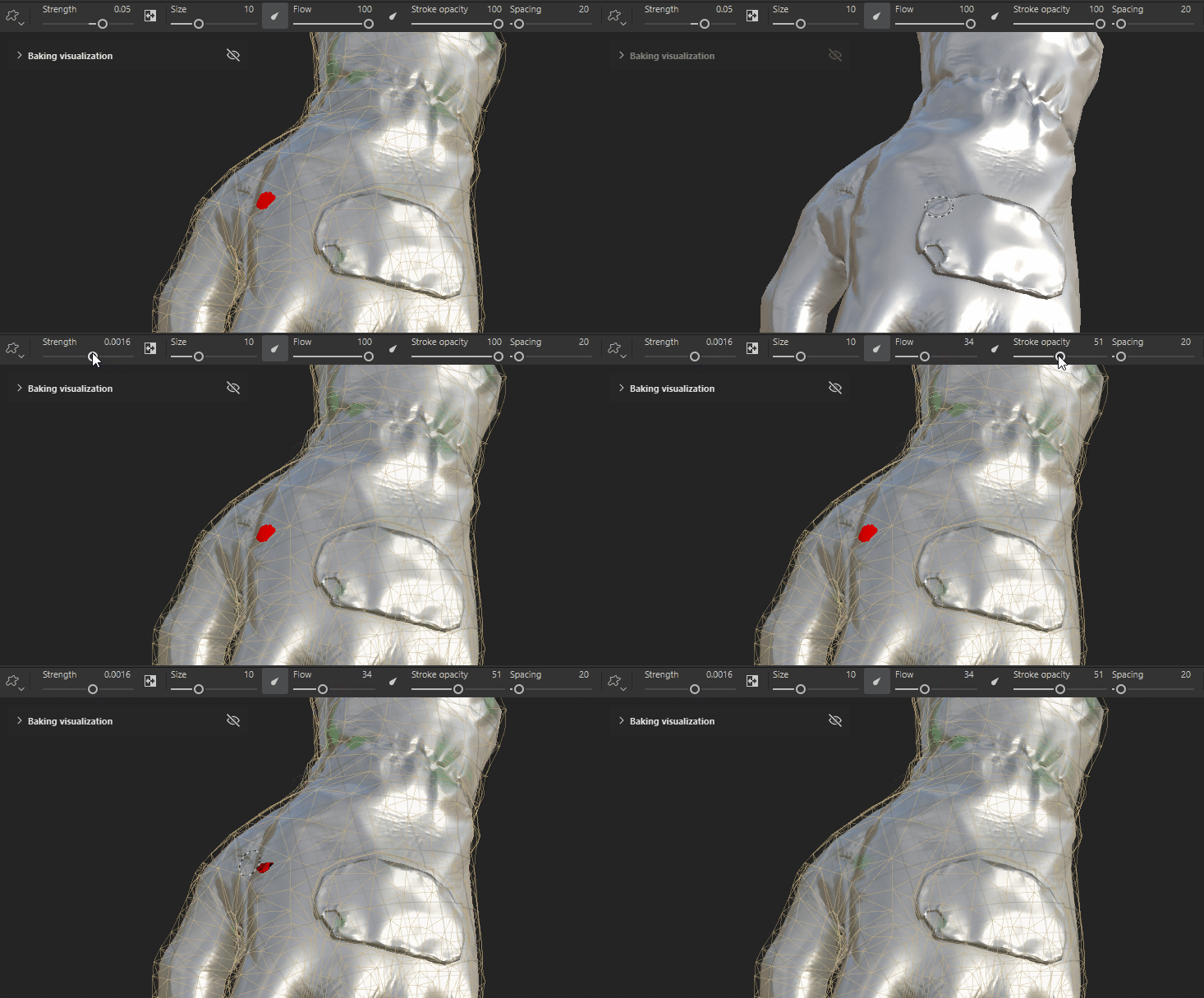
In this example, the first brush stroke is way too strong, even with a Strength value of 0.05. After decreasing the Strength, Flow, and Stroke opacity, we have much more control over the effect.
Eraser
The Eraser tool allows you to remove paint from the cage, effectively reverting erased areas to the default cage size.
Polygon fill
In Cage painting mode, the Polygon fill tool has an additional feature, a Strength slider appears in the Viewport when making changes that you can use to adjust the value for the last set of selected polygons.
This feature is particularly useful for making per-element adjustments using Mesh fill mode in scenes with multiple separate meshes.
It is often be useful to apply the same cage painted value to multiple areas of the mesh. To do so:
- Select the first set of polygons.
- Use the Cage strength slider to adjust the strength of the effect.
- Copy the Cage strength value from the temporary slider in the Viewport.
- Paste the value into the Strength slider at the top of the Viewport.
- Select subsequent sets of polygons to apply the same strength value.
The video below shows this workflow in action, using the Polygon fill tool with Mesh fill selected.
Blend modes
By default, both the Paintbrush and Polygon fill tools default to the Linear dodge (add) blend mode, but you can also use the Normal and Lighten (Max) blend modes.
-
Linear dodge (add)
- Each stroke/stamp adds or subtracts the given strength value from the existing value.
- This blend mode works similarly to 3D sculpting applications, where each stroke you paint adds to the mesh surface.
-
Normal
- Each stroke/stamp sets the value to the specified strength, overwriting the existing value.
- This blend mode behaves like the default paintbrush in painting mode, allowing you to cover the existing surface with a different value.
-
Lighten (Max):
- Each stroke/stamp chooses the maximum value between the strength and the existing value.
- With this blend mode, the edges of the brush take longer to build on subsequent strokes, helping to create a more gradual transition.