Baking visualization settings
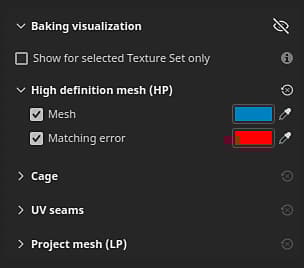
The Baking visualization is a panel inside Painter’s Viewport while in Baking mode. It allows you to adjust settings related to the display of meshes in the Viewport.
General settings
Setting
Description
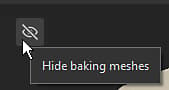
Hide baking meshes
If enabled, this icon will hide the high poly and cage mesh in the viewport.
Show for selected Texture Set only
If enabled, only the cage and high-poly meshes of the currently active Texture Set will be visible in the viewport.
High definition mesh (HP)
Setting
Description
Mesh
If enabled, display the high-poly meshes in the 3D view. When disabled, high-poly meshes are also unloaded from memory and can help improve performance. Use the color option next to this setting to control the mesh surface color in the viewport.
Matching error
If enabled, display areas of the high-poly meshes that are outside the shell of the cage mesh in the given color. This setting helps identify areas that will be missed during the baking process and could result in loss of details/information. Use the color option next to this setting to control the color of intersecting areas in the viewport.
Cage
Setting
Description
Cage surface
If enabled, the cage mesh surface will be displayed in the 3D view. The surface of the cage is defined by the color button next to the setting.
Cage surface opacity
Make the mesh more or less transparent to manage visibility of details in the underlying mesh.
Cage wireframe
If enabled, the wireframe of the cage mesh will be visible in the Viewport. The wireframe color can be adjusted with the color button next to this setting.
Cage wireframe opacity
Make the wireframe more or less transparent.
UV seams
Setting
Description
Missing seams on hard edges
If enabled, hard edges on the surface of the mesh that are not UV seams will be highlighted with the color defined by the button next to the setting. Highlighted edges are only visible on the cage and low-poly mesh. Edges can be seen in both the 2D and 3D views. This setting helps identify edges that have split vertex normals without a UV unwrapping seam, which could lead to baking issues later on.
Project mesh
recommendation-more-help
substance-3d-painter-help-guide