Option 2: PostBuster setup
Video
In this video, you’ll get an explanation and demonstration of all the steps involved in this exercise.
Install PostBuster
Go to https://adobe.service-now.com/esc?id=adb_esc_kb_article&sysparm_article=KB0020542.
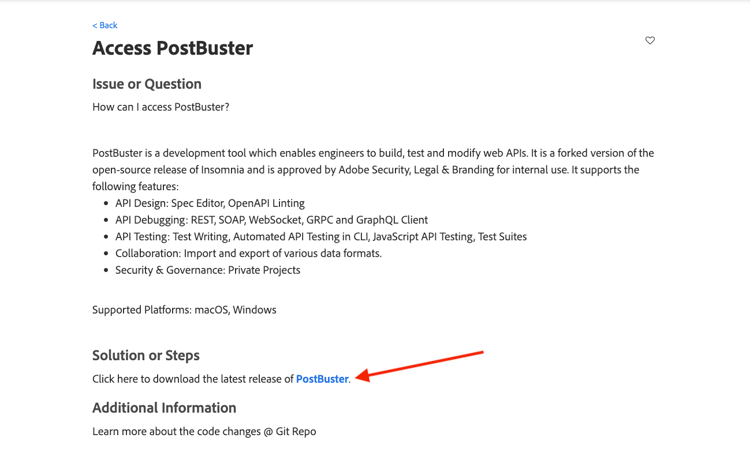
Click to download the latest release of PostBuster.
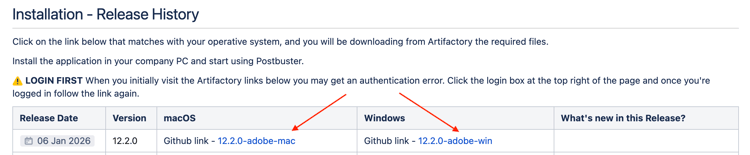
Click the correct version for your OS.
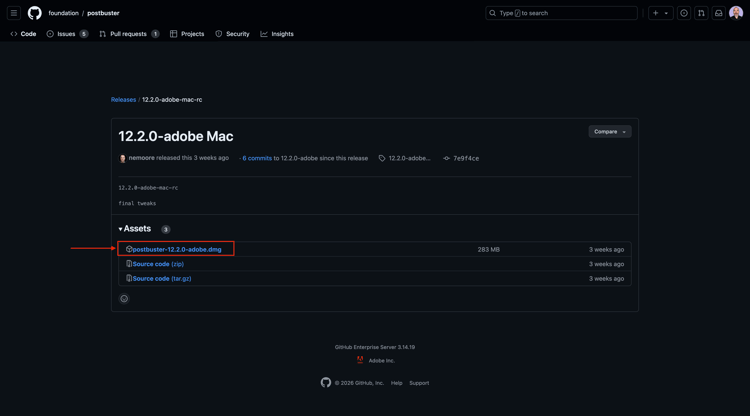
Download the file.
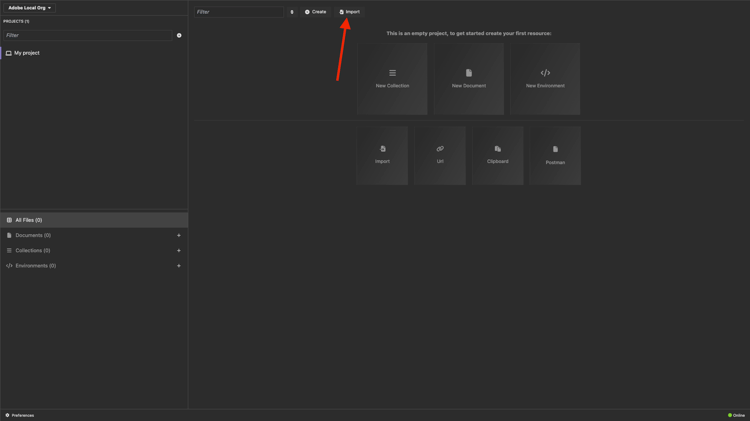
Once the download has completed and has been installed, open PostBuster. You should then see this. Click Import.
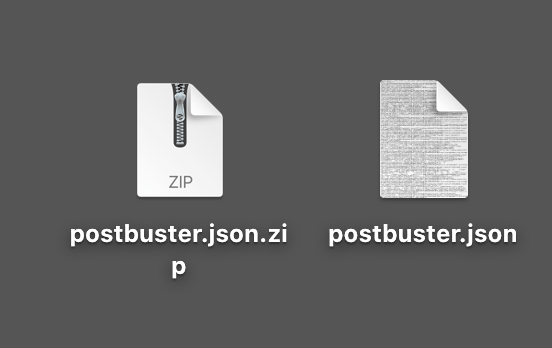
Download postbuster.json.zip and extract it on your desktop.
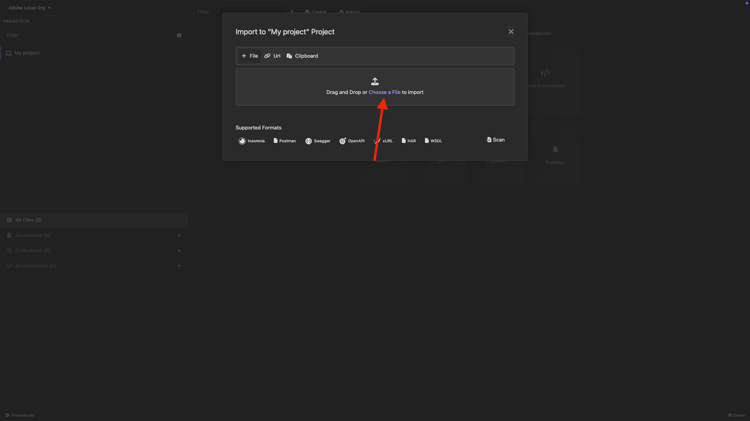
Click Choose a File.
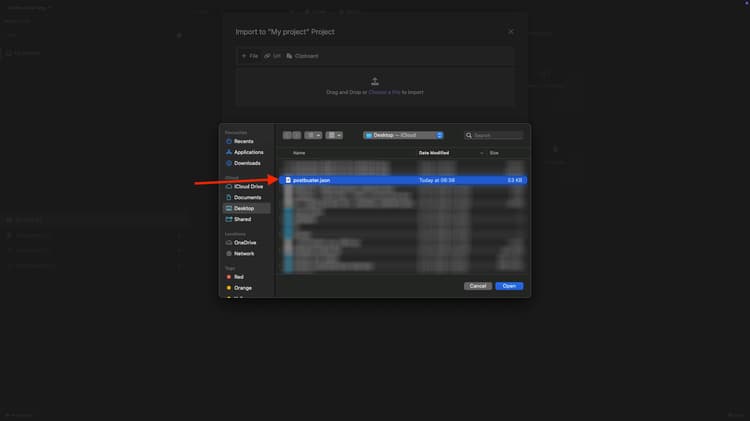
Select the file postbuster.json. Click Open.
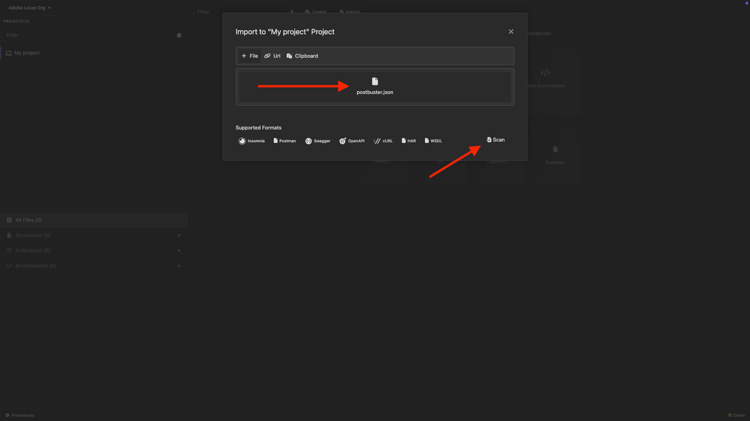
You should then see this. Click Scan.
Click Import.
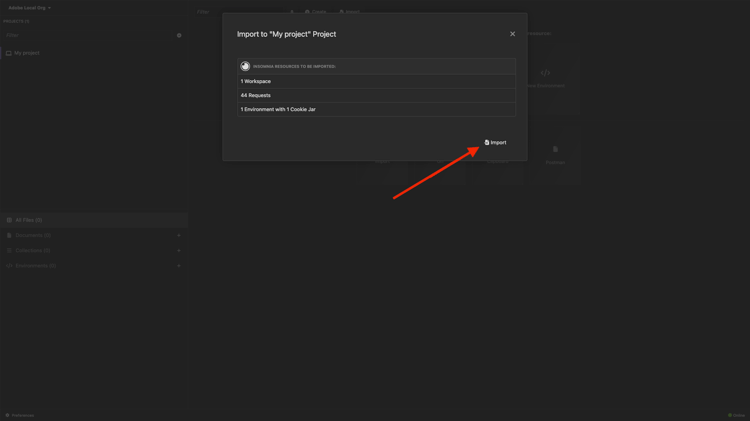
You should then see this. Click to open the imported collection.
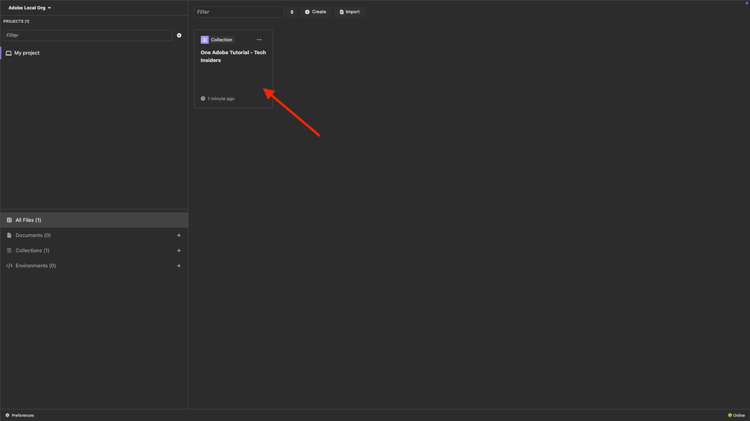
Now you see your collection. You still need to configure an environment to hold some environment variables.
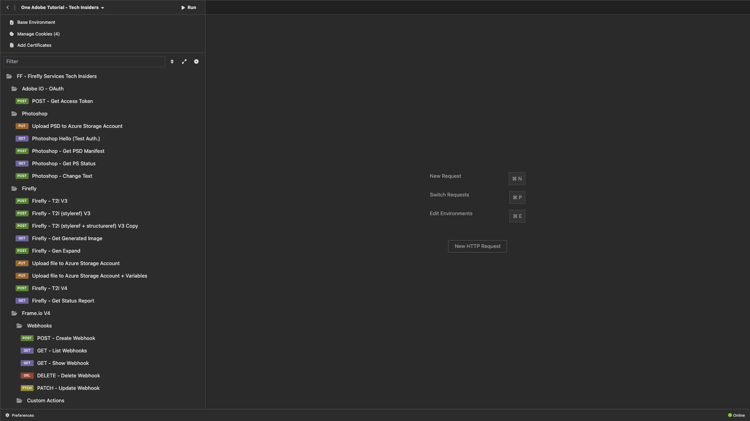
Click Base Environment and then click the edit icon.
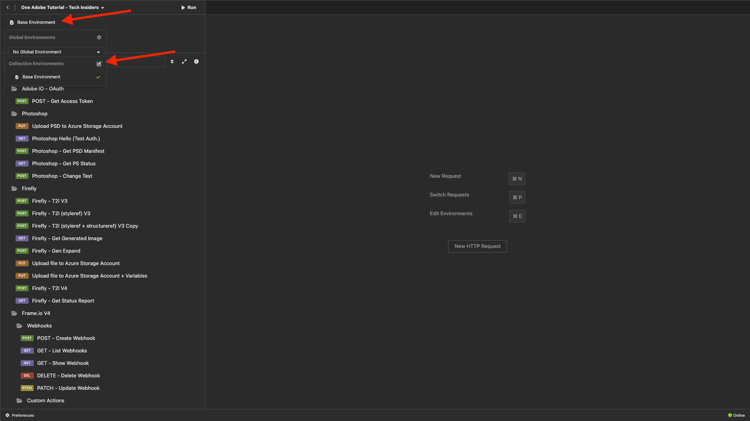
You should then see this.
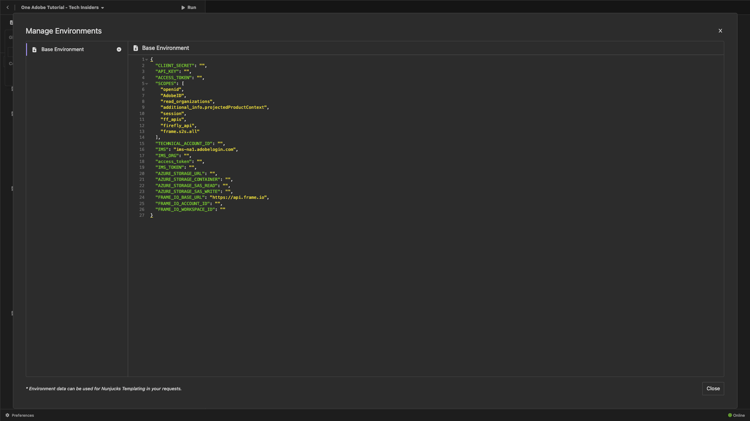
Copy the below environment placeholder and paste it in the Base Environment, by replacing what is there.
{
    "CLIENT_SECRET": "",
    "API_KEY": "",
    "ACCESS_TOKEN": "",
    "SCOPES": [
        "openid",
        "AdobeID",
        "read_organizations",
        "additional_info.projectedProductContext",
        "session",
        "ff_apis",
        "firefly_api",
        "frame.s2s.all"
    ],
    "TECHNICAL_ACCOUNT_ID": "",
    "IMS": "ims-na1.adobelogin.com",
    "IMS_ORG": "",
    "access_token": "",
    "IMS_TOKEN": "",
    "AZURE_STORAGE_URL": "",
    "AZURE_STORAGE_CONTAINER": "",
    "AZURE_STORAGE_SAS_READ": "",
    "AZURE_STORAGE_SAS_WRITE": "",
    "FRAME_IO_BASE_URL": "https://api.frame.io",
    "FRAME_IO_ACCOUNT_ID": "",
    "FRAME_IO_WORKSPACE_ID": ""
}
You should then have this.
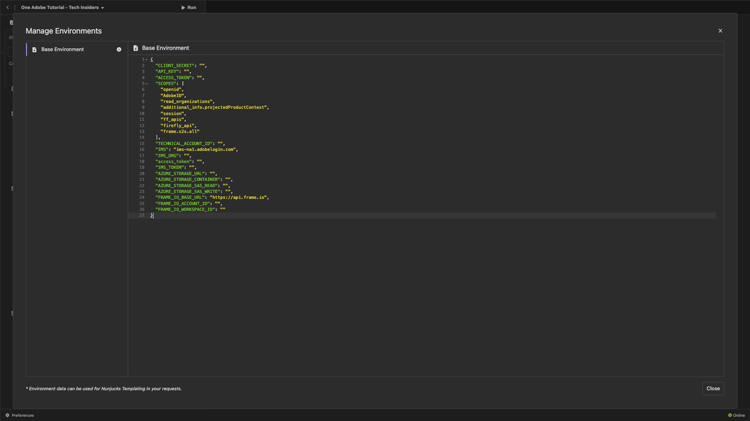
Enter your Adobe I/O variables
Go to https://developer.adobe.com/console/home and open your project.
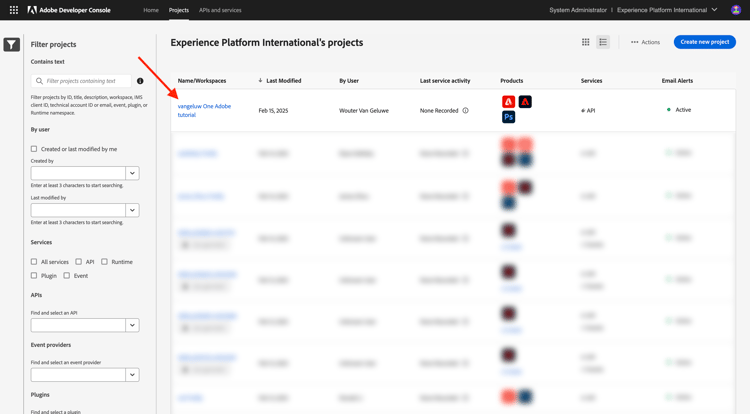
Go to OAuth Server-to-Server.
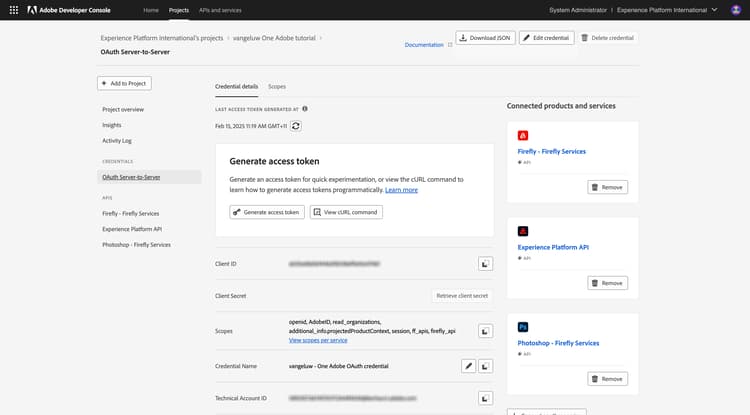
You now need to copy the following values from your Adobe I/O project and paste them in your PostBuster Base Environment.
- Client ID
- Client Secret (Click Retrieve Client Secret)
- Technical Account ID
- Organization ID (Scroll down to find your Organization ID)
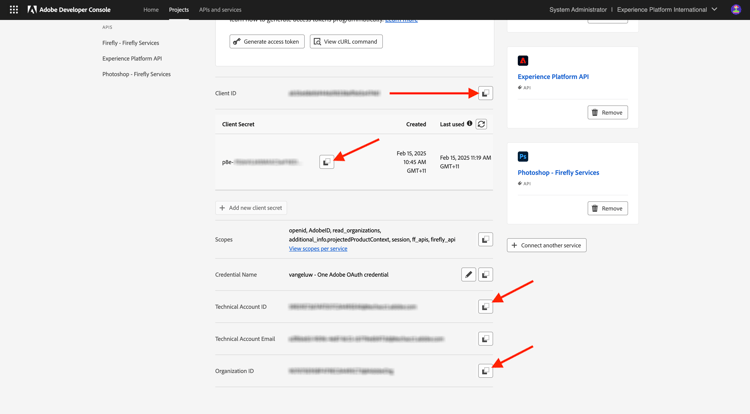
Copy the above variables one by one, and paste them in your Base Environment in PostBuster.
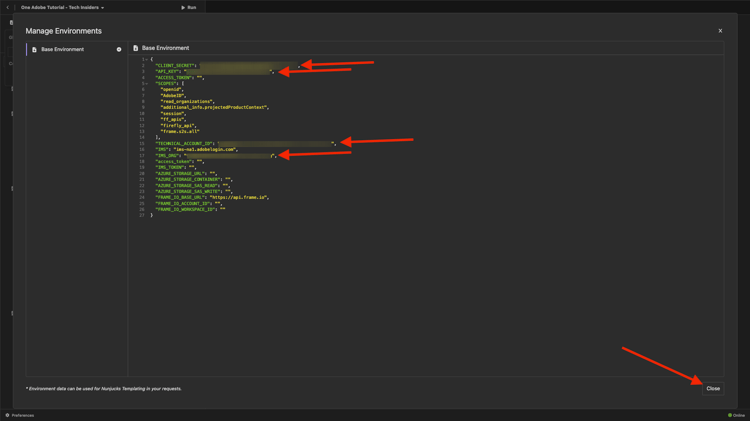
API_KEYCLIENT_SECRETTECHNICAL_ACCOUNT_IDIMS_ORGAfter having copied these variables on by one, your PostBuster Base Environment should look like this.
Click Close.
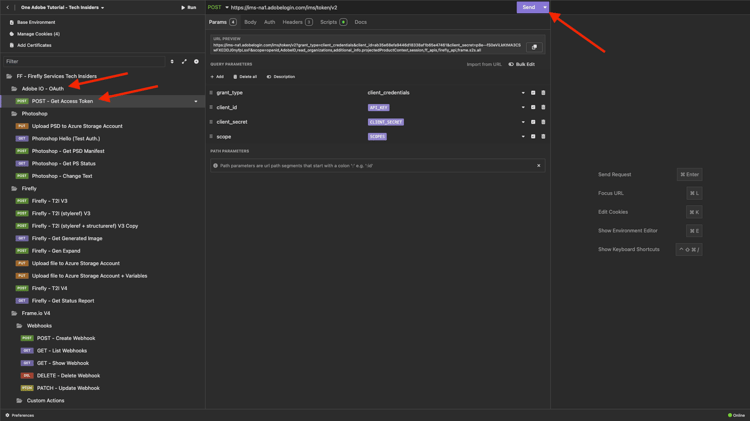
In the Adobe IO - OAuth collection, select the request named POST - Get Access Token and select Send.
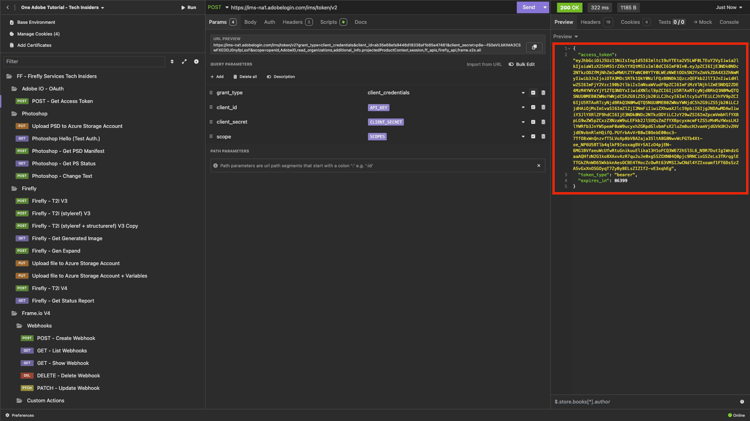
You should see a similar response containing the following information:
The Adobe I/O bearer-token has a specific value (the very long access_token) and an expiration window and is now valid for 24 hours. This means that after 24 hours, if you want to use Postman to interact with Adobe APIs, you will have to generate a new token by running this request again.
Your PostBuster environment is now configured and working. You’ve now completed this exercise.
Next Steps
Go to Applications to install
Go back to Getting Started
Go back to All modules