Option 1: use Postman
Video
In this video, you’ll get an explanation and demonstration of all the steps involved in this exercise.
Postman environment download
Go to https://developer.adobe.com/console/home and open your project.
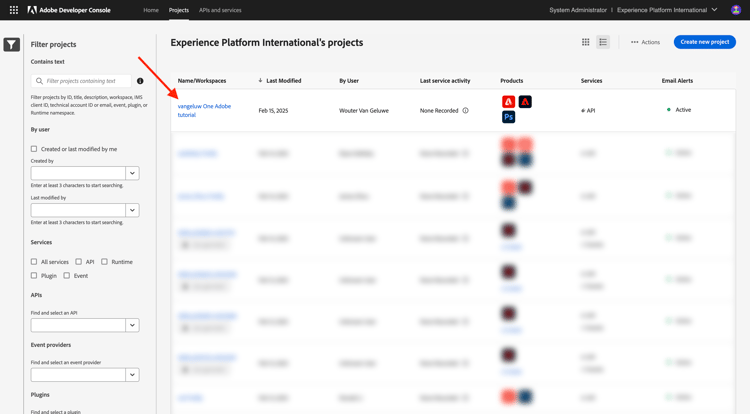
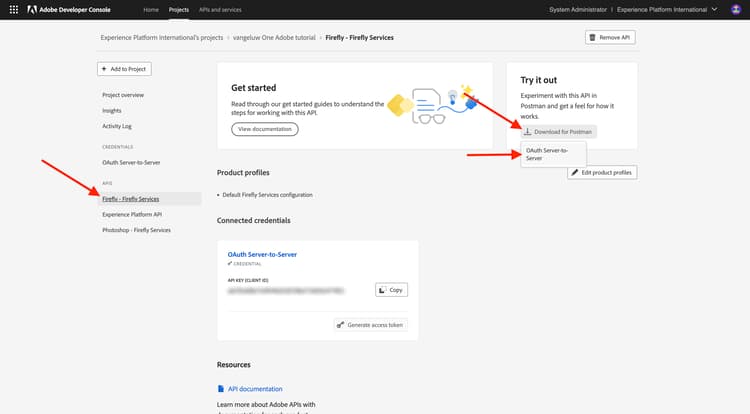
Click the Firefly - Firefly Services API. Then, click Download for Postman and choose OAuth Server-to-Server to download a Postman environment.
Postman authentication to Adobe I/O
Download and install the relevant version of Postman for your OS at Postman Downloads.
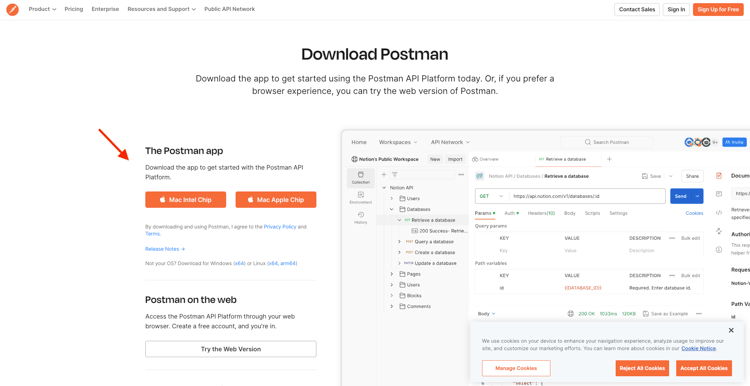
Start the application.
In Postman, there are 2 concepts: Environments and Collections.
The environment file contains all of your environmental variables which are more or less consistent. In the environment, you’ll find things like the IMSOrg of your Adobe environment, alongside security credentials like your Client ID and others. You downloaded the environment file during the Adobe I/O setup previously and it’s named oauth_server_to_server.postman_environment.json.
The collection contains a number of API requests that you can use. You will use the below collections:
- 1 Collection for Authentication to Adobe I/O
- 1 Collection for the Adobe Firefly Servies exercises in this module
- 1 Collection for the Adobe Frame.io V4 exercises in this module
Download postman-ff.zip to your local desktop.
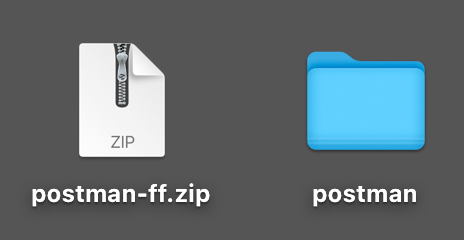
In postman-ff.zip file are the following files:
Adobe IO - OAuth.postman_collection.jsonFF - Firefly Services Tech Insiders.postman_collection.jsonFrame.io V4 - Tech Insiders.postman_collection.json
Unzip postman-ff.zip and store the following files in a folder on your desktop:
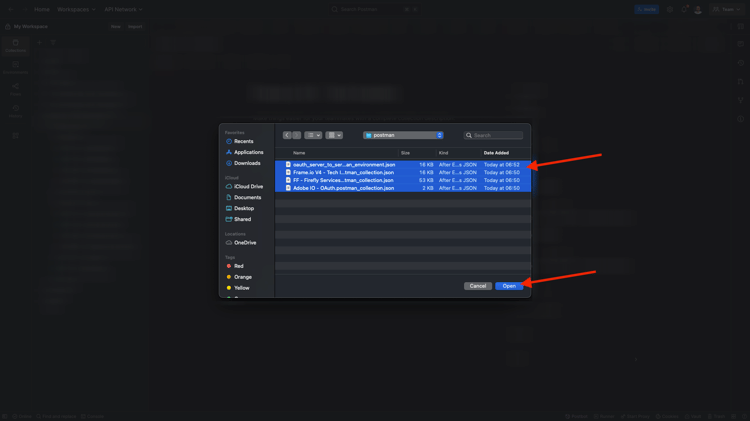
Adobe IO - OAuth.postman_collection.jsonFF - Firefly Services Tech Insiders.postman_collection.jsonFrame.io V4 - Tech Insiders.postman_collection.jsonoauth_server_to_server.postman_environment.json

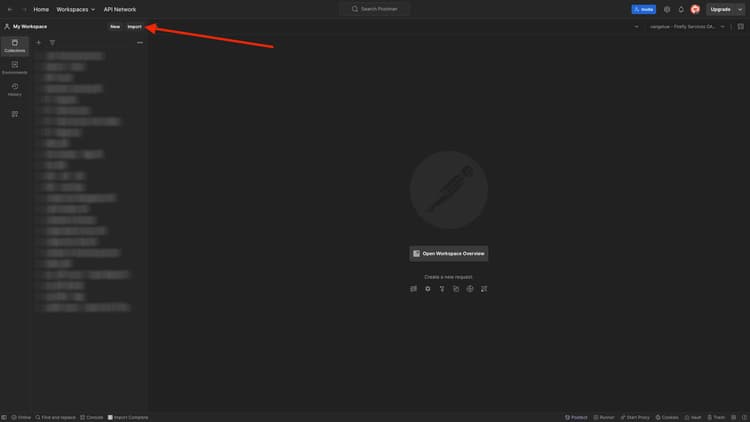
In Postman, select Import.
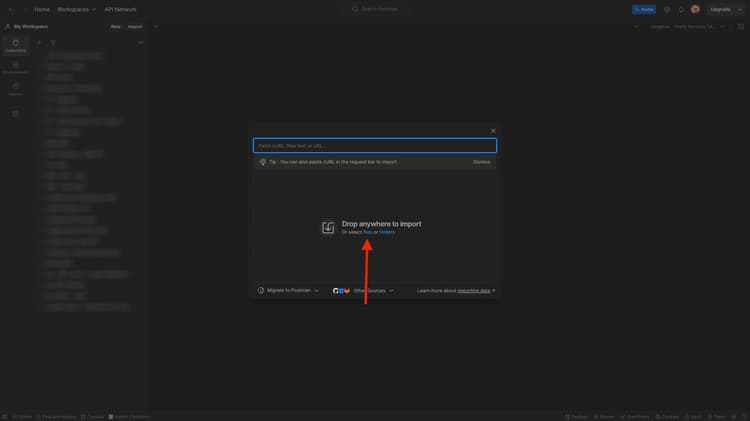
Select Files.
Choose all the files from the folder, then select Open and Import.
Click Import.
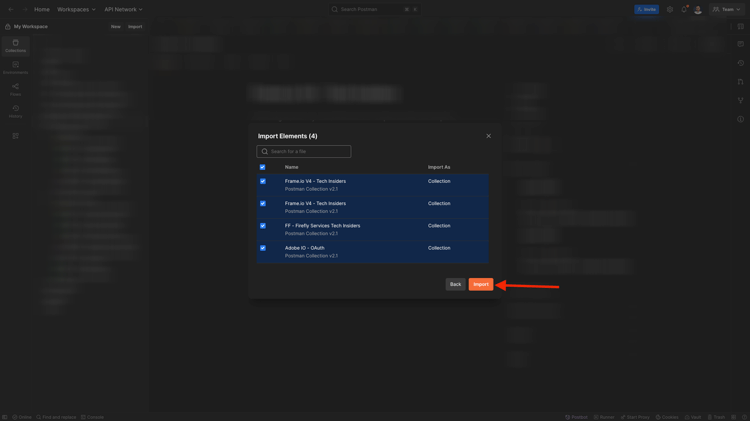
Now you have everything you need in Postman to start interacting with Firefly Services through the APIs.
Request an access token
Next, to make sure you’re properly authenticated, you need to request an access token.
Make sure that you’ve got the right environment selected before executing any request by verifying the Environment-dropdown list in the top right corner. The selected Environment should have a name similar to this one, --aepUserLdap-- One Adobe OAuth Credential.
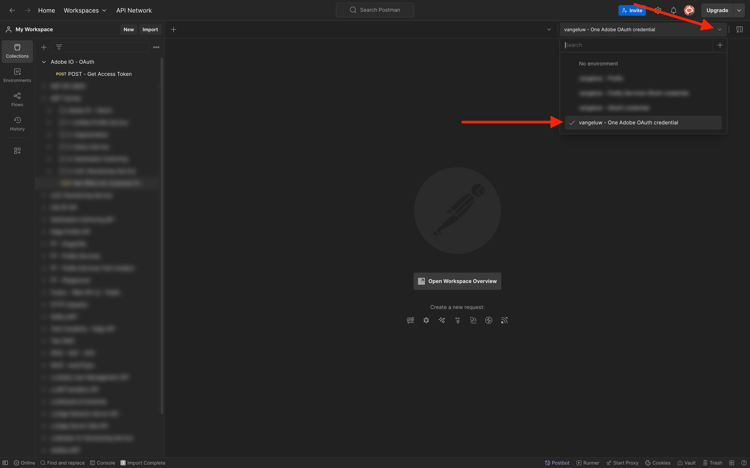
The selected Environment should have a name similar to this one, --aepUserLdap-- One Adobe OAuth Credential.

Now that your Postman environment and collections are configured and working, you can authenticate from Postman to Adobe I/O.
In the Adobe IO - OAuth collection, select the request named POST - Get Access Token and select Send.
Notice under Query Params, two variables are referenced, API_KEY and CLIENT_SECRET. These variables are taken from the selected environment, --aepUserLdap-- One Adobe OAuth Credential.
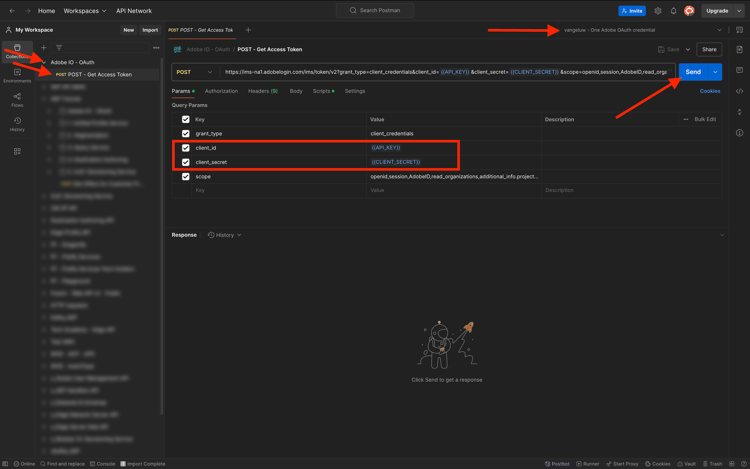
If successful, a response containing a bearer token, an access token, and an expiration window appears in the Body section of Postman.
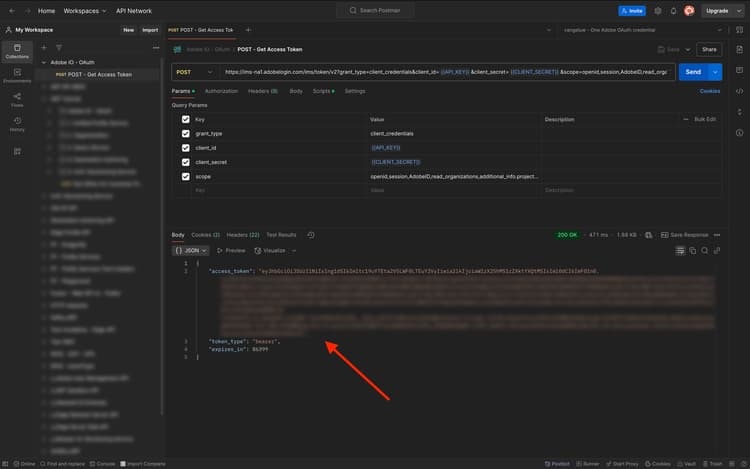
You should see a similar response containing the following information:
The Adobe I/O bearer-token has a specific value (the very long access_token) and an expiration window and is now valid for 24 hours. This means that after 24 hours, if you want to use Postman to interact with Adobe APIs, you will have to generate a new token by running this request again.
Your Postman environment is now configured and working.
Next Steps
Go to Applications to install
Go back to Getting Started
Go back to All modules