Applications to install
Below is an overview of the applications you will need to have installed on your computer before starting the tutorial.
Adobe Creative Cloud
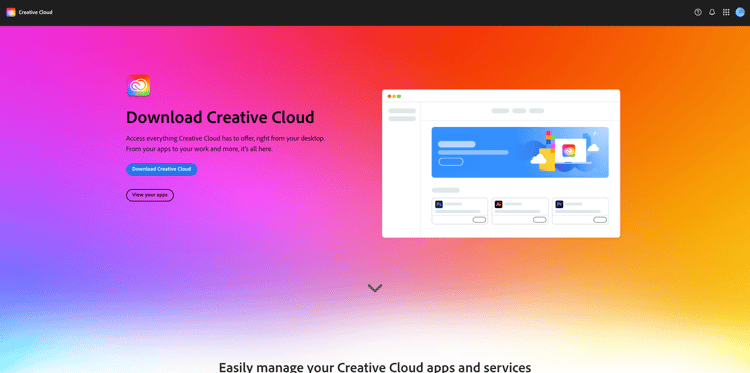
Go to https://creativecloud.adobe.com/apps/download/creative-cloud.
Adobe Photoshop
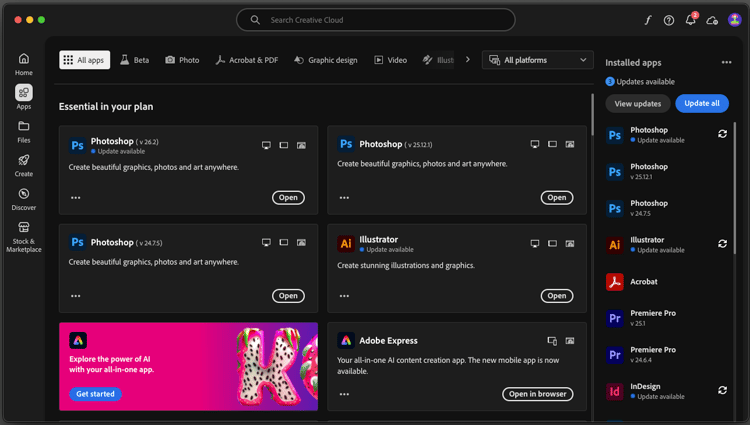
Open the Adobe Creative Cloud app, go to Apps. Install Photoshop on your computer.
Adobe Illustrator
Open the Adobe Creative Cloud app, go to Apps. Install Illustrator on your computer.
Adobe Premiere Pro
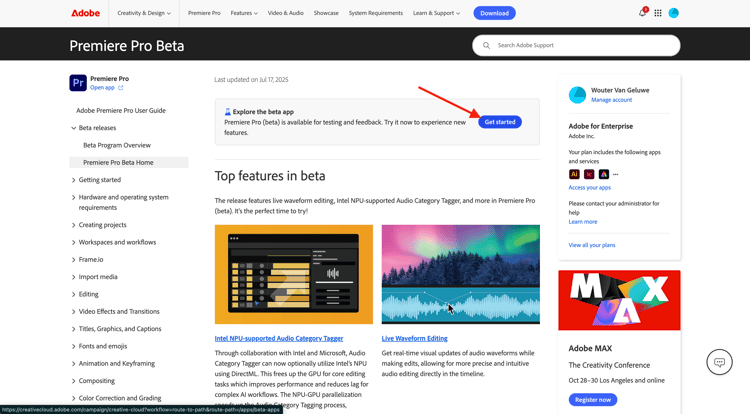
Install Adobe Premiere Pro Beta version on your computer from https://helpx.adobe.com/premiere-pro/using/premiere-pro-beta.html
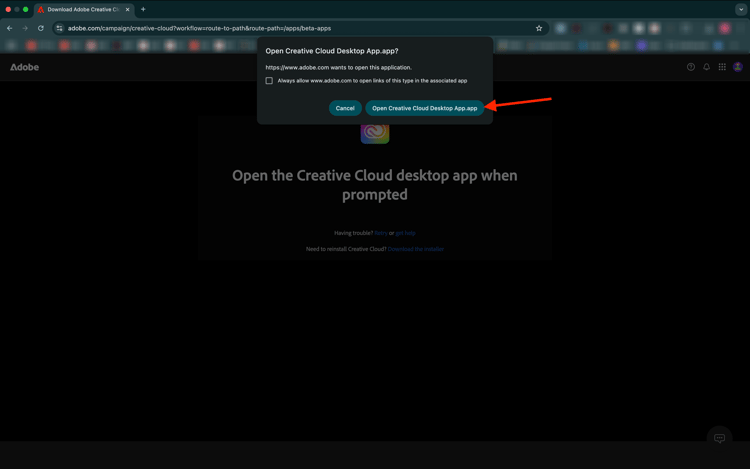
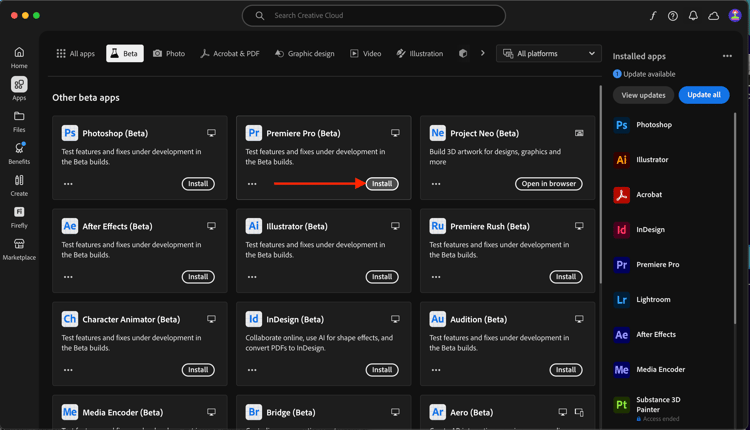
Click Open Creative Cloud Desktop App.
Click Install on the card for the Premiere Pro (Beta) app.
Frame.io Transfer app
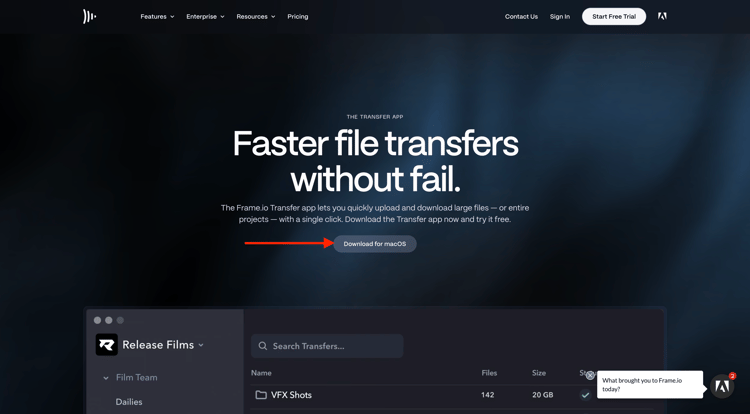
Go to https://frame.io/transfer and download the version for your computer.
Visual Studio Code
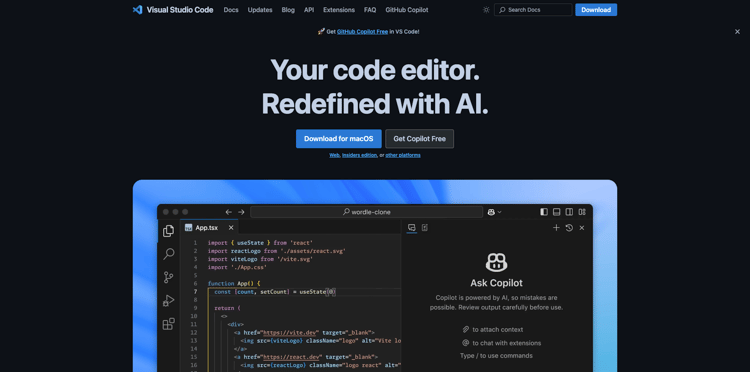
Go to https://code.visualstudio.com/, download and install Visual Studio Code.
Text Editor
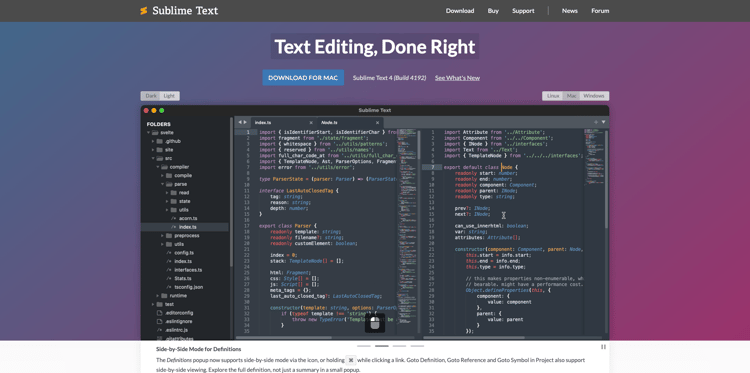
If you don’t have a Text Editor app, you can go to https://www.sublimetext.com/ and download and install this Text Editor.
GitHub Account
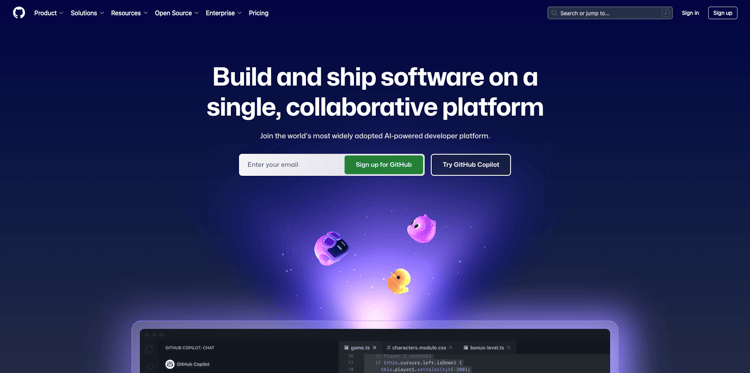
If you don’t have a GitHub account yet, go to https://github.com/, and click Sign Up. Use your personal email address and create your account.
GitHub Desktop
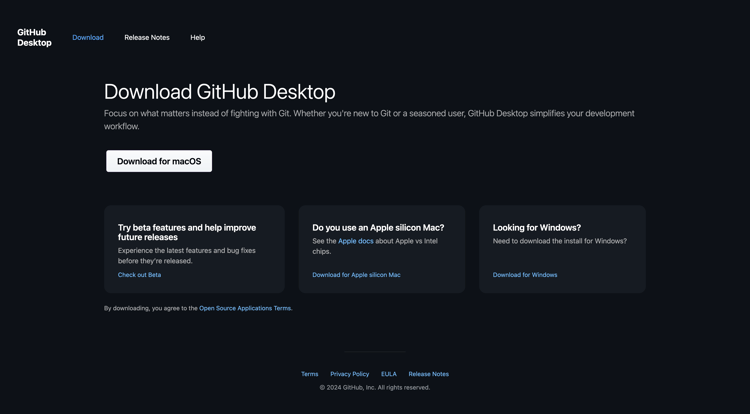
Go to https://desktop.github.com/download/, download and install Github Desktop.
Azure Storage Explorer
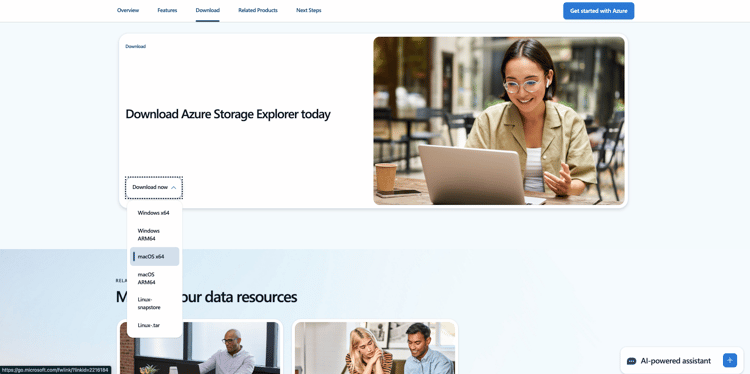
Download Microsoft Azure Storage Explorer to manage your files. Select the correct version for your specific OS, download and install it.
You’ve now finished the Getting Started module.
Next Steps
Go back to Getting Started
Go back to All modules./images