1.1.4 Adobe Marketing Agent for Google Gemini Enterprise
[Beta]{class="badge informative"}
Prerequisites
In order to follow the steps in this lab as documented below, the following access is required:
- Access to Real-Time CDP, Journey Optimizer and Customer Journey Analytics
- Access to AI Assistant in Adobe Experience Cloud
- Access to AEP Agent Orchestrator
- Access to Google Gemini Enterprise
Video
In this video, you’ll get an explanation and demonstration of all the steps involved in this exercise.
1.1.4.1 Access to Google Gemini Enterprise
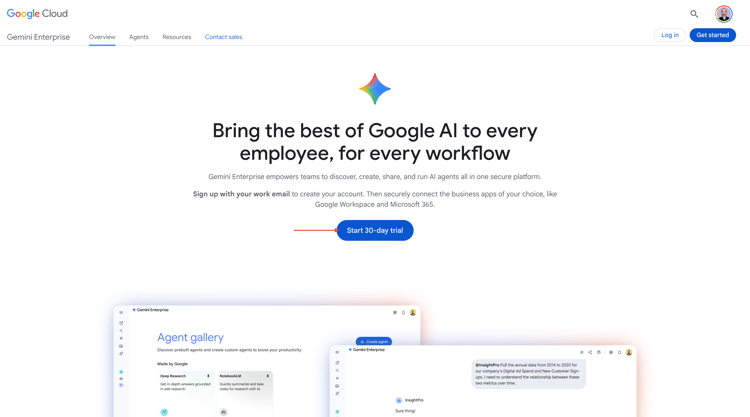
Go to https://cloud.google.com/gemini-enterprise. Click Start 30-day free trial.
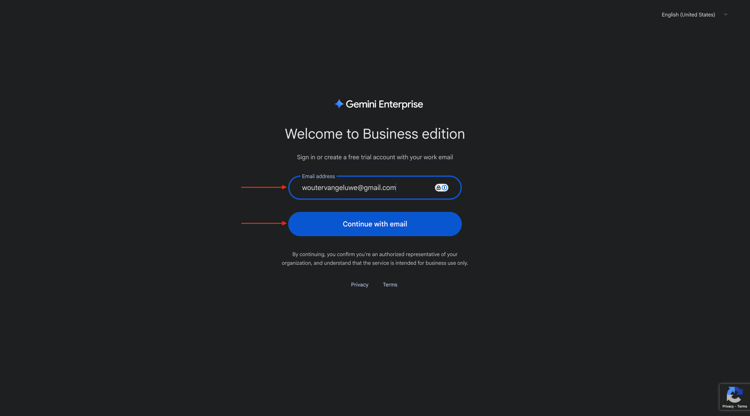
Enter your Google account’s email address and click Continue with email.
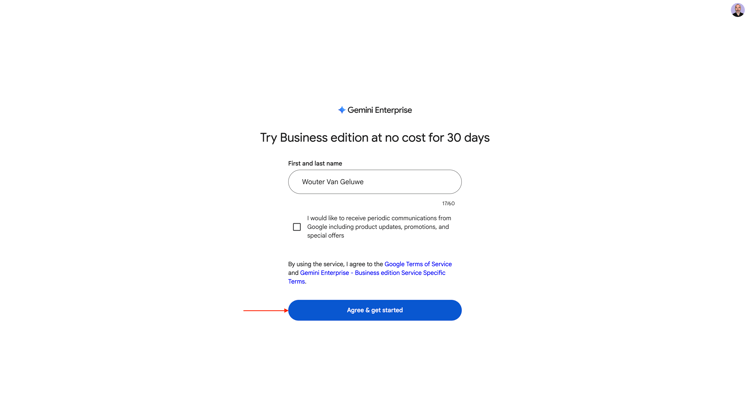
Provide your first and last name and then click Agree & get started.
Click I’ll do this later.
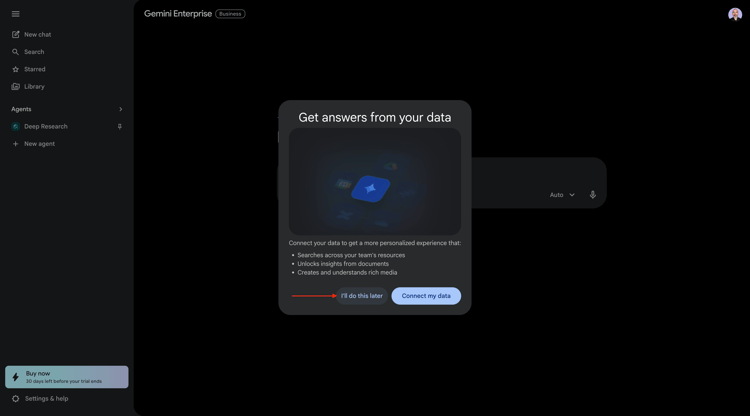
You should then see this.
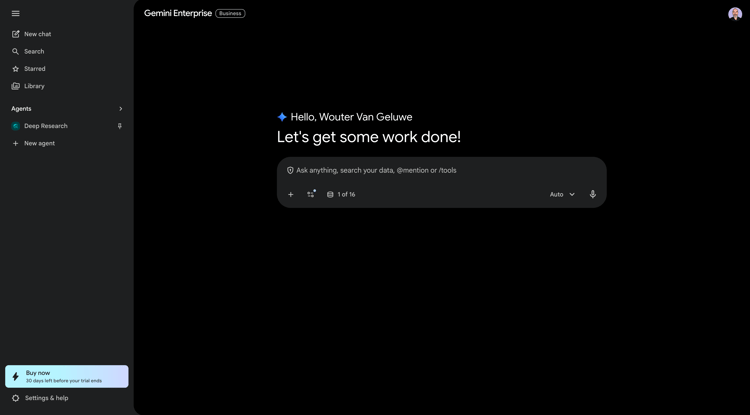
Go to https://cloud.google.com/gemini-enterprise.
You should then see something like this. You may also have to first create your billing account, to then select it here afterwards.
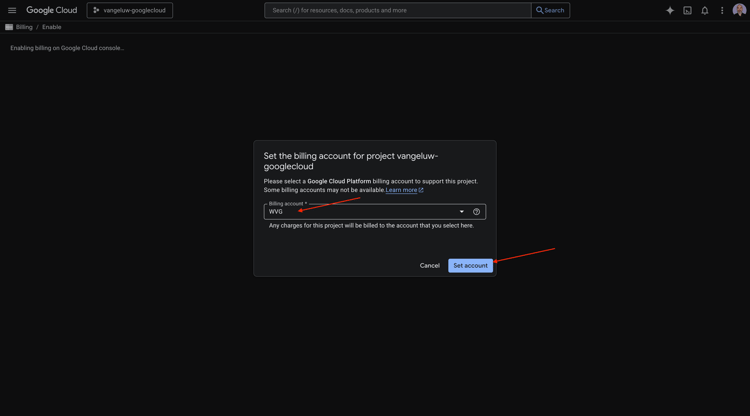
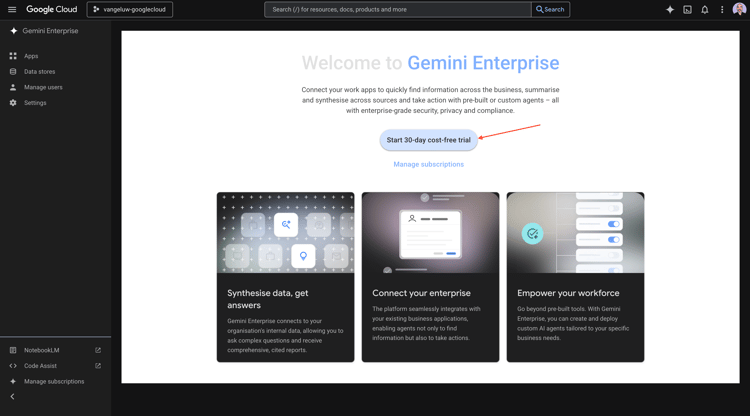
Click Start 30-day cost-free trial.
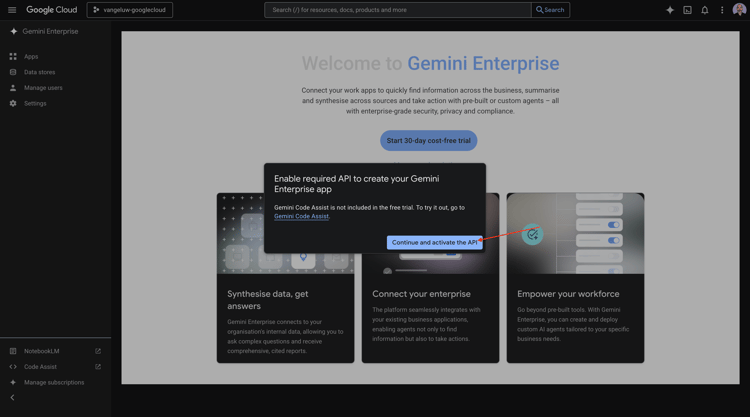
Click Continue and activate the API.
Click Create.
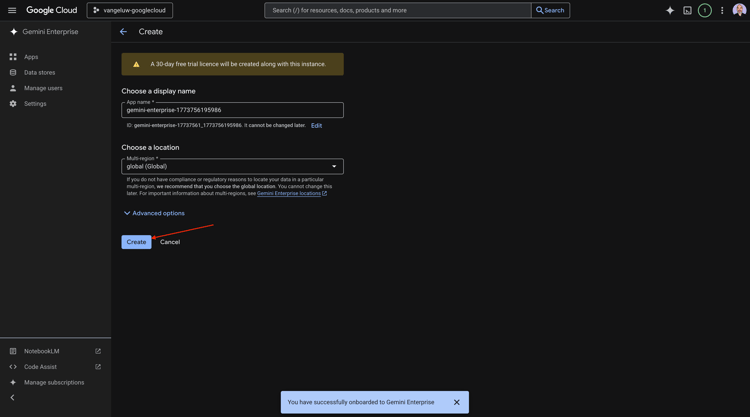
You should then see this.
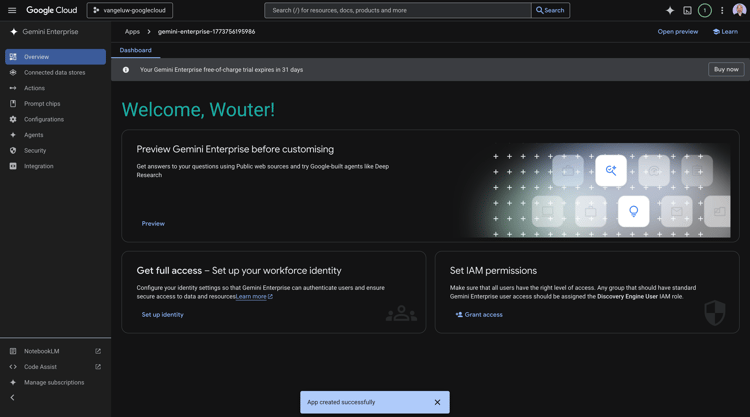
1.1.4.2 Create your custom agent using A2A
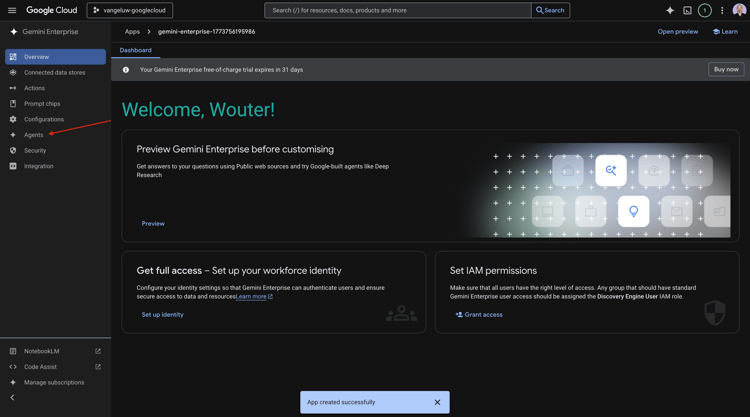
Go to https://console.cloud.google.com/gemini-enterprise. Click Agents.
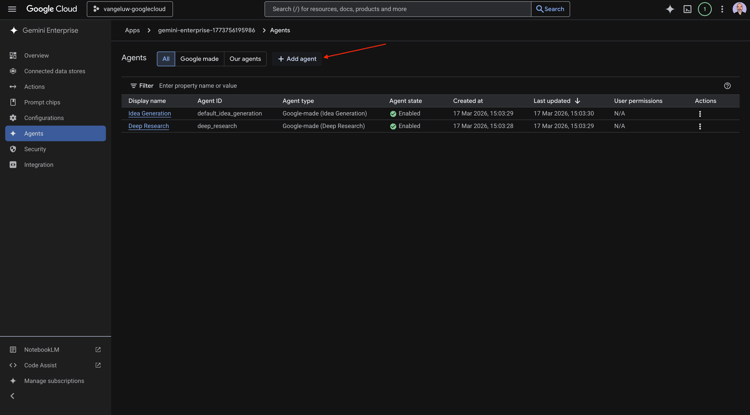
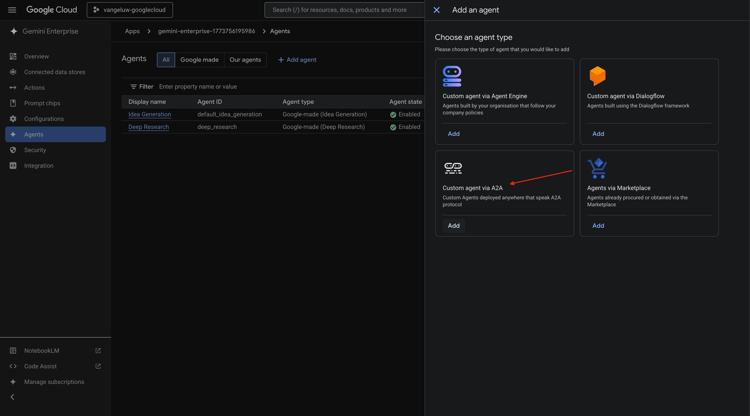
Click +Add agent.
Select Custom agent via A2A.
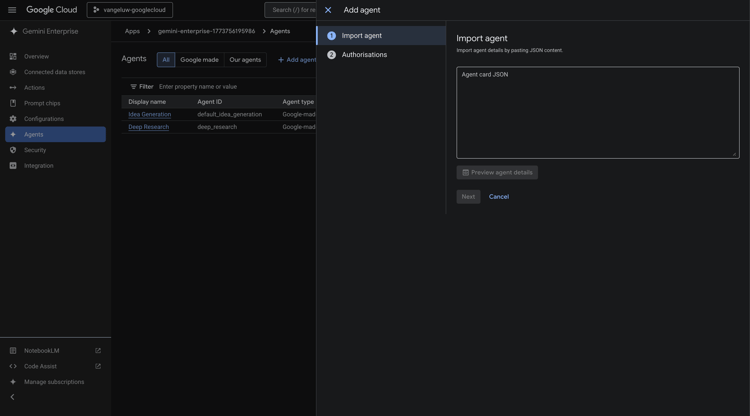
Paste the Agent Card JSON.
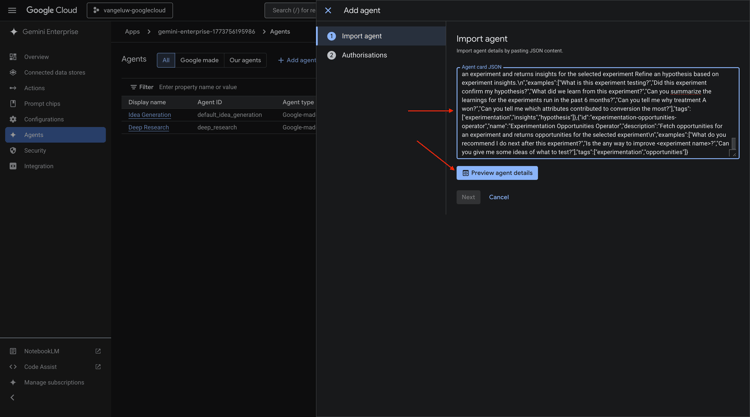
After pasting the Agent Card JSON, click Preview agent details.
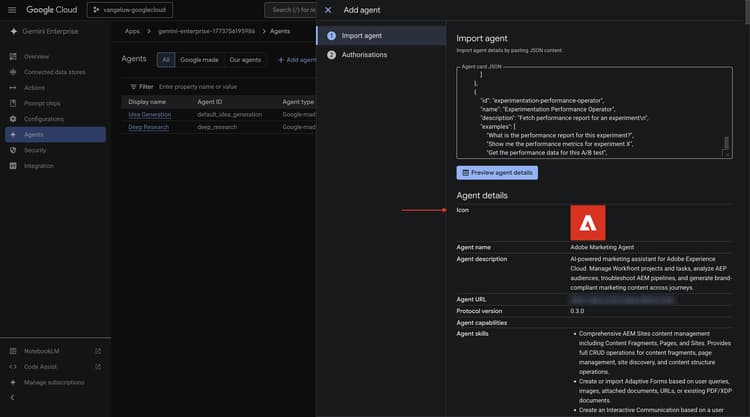
You should then see something like this. Scroll down and click Next.
You should then see something like this.
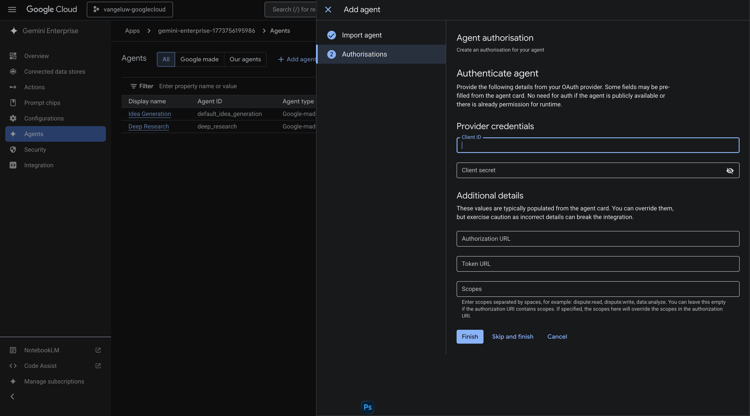
Fill out the fields for your instance.
- Client ID:
--aepImsOrgId--
- Client Secret:
AdobeMarketingAgent
- Authorization URL:
https://XXX.adobe.io/authorize
- Token URL:
https://XXX.adobe.io/token
- Scopes:
openid email profile
Click Finish.
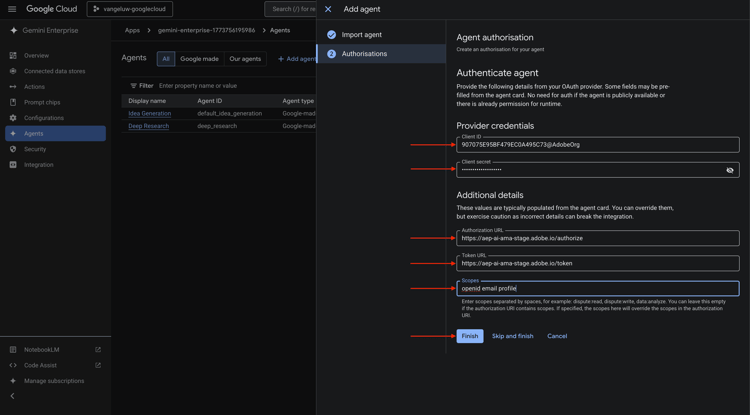
You should then see this.
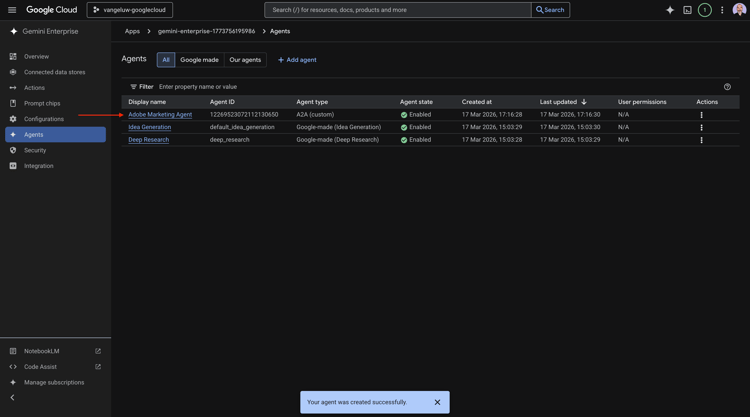
1.1.4.3 Login to Adobe Marketing Agent
Go to Overview and then click Preview.
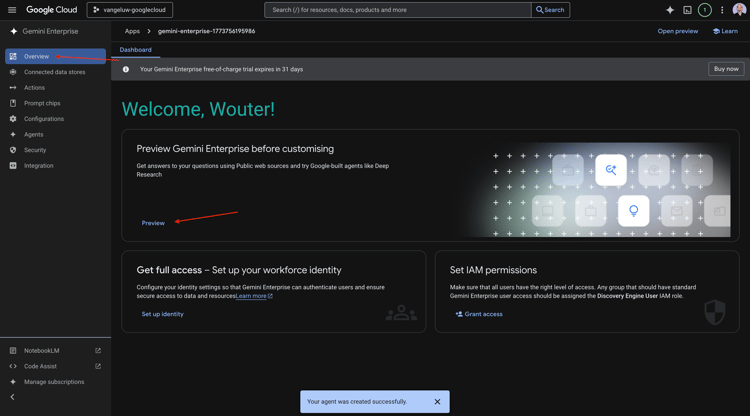
Click Get Started
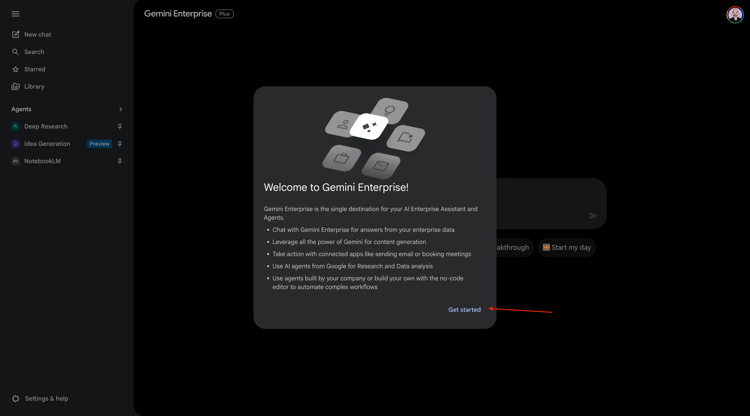
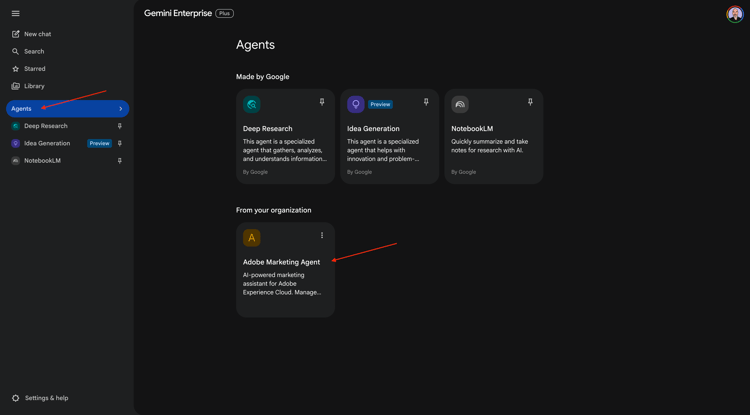
Go to Agents. You should see Adobe Marketing Agent there.
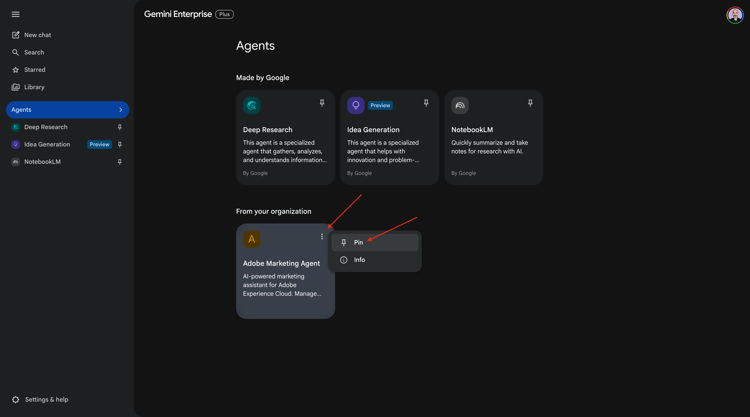
Click the 3 dots … and then select Pin.
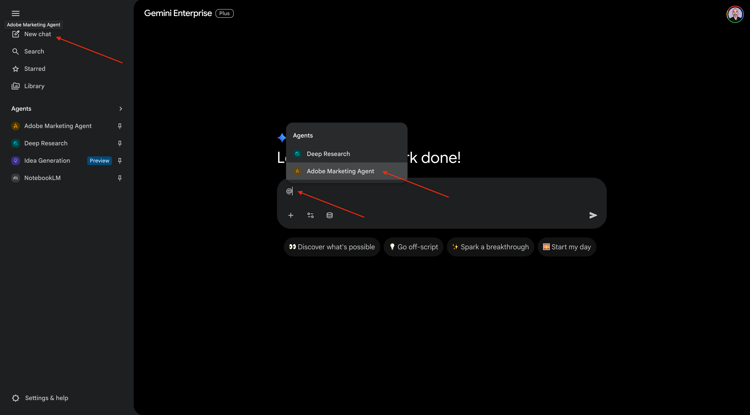
Go to New chat and enter the symbol @ in the chat. Click Adobe Marketing Agent.
Enter the command login and then click Send.
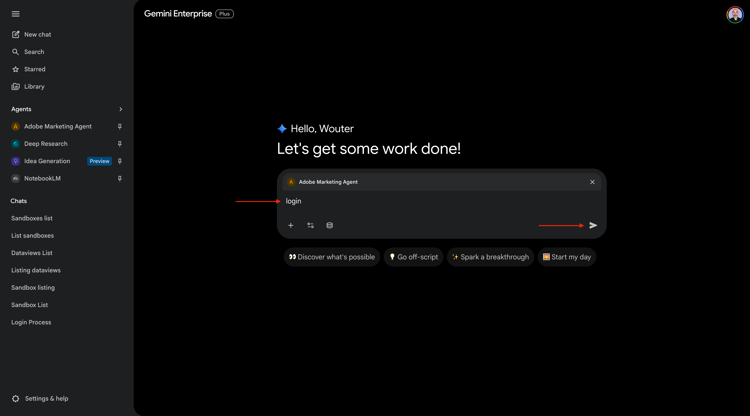
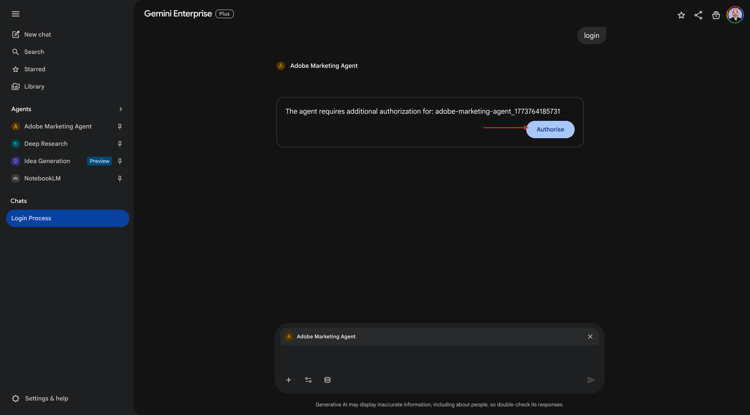
You should then see this. Click Authorize.
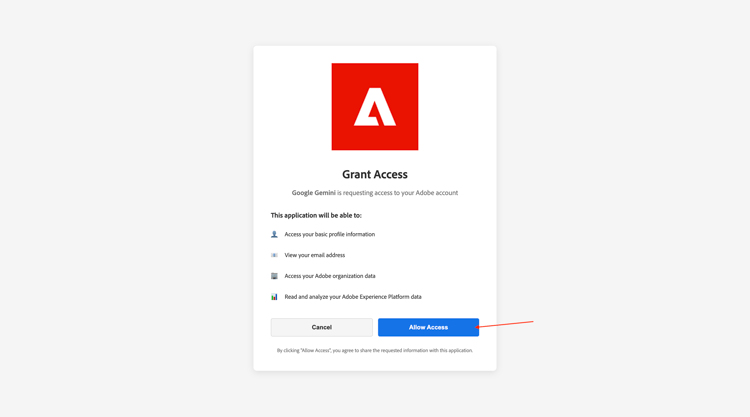
Click Allow Access and complete the login using your Adobe ID, and select the instance --aepImsOrgName-- when prompted.
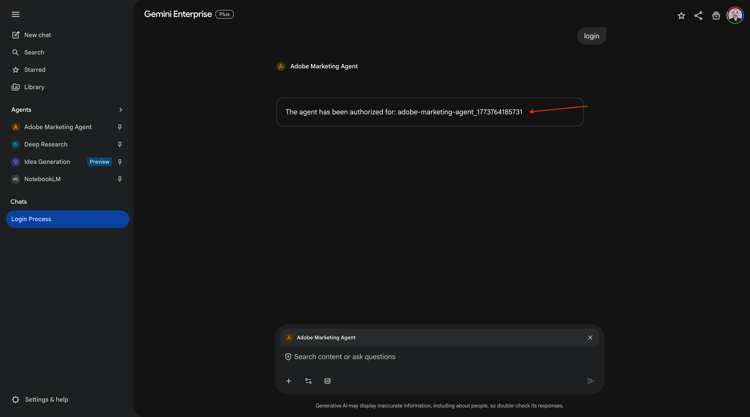
You should then see this.
1.1.4.4 Set context in Adobe Marketing Agent
Before interacting further with Adobe Marketing Agent through Copilot, the context needs to be set.
For this exercise, the context needs to be set to use:
-
Sandbox: Prod - One Adobe (VA7)
The sandbox setting helps to identify which sandbox AI Assistant should look at when asking questions.
-
Dataview: AdobeOne - Unified Customer Data View
The dataview setting helps to identify which dataview AI Assistant should look at when asking questions.
To change the sandbox, enter the following command and click the send button.
list sandboxes
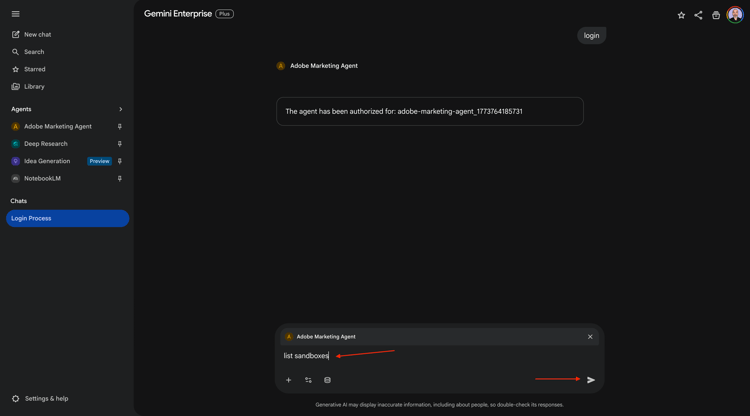
You should then see something similar to this. Enter the following command and click the Send button.
switch to sandbox One Adobe
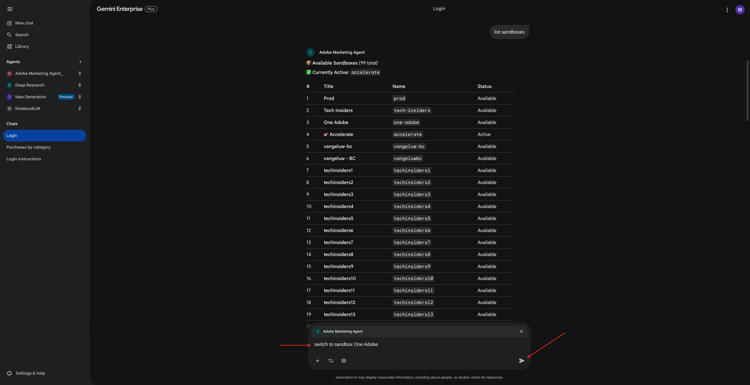
You should then see this. To change the dataview, enter the following command and click the send button.
list dataviews
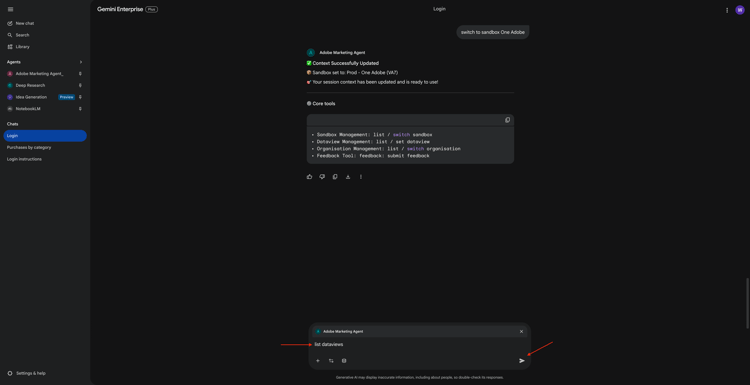
You should then see something similar to this. Enter the following command and click the Send button.
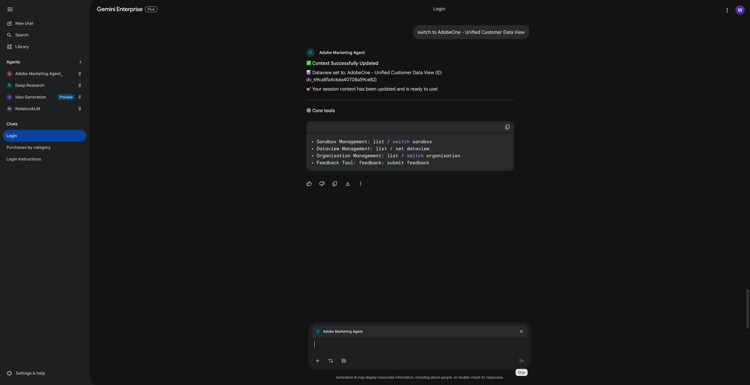
switch to AdobeOne - Unified Customer Data View
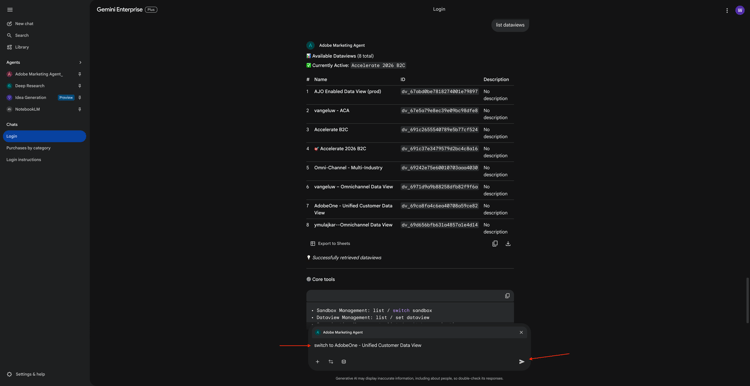
You should then see this. The context is now set correctly so you can start sending specific prompts next.
1.1.4.5 Start with overall purchase trends to anchor context and zoom into fiber
Intent
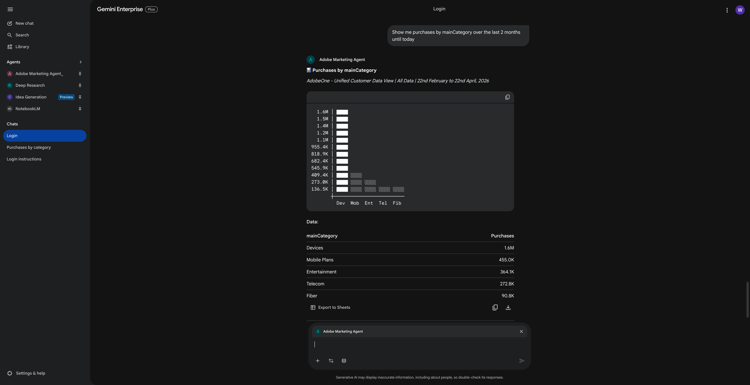
Get a toplevel pulse on category demand—Mobile, Landline, Internet, TV, Fiber—specifically for the most recent 60 days. This sets baselines for seasonality, promo effects, and regional variance after the New York rollout.
Enter the following Prompt and click the send button.
Show me purchases by mainCategory over the last 2 months until today
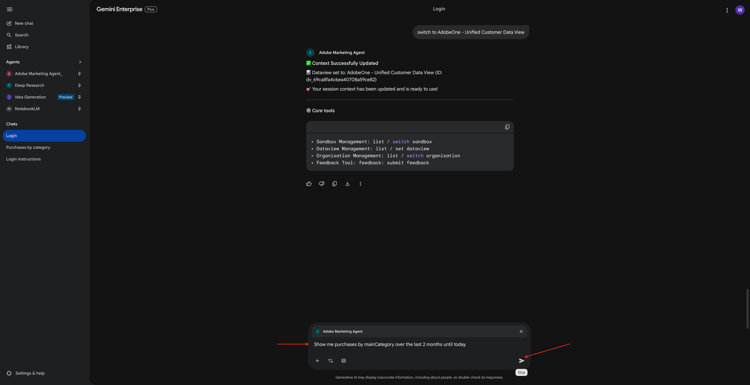
You should then see this:
Enter the following Prompt and click the send button.
Show me purchases by mainCategory = Fiber over the last 2 months until today, broken down by week
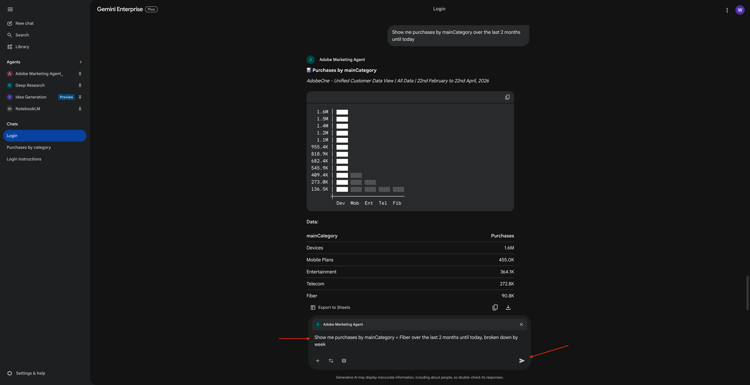
You should then see this, which drills down into Fiber-specific trends.
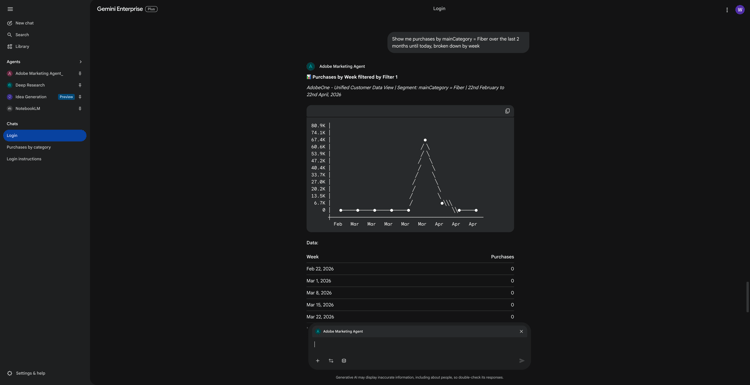
1.1.4.6 Correlate Orders with Content Preferences
Intent
Test the hypothesis that a preference for a specific genre (e.g., SciFi, Sports, Drama) predicts broadband upgrade behavior—especially for high bandwidth needs.
First, you need to find out which field is used to store the genre preference.
Enter the following Prompt and click the send button.
Which field is used to store the preferred genre
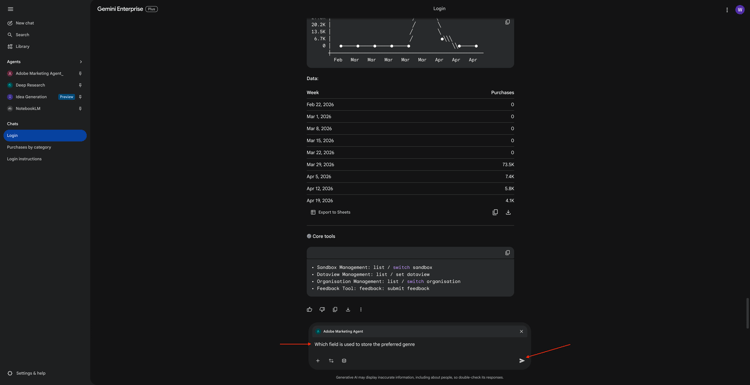
You should then see this, which shows that the field used for genre is --aepTenantId--.individualCharacteristics.telco.mediaPreferences.favouriteGenre.
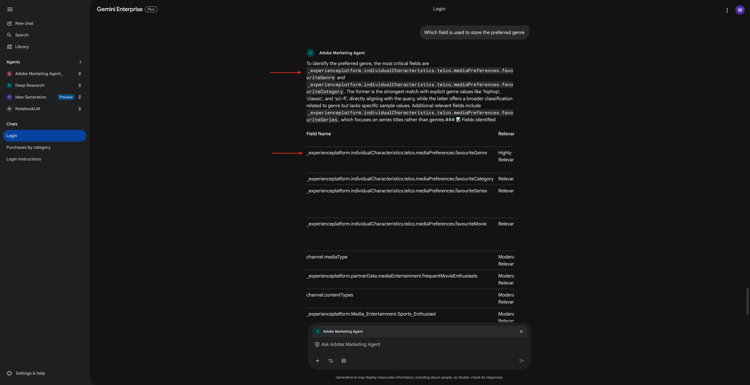
With that information, you can start drilling down in the purchase data.
Enter the following Prompt and click the send button.
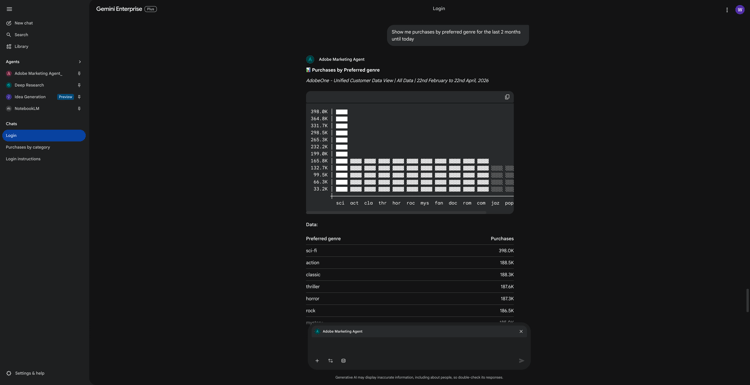
Show me purchases by preferred genre for the last 2 months until today
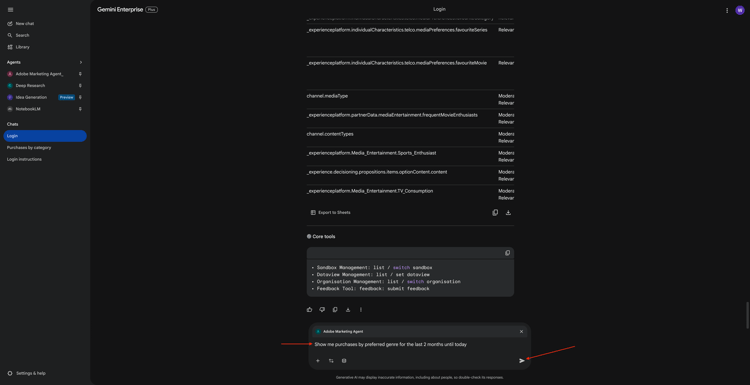
You should then see this.
1.1.4.7 Identify Existing Fiber Journeys
Intent
Discover which active or recently concluded journeys include “Fiber” in the title—e.g., “Fiber Upgrade NYC – Sept”, “Fiber Trial – Streaming Bundle”.
Enter the following Prompt and click the send button.
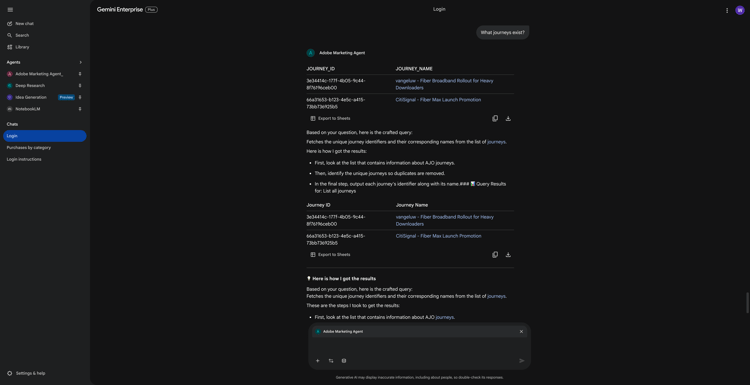
What journeys exist?
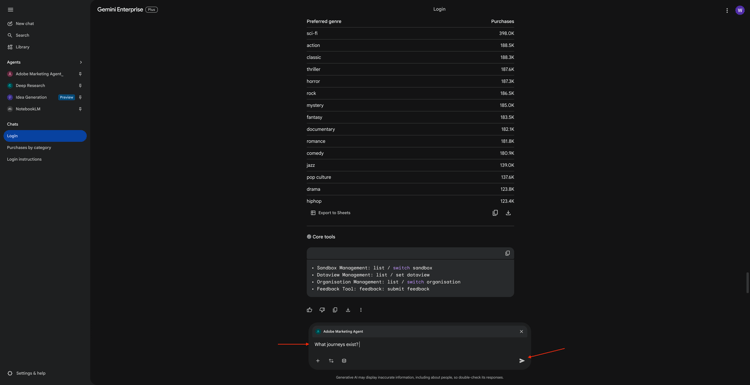
You should then see a list of journeys.
Enter the following Prompt and click the send button.
Which of these journeys has 'Fiber' in its name?
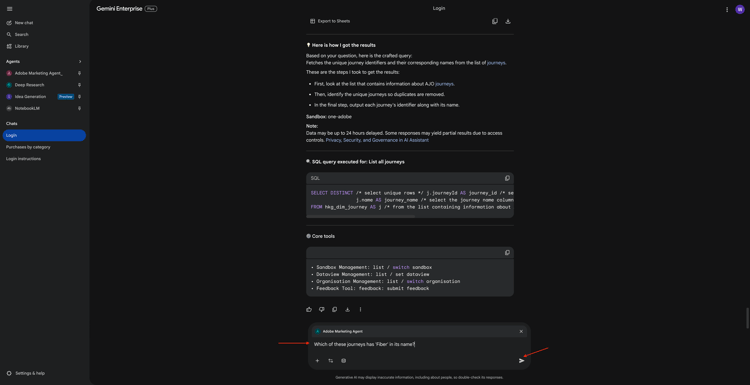
You should then see this.
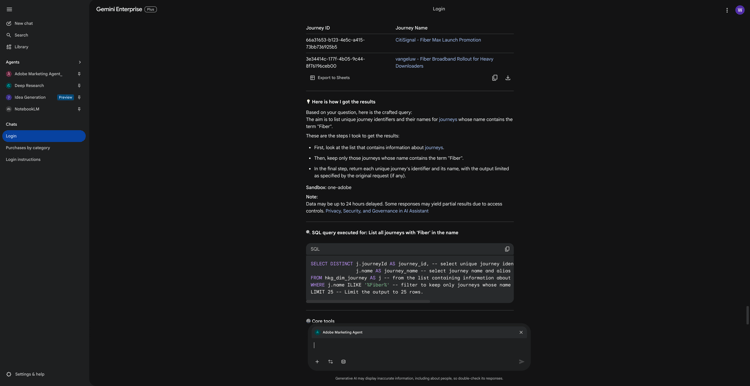
Enter the following Prompt and click the send button.
Show me the details of the journey 'CitiSignal - Fiber Max Launch Promotion'
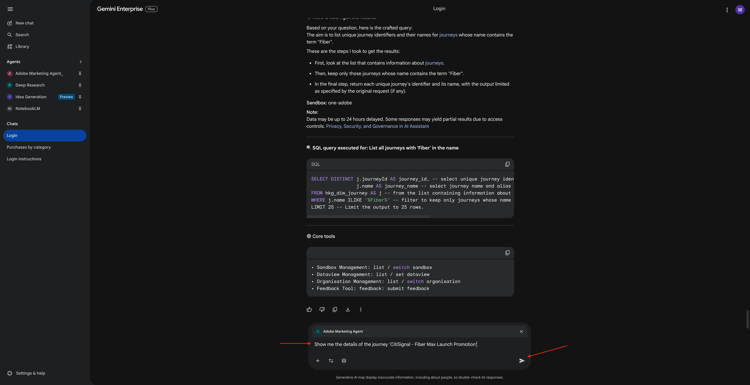
You should then see this.
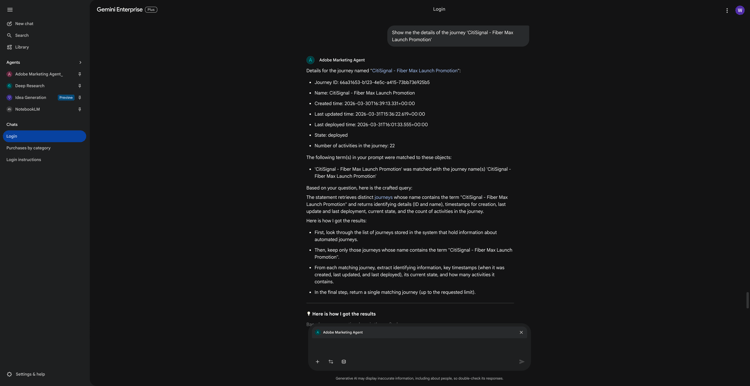
1.1.4.8 Validate journey performance via fallout analysis
Intent
You want to understand journey performance fallout to know if there are any nodes or conditions within the journey that are experiencing a large percentage of profiles being dropped. This is helpful in understanding if additional adjustments are needed in the journey.
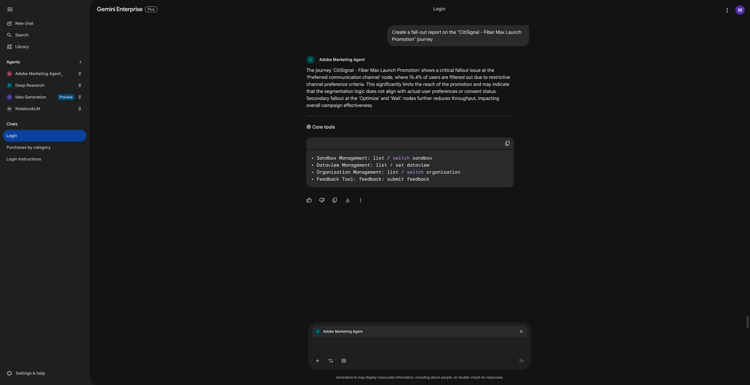
Enter the following Prompt and click the send button.
Create a fall-out report on the "CitiSignal - Fiber Max Launch Promotion" journey
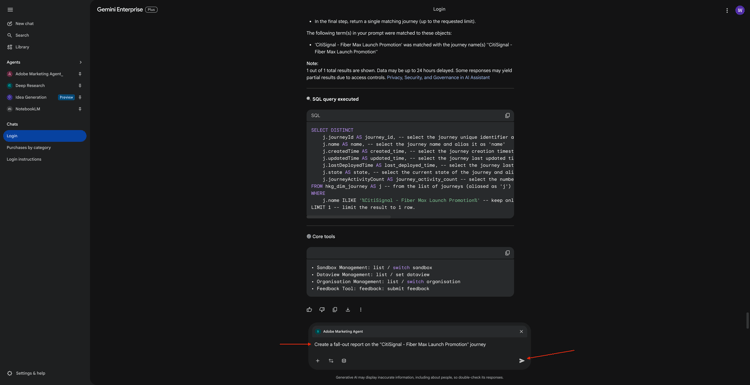
You should then see this.
You’ve now completed this lab.
Next Steps
Go to 1.1.5 Adobe Marketing Agent for Claude
Go back to Agent Orchestrator