1.1.5 Adobe Marketing Agent for Claude
[Beta]{class="badge informative"}
Prerequisites
In order to follow the steps in this lab as documented below, the following access is required:
- Access to Real-Time CDP, Journey Optimizer and Customer Journey Analytics
- Access to AI Assistant in Adobe Experience Cloud
- Access to AEP Agent Orchestrator
- Access to Claude
Video
In this video, you’ll get an explanation and demonstration of all the steps involved in this exercise.
This lab is in development.
1.1.5.1 Create custom app in Claude.ai for CJA
- a paid version of Claude.ai
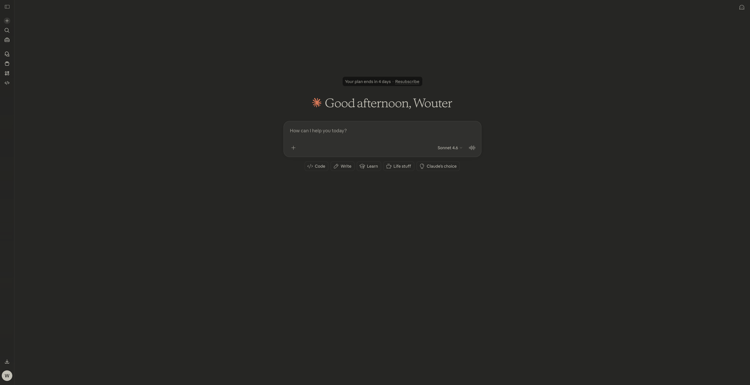
Go to https://claude.ai and log in using your account details. Once you’re logged in, you should see this.
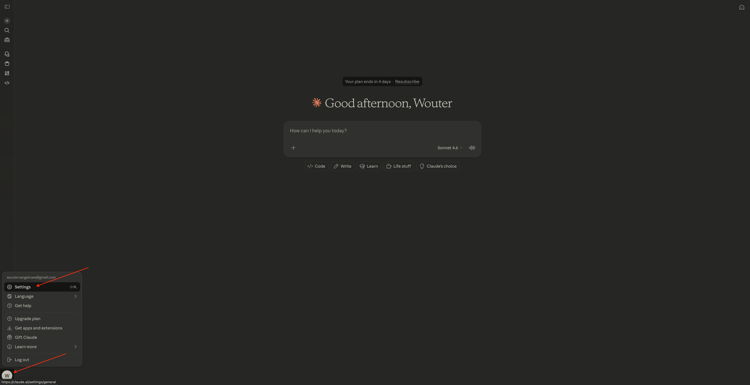
Click to open your account and then select Settings.
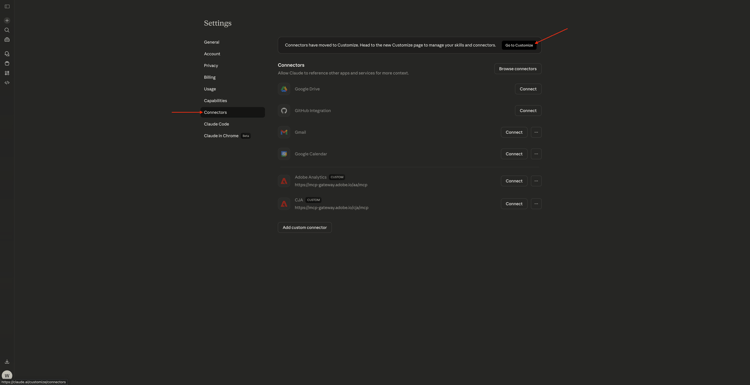
Go to Connectors and then click Go to Customize.
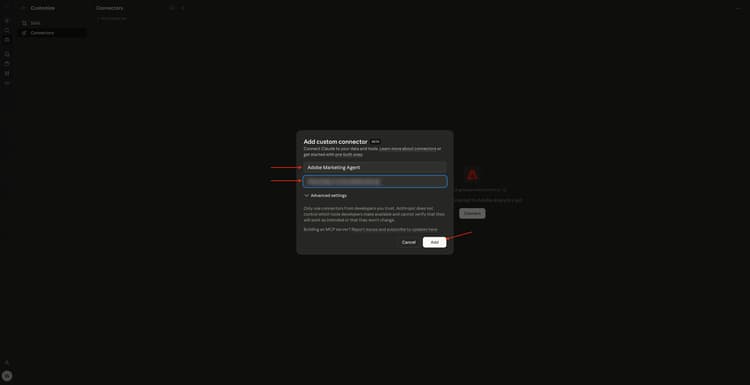
Click + and then select Add custom connector.

Fill out the fields like this:
- Name:
Adobe Marketing Agent - MCP Server URL: ask your Adobe representative
Click Add.
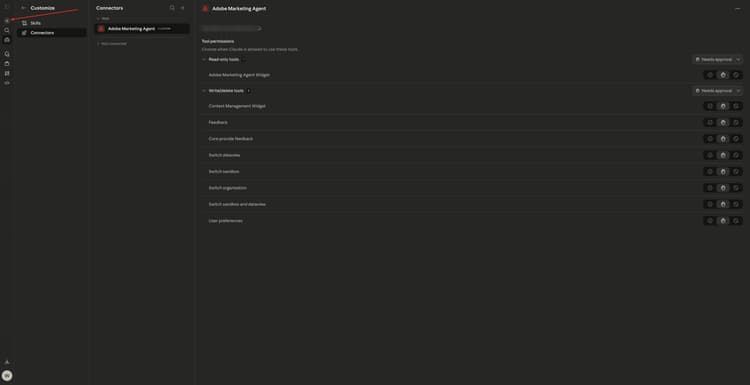
You should then see this. Click + to start a new chat.
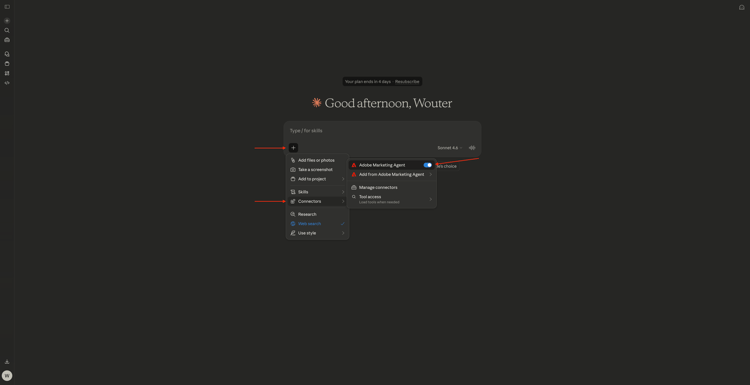
Click the + icon, go to Connectors and make sure Adobe Marketing Agent is enabled.
1.1.5.2 Authenticate & set context
Before interacting further with Adobe Marketing Agent through Claude.ai, you need to login and set the context.
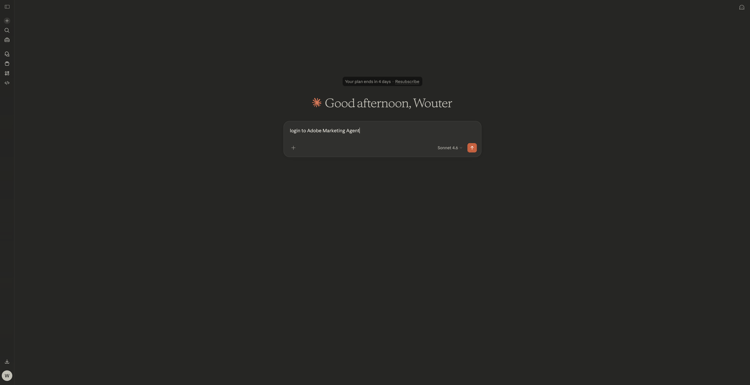
Enter the following prompt and click send.
login to Adobe Marketing Agent
Select Always allow.
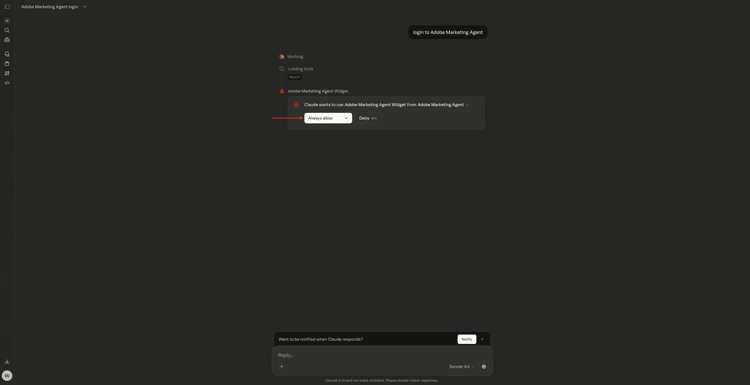
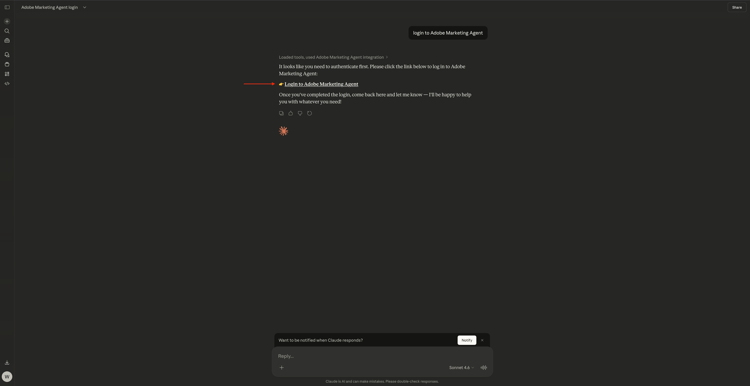
Click the link to log in to Adobe Marketing agent**.
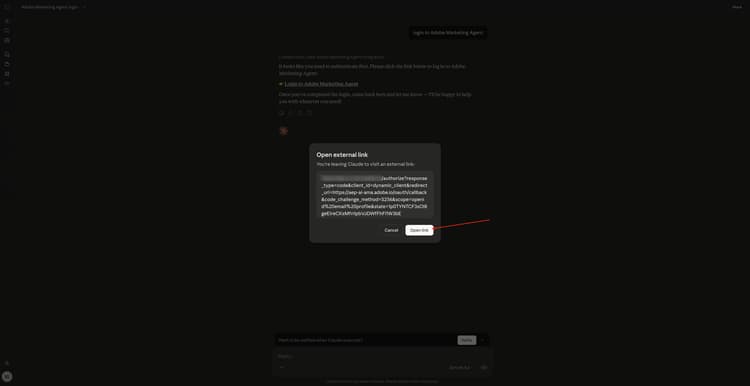
Click Open link.
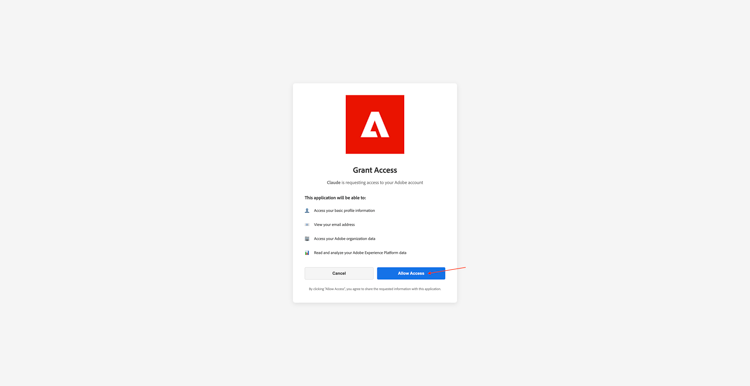
Click Allow Access.
After authenticating successfully, you should see this. Go back to Claude.
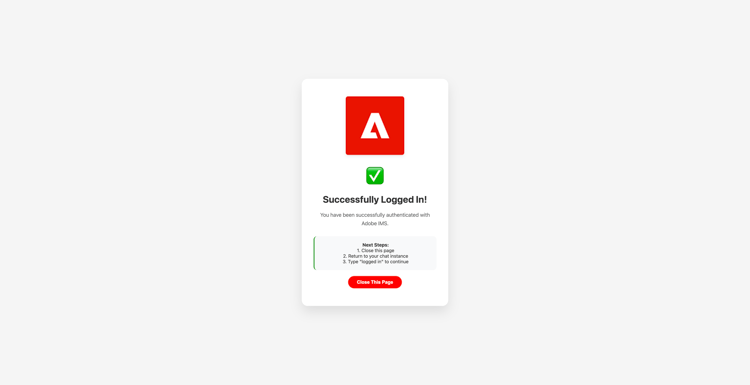
Enter the following command and click send.
logged in
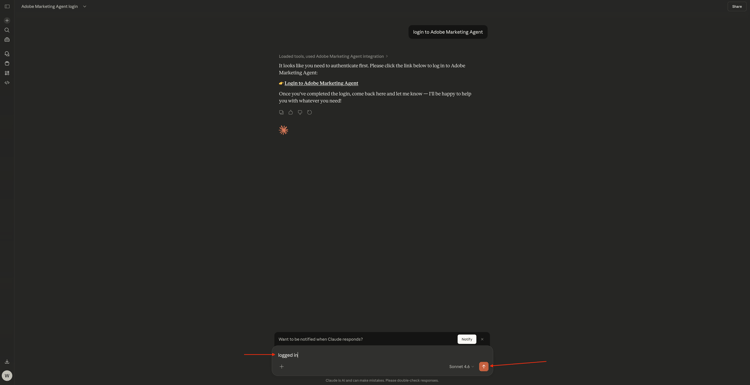
You’re now logged in successfully. The next step is to set the context. Enter the following prompt and click send.
change context
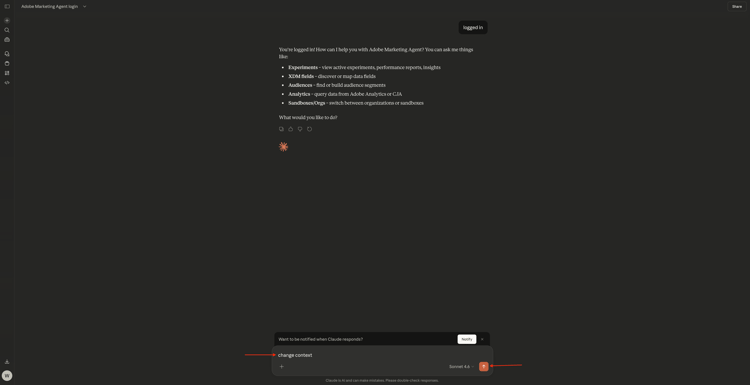
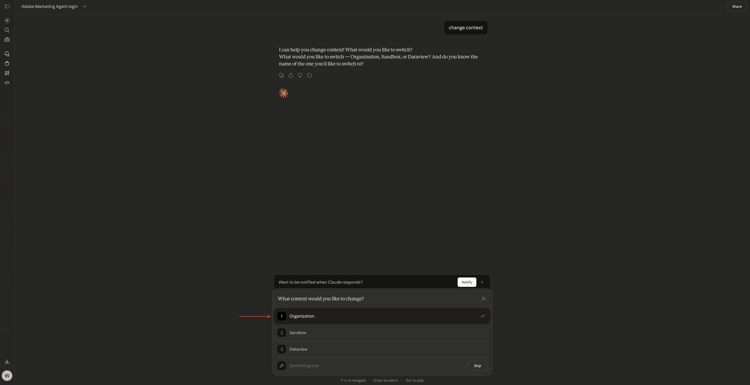
Select Organization. You can also repeat this command to change sandbox and dataview later.
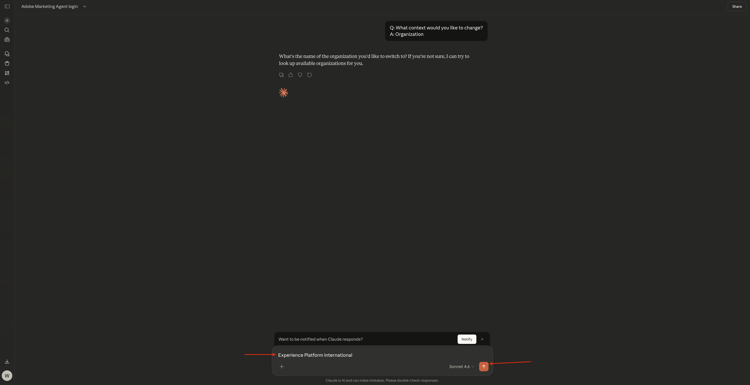
Enter the name of your instance and click send.
Select Always allow.
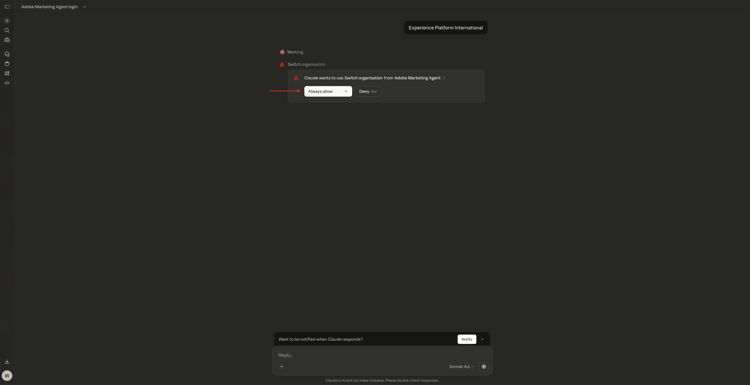
You should then see something like this.
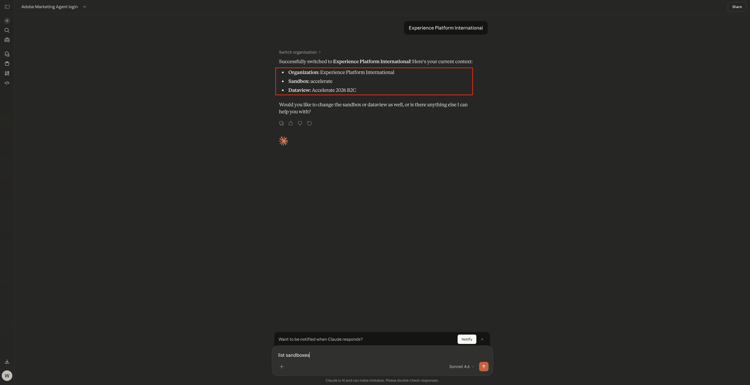
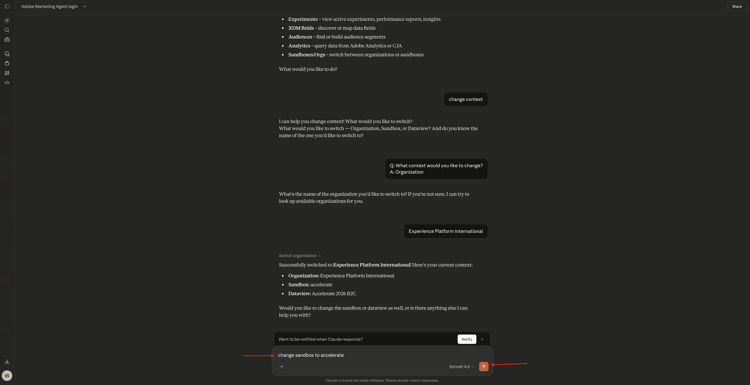
If the sandbox isn’t set properly yet, you can use the following command to change to the sandbox you need to use. Click send. Alternatively, you can use the above command change context and then select sandbox
change sandbox to --aepSandboxName--
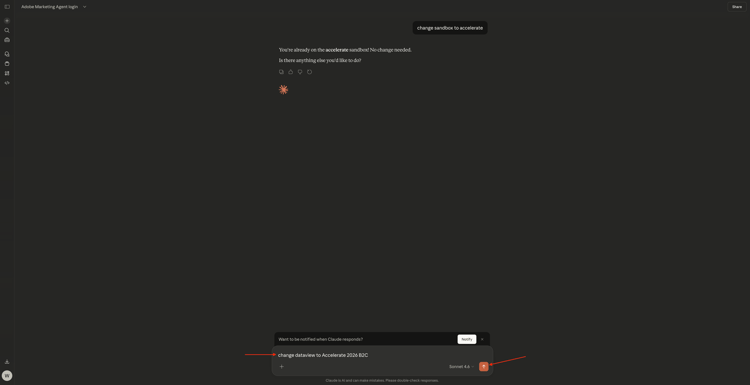
If the dataview isn’t set properly yet, you can use the following command to change to the sandbox you need to use (replace XXX in the below command by the name of your dataview). Click send. Alternatively, you can use the above command change context and then select dataview
change dataview to XXX
Once the Organization, Sandbox and Dataview are set properly, you’re ready to start asking questions to Adobe Marketing Agent.