Build models
To build your custom AI-powered models, the interface provides a step-by-step guided model configuration flow.
In the

Setup
You define a name and a description in the Setup step:
-
Enter your model Name, for example
Demo model. Enter a Description, for exampleDemo model to explore AI features of Mix Modeler.
-
Select Next to continue to the next step. Select Cancel to cancel the model configuration.
Configure configure
You configure your model in the Configure step. Configuration involves the definition of conversion goals, marketing touchpoints, the eligible data population, external and internal factors, and more.
-
In the Conversion goal section:

-
Select a conversion from the Conversion dropdown menu. The available conversions are the conversions that you defined as part of Conversions in Harmonized datasets. For example, Online Conversion.
-
You can select

-
-
In the Marketing touchpoints section, you can select one or more marketing touchpoints, corresponding to the marketing touchpoints you defined as part of Marketing touchpoints in Harmonized datasets.

-
Select one or more marketing touchpoints from the Touchpoint include dropdown menu.
- You can use

- You can use Clear all to remove all touchpoints.
- You can use
-
You can select
note NOTE You cannot set up the model with touchpoints that have overlapping data and there must be at least one touchpoint with spend. -
-
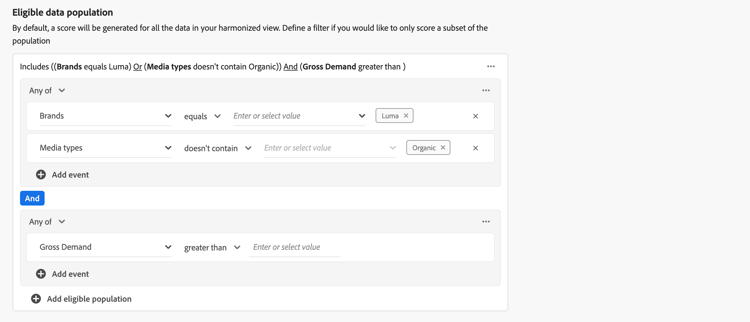
By default, a score is generated for all the data in your harmonized view. To only score a subset of the population, define one or more filters using containers in the Eligible data population section.
-
For each container, define one or more events.
-
For each event:
-
Select a metric or dimension from Select harmonized field.
-
Select the appropriate operator: equals, not equals, less than, greater than, starts with, doesn’t start with, ends with, doesn’t end with, contains, doesn’t contain, is in, or is not in.
-
Enter or select a value at Enter or select value.
-
-
To add an additional event in the container, select

-
To remove an event from the container, select
-
To filter using all or any of multiple events defined in the container, select Any of or All of. The label correspondingly changes from Include … Or … to Include … And ….
-
-
To add an eligible data population container, select
-
To remove an eligible data population container, within the container, select

-
Select And and Or between containers to build more complex definitions for your eligible data population.
-
-
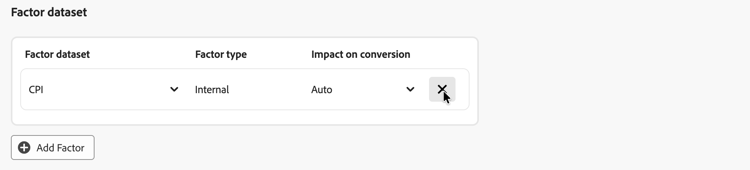
You can manage datasets containing internal or external factors in the Factor dataset section.
-
To add a factor dataset, select Add Factor. You can add a maximum of 30 factors to a model.
-
Select a Factor dataset from the drop-down menu. The available factors are the factors for which you have defined a harmonized field in dataset rules.
Based on the selected dataset, the Factor type is either Internal or External. -
Select the Impact on conversion from the drop-down menu. Available options are: Auto, Positive, or Negative. The default option is Auto, which allows the model to determine the impact of the factor dataset.
-
-
To delete a factor dataset, select

-
-
To define the lookback window for the model, enter a value between
1and52in Give contribution credit to touchpoints occurring within … weeks prior to the conversion in the Define lookback window section. -
To define the training window for a model, at Define training window, select where you would like to start scoring conversions.

You can select between:
-
Have Mix Modeler select a helpful training window and
-
Manually input a training window. When selected, define the number of years in Include events the following years prior to a conversion.
This input is required for a model. The number of years determine how channel adstock, that you can configure in the Advanced step, is capped.
-
-
Select Next to continue to the next step. If more configuration is needed, a red outline and text explains what additional configuration is required.
Select Back to go back to the previous step.
Select Cancel to cancel the model configuration.
Advanced advanced
You can specify advanced settings in the Advanced step. In this step, you can define spend share, enable your model for multi-touch attribution (MTA),define prior knowledge and define channel adstock.
Spend share
In the Spend share section:
-
To use historical marketing investment ratios to inform the model when marketing data is sparse, activate Allow spend share. This setting is recommended, especially in the following scenarios:
- A channel doesn’t have enough observations (for example, low frequency of spend, impressions or clicks).
- You are modeling spiky but regular, and potentially high-spend media (like TV for some brands), where data may be sparse.
note NOTE For one-off investments (for example a Super Bowl ad), incorporate that data as a factor instead of relying on spend share.
MTA
In the MTA enabled section:
- To enable MTA features for the model, activate MTA enabled. If you have enabled MTA, multi-touch attribution insights are available after you have trained and scored your model. See the Attribution tab in Model insights.
Prior knowledge
In the Prior knowledge section:
-
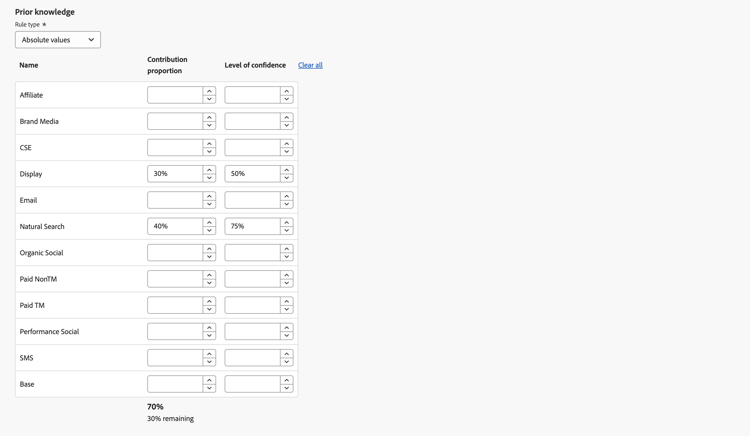
Select the Rule type, which is by default Absolute values.
-
Specify contribution percentages for any of the channels listed under Name, using the Contribution proportion column.
-
Where appropriate, you can add for each channel a Level of confidence percentage.
-
When needed, use Clear all to clear all input values for the Contribution proportion and Level of confidence columns.
Channel adstock
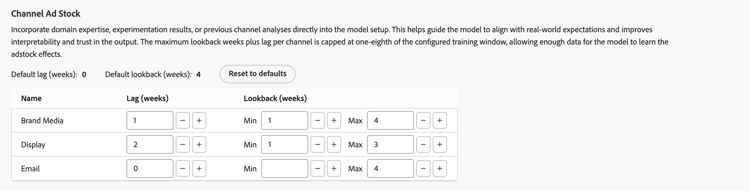
In the Channel adstock section you can define individual adstock lookbacks (carryover or decay effects) and lag (delayed response time) for each channel (marketing channel) you have defined in your model.
This channel adstock configuration allows for fine-grained control on how different marketing channels impact business outcomes over time. Alternatively, you can use system defaults and a one-size-fits-all configuration.
The channel adstock configuration helps you to capture channel-specific nuances. For example, the long-lasting impact of TV campaigns, the short-lived impact of paid search, or the lag between influencer spend and observable conversions. Experiment with adstock lookback and lag parameters to generate more accurate, tailor-made, and trustworthy insights. Ultimately, a channel adstock configuration can lead to more precise budget allocations and better business decisions.
To configure channel adstock:
-
For each channel (Name), define a Lag (weeks), a Min Lookback (weeks), and Max Lookback (weeks) value. For each value:
- Use


The total of lag weeks plus maximum lookback weeks per channel is capped at one-eighth of the configured training window. This cap allows for enough data for the model to learn the adstock effects. As an example, for a two year training window, the maximum of Lag (weeks) and Lookback (weeks) for a channel is 13 weeks. This cap is enforced when you define the values.
- Use
-
To reset all channel adstock to defaults:
- Select Reset to defaults.
Set options
You can schedule training and scoring, and specify granular insights reporting fields for your model in the Set options step.
Schedule
In the Schedule section, you can schedule model training and scoring.
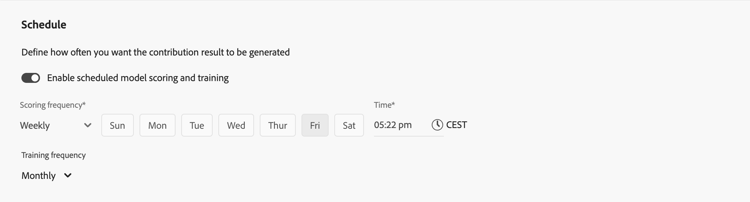
To schedule model scoring and training:
-
Turn on Enable scheduled model scoring and training.
-
Select a Scoring frequency:
- Daily: Enter a valid time (for example
05:22 pm) or use
- Weekly: Select a day of the week and enter a valid time (for example
05:22 pm) or use - Monthly: Select a day of the month from the Run on every dropdown menu and enter a valid time (for example
05:22 pm) or use
- Daily: Enter a valid time (for example
-
Select a Training frequency from the dropdown menu: Monthly, Quarterly, Yearly, or None.
Granular insights reporting fields
The Granular insights reporting fields section uses the granular incrementality reporting functionality. This functionality allows you to select harmonized fields to break down conversion and touchpoint incrementality scores.

You define these harmonized fields so you can drill down in the reporting of your model using granular reporting columns instead of having to create separate models.
For example, you build a model that is focused on revenue, but you are also interested in the campaigns, media types, regions, and traffic sources performance. Without the granular incrementality reporting functionality, you would have to build four separate models. With the granular incrementality reporting functionality, you can break down your revenue model on campaigns, media types, regions, and traffic sources.
- Select one or more harmonized fields from the Select harmonized fields underneath Includes. The selected harmonized fields are added to the panel.
- Select Harmonized field

- Select Clear all to remove all selected harmonized fields.
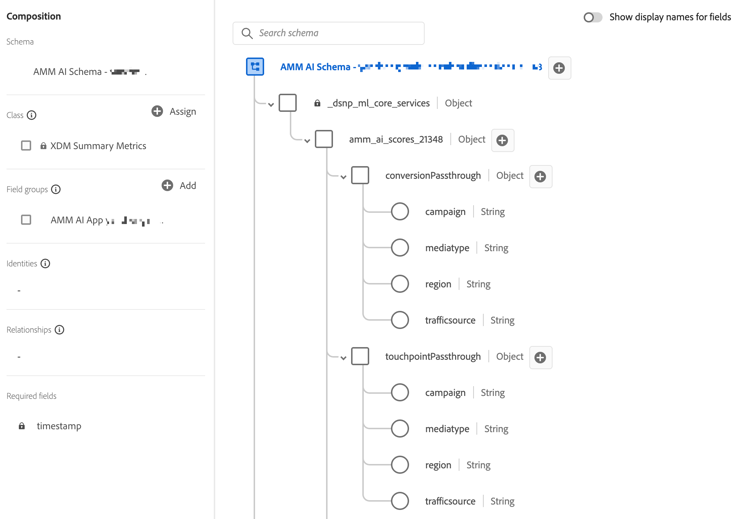
The selected harmonized fields for granular incrementality reporting are available as part of the Experience Platform schema and dataset that results from scoring the model. The granular insights reporting fields can be found within the conversionPassthrough and touchpointPassthrough objects.
Finish
-
Select Finish to finish your model configuration.
-
In the Create instance? dialog, select Ok to trigger the first set of training and scoring runs immediately. Your model is listed with status

Select Cancel to cancel.
-
If more configuration is needed, a red outline and text explains what additional configuration is required.
-
-
Select Back to go back to the previous step.
-
Select Cancel to cancel the model configuration.