Email Editor v2.0 Overview email-editor-v2-overview
Overview of the classic email editor.
Email Template Picker
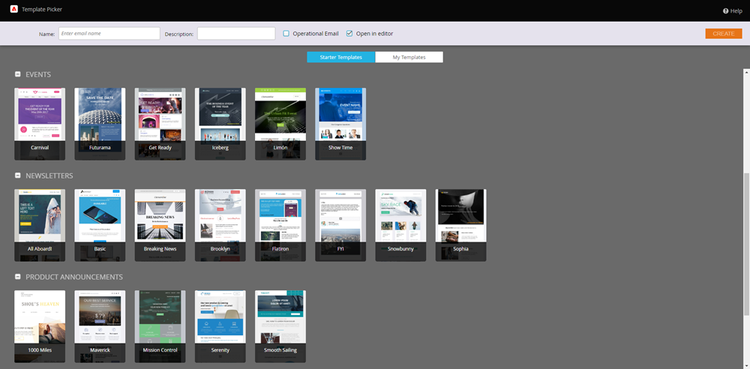
When you create a new email, you are taken to the Email Template Picker.
Email Editor
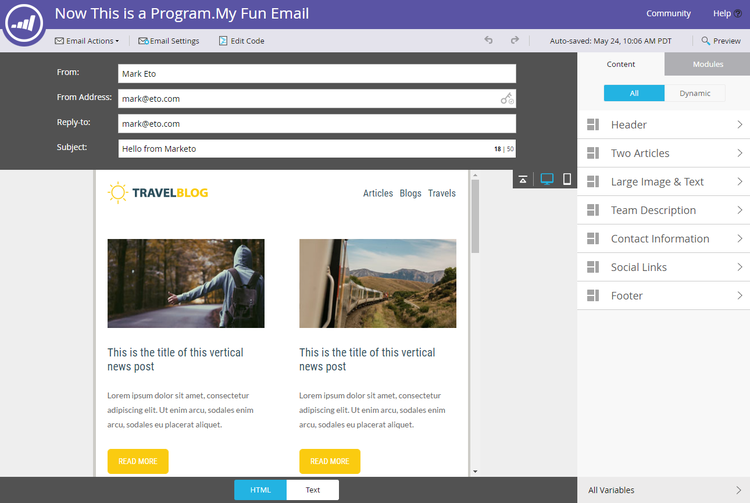
When you start editing your email, you’ll notice the editor has a whole new look.
Modules
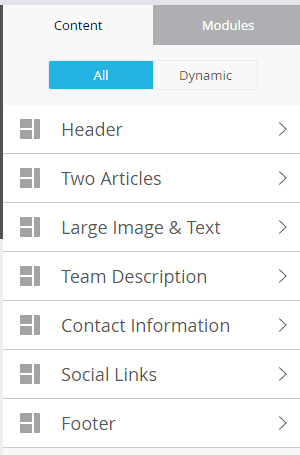
Those things on the right side of the editor are called modules. Learn how to add modules to your email.
Text Version
Switching between the HTML version and Text versions of your email is now in a handy tab at the bottom. Learn how to edit the text version of an email.

Email Header
Want more design space? The email header can be hidden after you are done editing it. Simply click on this icon…
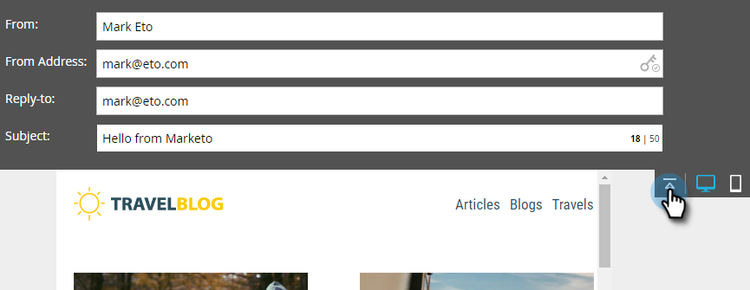
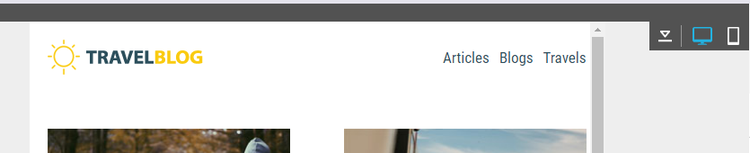
…and the header collapses.
Preview your Email
By default the email displays how it would look on a desktop, as indicated by the highlighted blue icon. If you click on the icon to its right…
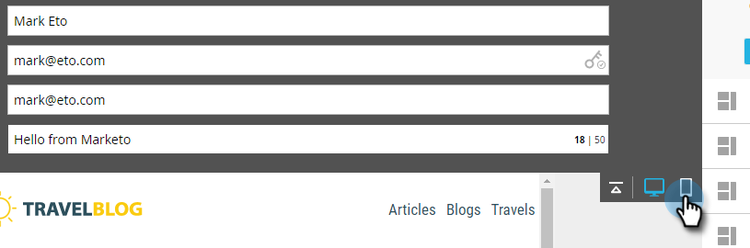
…you’ll see how your email will render on a mobile device.
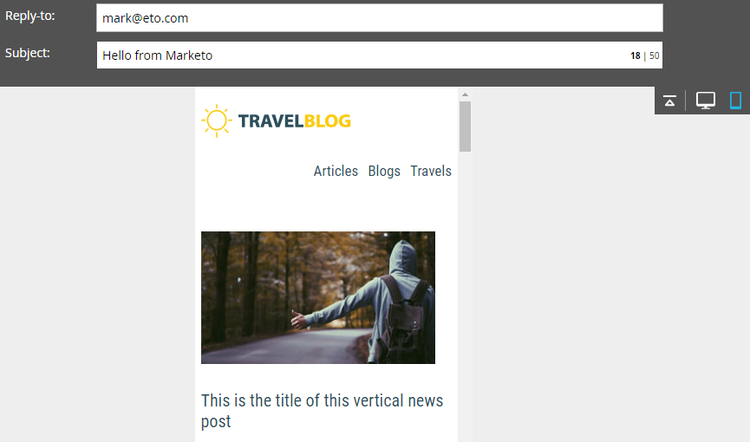
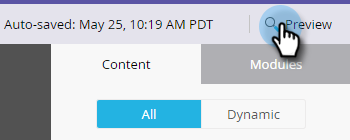
For a larger preview, click Preview in the upper-right of the email.
The default view there is desktop…
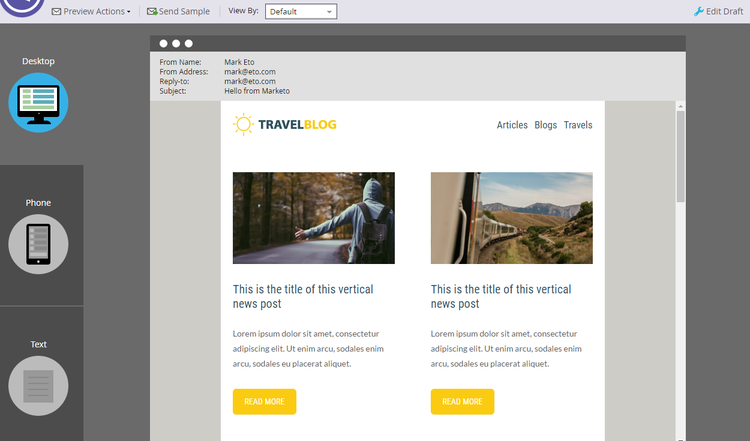
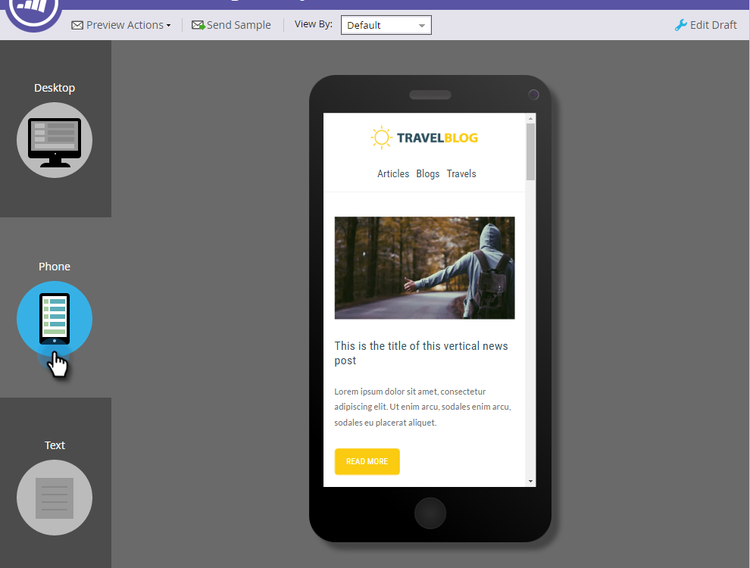
…but you can also see how it will look on a mobile device. You can preview the text version, too! Simply click Edit Draft in the upper-right to resume editing.
Email Actions
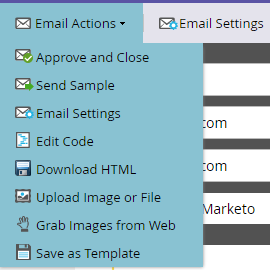
Under Email Actions, you’ll notice some new features. Upload an Image or File, and Grab Images from Web. You can also save the email itself as a new email template. All you have to do is give it a name and a destination.
Disable Open Tracking Under Edit Settings, you can disable open tracking if necessary.
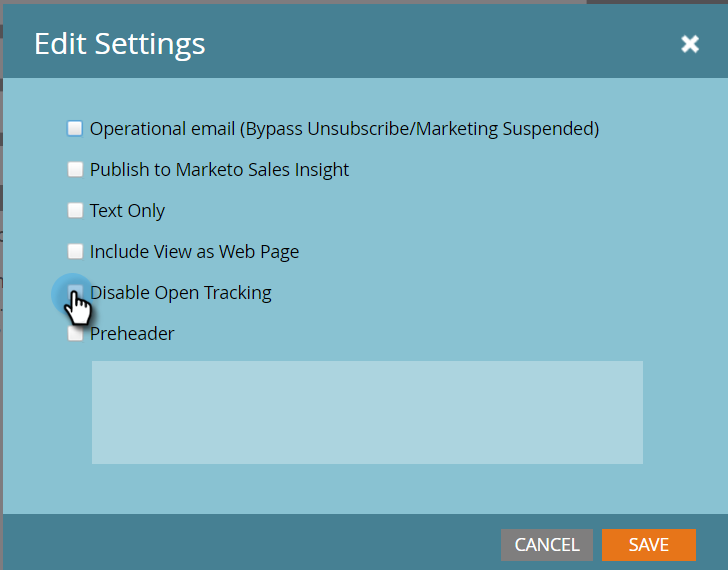
Edit Settings
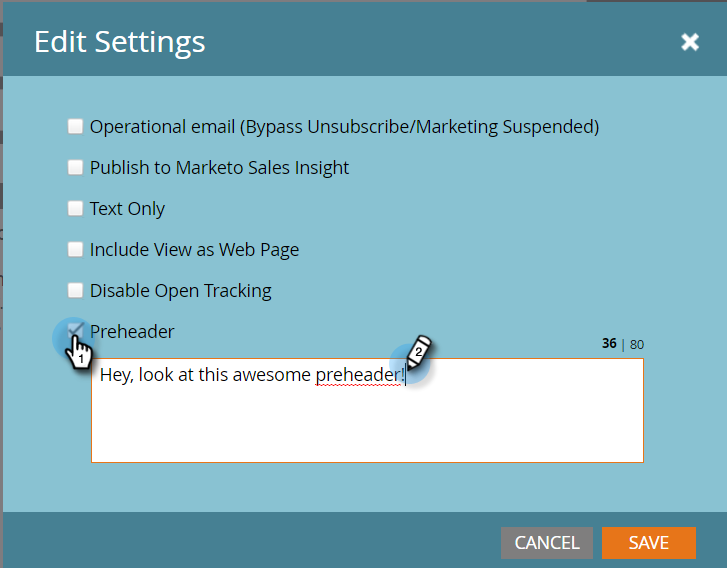
You have the option of adding a Preheader. A Preheader is the short summary text after the subject line when emails are viewed in your inbox.