Understand the Live Hub (Beta) layout
In Adobe Learning Manager Live Hub, the session room is designed to help Instructors and Learners collaborate effectively during live sessions. The layout includes multiple panels and controls that allow you to manage audio, video, participants, and interactions in real time.
This article provides an overview of the Live Hub interface and its layout. It explains the different components of the room, such as the control panel, Attendees panel, and other key elements, with labeled references to help you navigate the interface.
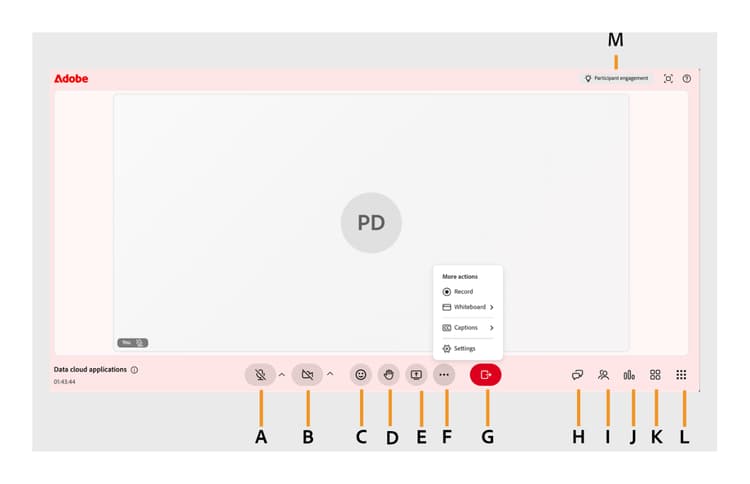
A: Microphone controls, B: Camera options, C: Reactions, D: Raise hand, E: Share screen, F: More actions, G: Leave session, H: Chat panel, I: Attendees panel, J: Polls & Quizzes panel, K: Breakout, L: More apps, M: Participant engagement.
Key components of the classroom layout
The Live Hub layout is organized into panels and toolbars that help Instructors and Learners interact, collaborate, and manage the session effectively.
Control bar (bottom toolbar)
The Control bar provides quick access to the following in-session controls and settings.
-
Microphone controls: Turn your microphone on or off during the session. This is available to both Instructors and Learners. View Set-up pre join screen for more information.
-
Video controls: Enable or disable your camera.This is available to both Instructors and Learners. View Set-up pre join screen for more information.
-
Reactions: Use emojis and quick responses to interact during the session. This is available to both Instructors and Learners. View About the raise hand and send reactions for more information.
-
Raise hand: Indicate that you want to ask a question or speak. This is available to both Instructors and Learners. View About the raise hand and send reactions for more information.
-
Share screen: Present your screen during the session (based on permissions). This is available to both Instructors and Learners. View About the screen sharing for more information.
-
More actions: Access the following additional tools and settings:
-
Captions: Turn live captions on or off to view spoken content as text during the session. View Closed captions for more information.
-
Whiteboard: Open the whiteboard to collaborate visually by drawing, writing, or annotating with other participants. View About the whiteboard for more information.
-
Room settings: Configure session settings, including Participant permissions, Recording, AI, and Privacy options to control participant access, recording preferences, AI features, and participant visibility. View Manage room settings as an Instructor for more information.
-
Polls & Quizzes panel
The Polls & Quizzes panel helps Instructors drive participation and measure learner understanding throughout the session. You can:
Create interactive polls to collect learner feedback, gather opinions, and encourage active participation during the session. View responses in real time to guide discussions and adapt your delivery as needed. View About the polls for more information.
Create quizzes to evaluate learner understanding, measure knowledge retention, and track completion. Monitor learner progress and quiz responses in real time to identify areas that may require additional instruction. View About the quiz for more information.
Attendees panel
The Attendees panel lists all participants in the session. You can:
-
View enrolled attendees, including present and absent participants.
-
Identify participant roles, such as Instructor or Learner.
-
Search for participants.
-
Monitor attendance in real time.
This is available to both Instructors and Learners.
View About the Attendees panel for more information.
Chat panel
The Chat panel enables real-time communication between participants. You can:
-
Send and receive messages during the session.
-
Ask questions or respond to discussions.
-
Interact with the participants.
This is available to both Instructors and Learners.
View About the Chat panel for more information.
Breakout panel
The Breakout panel allows Instructors divide participants into smaller groups for focused discussions and collaborative activities. You can:
-
Create and manage breakout rooms during the session.
-
Assign participants to groups automatically or manually.
-
Move between rooms to monitor and support each group.
-
Bring all participants back to the main session when the activity ends.
This is available to both Instructors and Learners.
View About the breakouts for more information.
More apps
Open More apps to access integrated tools that extend collaboration during the session. From here, you can launch the Miro app to work together on a shared visual board in real time. With the Miro board, you can:
-
Brainstorm ideas together on a shared, infinite canvas.
-
Add sticky notes, shapes, and diagrams as the session progresses.
-
Collaborate visually with all participants without leaving the session.
View About the whiteboard for more information.
Participant engagement
Participant engagement helps track participants’ activity and involvement in real time during the session. You can:
-
View overall learner engagement levels.
-
Monitor participation based on interactions such as responses, reactions, and activity.
-
Identify whether learners are actively engaged or need attention.
View Track the participant engagement for more information.