Basic settings in Adobe Learning Manager
Overview
The Basic information section serves as the foundation of your Adobe Learning Manager setup, containing essential organizational parameters that define how your learning platform operates across different regions, languages, and business contexts.
Key benefits
- Provides region-specific content delivery and user experience.
- Standardizes time displays, date formats, and currency representations.
- Provides automatic daylight savings time adjustments for selected time zones.
- Reduces the need for manual adjustments across the platform.
Configure basic settings
Access basic information settings
-
Log in to Adobe Learning Manager as an administrator.
-
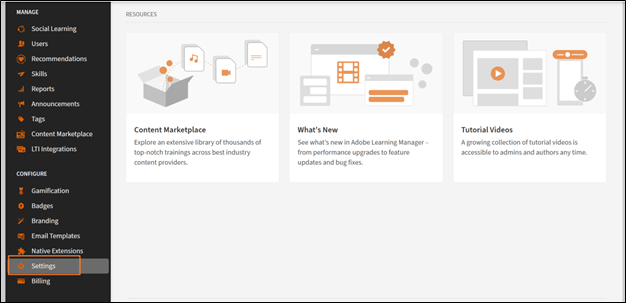
Select Settings in the left navigation bar.
-
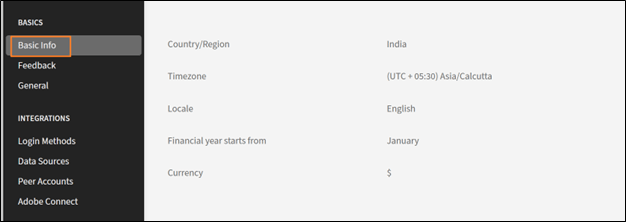
Select Basic Info in the Basics category.
-
Select Change to modify the basic settings.
Change basic settings
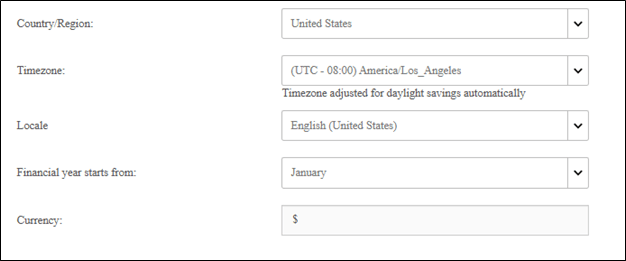
Country/Region
The Country/Region dropdown in Adobe Learning Manager’s administrator settings allows you to specify the country or region associated with their organization. This setting is used for localization purposes, ensuring that the platform aligns with regional preferences, compliance requirements, and time zones.
Timezone
The Timezone dropdown allows you to define the default time zone for the platform. This ensures that all time-sensitive activities, such as course schedules, deadlines, and reports, are accurately aligned with the organization’s or learners’ local time.
Locale
Locale refers to the language and regional settings for the account. The Locale dropdown allows administrators to configure the language in which the platform’s interface and content are displayed to users. This option ensures that learners and administrators can interact with the platform in their preferred language.
Financial year starts from
This option allows you to define the start month of your organization’s financial year. For example, if your organization’s financial year starts in December, you can set this option to December. The reports and analytics will then align with this fiscal period.
Currency
The Currency option allows you to define the default currency for the account. This currency is used for pricing learning objects, such as courses, Learning Paths, and certifications. For example, if your organization operates in the United States, you can set the currency to USD ($). Similarly, for operations in Europe, you might select EUR (€).
Change feedback settings
Feedback settings in Adobe Learning Manager provide administrators with tools to collect and manage feedback from learners (L1) and managers (L3). These settings ensure courses and learning objectives are evaluated effectively, enabling continuous improvement.
Before you start gathering valuable insights from your learners, you need to enable the L1 feedback feature and set its parameters. This first step involves navigating to the Feedback Settings area and turning on the feature for all new courses, as well as choosing the primary language for your feedback forms.
Enable L1 feedback
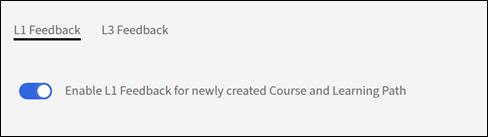
On the L1 Feedback tab, locate the toggle switch labeled Enable L1 Feedback for newly created Course and Learning Path. Select the switch to turn it on. This will automatically include an L1 feedback form for any new courses you create.
Select a default language
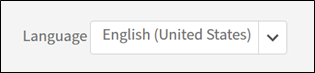
Use the Language dropdown to select the default language for your feedback forms. This ensures that the questions are presented to learners in the correct language.
Configure questionnaires for different course types
Adobe Learning Manager allows you to customize the questions based on whether your course is a self-paced module or an instructor-led classroom session. This ensures that the feedback you receive is specific and relevant. In this step, you will select and refine the questions for both Self Paced Courses and Classroom Courses to gather the most meaningful data.
For Self-Paced Courses:
- Mandatory question: The questionnaire includes a mandatory question, “How likely is it that you would recommend this course to a colleague?”. This is a standard Net Promoter Score (NPS) question that provides a key metric for overall course satisfaction.
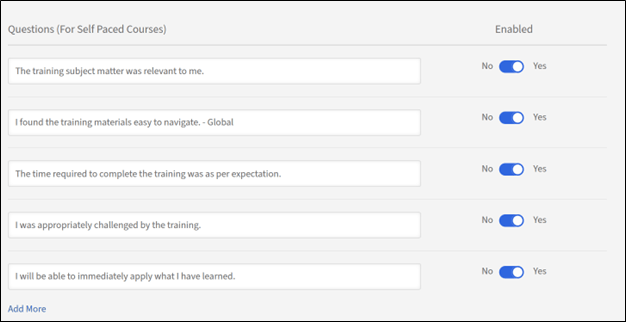
- Customize questions: Review the list of provided questions. To include a question in the feedback form, ensure the toggle switch next to it is set to Yes. To remove a question, toggle the switch to No.
- Add Custom questions: If you have additional questions specific to your self-paced content, select the Add More link to create and add new, custom statements to the questionnaire.
For Classroom Courses:
- Customize questions: Review the list of questions tailored for classroom-based training. Toggle the switch next to each question to Yes to include it or No to exclude it from the feedback form.
- Add Custom questions: To add new questions that are specific to your classroom environment or facilitation style, select the Add More link to create and add them to the list.
Set up feedback reminders
To maximize your response rates, it’s a good practice to configure automated reminders. This step shows you how to set up and schedule these reminders, defining when they are sent, how often they recur, and for how long. By proactively reminding learners, you can significantly increase the amount of feedback you collect.
-
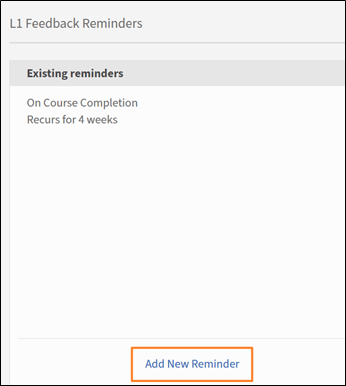
Add a new reminder: In the L1 Feedback Reminders section, select Add New Reminder.
-
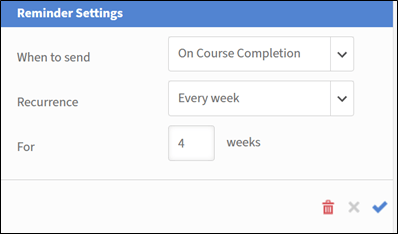
Define reminder schedule: In the Reminder Settings panel that appears, use the dropdown menus and input fields to configure the reminder:
a. When to send: Select whether the reminder is sent On Course Completion or After Course completion.
b. Recurrence: Select the frequency of the reminder (for example, Every week).
c. For: Specify the total duration (in weeks) for which the reminders will be sent (for example, 4 weeks). -
** Save the reminder**: Select the blue checkmark icon to save the new reminder configuration. You can repeat this process to add more reminders if needed.
-
Select Save in the upper-right corner of the page to apply the L1 feedback settings.
Enable L3 feedback
Before you can gather feedback from a learner’s manager, you need to configure the L3 feedback settings. This first step involves navigating to the Feedback Settings page and selecting the L3 Feedback tab. From here, you can set the language for the feedback request and review the primary question that will be sent to the manager.
Select L3 Feedback tab
Select the L3 Feedback tab on the Feedback Settings page.
Review the feedback statement
The L3 feedback is requested from the learner’s manager as a single statement they can agree or disagree with. The default statement provided is: “The employee’s performance has shown distinct improvement after taking the training.” You can edit this statement to better suit your organization’s needs.
Select a default language
Select the Language dropdown to select the default language for the feedback request.
Set up feedback reminders
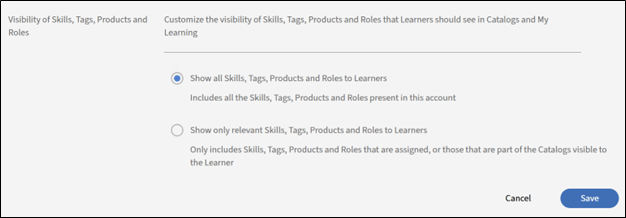
To ensure that managers provide timely feedback, you need to set up automated reminders. This step involves configuring when these reminders are sent and how often they recur. The screenshot shows that L3 feedback reminders can be configured to be sent once upon course completion, but you can add more reminders if needed.
-
Add a new reminder: To create a new reminder, select the Add New Reminder link.
-
Define reminder schedule: In the Reminder Settings panel, select the dropdown menus and input fields to configure the reminder:
a. When to send: Select when the reminder is sent. The options are- On Course Completion and After Course completion.
b. Recurrence: Select the frequency of the reminder. If the recurrence is Once, it means the manager will receive one notification to provide feedback. The available options are- Once, Every day, Every week, and Every month. -
After setting up the schedule, select the blue checkmark icon to save the reminder configuration. The reminder appears in the list of existing reminders.

-
Select Save in the upper-right corner of the page to apply the L3 feedback settings.
General settings
Overview
The general settings in Adobe Learning Manager provide administrators with a centralized location to configure the overall learner experience and administrative processes. These settings allow you to enable or disable various features to tailor the platform to your organization’s specific needs.
Key configurable general settings include:
- Course effectiveness and moderation: Choose to display a course effectiveness rating to learners and enable a course moderation feature that requires admin approval for all course changes.
- Learner engagement features: You can enable or disable features like the Discussion Board for course comments, the skills from external sources for learners, and Digest Emails to keep learners informed about new content and progress.
- Content and course management: Settings allow for configuring Multiple Attempts for interactive e-learning, adding Unique Learning Object Ids to content, and setting the default behavior for Module Version Updates.
- User management: Enable Auto-register Users to automatically add new users to the system and Auto-delete Internal Users who have been inactive for a specified period.
- Customization and display: You have control over what learners see, such as enabling or disabling Filter Panels for searching, showing Catalog Labels, and customizing up to three Footer Links.
Course Moderation
Course moderation allows you to oversee and manage updates made to courses by authors. It ensures that any changes to course content are reviewed and approved by administrators before being published to learners. Selecting Course Moderation requires authors to seek approval from administrators to publish a course of they’ve made any changes to the course.
When an author updates a course, for example, adds or removes a module or modules, and tries to publish the course,
- You receive notifications whenever the author republishes a course with changes.
- Select the notification to view the changes made by the author.
- Compare the old and new content.
- Approve or reject changes:
a. Approve the changes to republish the course with updates.
b. Reject the changes to keep the previous version of the course active. - Authors are notified of your decision, whether it is approval or rejection.
Discussion Board
The Discussion Board option in Adobe Learning Manager allows learners to engage in discussions related to courses, modules, or learning programs. You can enable and manage this feature to foster collaboration and knowledge sharing among learners. Discussion boards are linked to specific courses or modules, making them contextually relevant.
As a learner, you can interact with other learners and your instructors using the Discussion tab. You can view the posts for any course that you view or enroll in. If an administrator has enabled discussions for a course, you can view the Discussion tab next to the Notes tab for that course.
When you select the Discussions tab of a course, you can see the existing posts and comments for that course. If you have already enrolled into the course, you can also start typing posts or comments for other users to see. After you type the message, click Post. Your post must contain at least 10 characters.
The post is immediately visible in the Discussions tab. You can sort the posts as Newest First or Oldest First and delete those posts that you wrote. Even after you unenroll from the course, you can still view all the posts and delete the posts that you wrote.
As administrator, you can moderate discussions to ensure relevance and appropriateness. Learners receive notifications for replies or updates in discussions they are part of.
Multiple Attempts
Selecting this option allows authors to set the number of re-attempts possible at a course or module level. It allows learners to retake the course or assessment once completed. This setting is useful for courses that include quizzes, tests, or course types that require evaluation.
Visibility of Skills, Tags, Products and Roles
This option decides whether learners only see skills or tags that are assigned, or those that are part of the catalogs visible to learners, or all skills and tags. This includes skills, tags, products, and roles that are associated with courses or Learning Paths.
Select Edit to restrict what a learner can see:
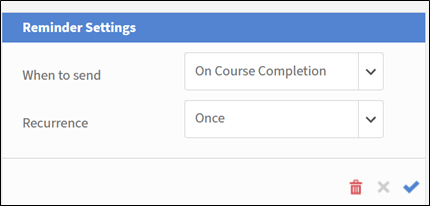
Learners then explore skills and tags visible to them and subscribe to skills of their choice.
Unique Learning Object IDs
The option allows you to assign a unique identifier to each learning object (such as courses, Learning Paths, certifications, or job aids). This ensures that every learning object has a distinct ID, which can be useful for tracking, reporting, and integration with external systems.
When enabled, authors see a field to add the Learning Object ID when creating a Learning Object. They can add the IDs accordingly. Unique IDs are suitable for integration with third-party systems, including Learning Record Stores (LRS) and Learning Management Systems (LMS). The unique IDs also make it easier for you or an author to search for specific Learning Objects and track them via Learner Transcripts.
Show Filter Panels
This option allows you to control which filter options are available to learners in the learner application. These filters help learners refine their search results in the My Learning and Catalog sections for a learner. The following filter options are available for selection:
- Groups
- Catalogs
- Type
- Format
- Duration
- Skills
- Skill Levels
- Tags
- Price
- Price Range
- Locations
- Products
- Recommendation Levels
Product Terminology
Adobe Learning Manager has certain product terminology to define Learning Objects, such as courses, Learning Paths, or job aids. You can customize the terminology in English and French, based on your preference. Download the Product Terminology template, and replace, for example, Learning Plan with Prescriptive Rule. Similarly, change similar entries in French. Then, upload the modified template, and select Save to update the terminologies in the product.
See Product Terminology in Adobe Learning Manager for more information.
Credits
When enabled, authors and instructors can record the number of instructional credits for each session or module. Credits represent the instructional time a learner will be credited for completing the activity. Credit values appear in learner transcripts, learning reports, and contribute to total duration calculations for Learning Paths. If you disable this setting, previously entered credit values are retained and restored if the setting is turned back on.
Module Version Update
This option allows administrators to update the content of a module without disrupting the progress of learners who are already enrolled in courses containing that module. This ensures that learners can continue their learning journey smoothly while authors can keep the content up-to-date. With the option enabled, authors can upload a new version of a module (for example, SCORM, AICC, or xAPI packages) to replace the existing one.
- Learners who have already started the module will continue with the version they were enrolled in.
- New learners will automatically access the updated version.
- Adobe Learning Manager keeps track of different versions of the module for reporting and auditing purposes.
Auto-register Users
This option allows you to automatically register users to specific catalogs or learning content when they are added to the system. This ensures that users have immediate access to relevant learning materials without requiring manual intervention.
- New users are automatically registered to predefined catalogs or courses upon being added to the system.
- Administrators can define rules to determine which catalogs or courses users are auto-registered for, based on user attributes like roles, groups, or other criteria. See Learning Plans in Adobe Learning Manager or Automatically Enroll External User Groups in Courses Upon Registration for more information.
Auto-delete Internal Users
This option deletes users if they do not access Adobe Learning Manager for a specified duration. Specify the number of days that a user can have access without logging into Adobe Learning Manager. Using this option, you can also automatically remove inactive internal users from the system after a specified period. This helps maintain a clean and organized user database by removing users who are no longer active.
- Internal users who have been inactive for a defined duration are automatically deleted.
- Users are notified before deletion, giving them an opportunity to log in and prevent removal.
- To have their access restored, a deleted user must contact the account administrator.
Auto-purge Deleted Users
Automatically and permanently remove users from the system who have been in the deleted state for a specified duration. Once purged, all associated user data is permanently removed and cannot be recovered.
If enabled, purges data for users who have already been deleted in ALM after the specified number of days.
Show Catalog Labels
This option allows an author to set catalog labels when creating a Learning Object. A learner then sees the catalog labels in the Catalog section of the learner application. These labels help learners identify and differentiate between various catalogs available to them. If the option is deselected, the courses or Learning Objects move to the default catalog.
Custom Compliance type
This option allows an author to define and manage compliance types tailored to their organization’s specific requirements, while creating Learning Objects. Authors can add a compliance label and a deadline to the course they’re creating.
This is particularly useful for tracking and enforcing compliance training for employees based on unique organizational policies.
Learners can view their scores
Selecting this option ensures that learners can view their quiz scores in their Learner Transcripts. In the transcripts, the columns Quiz_score, Quiz_score_max, Highest_Quiz_score, and Highest_Quiz_score_max help a learner view their assessment scores. These scores help learners track their progress and understand their performance.
If you deselect the option, the quiz scores do not appear in the learners’ Learner Transcripts.
Digest Email
This option allows you to send summary emails to learners, providing updates on their learning activities, progress, and upcoming deadlines. These emails are designed to keep learners informed and engaged with their training programs. These emails capture learners’ activities, such as courses completed.
You can change the frequency of the emails in the Email Template settings. Additionally, you can customize the content of the digest emails to include specific details relevant to learners.
- For active accounts, digest emails will be disabled by default, which you can enable it manually.
- For trial accounts, the option for digest emails will remain disabled and you cannot enable the option.
Enable Course/ Learning Path/ Certification/ Job Aid Card Icons
This option allows authors to add cover images on the learner’s course cards for different types of learning content. These images help learners easily identify the type of content (for example, course, Learning Path, certification, or job aid) at a glance. While creating a Learning Object, authors can add cover images to courses.
If you do not select the option, the cards do not display any icons.
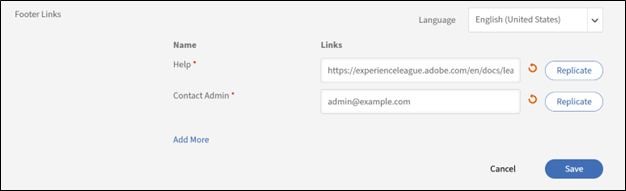
Footer Links
This option allows you to customize the footer section of the learner app by adding links to external resources, company websites, or other relevant pages. These links appear at the bottom of the learner app interface and can be used to provide quick access to important information. The links can direct learners to external websites, help pages, or company policies. They provide learners with easy access to additional resources directly from the app.
Here’s how you can customize the footer links:
- Add links: Select Add More and enter the name and the URL or email ID in the specified fields. Ensure the URL is prefixed with http:// or https://.
- Replicate across locales: Select Replicate to cascade the changes across all locales, ensuring all languages get the same name and URL.
- Select Save to apply the changes.
Additional options:
- Reset default values: Select the Reset icon to revert to default values in the Help and Contact Admin fields.
- Customize for all languages: Select a language from the drop-down list, then add the name and URL for that language. Save changes to update the footer links for the selected language.
Report Timezone
This option allows you to set an account-level preference for exporting the Learning Transcripts and Session Summary report in specific time zones. The available options are:
- UTC (Default behavior)
- Account-level time zone preference
This option also ensures that the Learner Transcript downloaded using the Jobs API reflects the selected time zone.
Badgr Integration
Selecting the option allows learners to:
- Upload their badges to the Badgr website.
- Share the badges on social media.
How it works:
- Select the option in Badgr Integration section.
- Learners log in to their Badgr account from Adobe Learning Manager.
- Badges earned in Adobe Learning Manager are uploaded to the Badgr account automatically.
- Adobe Learning Manager does not provide a Badgr account as part of the integration. Learners must create their own Badgr account.
- Learners can configure their Badgr account directly from the Badges page in the learner app.
See Support for Badgr badges for more information.
Show Ratings
This option allows you to enable or disable the display of course ratings in the learner app. When enabled, learners can view ratings for courses, which helps them make informed decisions about enrolling in a course.
- If the option Course Effectiveness is selected, learners will be able to see only the value of the course effectiveness. The course effectiveness is calculated based on learner feedback (L1), quiz scores (L2), and manager feedback (L3).
- If the option Star rating is selected, learners will be able to view only the average star rating and the number of learners who have rated the course. The star rating is the average of all ratings given by learners upon completing a course.
For new accounts, the Show Ratings section will have the option Star rating enabled by default.
For existing accounts, if the account previously had the option Course effectiveness enabled, then the Show Ratings section will be enabled with the option Course effectiveness selected. If the option Course Effectiveness is disabled, then the Show Ratings section will also be disabled. When the Show Ratings section is enabled, the option Star rating will be enabled by default.
Default view (Learner role)
This option refers to the learners’ view of the course catalog. Select the List view checkbox to change the learners’ view from the default grid view to the list view.
Learning Paths
If you select Enable Extended features of Learning Path, you can include Learning Paths inside Learning Paths and combine those Learning Paths with Courses. The option is irreversible.
Instructor Management
This option ensures that authors can select instructors for a Virtual Classroom or Classroom session from a predetermined list.
Key features:
- Restrict instructor selection: Only users with the instructor role can be assigned to sessions.
- Impact on migration workflows: This restriction does not apply to migration workflows.
Module Preview
If you select Enable, authors can preview a course as learners after creating the course.
Enable pricing for Courses/ Learning Paths/ Certifications
This option allows you to enable eCommerce functionality for courses, Learning Paths, and certifications. This feature is primarily used to integrate Adobe Learning Manager with Adobe Commerce, enabling organizations to monetize their training offerings.
Once you enable the feature, the Currency field appears on the Basic Info page.
When courses are chargeable, authors can specify the course, Learning Path, or certification price. Learners can purchase training directly from Adobe Learning Manager or custom-built AEM sites.
Enable Multi Item SKU Cart
This option allows learners to add multiple training items (courses, Learning Paths, certifications) to a shopping cart and purchase them together. This feature is part of the eCommerce functionality integrated with Adobe Commerce.
This feature is particularly useful for organizations that sell multiple training items and want to streamline the purchasing process for learners.
Key features:
- Multiple purchases: Learners can add multiple items to their cart and purchase them in one transaction. See Multi-item cart for more information.
*Streamlined checkout: Reduces the need for learners to make separate purchases for each training item. - SKU management: Administrators can manage SKUs for courses, learning paths, and certifications to ensure proper tracking and reporting.
Alternate Courses/Paths
When Learners complete a Course/Path, another specified set of Courses/Paths can be marked as completed via alternate. This is useful when courses cover equivalent or overlapping content. For example, when a new course replaces an older version, or when regional variants of the same training exist. Learners are not automatically enrolled in Courses/Paths marked as completed via alternate and will only receive credits, badges, and points for the Course/Path they actually completed. Alternate completions appear in the Learner Transcript and count toward any Learning Path or certification that includes the alternate course.
Activate retroactive completions (Irreversible)
If Learners completed a Course/Path earlier and another Course/Path is later added under Alternate Courses/Paths, those will also be marked as completed via alternate for the Learners. This applies retroactively to all past completions — not just enrollments going forward. Use this when you want historical completions to count toward newly added alternate courses. Once activated, this cannot be deactivated.
Activate retroactive incompletions (Irreversible)
If a Course/Path is removed from Alternate Courses/Paths, Learners who were previously marked as completed via alternate will be marked incomplete. This affects all Learners whose completion was based solely on the alternate, not Learners who completed the course directly. Their transcript will reflect the updated incomplete status. Once activated, this cannot be deactivated.
Gradebook visibility gradebookvisibility
When enabled, authors can control gradebook visibility at the course level, allowing Learners to view their weighted module scores, aggregate course score, and pass/fail status directly in the course player. If this setting is disabled at the account level, Learners cannot see the gradebook in any course, regardless of how individual courses are configured. Gradebook scores and calculations continue to run in the background for administrator reporting purposes even when learner visibility is turned off.
Enable Gradebook view for Learners
Activates the account-level permission that allows authors to show or hide the gradebook per course. Once enabled, authors see a Show gradebook to learners option in the course editor. Learners will see a Gradebook tab in the course player for any course where the author has enabled it. Disabling this setting at the account level overrides all course-level configurations. Learners will not see the gradebook in any course until the setting is re-enabled. For more information, see Gradebook for admin.
External learning
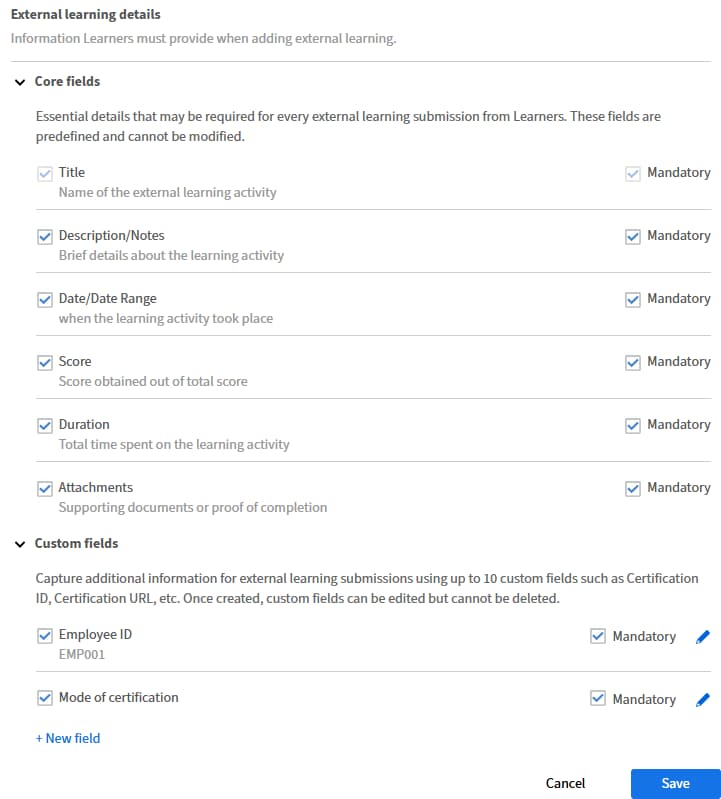
When enabled, Learners can submit and track learning activities completed outside Adobe Learning Manager — such as certifications, workshops, conferences, and external courses, directly from their Learner dashboard. Submissions are reviewed and approved by the Learner’s direct manager before they are recorded. Once approved, the external learning activity is added to the Learner Transcript and counts toward the Learner’s overall learning record. Administrators can configure which fields Learners must fill in when submitting an external learning activity, including custom fields specific to your organization.
Enable
Activates the External Learning feature for all Learners in the account. Once enabled, a submission form becomes available on the Learner dashboard. Learners can enter details such as the training name, duration, date, score, and proof of completion. The submission is sent to their manager for review and approval. Approved submissions appear in the Learner Transcript and in administrator reports. Rejected submissions are not recorded in the transcript.
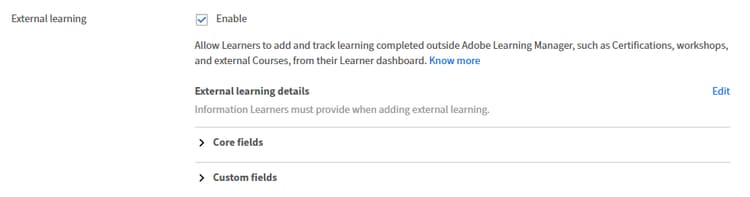
External learning is a type of learning activity for off-platform training. Learners use it to log training that does not exist in Adobe Learning Manager, such as an industry certification exam, a professional conference, a mentoring session, or an academic course.
-
A learner fills out a submission form with details about their external training and optionally uploads proof of completion.
-
The learner’s manager receives a notification to review the submission and approves or rejects it with an optional comment.
-
On approval, the submission is added to the Learner Transcript, where administrators can view and report on it.
This workflow allows organizations to combine mandatory in-platform compliance training with the ad-hoc, self-directed learning their people complete in the real world, and track both in a single system.
External learning is a configurable feature. Administrators control whether it is available to learners, which fields appear on the submission form, and whether each field is required or optional. Custom fields can be added to capture organization-specific information such as a training type or a certificate reference number.
Submission status lifecycle
Every external learning submission moves through a defined set of statuses:
A learner can edit a submission while it is in Awaiting Approval status. Once a manager takes action, the submission can no longer be edited. If a submission is rejected, the learner submits a new external learning request rather than editing the rejected one.
Feature availability and visibility
Administrators control external learning availability through a single account-level setting:
When external learning is enabled:
- Learners see the External Learning tab in the navigation and can submit new requests
- Managers see the External Learning tab in their team dashboard and can review submissions
- Admin and Learner Transcripts include external learning data for approved submissions
When external learning is disabled:
-
Learners who have no previous submissions see no External Learning interface
-
Learners who have previous submissions can still view their history and submission statuses, but cannot create new submissions
-
Managers retain access to the External Learning tab if their team has past submissions; otherwise the tab is removed
-
Existing transcript data for approved submissions is not affected
Core fields
These fields are available to all accounts by default. Administrators can choose which fields to show on the learner’s submission form and mark each as required or optional.
Custom fields
Administrators can add up to 10 custom fields to capture additional organization-specific information. Custom fields support the following types:
Proof of completion file requirements
-
Supported file types: PDF, DOC, DOCX, PNG, JPEG, JPG
-
Maximum file size: 50 MB per attachment
What administrators control for external learning
External learning is disabled by default for all accounts. You must explicitly enable it before learners can submit requests or managers can see the review tab.
When you enable external learning:
-
Learners gain access to the External Learning tab and can submit new requests
-
Managers gain access to the External Learning review tab
-
Admin and Learner Transcripts gain the reporting columns for approved external learning activities. Once external learning is enabled, it can affect Learner Transcript reports. If your organization uses Learner Transcript data for automation, review and update any dependent workflows to account for the new external learning fields and records.
When you disable external learning after it has been in use:
-
New learner submissions are blocked
-
Learners with submitted, pending approval can be edited
-
Managers with previous submissions can still act on pending requests
-
Transcript data for previously approved submissions is unchanged
-
You can re-enable the feature at any time. No data is lost when the feature is disabled.
Enable or disable external learning
Caution: Enabling External Learning adds new columns to the Admin Learner Transcript: External Learning Name, Completion Comment, and any custom fields configured for your account. Custom field columns appear at the end of the transcript.
If your organization uses the Learner Transcript in downstream reporting pipelines or automated workflows, update those systems to handle the new columns before enabling this feature.
-
Sign in to Adobe Learning Manager as an administrator.
-
In the left navigation pane, select Settings.
-
Select General.
-
Scroll to the External Learning section.
-
Select the Enable External Learning checkbox to enable the feature.
-
Select Save.
Learners can now submit external learning requests. Their managers will receive in-platform notifications when submissions are created.
To disable the feature, follow the same steps, and disable the option.
Configure the external learning form
After enabling the feature, configure which fields appear on the learner submission form.
-
In Settings > General, open the External Learning section.
-
Under Form Configuration, review the list of default fields.
-
Select the checkbox next to each field to show or hide it on the learner form.
-
For each visible field, select Mandatory to control whether learners must complete it before submitting.
-
Select Save.
Note: The Title field is always required and cannot be hidden or made optional.
The learner submission form immediately reflects your changes. Existing submissions are not affected by form configuration changes.
Add and manage custom fields
You can add up to 10 custom fields to capture information specific to your organization.
Add a custom field
-
In Settings > General, open the External Learning section.
-
Expand Custom fields.
-
Select New field.
-
Select a Field Type: Text, Number, Checkbox, or Dropdown.
-
If you select Dropdown, enter the list of values learners can choose from. You can add up to 100 dropdown values.
-
Type the name of the field and optionally, its description.
-
-
Select or deselect the Mandatory option for the new custom fields.
-
Select Save.
The new field appears on the learner submission form immediately.
Edit a custom field
-
In Settings > General, open the External Learning section.
-
Next to the custom field you want to edit, select Edit.
-
Update the field name or, for dropdown fields, add, edit, or remove values.
-
Select Save.
Editing a field name or dropdown values does not change data already captured in existing submissions. Only new submissions use the updated labels and options.
IMPORTANT
Once you add a custom field, you cannot delete it. You can only edit it. If you want a field not to appear on a learner’s form, uncheck the field.
Player settings
This option allows authors to customize the Fluidic Player for different courses at the course level. Authors can configure how training content is displayed to learners in the player. This includes settings related to content language, interface preferences, and playback options.
Managers can mark complete
This option allows managers to mark course, certification, or Learning Path completion for their staff. This feature is useful in scenarios where learners have completed training outside the platform or need manual intervention to update their progress.
Managers can mark course completion via:
- Checklist module: The Checklist Module allows managers to evaluate learners’ performance based on specific tasks or criteria. Authors must enable this module during course creation and assign managers as reviewers.
- Course page: On the course page:
a. Select the Learners tab in the left pane.
b. Select the learner whose attendance you want to mark.
c. Select Actions > Mark Completion.
Additional notes:
- Managers can also export the learners list for reporting purposes.
- If a course includes multiple instances, managers can view and manage learners separately for each instance.
Retire
This option allows authors to retire training content (courses, learning paths, certifications) that is no longer relevant or needed. Retired content is removed from the learner’s catalog but remains accessible in reports and historical data for tracking purposes. You have two options:
- Once retired, enrolled Learners will be able to view and perform actions, but not yet enrolled Learners will lose access:
a. Enrolled learners:
i. Learners who are already enrolled in the retired course or learning path can still access the content.
ii. They can continue to perform actions such as completing the course or viewing the material.
b. Not yet enrolled learners:
i. Learners who have not enrolled in the course or learning path before it was retired will no longer see the content in the catalog.
ii. They will lose access to the retired content entirely. - Once retired, both enrolled and not yet enrolled Learners will lose access:
a. Enrolled learners:
i. Learners who were already enrolled in the course or learning path will lose access to the content once it is retired.
ii. They will no longer be able to view or perform any actions on the retired content.
b. Not yet enrolled learners:
i. Learners who have not enrolled in the course or learning path will also lose access, as the content will no longer appear in the catalog.
Auto Retire
This option allows authors to set a specific date for a course to automatically retire. When a course is retired, it is no longer available for new enrollments, but learners who are already enrolled can still access and complete the course.
Key notes:
- Once the Auto Retire date is set, the course will automatically move to the Retired state on the specified date.
- Retired courses are not visible in the course catalog for new learners, but existing learners can still access and complete them.
Show all enrolled Course in search results
This option allows learners to view courses in search results even if the learners are part of their enrolled Learning Path or Certification.
Skills import
This option allows you to import skills from external sources, such as LinkedIn Learning and Go1, using respective connectors. This functionality integrates external Skills Clouds and Talent Management Systems into Adobe Learning Manager, enhancing the platform’s ability to manage and utilize skills effectively.
The skills from external content providers are added to the admin-defined skills repository in Adobe Learning Manager. These skills become available to authors during the course creation workflow.
-
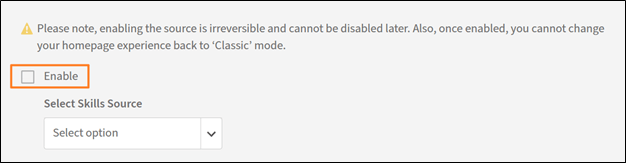
Select Enable.
-
Select a content provider from the Select Skills Source dropdown.
-
Select Save.
Note that once the option is enabled, the action is irreversible. You cannot disable or change to another source later.