Enable gradebook visibility for your account
Overview
Before authors can show the gradebook to learners in a course, an administrator must enable the Gradebook visibility setting at the account level. This setting acts as a master switch: when it is off, learners cannot see the gradebook in any course regardless of how individual courses are configured.
What this setting controls
The Gradebook visibility setting in Settings > General determines whether authors are permitted to expose the gradebook to learners at the course level.
For more information, see Gradebook visibility.
This means the account-level setting and the course-level setting work together. Both must be enabled for a learner to see the gradebook.
Enable gradebook visibility
-
Sign in to Adobe Learning Manager as an administrator.
-
In the left navigation, select Settings.
-
Select General.
-
Scroll to the Gradebook visibility section.
-
Select the Enable Gradebook view for Learners checkbox.

Authors can now configure gradebook visibility per course.
Impact on author workflows
When this account-level setting is enabled, the Show gradebook to learners toggle in the course editor becomes available. Authors use this toggle to decide, per course, whether learners can see the Gradebook tab.
When this account-level setting is disabled:
- The Show gradebook to learners toggle in the course editor may still appear, but any course-level configuration is overridden. Learners will not see the gradebook.
- Gradebook scores and weighted calculations continue to run in the background for administrator reporting purposes.
- Administrators and custom administrators can still download Learner Transcripts with gradebook data.
How the two settings interact
View and report on gradebook scores
Administrators in Adobe Learning Manager can view weighted gradebook scores for all enrolled learners in a course, drill into individual learner performance by module, download a filtered Learner Transcript, and track gradebook configuration changes in the Content Audit Trail report.
View the gradebook for a course
When gradebook is enabled for a course, a new L2 Feedback – Gradebook section appears in the left navigation under Reports when you open the course.
-
Sign in to Adobe Learning Manager as an administrator.
-
In the left navigation, select Courses and open the course you want to review.
-
In the course navigation, under Reports, select L2 Feedback – Gradebook. The Active Feedback Gradebook page opens.
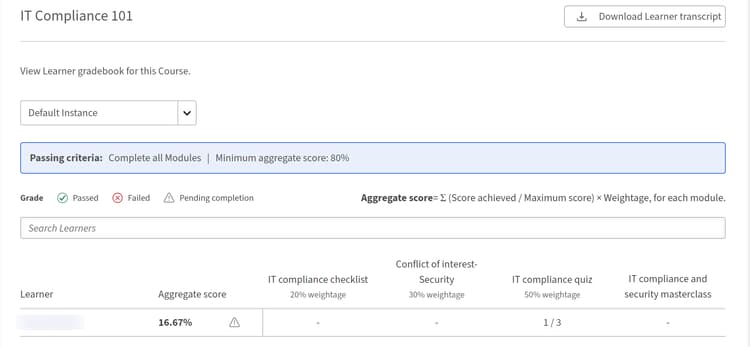
It shows:
- The passing criteria for the course (minimum modules required and minimum aggregate score)
- A filter row to view learners by grade: Passed, Failed, or Pending completion
- The aggregate score formula: Aggregate score = Σ (Score achieved ÷ Maximum score) × Weightage, for each module
- A learner list showing each learner’s Aggregate score and their score for each scorable module
- An instance dropdown to switch between course instances when a course has multiple instances
Learners who have not yet attempted any scored modules show dashes in the score columns. Modules that do not support scoring, PDF, video, audio, and similar, do not appear as score columns.
View an individual learner’s scores
In the Active Feedback Gradebook, select a learner’s name.
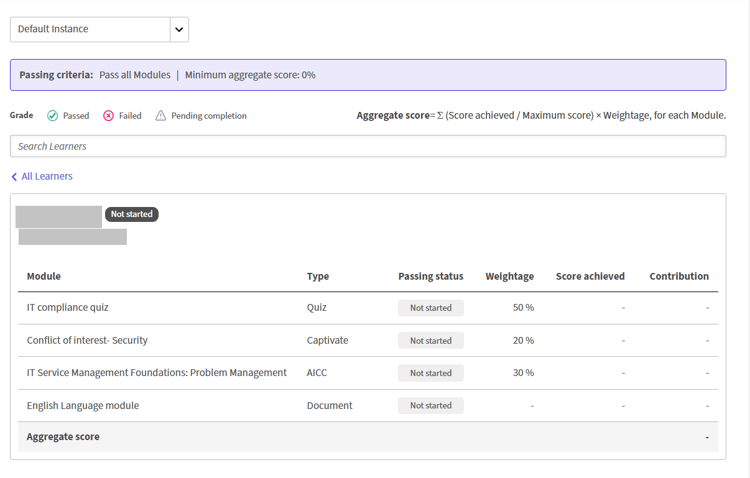
The individual learner view shows:
- The learner’s name, email, and status (Completion pending, Passed, or Failed)
- The aggregate score and how many required modules the learner has completed
- A module table showing: module name, type, whether it is required, status, weightage, score achieved, and contribution to the aggregate
The module table includes all scorable and non-scorable modules. Scorable modules show their score and contribution. Non-scorable modules show dashes in the Score and Contribution columns.
Score modules
Scoring behavior for administrators and instructors is unchanged from the current workflow:
- SCORM, AICC, xAPI, and native quiz modules are scored automatically when the underlying content reports a score.
- Classroom sessions, virtual classroom sessions, and Activity modules are scored by instructors or administrators from the Attendance and Scoring page.
Download the Learner Transcript for a course
You can download a Learner Transcript filtered to this course directly from the gradebook page in one of the two ways:
- In the Active Feedback Gradebook, select Download learner transcript in the upper-right corner of the page.
- On the administrator home page, select Reports, and then select Custom Reports. Select Learner Transcripts from the list of available reports.
Content Audit Trail events
The Content Audit Trail captures two gradebook-specific configuration events:
See Reporting changes in the release for more information.
Use these entries to track who changed gradebook configuration and when, particularly in environments where multiple authors collaborate on the same course.
Troubleshooting
The L2 Feedback – Gradebook section does not appear in the course navigation
Gradebook must be enabled by the course author when creating the course. Confirm that the author enabled the gradebook for course creation. If the course was created before the gradebook was available, it cannot be added retroactively. A new course version is required.
A learner’s aggregate score is 0 despite completed modules
Confirm that the course has at least one scorable module with a weightage value assigned. If all modules the learner completed are non-scorable (PDF, video, audio), no aggregate score is calculated. Also, confirm that scored modules are not still in Pending review status. Ungraded modules are excluded from the aggregate until an instructor enters a score.
The Weightage column is missing from the downloaded Learner Transcript
This column appears only when the gradebook is enabled, and at least one module has a weightage value saved. Confirm the author enabled the gradebook and saved the weightage values totaling 100%.
A learner has completed all required modules but shows Completion pending
One or more modules may still be awaiting a score from an instructor or admin (Pending review status). The course cannot be completed until all required modules have both a completion and a score recorded. Enter the outstanding score from Attendance and Scoring to clear the pending state.