What is Insights Agent?
Insights Agent is an AI-powered feature in Adobe Learning Manager that lets administrators query learning data using natural language. Instead of downloading reports and manipulating spreadsheets, you type a question, such as “How many courses were created in the last 3 months in the account? Give me a month-on-month report.”, and Insights Agent retrieves and presents the data directly. You can view results as text, bullets, or tables, or download them as a CSV file.
Insights Agent is designed to reduce the steps between having a data question and getting an answer. Administrators who currently rely on Excel pivots, BI teams, or multiple combined reports can use Insights Agent to get answers faster.
What Insights Agent can do
You can use Insights Agent to:
- Check completion and compliance metrics by region, department, or user group
- Analyze enrollment trends across courses or Learning Paths
- View progress data for a specific course or Learning Path
Every query returns a formatted table or downloadable CSV file, along with a plain-language explanation of how the results were calculated.
What data Insights Agent does not support
The following data types are outside the scope Insights Agent currently:
- Feedback and survey data
- Gamification points and badges
- Audit history and change logs
Queries that reference these data types will not return results. For example, “How many gamification points were awarded last quarter?” or “Which learners have earned a compliance badge?” will return an error or incomplete data.
How Insights Agent works
When you enter a question, Insights Agent processes it in four stages:
-
Interpretation: The agent parses your question to identify what data is needed. If any part of the question is ambiguous, the agent asks you a clarifying question before proceeding
-
Approach: The agent describes the steps it took to find your answer. This section helps you verify that the data was retrieved the way you intended, especially for complex queries.
-
Results: The agent presents your data as text, bullets, or a table depending on the nature of the results. A plain-language summary is included with the results. When results contain 50 or fewer rows, the summary includes analytical insights about the data. When results contain more than 50 rows, the summary provides column-level statistics.
-
Download: You can download the results as a CSV file. Large reports may take additional time; the agent notifies you when the file is ready.
The Approach section is particularly useful for complex queries. It shows the logic the agent used, similar to what a BI analyst would explain if they ran the query manually. Reviewing the approach helps you confirm that the output is reliable before you act on it.
Ask questions using Insights Agent
Use Insights Agent in Adobe Learning Manager to query learning data with plain-language questions and get results as text, tables, or downloadable CSV files.
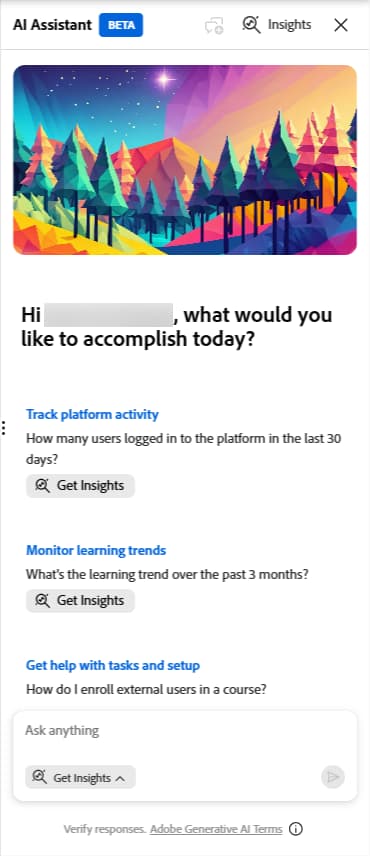
Insights Agent is available to admins from the AI assistant panel in Learning Manager. The panel is resizable. You can expand it to make results easier to read. By default, the Get Insights mode is selected when you open the panel. A separate Learn mode is also available for instructional questions about how to use the product. Learn mode answers instructional questions about how to use Learning Manager. For example, “How do I create a learning path?” It does not query learner data.
Ask a question
When the Get Insights mode is selected by default, you can immediately start querying learning data without needing to adjust the mode each time you access the assistant. However, if you ever switch to the Learn mode for instructional questions, make sure to re-select Get Insights before submitting a query.
-
Select the AI assistant icon in Learning Manager to open the assistant panel. The Get Insights option is already selected by default.
-
Type your question in the text field. Use plain language. For example: How many courses were created in the last 3 months?
-
Select Send or press Enter to submit your question.
Review the response
After you submit your question, Insights Agent processes your request and returns a response with up to four parts:
-
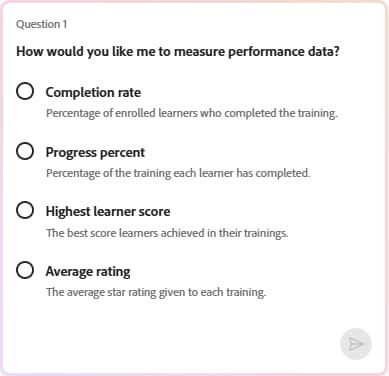
Disambiguation (if needed): If your question contains an ambiguous term, such as “learning activity” or “performance”, or “Give me performance data from last three months”, the assistant displays a list of options and asks you to select one before it proceeds. Select the option that best matches what you’re looking for. After the initial question, you cannot type additional instructions. Selecting from the provided options is the only interaction available until you start a new query using the query interface. You can only respond to disambiguation by selecting from the provided options; free-text follow-up is not available in this release.
-
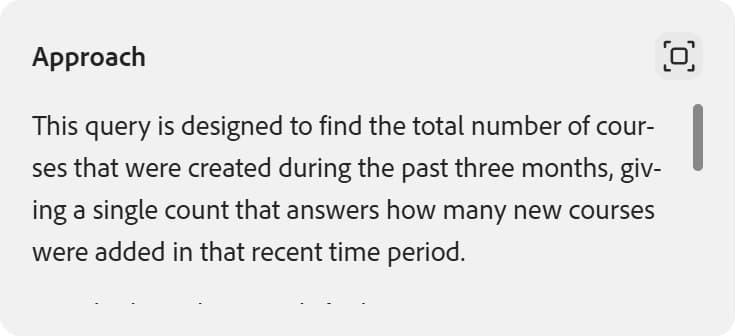
Approach: The Approach section describes the steps the agent took to retrieve your data. It appears as a scrollable panel below the question. Select the expand icon to view the full approach. Reviewing this section helps you confirm that the logic matches your intent, especially for complex queries. For example, if you ask for “all learners enrolled in the last year,” the agent may return each learner’s most recent enrollment rather than every enrollment record. The Approach section explains the decisions the agent made when retrieving your data. If the logic doesn’t match your intent, start a new query with more specific terms.
-
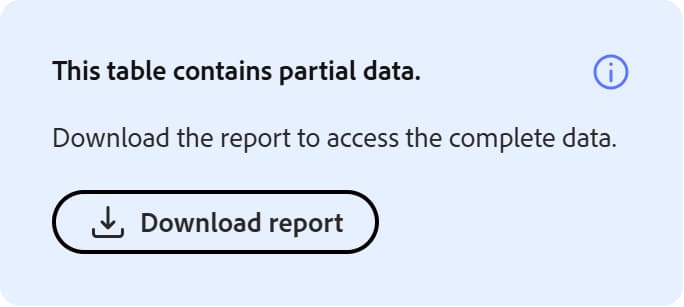
Results: The Insights Agent generates results as text or a table. For data points that are best interpreted in a tabular format, the Insights Agent returns a table. The Insights Agent does not generate charts or graphs. To visualize the data, download the CSV and open it in your preferred tool. A plain-language summary is included with the results. When results contain 50 or fewer rows, the summary includes analytical insights about the data. When results contain more than 50 rows, the summary provides column-level statistics. For example, “Which courses do not have less than 5 enrolments that were created in the last 1 year, and who are the authors?”
And the response contains the following summary:
Summary
- Matched courses: 102
- Enrolment count range: 24 to 2019
- Average enrolments per matched course: 589.6
- Median enrolments per matched course: 553.5
A download link for the full report will be provided once the export is ready.
Download the report
Select Download report to export your results as a CSV file. For large result sets, the download may take additional time. The agent displays a message when the file is ready; you also receive a notification.
Start a new query
Each Insights Agent session handles one question at a time. After you review your results, select New question to ask a different question. You can also select New chat at any point, including before you have received a response, if you want to abandon the current query and start fresh. You cannot type a follow-up question in the same session or ask the agent to refine or expand on the results it returned.
Provide feedback
After each response, select the thumbs-up or thumbs-down icon to rate the result. You can also specify whether the output was inaccurate, difficult to understand, or took too long to return. This feedback helps improve the agent over time.
Best practices
- Start with a specific question rather than a broad one. “What is the completion rate for the Safety Training course in the North America user group?” returns more useful results than “Show me completion data.”
- Use exact Adobe Learning Manager terms when naming content and learner groups. The query writing guide lists the correct terms to use.
- If the agent asks a clarifying question, treat it as a signal to refine your original query next time. The more specific your question, the fewer clarifications are needed.
- Review the Approach section before acting on results to confirm the agent’s logic matches your intent.
- Specify whether to include waitlisted learners. By default, enrollment count queries return only learners with an active, confirmed enrollment — waitlisted learners are excluded, consistent with the enrolled-learner list available from the course or learning path page. If you want waitlisted learners included in the count, say so explicitly in your query. For example: “How many learners are directly enrolled in the Safety Training course, including waitlisted learners?” The Approach section will indicate whether waitlisted learners were included in the results.
- Direct and indirect enrollment counts: When you query enrollment or completion data for a course or learning path, Insights Agent distinguishes between direct enrollments (learners enrolled specifically in that course or learning path) and indirect enrollments (learners who accessed the same content as part of a Learning Path or certification). If you ask specifically for direct or indirect enrollments, the agent returns the correct count for each type. If your query does not specify direct or indirect, the agent may return a combined count. To get separated counts, include the distinction explicitly in your query. For example: “How many learners are directly enrolled versus indirectly enrolled in the Safety Training course?”
How Insights Agent differs from Report Builder
Both features use the same underlying learning data, but they work differently. Insights Agent is conversational. You describe what you want, and the agent retrieves it. Report Builder is structured. You select datasets, columns, and filters to build reusable reports.
Write effective queries for the Insights Agent
The quality of your query directly affects the quality of the results Insights Agent returns. A well-formed query includes three ingredients: context, for example, what content and which learners, scope, for example, status, time range, and user state, and columns, for example, the exact fields you want in the output. Learn how to use the correct terminology, query structure, and example queries as starting points.
The three-part query formula
Every effective Insights Agent query contains these three components:
Missing any one of these components may lead to ambiguous results or a clarifying question from the agent.
Use the correct ALM terms
Insights Agent matches your query against Adobe Learning Manager’s data model. Using the wrong term can return incorrect or no results. Use the terms in the left column below.
Insights Agent is case-insensitive, but exact term matching improves accuracy.
Query using your organization’s custom terminology
If your administrator has renamed standard terms using Product Terminology in Settings > General, Insights Agent recognizes your organization’s custom terms in place of the defaults listed above. For example, if your organization renamed Course to Chapter, you can ask “How many chapters were completed last month?” and Insights Agent understands the question and labels the results using chapters in the response and column headers.
Custom terminology applies everywhere inside the Insights Agent chat window, including how your query is interpreted, the Approach explanation, the results summary, and table or column headers shown in the chat. The downloaded CSV file does not reflect custom terminology. Column headers and content in the exported file use the default Adobe Learning Manager terms, regardless of how your organization has customized them.
- Insights Agent recognizes both the singular and plural forms of a custom term, as configured in the Product Terminology CSV file.
- You can still use the default Adobe Learning Manager term in your query even after your organization customizes it. Insights Agent recognizes the default term and responds using your organization’s custom term. For example, if your organization renamed Course to Chapter, you can still ask “How many chapters were completed last month?” using the original term. Insights Agent understands the question and responds using your organization’s custom term, chapters, in the response.
- If your query includes a misspelled or unrecognized term, Insights Agent asks a clarifying question and suggests the closest matching term or terms available in your account.
- If your administrator resets the custom terminology, Insights Agent no longer recognizes the previously customized terms and reverts to the default terms.
Anchor your content
Providing a content anchor helps the agent know which learning items to look at. You can anchor by any of the following:
Anchor your learners
If a query is related to a learner, use one of these methods:
- Active field value — “learners where active field Job Title = Sales Associate” or “learners where active field Location = 101”
- User group — “learners in the Sales Associates user group”
- Session — “learners enrolled in the 15 June session of the Workplace Safety course”
Define your scope
Omitting scope details may lead to broader results than intended.
Name every output column
If you don’t specify columns, Insights Agent chooses them for you. Name every field you want in the output.
Example queries
Use these as starting points. Adapt them by replacing the content names, user groups, and time ranges that apply to your account.
Completion and compliance
- “What is the completion rate for the Safety Training course in the North America user group?”
- “Show completion rate by user group for all compliance courses. Include user group name, total enrolled, total completed, and completion %.”
- “What is the compliance rate for all learners where active field Job Title = VP?”
Enrollment analysis
- “How many learners are enrolled in the New Hire Onboarding learning path, by location?”
- “Show enrollments by region for the last 90 days. Include region name and enrollment count.”
- “List all learners enrolled in the Workplace Safety course but not yet completed — include name, email, and enrollment date.”
Program and course progress
- “What is the completion status breakdown for the Leadership Development learning path? Show completed, in progress, and not started counts.”
- “How many learners completed the Data Privacy course last month?”
Organizational views
- “Show completion rate for all compliance type labeled certifications, grouped by department. Include department name, total enrolled, and completion %.”
- “What is the enrollment distribution by region for the last 30 days?”
Common mistakes to avoid
Limitations in the release
Queries submitted in non-Latin scripts are not supported
Insights Agent supports queries written in English and Latin-alphabet languages such as French and Spanish. Queries submitted using non-Latin scripts, including Japanese, Chinese, Arabic, Korean, Hindi, and Russian are not processed. The agent will display a message indicating the query could not be completed. If you submit a query in one of these languages, start a new query and rephrase it in English.