Download, share, and subscribe to a report
Overview
Generate, share with other administrators, and schedule delivery for reports in Adobe Learning Manager Report Builder.
After you save a report in Report Builder, you can download it on demand, share it with other administrators in your account, or subscribe to receive it on a recurring schedule.
Download a report
-
In the Reports tab, locate the report you want to download.
-
Select Download.
-
Select OK.
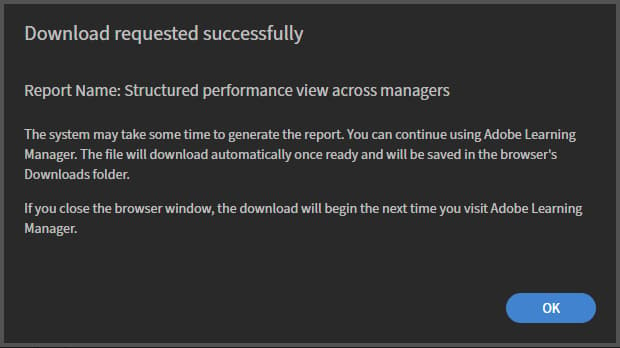
Report generation runs asynchronously. You’ll receive an in-app notification when the file is ready.
-
Open the notification and download the file.
Share and subscribe to a report in Report Builder
Give other admins access to a saved report and set up scheduled email delivery in Adobe Learning Manager Report Builder.
The Share & Subscribe dialog has two independent sections: one to share the report with other admins, and one to set up an email subscription. You can use either or both.
Share a report with other admins
Shared admins can view, duplicate, and edit the report.
-
Open the report you want to share.
-
Select Action > Share & Subscribe.
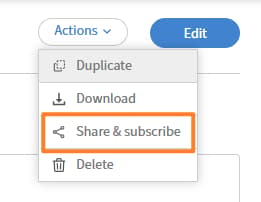
-
Under Admins with shared access, select Edit. Then select Select users / usergroups field.
-
Search for and select the admins or user groups you want to share with.
-
Select Save.
The selected admins can now access the report in their Report Builder view.
Create a report once and share it with all administrators who need the same data for their regular tasks. This avoids duplicate reports where different administrators independently build variations of the same report, making it harder to maintain consistency and track the authoritative version. When you share a report, recipients can view, duplicate, and edit it, so one well-configured report can serve as the foundation for any team-specific variations.
Subscribe admins to a report
Subscribed admins receive the report by email on the frequency you choose.
-
Open the report you want to subscribe admins to.
-
Select Actions Share & Subscribe.
-
Under Admins with subscription, select Edit.
-
Select the Email frequency dropdown.
-
Choose a frequency:
-
Send daily
-
Send weekly
-
Send monthly
-
-
In the Select users / usergroups field, search for and select the admins or user groups to subscribe.
-
Select Save.
Subscribed admins receive the report by email at the chosen frequency, that is, daily, weekly, or monthly.