On this page: Learn how to use targeting rules in the Optimize activity to deterministically route specific audiences down the right journey paths, with an optional fallback path.
Targeting rules allow you to determine specific rules or qualifications that must be met for a customer to be eligible to enter one of the journey paths, based on specific audience segments.
Unlike experimentation, which is a random assignment of a given path, targeting is deterministic in terms of ensuring the right audience or profile enters the specified path.
To set up targeting in a journey, follow the steps below.
-
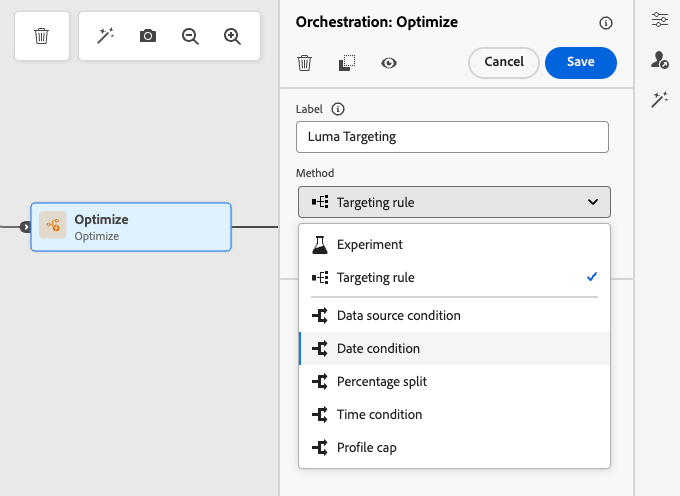
From the Orchestration section, drag and drop the Optimize activity into the journey canvas.
-
Add an optional label, which can be useful to identify the activity in reporting and test mode logs.
-
Select Targeting rule from the Method drop-down list.
-
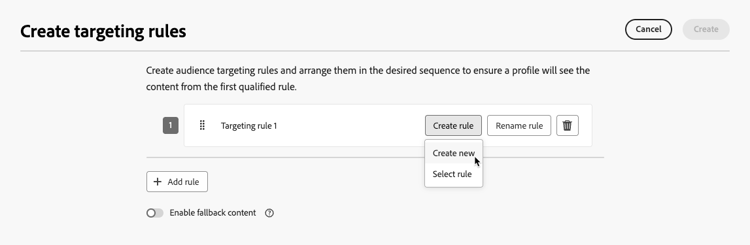
Click Create targeting rule.
-
Click Create rule > Create new and use the rule builder to define your criteria.
For example, define a rule for Gold members of the Loyalty program (
loyalty.status.equals("Gold", false)), and a rule for the other members (loyalty.status.notEqualTo("Gold", false)).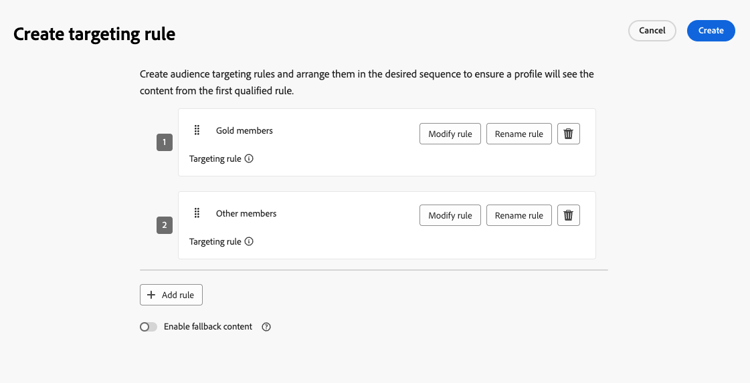
-
You can also click Create rule > Select rule to select an existing targeting rule created from the Rules menu. Learn more
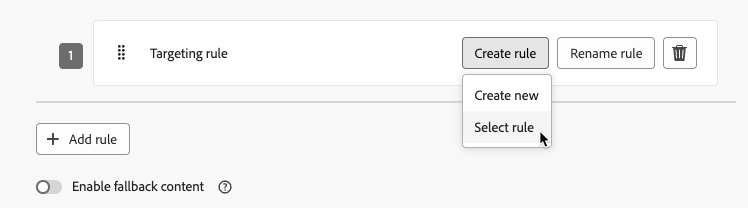
In this case, the formula that makes up the rule is simply copied into the journey activity. Any subsequent changes to that rule from the Rules menu will not affect the journey’s copy.
note availability AVAILABILITY Creating targeting rules from the dedicated Journey Optimizer menu is currently available to organizations that have purchased the Decisioning add-on offering, and they are available on demand for the other organizations (Limited Availability). This capacity will be progressively rolled out to all customers. In the meantime, contact your Adobe representative to gain access. -
After you added a rule, you can still modify it. Choose Edit inline to update it on the go using the rule builder, or Select rule to pick up another existing rule.
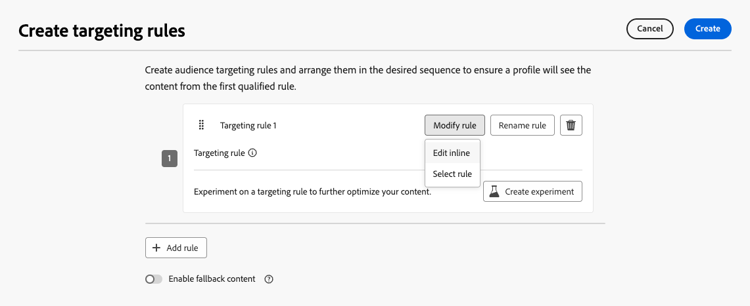
note NOTE Editing a rule inline does not affect the existing rule it originates from. -
Select the Enable fallback path option as needed. This action creates a fallback path for the audience that does not meet any of the targeting rules defined above.
note NOTE If you do not select this option, any audience that does not qualify for a targeting rule does not enter the fallback path and exits the journey. -
Click Create to save your targeting rule settings.
-
Back in the journey, drop specific actions to customize each path. For example, create an email with personalized offers for Gold Loyalty members, and a mobile message reminder for all other members.
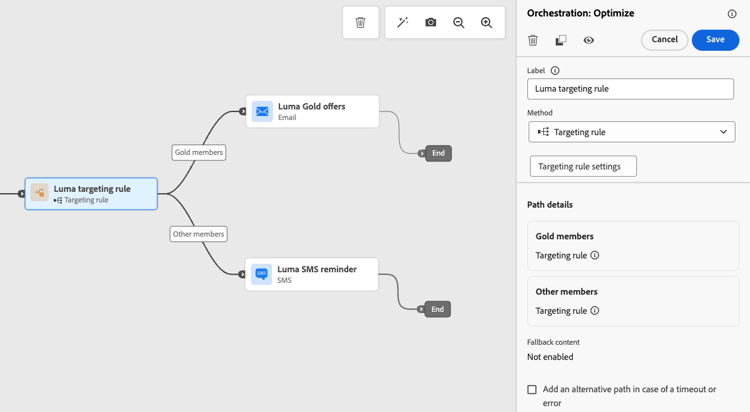
-
If you selected the Enable fallback content option when defining the rule settings, define one or more actions for the fallback path that was automatically added.
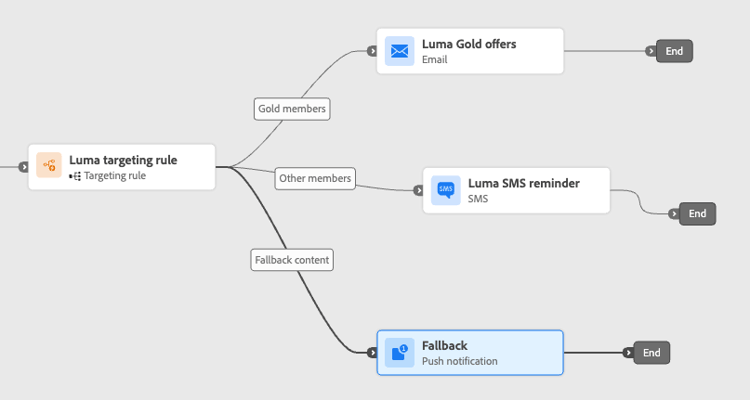
-
Optionally, use the Add an alternative path in case of a timeout or an error to define an alternate action if issues occur. Learn more
-
Design appropriate content for each action corresponding to each group defined by your targeting rule settings.
In this example, design an email with special offers for Gold members, and a Mobile message reminder for the other members.
-
Click Validate in the journey header and resolve any errors before testing the journey. Learn about journey validation.
-
When testing is complete and validation is current and passed, publish your journey.
Once the journey is live, the path that is specified for each segment is processed so that Gold members enter the path with the email offers, while the other members enter the path with the Mobile message reminder.
Follow the success of your journey with the Journey report. Learn more
Targeting rule use cases uc-targeting
The following examples show how to use the Optimize activity with the Targeting rule method to personalize paths for different sub-audiences.
Gold status loyalty members can receive personalized offers via email, while all other members are directed to Mobile message reminders.
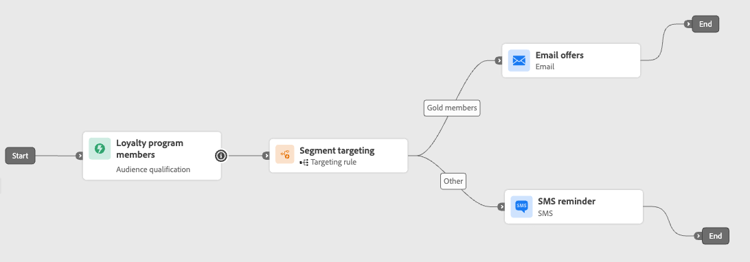
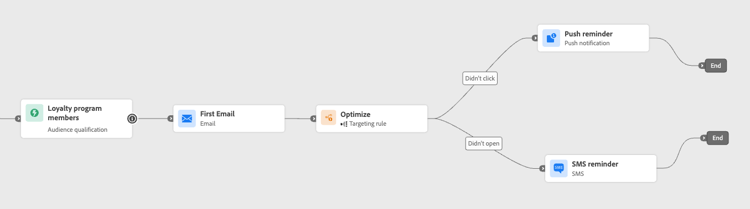
Customers who opened an email but did not click can be sent a push notification, while those who did not open at all receive a Mobile message.
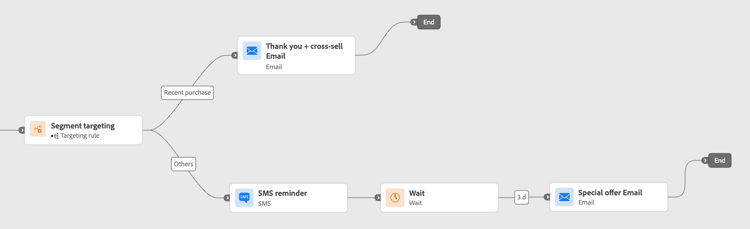
Customers who have recently purchased can go into a short “Thank you + Cross-sell” path, while those with no purchase history enter a longer nurture journey.
This section contains structured knowledge intended to support interpretation, retrieval, and question answering related to this topic.
For complete understanding, this information should be combined with the documentation on this page. Neither source is intended to stand alone; the page describes the feature, while this section provides additional context that helps disambiguate terminology, intent, applicability, and constraints.
- TL;DR: This page explains how to use path targeting in Adobe Journey Optimizer journeys to deterministically route specific audience segments into designated journey paths based on defined rules.
Intents:
- Configure deterministic path targeting using the Optimize activity with a Targeting rule method
- Create new targeting rules or reuse existing rules from the Rules menu
- Define a fallback path for profiles that do not qualify for any targeting rule
- Personalize journey paths for distinct audience segments (e.g., loyalty tiers, behavior, purchase history)
- Modify inline targeting rules without affecting the original rule definition
Glossary:
- Optimize activity: A journey canvas activity used to split profiles into different paths, either via experimentation (random) or targeting (deterministic) (product-specific)
- Targeting rule: A deterministic qualification condition that decides which journey path a profile enters, based on profile or audience attributes (product-specific)
- Fallback path: An alternate journey path for profiles that do not satisfy any of the defined targeting rules (product-specific)
Guardrails:
- The journey must be validated and errors resolved before testing. Publication requires completed testing and current, passed validation.
- Creating targeting rules from the dedicated Journey Optimizer Rules menu requires the Decisioning add-on or is available on demand (Limited Availability).
- When a rule is selected from the Rules menu and copied into the journey, subsequent changes to the original rule do not affect the journey’s copy.
- Editing a rule inline does not modify the original rule it was sourced from.
- If the fallback path option is not enabled, profiles that do not qualify for any targeting rule exit the journey entirely.
Terminology:
- Canonical name: Path targeting
- Do not confuse: “Targeting” ≠ “Experimentation” (targeting is deterministic; experimentation is random assignment)
FAQ:
- Q: What is the difference between path targeting and experimentation? — Targeting is deterministic: profiles enter a path based on defined rules. Experimentation is random assignment of a given path.
- Q: What happens to profiles that do not qualify for any targeting rule? — If the fallback path option is enabled, they enter the fallback path. If not enabled, they exit the journey entirely.
- Q: Can I reuse an existing rule from the Rules menu? — Yes, but the rule formula is copied into the journey activity; subsequent changes to the original rule in the Rules menu will not affect the journey’s copy.
- Q: Does editing a targeting rule inline change the original rule? — No, editing inline only updates the rule within the journey activity and does not affect the source rule.