On this page: Send real test API calls to validate your custom action configurations so you can catch errors before relying on them in live journeys.
You can test your custom actions by sending API calls from the administration section of Journey Optimizer user interface. This capability helps you troubleshoot your custom actions before or after using them in a journey.
As an administrator, use the Send test request capability to validate your custom action configurations by making real API calls directly from Adobe Journey Optimizer. This feature ensures that the request structure, headers, authentication, and payload are correctly formatted before being used in a journey.
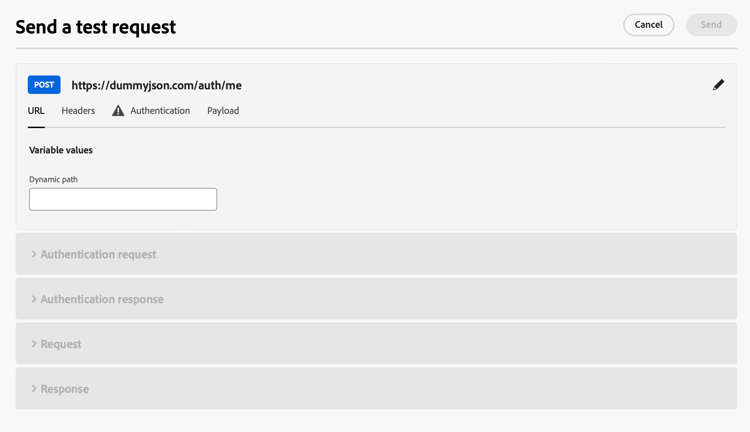
Use this capability streamlines the testing and validation process, ensuring that custom actions function correctly in live journeys.
Prerequisites troubleshoot-custom-action-prereq
To use the Send test request capability, a custom action must be pre-configured with a URL, headers, and authentication settings.
For the administrators to use this capability, the following permissions are required:
- Users must have the Manage journeys events, data sources and actions permission.
- This permission is included in the Journey Administrators role.
- The View journeys events permission alone is not sufficient.
Learn more about journey permissions in this section.
How to use the Send test request feature troubleshoot-custom-action-use
To test a custom action, follow these steps:
-
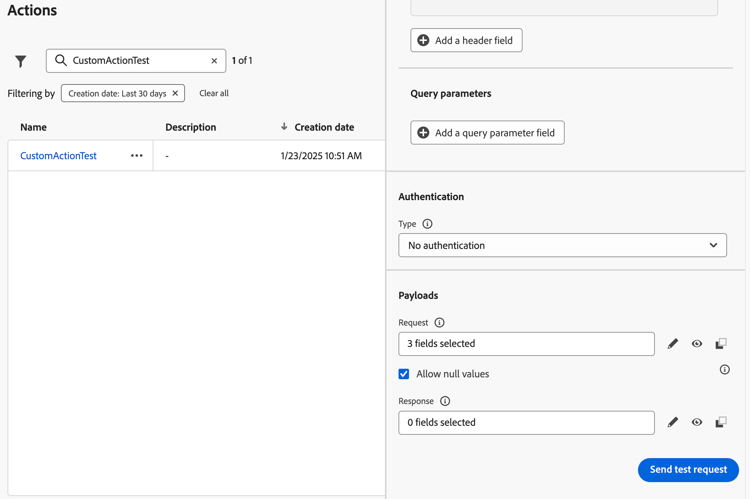
Navigate to the Actions configuration screen, and select a custom action.
-
Click the Send test request button at the bottom of the action configuration screen.
-
In the pop-up window, allowing you to specify request parameters:
-
If the custom action method is GET, no payload is required.
-
If the custom action method is POST, you must provide a JSON payload.
note NOTE Adobe Journey Optimizer will raise an error if the structure of this JSON is incorrect, but will not do it if there is a mismatch with a data type. For instance, there will be no error if an integer parameter is used for what should be a string. -
If authentication is defined, you will be prompted to enter authentication details.
-
-
Click Send to execute the request.
-
The response from the API, including headers and status codes, will be displayed in the interface.
Authentication handling troubleshoot-custom-action-auth
When a custom action includes authentication, Adobe Journey Optimizer requires the user to enter authentication details for each test request:
- Basic Authentication: The user must provide the password.
- API Key Authentication: The user must enter the API key value.
- Custom Authentication: The user must supply the authentication parameters in the request bodyParam. Two sections are added in this case: Authentication request and Authentication response.
Key benefits troubleshoot-custom-action-benefits
As a Journey Optimizer administrator, you can also use external tools (e.g., Postman) to test your custom actions. Key benefits of the in-product troubleshooting capability compared to an external testing are listed below:
-
The test request is executed by AJO Journey, meaning:
- The exact request structure (including Adobe Journey Optimizer specific headers) is used.
- The source IP and headers match those used in live journeys.
-
The Send test request capability can be used for troubleshooting live journeys, as the custom action is already deployed.
-
This in-product testing capability eliminates the need to manually copy configuration details between tools, reducing the risk of errors.
Troubleshooting troubleshoot-custom-action-check
If the request fails, you can check:
- The authentication credentials entered in the test.
- The request method (GET vs. POST) and corresponding payload.
- The API endpoint and headers defined in the custom action.
- Use the response data to identify potential misconfigurations.
Handling discard events and idle-timeouts handling-discard-events-and-idle-timeouts
When a custom action in one journey triggers an event that is intended to start a second journey, ensure the second journey is in a valid state and the event is recognized. If the event does not meet the second journey’s entry conditions, the event can be discarded and appear in logs with codes such as notSuitableInitialEvent. Idle timeouts may occur if the second journey is not ready, leading to discard events in the logs.
Common causes:
-
Event qualification not met – The second journey uses a rule-based event with a qualification condition (for example, a required field must be non-empty, such as
isNotEmptyon a specific field). If the event payload does not satisfy that condition (for example, the field is empty or missing), the event is received but discarded and the second journey is not triggered. This is expected behavior; the documentation and logs confirm that if the qualification condition is not met, the event will be discarded and the journey will not be triggered for that profile. Verify that the payload sent by the custom action includes all fields and values required by the second journey’s event configuration. Learn how to configure rule-based events and troubleshoot event reception in journey execution. -
Second journey not ready – Idle timeouts may occur if the second journey is not yet active (for example, not in test mode or not live), or if there is a timing gap between the custom action firing and the second journey being ready to receive. Ensure the target journey is published or in test mode before the custom action is triggered.
-
Diagnosing discard events – If you see discard events in logs, check journey logs and Splunk traces to confirm whether the event was received but discarded due to qualification (payload did not meet the rule) or timing. Ensure the second journey’s start date and configuration are correct and that the journey is within its active date window.
To avoid discard events when chaining journeys via custom actions, validate the event payload against the second journey’s event rule and confirm the target journey is live or in test and within its active date window.
Additional resources
Browse the sections below to learn more about configuring and using your custom actions:
- Get started with custom actions - Learn what is a custom action and how they help you connect to your third-party systems
- Configure your custom actions - Learn how to create and configure a custom action
- Use custom actions - Learn how to use custom actions in your journeys
- Pass collections into custom action parameters - Learn how to pass a collection in custom action parameters that is dynamically populated at runtime