On this page: Learn how to access Loyalty Challenges, review the Challenges and Tasks inventories, explore a challenge’s details and performance, and manage existing challenges and reusable tasks.
Access & manage challenges and tasks
To access Loyalty Challenges, navigate to Journey Optimizer and select Loyalty Challenge under the Journey management section. The Loyalty Challenges interface provides a centralized location to view, manage, and organize all your challenges and tasks.
The interface provides access to two main inventories:
- Challenges: View and manage all loyalty challenges, monitor their status, and perform quick actions such as viewing, editing, duplicating, or deleting challenges
- Tasks: Browse reusable tasks that can be used across multiple challenges, and manage task definitions independently
Challenges inventory challenges-tab
The Challenges tab displays all challenges sorted by last modified date, with the most recently modified challenges appearing first.
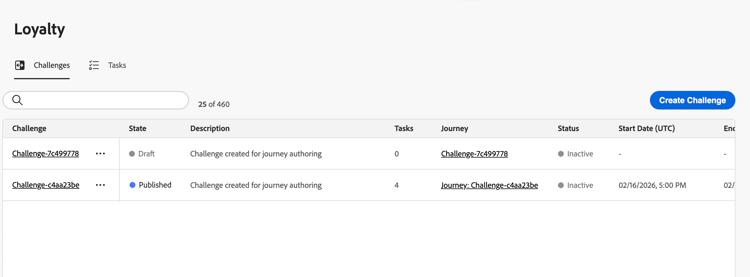
Key information displayed:
- State: Current state of the challenge (Draft or Published)
- Tasks: Number of tasks configured in the challenge
- Journey: Link to the auto-generated journey associated with the challenge
- Status: Current status of the auto-generated journey that delivers the challenge.
- Start/End Date (UTC): When the challenge becomes active and expires
From the Challenges tab, you can perform actions on challenges:
-
View challenge: Select the challenge name to open its details page.
-
Duplicate a challenge: Select the

-
Delete a challenge: Select the
note important IMPORTANT You can delete a challenge even when it is published. Consider the impact before deleting. -
Edit a challenge: Select the challenge name to open its details page and make the desired changes.
When you open a published challenge for editing, you first need to revert it to Draft state. Any customizations made directly to the auto-generated journey will be lost. Your changes are saved automatically. After making your changes, publish the challenge again, then publish the associated journey. Learn how to launch a challenge
note important IMPORTANT Reverting a published challenge to draft cannot be undone. Consider the impact on your active journey before proceeding.
Challenge details challenge-details
Select a challenge name in the Challenges inventory to open its details page. This page brings together the challenge configuration and performance so you can review a specific challenge without opening its editor.
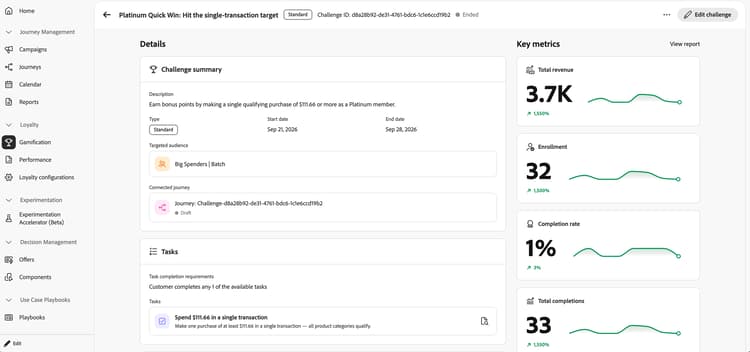
The header displays the challenge name, type, ID, and status. Select Edit challenge to modify the challenge.
The Details area contains the following sections:
- Challenge summary: Review the challenge description, type, start and end dates, targeted audience, and connected journey, including the journey’s status.
- Tasks: Review the task completion requirements and the name and description of each task. Select the details icon next to a task to review that individual task.
- Rewards: Review details about the reward associated to the challenge.
The Key metrics area displays total revenue, enrollment, completion rate, and total completions, with trend sparklines and percentage changes. Select View report to explore challenge performance in more detail. Learn more about loyalty performance reports.
loyalty-insights.read) controls access to the Key metrics and Trends sections. These sections are shown only to users with this permission. Learn more about Loyalty Challenges permissions.Tasks inventory tasks-tab
The Tasks tab displays all reusable tasks that can be used across multiple challenges. Tasks created here become available for selection when creating or editing any challenge.
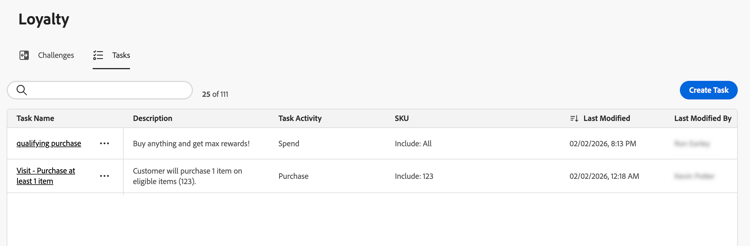
Key information displayed:
- Description: Brief description of what the task requires
- Task Activity: Type of activity (Purchase, Spend)
- SKU: Eligible and/or excluded items
- Used in challenges: Number of challenges currently using this task
From the Tasks tab, you can perform actions on tasks:
-
View/Edit a task: Select the task name to view the full configuration and edit the task
-
Duplicate a task: Select the
-
Delete a task: Select the
note important IMPORTANT You can delete a task even when it is used in one or more challenges. Consider the impact on challenges that reference the task before deleting.
This section contains structured knowledge intended to support interpretation, retrieval, and question answering related to this topic.
For complete understanding, this information should be combined with the documentation on this page. Neither source is intended to stand alone; the page describes the feature, while this section provides additional context that helps disambiguate terminology, intent, applicability, and constraints.
- TL;DR: This page explains how to access and manage loyalty challenges and reusable tasks, review challenge details and performance, and edit published challenges.
Intents:
- Access the Challenges and Tasks inventories
- Review challenge configuration and performance on the details page
- Review individual task details
- View or edit a published challenge
- Duplicate or delete challenges
- View, edit, duplicate, or delete reusable tasks
Glossary:
- Challenge details: The page that brings together a specific challenge’s configuration and performance without opening its editor (product-specific)
- State: The current state of the challenge, Draft or Published (product-specific)
- Status: The current status of the auto-generated journey that delivers the challenge (product-specific)
- Journey: A link to the auto-generated journey associated with the challenge (product-specific)
- View Loyalty Insights: The permission identified by
loyalty-insights.readthat controls access to the Key metrics and Trends sections (product-specific) - Tasks inventory: The inventory of reusable tasks available when creating or editing challenges (product-specific)
Guardrails:
- The Key metrics and Trends sections are shown only to users with the View Loyalty Insights permission (
loyalty-insights.read). - Editing a published challenge requires reverting it to Draft state first. Reverting a published challenge to draft cannot be undone, and customizations made directly to the auto-generated journey are lost.
- After editing a published challenge, save and publish the challenge again, then publish its associated journey.
- A challenge can be deleted even when published. Consider the impact before deleting.
- A task can be deleted even when used in one or more challenges. Consider the impact on challenges that reference it before deleting.
Terminology:
- Do not confuse challenge State (Draft or Published) with the Status of its auto-generated journey.
- Challenge summary, Tasks, and Rewards are sections of the Details area; Key metrics displays challenge performance.
- Tasks in the challenges inventory is the number of tasks configured in a challenge; the Tasks inventory lists reusable task definitions.
FAQ:
- Q: How do I open a challenge’s details? - Select the challenge name in the Challenges inventory.
- Q: What does the details page show? - The header displays the challenge name, type, ID, and status. The Details area shows the challenge description, type, dates, targeted audience, connected journey and its status, task completion requirements, task names and descriptions, and reward details.
- Q: Which performance metrics can I review? - Total revenue, enrollment, completion rate, and total completions, with trend sparklines and percentage changes. Select View report to explore challenge performance in more detail.
- Q: Who can view Key metrics and Trends? - Users with the View Loyalty Insights permission (
loyalty-insights.read). - Q: How do I edit a published challenge? - Select Edit challenge on the details page. A published challenge first needs to be reverted to Draft state, which cannot be undone. Customizations made directly to the auto-generated journey are lost. After making changes, save and publish the challenge again, then publish the associated journey.
- Q: What is preserved when I duplicate a challenge? - A copy is created with all tasks, content, and messaging intact.