On this page: Learn how to use Loyalty Challenges Reports, Opportunities, and Trends to monitor member activity, challenge performance, reward outcomes, and revenue.
Use Loyalty Challenges reporting to see how your challenges are performing. Check who is signing up, who is completing challenges, and how much revenue your program is generating — all in one place. Data comes from Adobe Customer Journey Analytics.
To open the reporting dashboards, go to Loyalty Challenges in Journey Optimizer and select Performance in the left navigation.
➡️ Watch how to measure challenge performance with challenge reports
The reporting interface has three tabs:
- Reports: Numbers and charts for your challenges.
- Opportunities: Surfaces grounded, specific challenge opportunities based on loyalty program trends and performance data. View a draft challenge to solve the issue raised by the opportunity, and create the challenge automatically using Coworker.
- Trends: Insight cards with an Ask AI button that opens Coworker with a request for a concise summary.
Reports view reports-view
The Reports tab gives you an overview of how your program is doing for the selected period. Use the date picker at the top of the page and select the Apply filter button to change the reporting period and see updated numbers and charts.
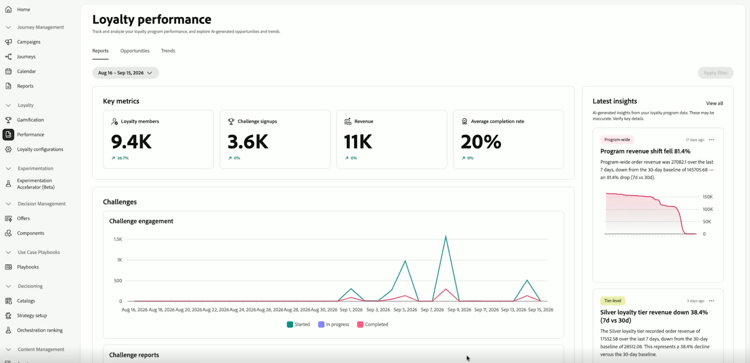
The Key metrics area shows four numbers at a glance. Each metric also displays a percentage change compared to the previous period.
- Loyalty members: How many loyalty members were active during the period.
- Challenge signups: How many times members enrolled in a challenge.
- Revenue: Total revenue tied to challenge activity.
- Average completion rate: The percentage of enrolled members who finished at least one challenge.
The Latest insights panel on the right shows the most recent insights from your program. Select View all to open the Opportunities tab.
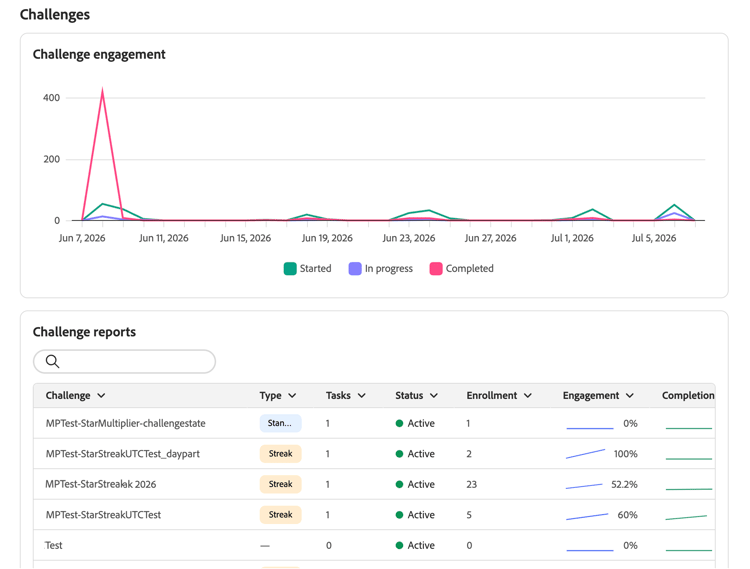
Below the key metrics, the Challenges section gives you two views of challenge activity.
-
Challenge engagement: A timeline showing how many members started, are in progress, and completed challenges over the period.
-
Challenge reports: A table of all your challenges with details like type, status, and enrollment numbers. Use the search bar to find a specific challenge. Select a challenge to see its full report with engagement trends and performance details.
accordion Challenge report example 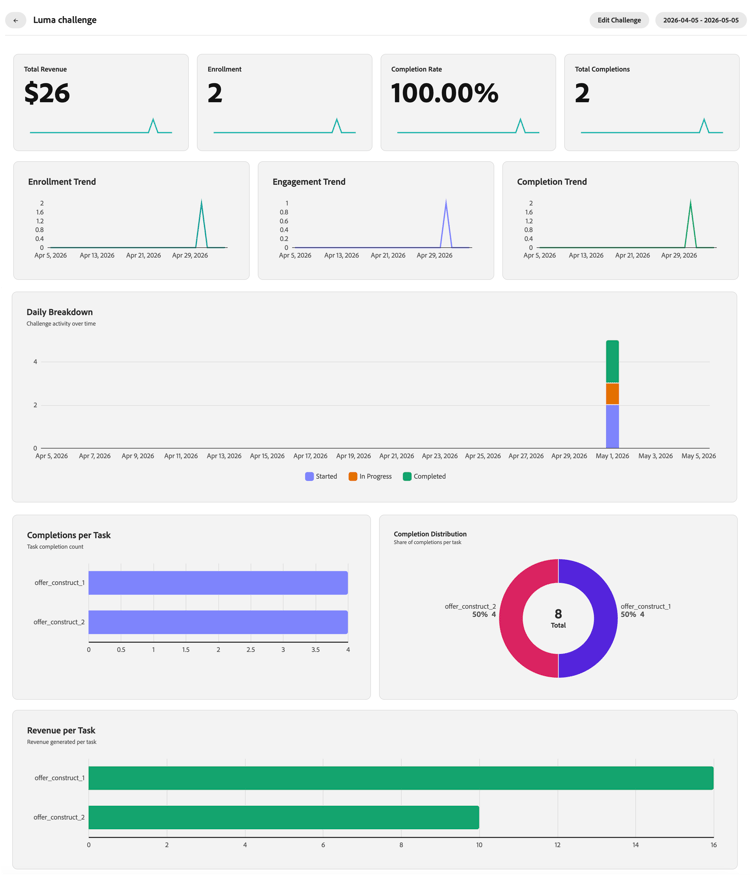
Opportunities tab opportunities-view
The Opportunities tab surfaces grounded, specific challenge opportunities based on loyalty program trends and performance data. Opportunities can focus on increasing member spend, winning back inactive members, improving underperforming challenges, focusing on products or categories, or addressing points expiry.
Opportunities are surfaced only when the analysis identifies a statistically significant trend and a solution that can address it.
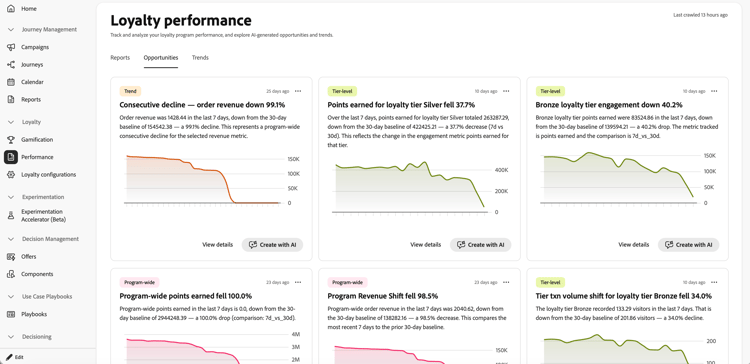
Opportunity cards include a category tag that identifies which part of your program the opportunity relates to.
From the Opportunities tab, you can take the following actions on each card:
-
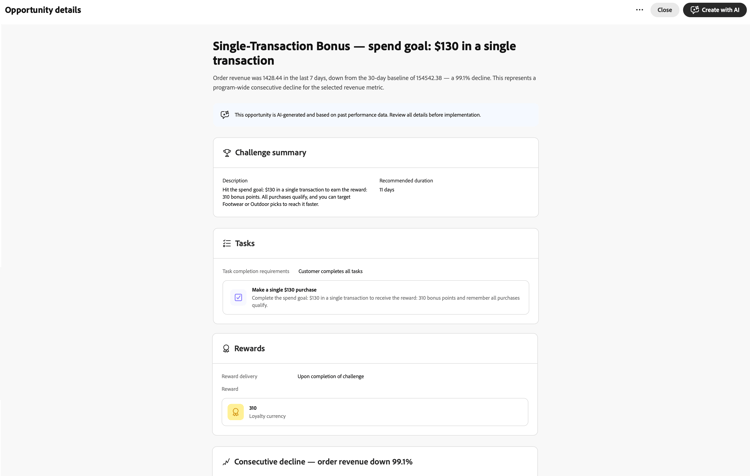
Review the opportunity details - Select View details to open a dialog that previews the AI-drafted challenge, including its summary, tasks, rewards, and the rationale for the opportunity.
-
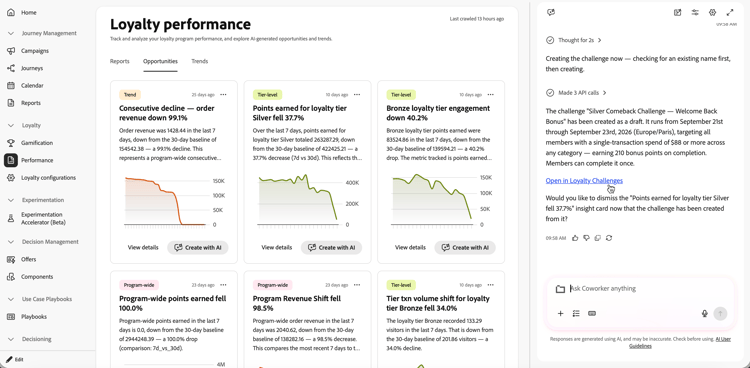
Create or edit a challenge with Coworker - Select Create with AI to open Coworker in the right rail. Use the Coworker’s Loyalty Challenge Management skill to create or edit a challenge based on the selected opportunity, provide any missing details, and continue without leaving the reporting page.
Once the challenge is created, select the Open in Loyalty Challenges link in the chat to open the draft challenge and verify the challenge dates, tasks, and other fields before publishing.
Trends tab trends-view
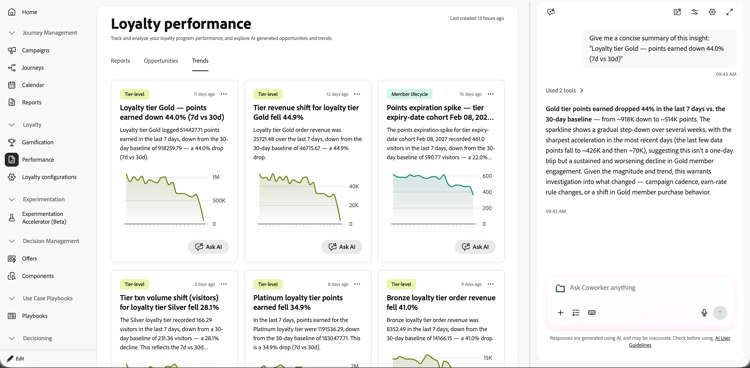
The Trends tab displays loyalty insights and performance patterns that ground the opportunities in the Opportunities tab.
To explore a trend with AI, select Ask AI on a trend card. This opens Coworker in the right rail with a prefilled request to provide a concise summary of the selected insight. You can then ask follow-up questions or explore its implications.
How-to videos video
➡️ Watch how to measure challenge performance with challenge reports
This section contains structured knowledge intended to support interpretation, retrieval, and question answering related to this topic.
For complete understanding, this information should be combined with the documentation on this page. Neither source is intended to stand alone; the page describes the feature, while this section provides additional context that helps disambiguate terminology, intent, applicability, and constraints.
- TL;DR: This page explains how to use Loyalty Challenges reporting to monitor challenge performance, review grounded challenge opportunities and trends, and create or edit a challenge from an opportunity with Coworker.
Intents
- Open Loyalty Challenges performance dashboards.
- Filter reports by date and apply the selected reporting period.
- Review key metrics, challenge engagement, and challenge reports.
- Review grounded opportunity cards based on loyalty program trends and performance data.
- Open opportunity details to review a proposed challenge and its rationale.
- Create or edit a challenge with Coworker from an opportunity and verify it in Loyalty Challenges before publishing.
Glossary
- Reports (product-specific): The reporting view with numbers, charts, key metrics, challenge engagement, and challenge reports.
- Opportunities (product-specific): A tab with grounded, specific challenge opportunities based on loyalty program trends and performance data.
- Trends (product-specific): A tab that displays loyalty insights and performance patterns.
- Loyalty Opportunities (product-specific): Grounded, specific challenge ideas based on loyalty program trends and performance data.
Guardrails
- Reporting data comes from Adobe Customer Journey Analytics.
- The Trends tab displays loyalty insights and performance patterns that ground the opportunities in the Opportunities tab.
- Opportunities are surfaced only when the analysis identifies a statistically significant trend and a solution that can address it.
- After a challenge is created with Coworker, verify the challenge dates, tasks, and other fields in Loyalty Challenges before publishing.
Terminology
- Do not confuse: Challenge engagement is a timeline showing how many members started, are in progress, and completed challenges; Challenge reports is a table of challenge details and enrollment numbers.
- Do not confuse the Trend category tag on opportunity cards (time-based patterns such as weekly cycles, seasonal spikes, or trend reversals) with the Trends tab (insight cards with an Ask AI button).
FAQ
- Where do I open Loyalty Challenges reporting? Go to Loyalty Challenges in Journey Optimizer and select Performance in the left navigation.
- What does the Reports tab show? It shows numbers and charts, including key metrics, challenge engagement, and challenge reports.
- What does the Opportunities tab show? It shows grounded, specific challenge opportunities based on loyalty program trends and performance data.
- When are opportunities surfaced? Opportunities are surfaced only when the analysis identifies a statistically significant trend and a solution that can address it.
- What does the Trends tab show? It displays loyalty insights and performance patterns. Select Ask AI on a trend card to open Coworker in the right rail with a prefilled request to provide a concise summary of the selected insight.
- What happens when I select Create with AI? Coworker opens in the right rail, where you can use the Loyalty Challenge Management skill to create or edit a challenge based on the selected opportunity, provide missing details, and continue without leaving the reporting page. After creation, select the Open in Loyalty Challenges link in the chat to open the draft challenge and verify its dates, tasks, and other fields before publishing.