On this page: Monitor the health, training status, and performance of your AI ranking models so you can confirm they are improving your business outcomes and troubleshoot when they are not.
Whether you’re a marketer, data scientist, or decisioning administrator, understanding how your personalized optimization models perform and behave helps you select the best offers for each customer using AI.
To do this, you can monitor the health, training status, and evolution of your AI models directly in Journey Optimizer.
This gives you a clear view of whether your model is working, when it was last trained, what happened during training, how it is driving your business outcome (for example, conversions or revenue), and troubleshoot when it is not working.
➡️ Discover this feature in video
View the training status from-ai-model-list
Once a model is set to live, it enters an ongoing lifecycle: data is collected and the model is retrained periodically to optimize offers’ ranking. You can check the training status of your personalized optimization models in the AI model list.
-
Go to Decisioning > Strategy setup > AI models to open the AI model inventory.
-
You can view all your available AI models and their status.
-
For each Live AI model of the personalized optimization type, two columns let you see:
- when the last training job ran (Last trained), and
- whether each model has successfully trained or not (Training result).
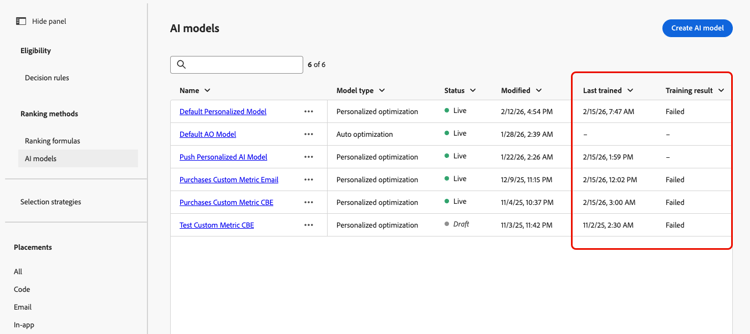
This allows you to quickly identify models that need further investigation or troubleshooting.
Access a model status report access-ai-model-details
Click into a personalized optimization AI model from the list. From there, you can view the elements listed below:
-
Currently deployed model - This section shows the currently deployed model, when it was deployed, what date range of data it uses, how many decision items (offers) are included and personalized, and the current traffic allocation across submodels.
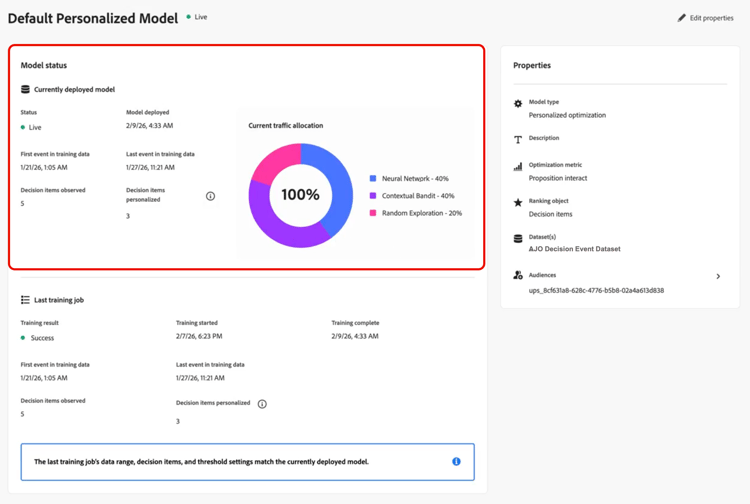
In this example, the model was trained on five decision items, and the model has enough traffic to develop personalized predictions for three of the decision items. The remaining two decision items are served at random.
You can also see that the model is currently allocating 40% of traffic to the personalized neural network, 40% of traffic to the contextual bandit, and 20% of traffic to random exploration.
-
Last training job - This section shows the status of the last training job, when it ran, and any error messages. Learn more about error states
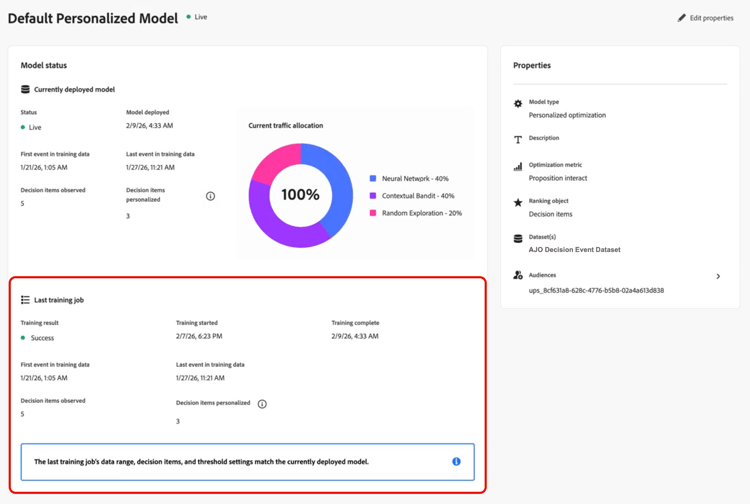
In this example, you can observe that the deployed model matches the training job as expected.
-
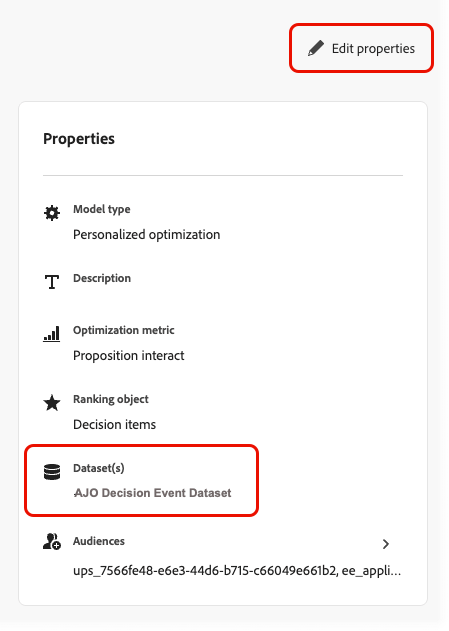
Properties - This section shows the model’s properties, such as the dataset used, the optimization metric, and the audiences used to train the personalized optimization model.
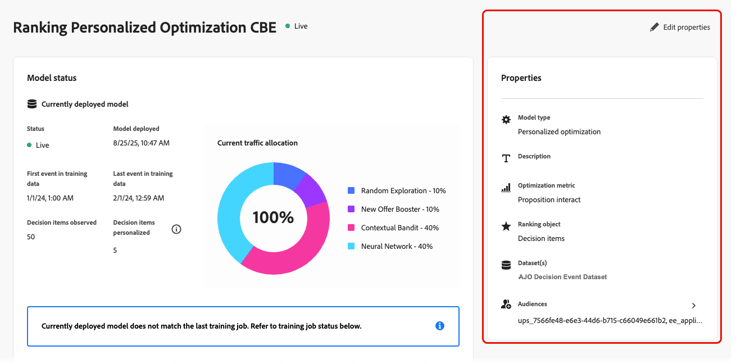
Click Edit properties to modify these elements. You will be redirected to the create AI model screen. Learn more
-
Model performance - This section shows the performance of each arm of the model over time, such as the traffic allocation and the conversion rate for each submodel. You can toggle between the last 7 days and the last 30 days. The lift and statistical significance are the key indicators of whether the model is actually improving your marketing outcome.
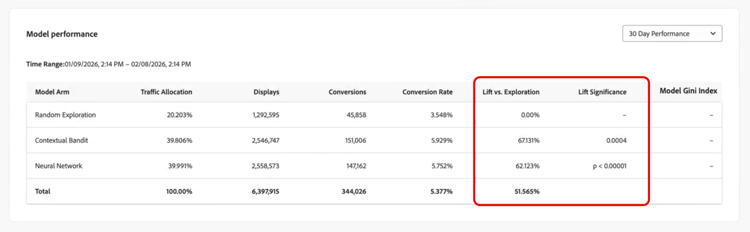
In this example, you can see that over the last 30 days, the personalized submodels are delivering more than a 60% uplift in conversion rate, and this uplift is statistically significant, which means that this AI model is driving an impact for your business.
-
Model traffic allocation over time - This section shows how the your model has evolved over time. When a model is first deployed, 100% of traffic is random because no offer data has been collected yet. After the first retrain, traffic usually shifts toward the personalized arms.
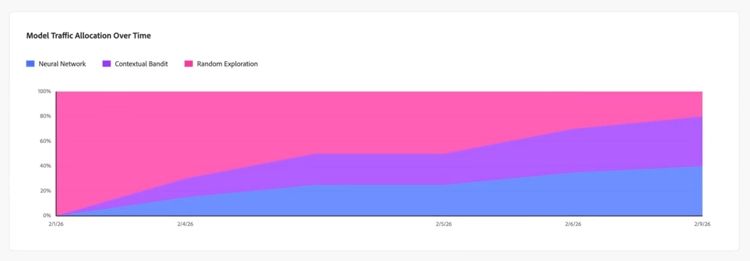
In this example, you can see that the traffic allocation has shifted from 100% random exploration to neural network and contextual bandit traffic as the model was retrained over time.
Understand training errors check-for-error-states
To view error details for a personalized optimization AI model whose last training job failed, follow the steps below.
-
Click into the model from the list. The model status details are displayed.
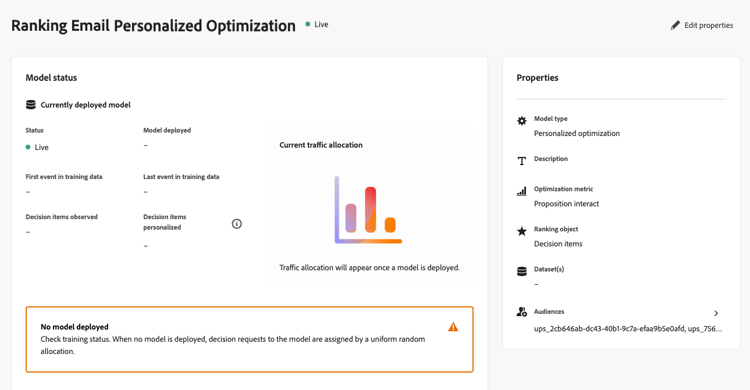
In this example, you can see that no model is deployed because the last training job failed.
note NOTE When no model is deployed, decision requests are served using uniform random traffic allocation. -
Go through the error details in the Last training job section.
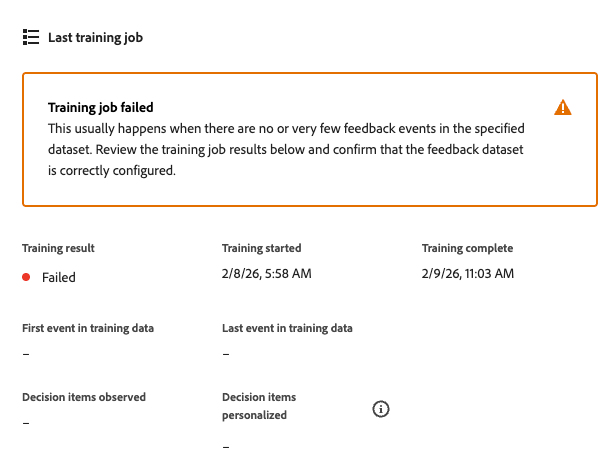
A training job usually fails when there are no feedback events in the dataset that you selected for this model. It means that you need to populate the dataset or select a new dataset with appropriate conversion events.
-
You can check which dataset is selected in the model’s Properties. Click Edit properties to select another dataset. Learn more
Frequently asked questions faq
The Gini index for each model arm is computed differently depending on whether the optimization metric is binary or continuous:
Binary optimization metric (e.g. clicks, orders): The Gini index is computed based on the area under the curve (AUC) of the receiver-operating characteristic (ROC) curve, normally referred to as ROC AUC or simply AUC for short. ROC AUC ranges from 0.5 (random model with zero predictive power) to 1.0 (perfect predictive power). ROC AUC is converted to a Gini index using the formula Gini = 2 x (ROC AUC) - 1.
Continuous optimization metric (e.g. revenue, order value): The Gini index is computed based on the area under the Lorenz curve associated to the model’s cumulative predicted positives vs. the cumulative true positives in the population. The area under the Lorenz curve ranges from 0.0 (perfect predictive power) to 0.5 (random model with zero predictive power). Lorenz AUC is converted to a Gini index using the formula Gini = 1 - 2 x (Lorenz AUC).
How-to video video
Learn how to monitor your AI ranking models and interpret training status and performance in Journey Optimizer.