On this page: Insert decision policy code into your code-based experience, web, email, SMS, push notification, and direct mail content, so you can personalize messages with attributes from the returned decision items.
Once you’ve added a decision policy to your content, you can use attributes from returned decision items for personalization. To do so, first insert the decision policy code into your content.
Insert the decision policy code insert
-
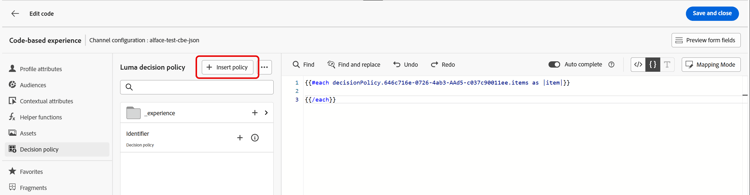
Open the Personalization Editor and navigate to Decision policy.
-
Select Insert policy to add the decision policy code.
| note |
|---|
| NOTE |
| For code-based experiences, if your decision policy contains decision items including fragments, you can leverage these fragments in the decision policy code. Learn how to leverage fragments |
-
Open the Personalization Editor and navigate to Decision policies.
-
Select Insert syntax to add the code for your decision policy.
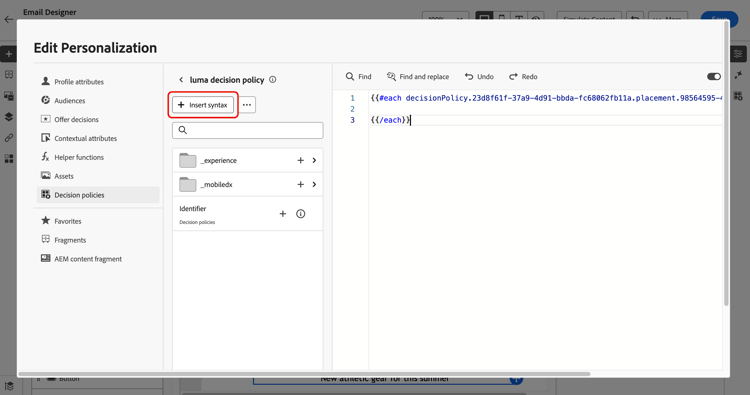
note NOTE If the insertion option doesn’t appear, a decision policy might already be configured for the parent component. -
If no placement has been assigned yet to the component, select one from the list and click Assign.
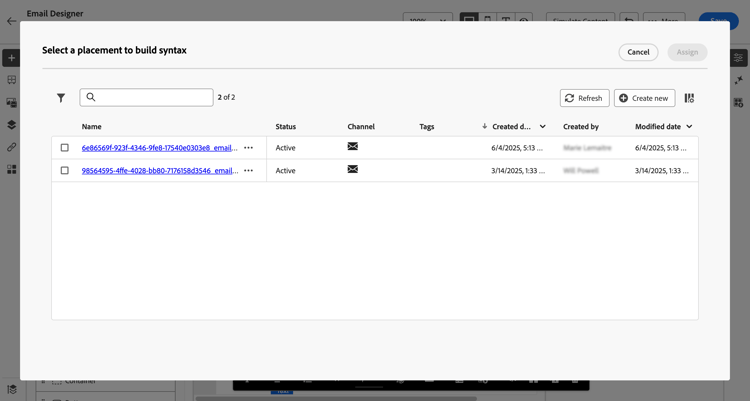
note NOTE If you use multiple decision policies in the same email (for example, one for the header and one for the footer), the same offer is deduplicated across placements: it is not rendered twice. The second decision policy will not return any content and will display a blank space, unless you have configured a fallback offer, in which case the fallback will be displayed instead.
You can also insert the decision policy code when using the Code your own mode in the Email Designer. Navigate to Decision policies and select Insert syntax — the placement selection UI will appear so you can assign a placement directly. Learn how to code your own email content.
| note availability |
|---|
| AVAILABILITY |
| Inserting decision policies in Code your own mode is in Limited Availability. |
| note |
|---|
| NOTE |
| In Code your own mode, only one decision item can be returned per policy, because the Repeat Grid component is not available. |
-
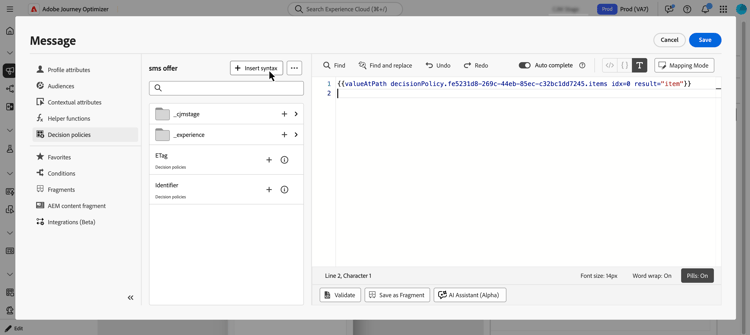
Open the Personalization Editor and navigate to Decision policies.
-
Select Insert syntax to add the code for your decision policy.
-
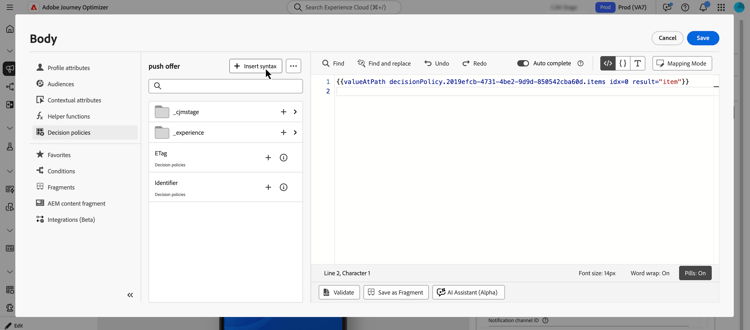
Open the Personalization Editor and navigate to Decision policies.
-
Select Insert syntax to add the code for your decision policy.
| note important |
|---|
| IMPORTANT |
| Experience Decisioning with push notifications requires a specific version of the Mobile SDK. Before implementing this feature, check the release notes to identify the required version and ensure you have upgraded accordingly. You can also view all available SDK versions for your platform in this section. |
-
Open your web campaign or journey and navigate to the web visual editor.
-
Select the component you want to personalize, then click the personalization icon from the contextual menu.
-
In the Personalization Editor, navigate to Decision policies.
-
Select Insert syntax to add the code for your decision policy.
| note important |
|---|
| IMPORTANT |
| The total payload size of a web channel response must not exceed 64 KB. Requests exceeding this limit will result in an error. Ensure your decision items and attributes remain within this threshold. |
-
From the extraction file configuration, open the Personalization Editor (for example, in the Data field of a column).
-
Navigate to Decision policies and select Insert policy to add the code for your decision policy.

-
Use the returned decision item attributes as column data so that the selected offer information is included in the extraction file for each profile.
The decision policy code is added. You can now use attributes from the returned decision items to personalize your content.
Personalize with decision item attributes attributes
After you’ve added the code for a decision policy in your content, all attributes from the returned decision items become available for personalization. Learn how to work with personalization.
Attributes are stored in the “Offers” catalog schema. They display in the following folders from the personalization editor:
- Custom attributes:
_\<imsOrg\>folder - Standard attributes:
_experiencefolder
Decision item attributes and contextual attributes are not supported by default in Journey Optimizer fragments. However, you can use global variables instead, such as described below.
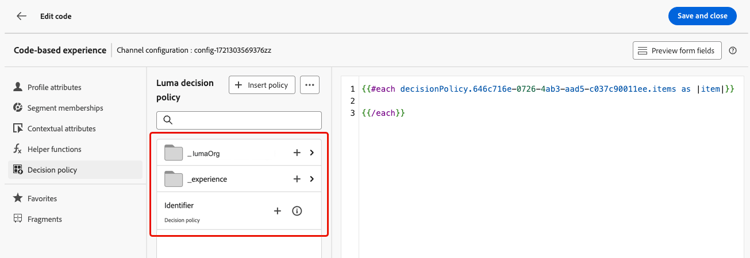
To add an attribute, click the + icon next to the attribute. You can add as many attributes as needed. You can also include other personalization attributes, such as profile data.
-
For Email, Web, Code-based, and Direct Mail channels, wrap the attributes within the
#eachloop using square brackets[ ], and add a comma before the closing/eachtag.accordion See example 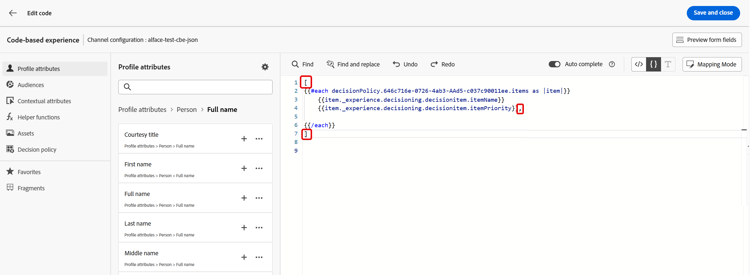
-
For SMS and Push channels, make sure you insert attributes after the syntax code for the decision policy. This syntax should always be kept at line 1.
accordion See example 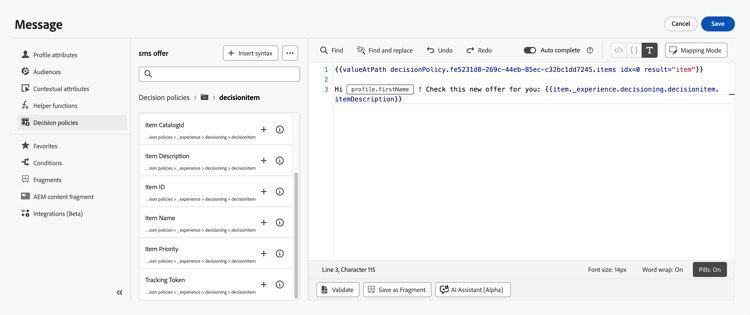
note NOTE If you insert an image asset attribute in SMS or Push content (for example, in the title or body), the attribute value displays as a URL. The image itself is not rendered in those fields. -
To enable decision item tracking, add the
trackingTokenattribute:trackingToken: {{item._experience.decisioning.decisionitem.trackingToken}}
Preview & test your content
After building your content, preview and test it before activating your journey or campaign. Decision items render based on selected profiles in the simulation interface. Learn how to preview and test content.
Next steps final-steps
Once your content is ready, review and publish your campaign or journey:
For code-based experiences, as soon as your developer makes an API or SDK call to fetch content for the surface defined in your channel configuration, the changes will be applied to your web page or app.
View decision policy details from the campaign summary decision-policy-summary
When an action or API-triggered campaign uses decision policies in its content, the campaign summary page displays a Decision policies section listing all policies used in the campaign.
You can also access each decision policy’s technical details and copy them to the clipboard, which can be useful to troubleshoot issues with Adobe Support or your engineering team.
-
Open the campaign summary by clicking Review to activate during configuration, or by opening a campaign from the Campaigns list.
-
In the Decision policies section, all the policies used in the campaign are listed.

-
Select a decision policy or click View all. You can review the details for each policy, including:
- The strategies used in the decision policy
- The number of items to return
- The collection, ranking method et eligibility rules used for each selection strategy
- The fallback offer used if no decision item is eligible

-
Click a collection to display all the decision items that it contains.
-
Click a decision item to access its details and edit it if needed - it opens in a new browser tab. Alternatively, click View item to display decision items that are not in a collection.

-
You can also view information about the ranking methods and eligibility rules used for each selection strategy.

-
Back in the campaign summary, you can also select a decision policy from the Actions section and click the Information icon to access the decision policy’s technical details.

-
Click the Copy to clipboard icon to copy a JSON representation of the decision policy to the clipboard.
The copied JSON includes your organization name and ID, sandbox name, decision policy ID, and the full decision policy structure. You can share this information with Adobe Support or your engineering team to troubleshoot decision policy issues faster.
Use reporting dashboards
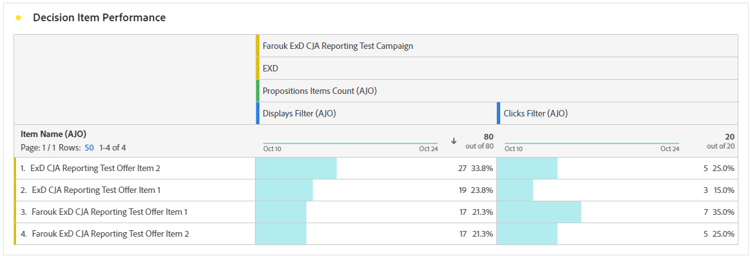
To see how your decisions are performing, you can view out-of-the-box decisioning metrics in the campaign or journey report, or build custom Customer Journey Analytics dashboards to measure performance and gain insights into how your decision policies and offers are delivered and engaged with. Learn more about Decisioning reporting.