On this page: Learn how to use the AI-powered image to HTML converter in Adobe Journey Optimizer to turn static image designs into editable, reusable email content templates.
Journey Optimizer helps you dramatically speed up email creation by converting static image designs into fully customizable, modular email content templates.
By leveraging generative AI technology, an integrated tool analyzes the layout, typography, colors, and visual elements in your image and generates clean, modular HTML content that maintains design fidelity while ensuring full editability with the Email Designer.
This no-code capability enables marketers to transform visual assets from graphic designers or design tools into responsive, editable email templates that can be saved and reused across multiple journeys and campaigns—without requiring technical expertise.
The main key benefits are as follows:
- Faster than hand-coding - The converter turns images into editable content in minutes, so you can skip the manual time-consuming mockup-to-HTML workflow.
- No technical skills needed - Marketers can produce and adjust templates without design or development support.
- Reusable across campaigns - Save templates to your library and use them in any journey or campaign.
- Stays true to the design - Output matches your layout and styling while being fully compatible with the Email Designer.
The image to HTML converter is ideal for:
- Platform migration: Migrating from another email marketing platform? Convert your existing email designs into Journey Optimizer-ready HTML templates without rebuilding from scratch.
- Design mockup conversion: Transform design mockups from tools like Photoshop, Figma, or other design software into functional email templates.
- Quick template creation: Generate email templates rapidly for time-sensitive campaigns without waiting for developer resources.
- Building template libraries: Create a comprehensive library of brand-consistent templates that non-technical team members can customize and deploy.
- Reducing technical dependencies: Enable marketers to create and iterate on email templates independently, speeding up campaign execution.
Access the image to HTML converter access-image-to-html
Addendum with Adobe
To access this feature, your organization must have signed the Generative AI addendum with Adobe. If you are unsure, contact your Adobe representative.
Permissions
- To use the image to HTML converter, you need to be granted the Generate Content permission. Learn how to assign Content generation related permissions in this section.
Agreement
Before you can leverage this feature, you must agree to a user agreement which displays the first time you use Generative AI in Journey Optimizer. For more information, read the Adobe Experience Cloud Generative AI User Guidelines.
Guardrails and recommendations limitations
Be aware of the following limitations and recommendations when converting images to email content templates.
Appropriateness
-
AI interpretation: The AI generates static HTML content based on visual interpretation of your image. It provides a strong starting point for email creation, but should be reviewed and refined using the Email Designer to ensure it meets your exact requirements. You must add personalization, dynamic content, and tracking manually after conversion if needed.
-
Text accuracy: While the AI attempts to recognize and reproduce text accurately, always verify text content and make corrections as needed. Check the Adobe Generative AI User Guidelines.
Image selection
-
PII and sensitive data: Make sure to select an image that does not contain any personally identifiable information (PII) or other sensitive data.
-
Image size: You cannot upload images larger than 10MB.
-
High-quality images: For best results, use clear, high-quality images: sharp visuals, readable text, and well-defined layout elements. Blurry, dark, or cluttered images reduce conversion quality. Images should ideally be between 600-800 pixels wide to match standard email dimensions.
-
Simple layouts: Highly complex designs with intricate layering, unusual shapes, or non-standard elements may not convert perfectly. Simpler designs generally yield better results.
Processing
-
Refresh the page: The result is not shown automatically until you refresh.
-
Processing time: Conversion often finishes within about 5 minutes, depending on complexity and image size. Very large or complex images can sometimes take up to 10 minutes; wait accordingly, then refresh to view the result.
Convert an image to an HTML template convert-image
To convert an image design into a fully customizable email content template, follow the steps below.
-
Ensure you have an image file in JPEG or PNG format containing your email design.
note important IMPORTANT The image size cannot exceed 10MB. For best results, use a clear, high-quality image with sharp visuals, readable text, and well-defined layout elements. -
Access the content template list by selecting Content Management > Content templates from the left menu.
-
Click Create template.
-
Fill in the template details and select Email as the channel and click Create.
-
In the Convert image to template section, perform the following steps:
-
(Optional) If your organization has brand themes defined in Journey Optimizer, you can select a theme as input so that the generated HTML is styled according to your brand theme parameters. Learn more about themes
Styling such as background color, button color, fonts, line spacing, margins, and padding will be applied to the generated template, reducing additional design work and producing a template that is ready to use with minimal edits.
-
To be able to upload an image, make sure it does not contain any personally identifiable information (PII) or other sensitive data. Check the corresponding option to acknowledge that you have reviewed the file.
-
Click the Upload image button to select your image file.
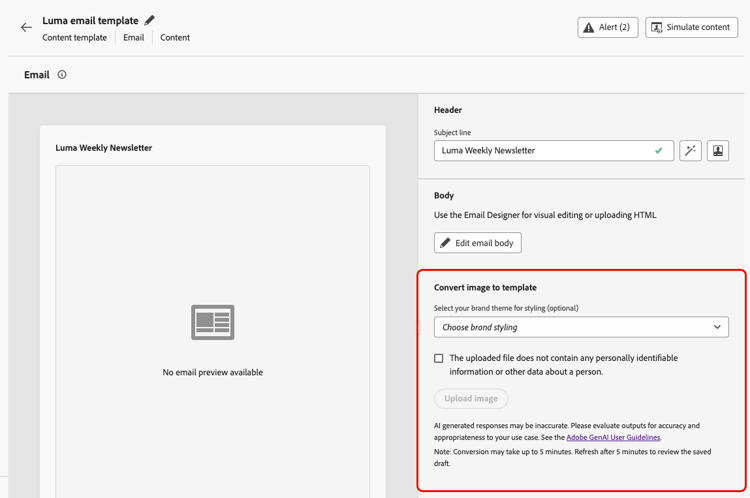
note caution CAUTION When you upload an image for conversion, all content currently added in the email will be deleted and replaced with the generated template.
-
-
If this is the first time you are using Generative AI in Journey Optimizer, you will be asked to agree to the user agreement. To learn more, check out the Adobe Generative AI User Guidelines.
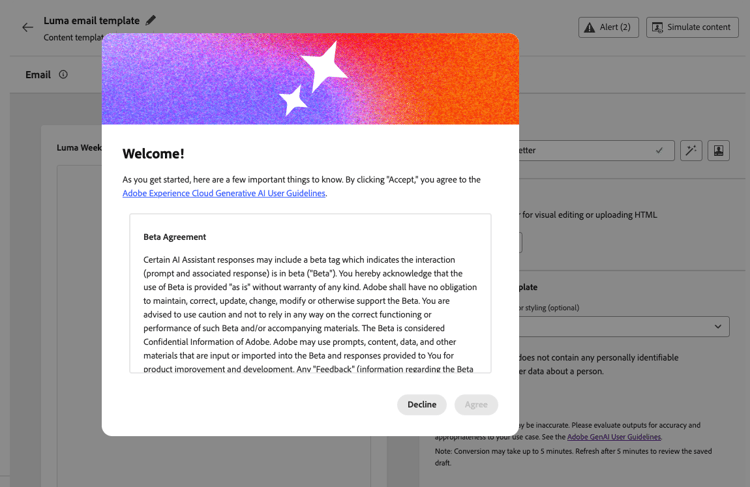
Click Agree to continue.
-
After selecting the image, click Open to start the AI-powered conversion process, which often completes within about 5 minutes—depending on the complexity and size of your image design.
note NOTE Very large images may take up to 10 minutes in some cases. You can navigate away from this screen and work on other tasks while the conversion is in progress. -
Refresh the page to see the output. Once the conversion is complete, the generated content displays and is automatically saved as a draft.
note important IMPORTANT The result is not shown automatically until you refresh. 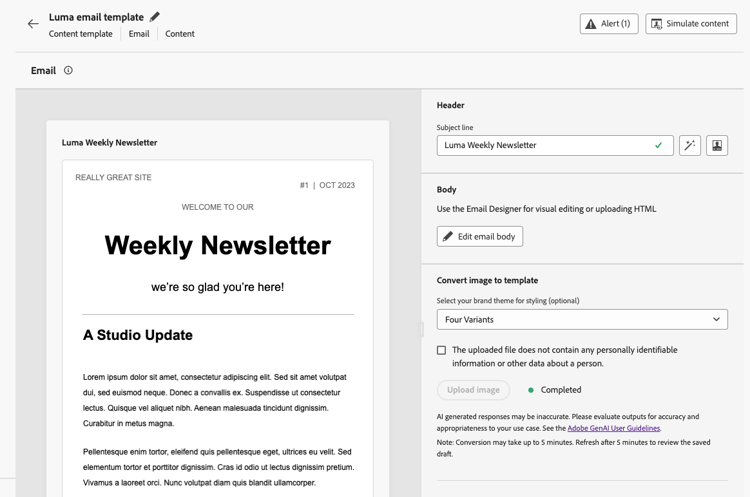
-
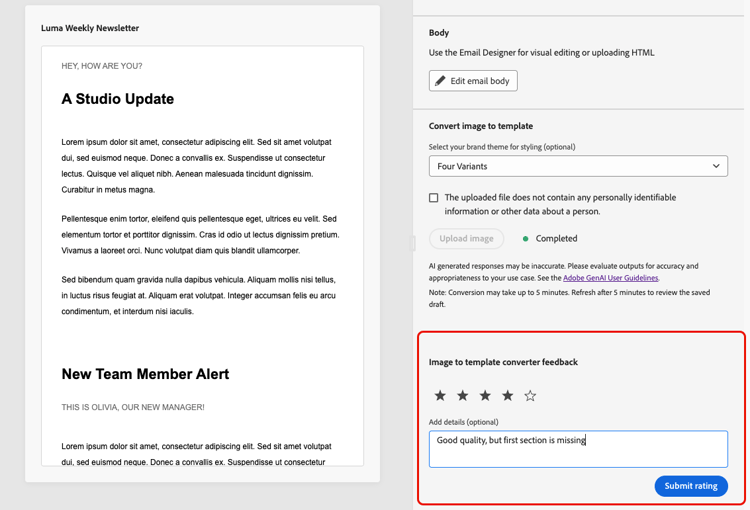
Use the Image to template converter feedback section to share your thoughts and suggestions with Adobe to help us improve the feature.
-
Click Edit email body. The converted template opens in the Email Designer with full editing capabilities. You can now:
- Review, edit text content and apply personalization
- Modify images and add links
- Adjust colors, fonts, and styling
- Add, remove, or rearrange content components
- Leverage all Email Designer features as with any other template
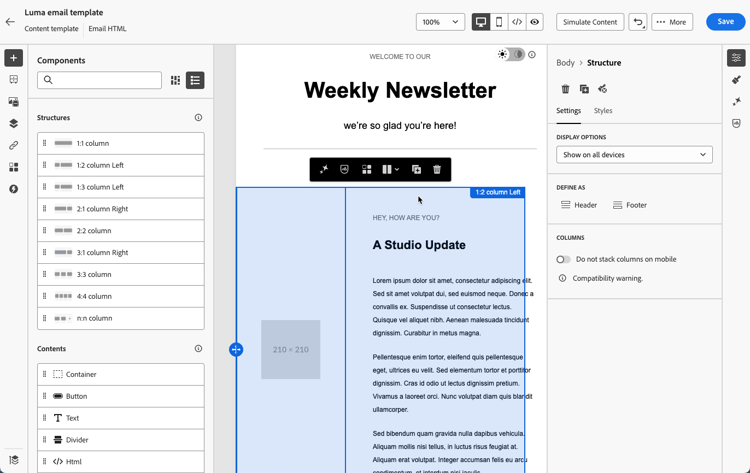
Make any necessary adjustments to refine the template and match your brand guidelines.
-
Once satisfied with your template, click Save.
Your template is now available in the content template library and can be used when creating emails in journeys or campaigns. Learn how to use content templates
Best practices best-practices
To achieve optimal results when converting images to email content templates, follow these recommendations.
- Save existing content: Converting an image replaces all existing content in your email template. Always save your current work before using this feature.
- Plan your workflow: Use this feature at the beginning of your email creation process, or ensure you’re ready to replace all current content.
- Resolution: Use high-resolution images for better text recognition and element detection.
- Clarity: Use a clear image—text must be easy to read and visual elements well-defined; avoid blurry, low-contrast, or noisy source files.
- Width: Design images at standard email widths (600-800px) to match typical email client requirements.
- File format: Use JPEG or PNG format - avoid compressed or low-quality images.
- Complete design: Include the full email design in a single image, from header to footer.
- Simple layouts: Simpler, well-structured layouts convert more accurately than highly complex designs.
- Standard elements: Use common email design patterns (header, body sections, CTAs, footer).
- Text legibility: Ensure sufficient contrast between text and backgrounds.
- Web-safe fonts: Designs using common web-safe fonts will have better fidelity.
- Avoid overlapping elements: Keep design elements clearly separated for better structure recognition.
- Refresh to see results: After about 5 minutes (or up to 10 minutes for very large images), refresh the page so the completed conversion appears.
- Review your draft: Once conversion is complete, your template is automatically saved as a draft. Take time to carefully review the generated content for accuracy.
- Test thoroughly: Test the email across different email clients and devices. Learn how to preview and test content.
- Refine manually: Make adjustments as needed using the Email Designer’s full editing capabilities.
- Brand alignment: Verify colors, fonts, and styling match your brand guidelines, using themes if available. Learn more about email themes.
- Personalization: Add dynamic content and personalization tokens as required. Learn more about personalization.
- Accessibility: Review and enhance accessibility features if needed. Learn more about accessible email content.