[Beta]{class="badge informative"}
Work with Adobe Experience Manager templates aem-templates
Get started with Adobe Experience Manager templates gs-aem-templates
With Adobe Journey Optimizer, you can create custom-tailored messages through Adobe Experience Manager sites. Start by designing your templates using Adobe Experience Manager’s content sources, then send them to Adobe Journey Optimizer. Once shared, these templates can be accessed in Adobe Journey Optimizer’s Email Designer, simplifying the process of crafting and sending messages to your desired audience.
As a beta user, use this form to share feedback.
Prerequisites prerequisites
Before starting using this capability, make sure you are aligned with the following requirements:
-
Experience Manager settings
This capability is available with Adobe Experience Manager as a Cloud Service.
As a part of the beta program, the Cloud Service configuration is performed by Adobe in Adobe Experience Manager to connect to Adobe Journey Optimizer.
-
Permissions
To create, edit and delete content templates in Adobe Journey Optimizer, you must have the Manage Library Items permission included in the Content Library Manager product profile. Learn more
Guardrails and limitations aem-templates-limitations
To further optimize your use of Adobe Experience Manager with Adobe Journey Optimizer, it’s important to be aware of the following additional guardrails and limitations:
-
Proper Journey Optimizer syntax is required for personalization in the Experience Manager template to be effective. Learn more
-
Bulk template export is not currently supported, templates must be exported individually.
-
Syncing between Experience Manager and Journey Optimizer is currently not available. If changes are made to an Experience Manager template after it has been sent to Journey Optimizer, the user will need to re-export the template and re-send it to Journey Optimizer.
Send a template to Journey Optimizer aem-templates-send
To export an Adobe Experience Manager template to Adobe Journey Optimizer, follow the steps below:
-
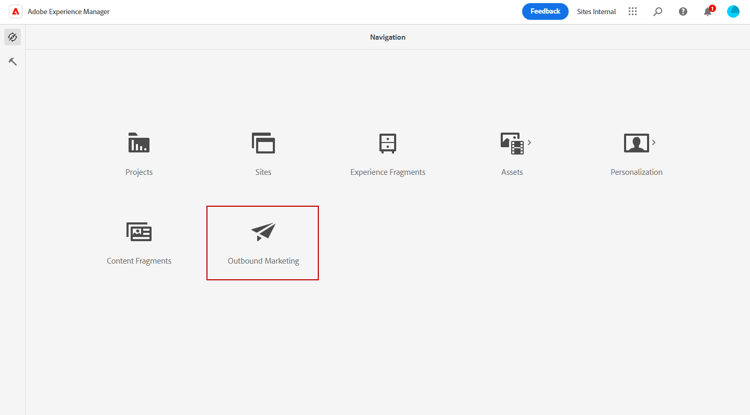
From your Adobe Experience Manager homepage, select Outbound Marketing.
-
From your content library, you can use previously configured templates or create one from scratch. Learn more
-
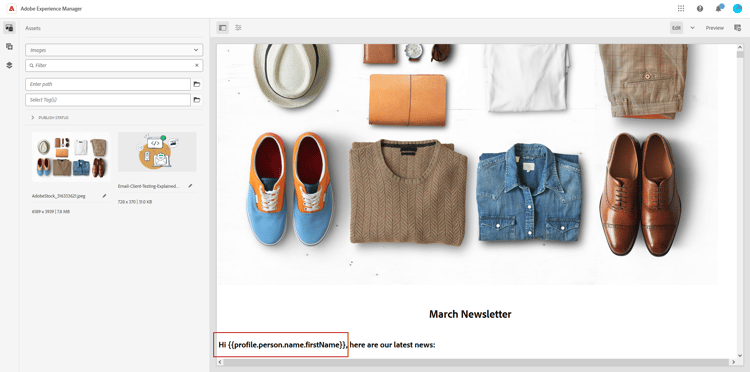
By incorporating Journey Optimizer personalization syntax into your template, you can enhance its customization capabilities. Learn more
-
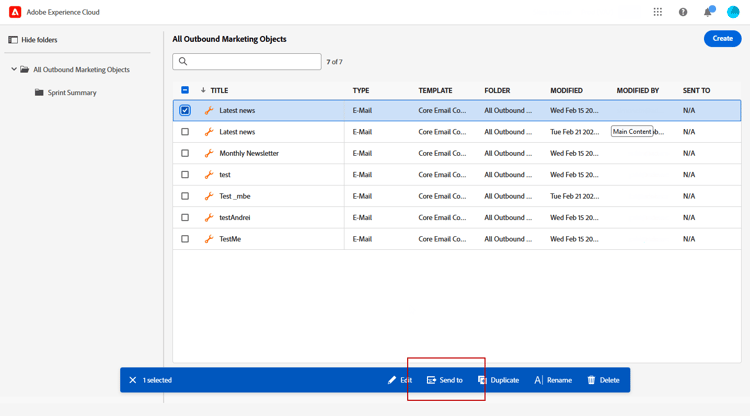
Select the template you want to export to Journey Optimizer and click Send to from the advanced menu.
-
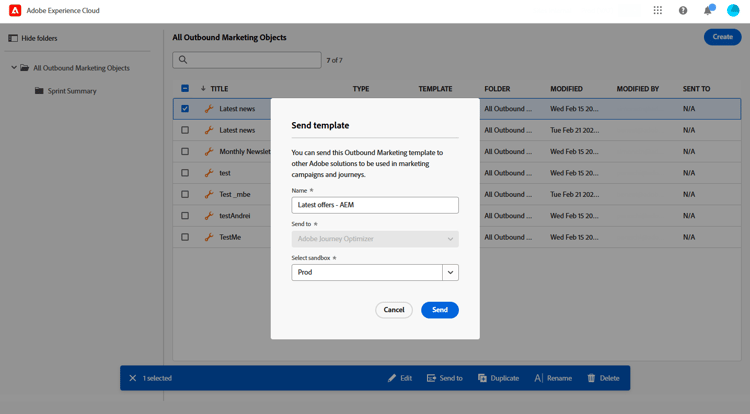
Enter the Name of the Content template and select the target Sandbox.
-
After you have clicked the Send button, the export process will begin. Once the export is complete, you will see the following message in the user interface: “Template “XX” sent successfully to AJO”.
The template is added to Adobe Journey Optimizer content templates of the selected sandbox.
Use and personalize an Adobe Experience Manager template aem-templates-perso
Once the Experience Manager template is available in Journey Optimizer as a content template, you can identify and incorporate the necessary content for the email, including personalization.
-
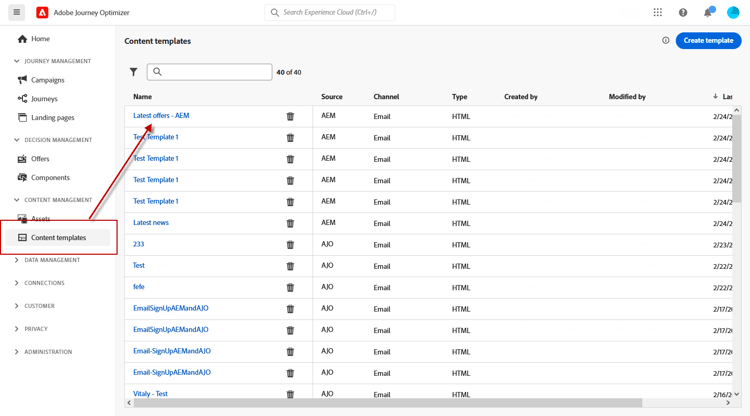
In Journey Optimizer, from the Content template menu, access your imported template.
-
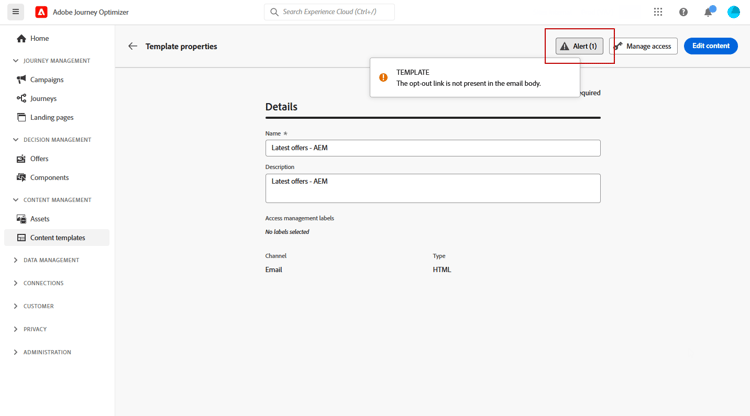
By clicking the Alert button, you can quickly check if any important settings are missing. This will help ensure that your messages are properly configured and prevent any potential errors or issues.
-
In the Template properties window, click the Manage access button to assign custom or core data usage labels to your template. Learn more about Object Level Access Control (OLAC)
-
To further personalize your Experience Manager template and add custom personalization to your content, click Edit content. This will allow you to easily make changes and tailor the template to your specific needs. Learn more
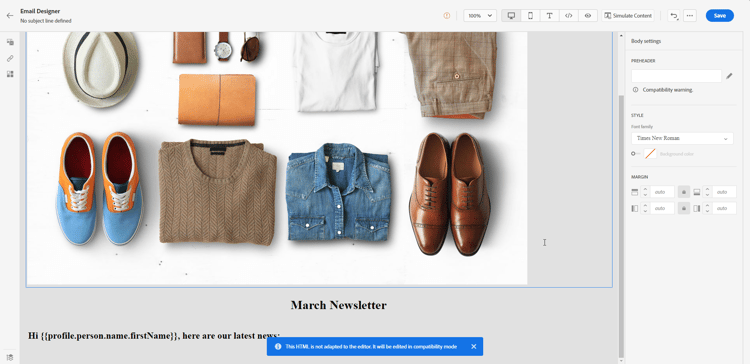
note warning WARNING If you want to edit and personalize your template, you will only be able to use the compatibility mode. -
When your content template is ready, test and validate it.
-
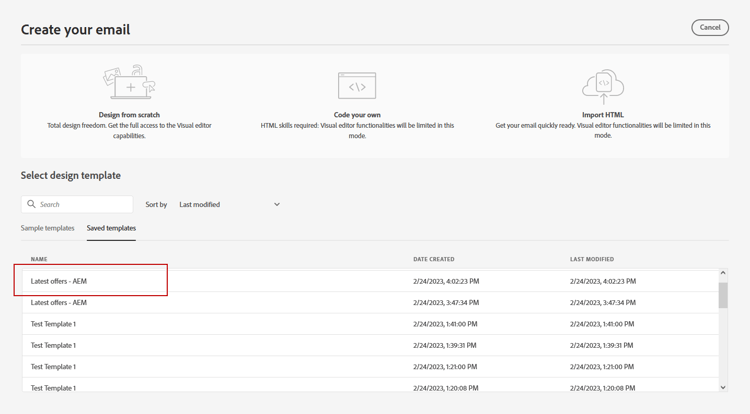
Once your content has been defined, you can use it when creating new email by browsing the Saved templates collection. Then, select Use this template.
-
You can now edit and personalize your content. For more information on how to build your email content, refer to this page.
-
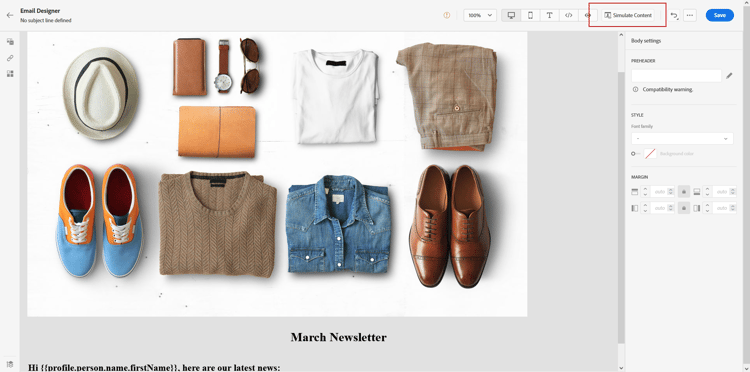
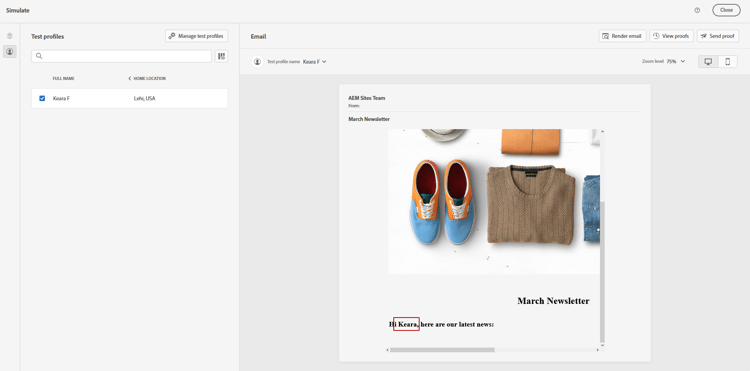
If you added personalized content to your Experience Manager template, click Simulate Content to preview how it will appear in the message using test profiles.
Learn more about preview and test profiles
-
When viewing the message preview, any personalized elements are automatically replaced with the corresponding data from the selected test profile.
If needed, additional test profiles can be added through the Manage test profiles button.
When your email is ready, complete the configuration of your journey or campaign, and activate it to send the message.