[Limited Availability]{class="badge informative"}
Use formulas to rank journeys journey-ranking-formulas
On this page: Create ranking formulas based on journey attributes, profile attributes, or AI scores so the best journey is selected for each profile when journey caps apply.
Adobe Journey Optimizer helps you control which journeys a profile can enter when they qualify for more than the system allows. To do so, you can use rule sets to define caps on journey entry or concurrency. When a profile is eligible for more journeys than the cap allows, the priority assigned to each journey determines which journeys are selected.
Instead of using priority, you can also use ranking formulas to dynamically adjust the ranking of journeys based on journey attributes, profile attributes, or AI model scores.
Formulas give you more flexibility than static priority. For example, you can boost a journey for gold loyalty members.
Create a ranking formula create-journey-ranking-formula
To create a ranking formula for your journeys, follow the steps below.
-
Access the Orchestration ranking section, then select the Ranking formulas tab. The list of previously created formulas is displayed.
-
Click Create formula.
-
Specify the formula name and add a description if desired.
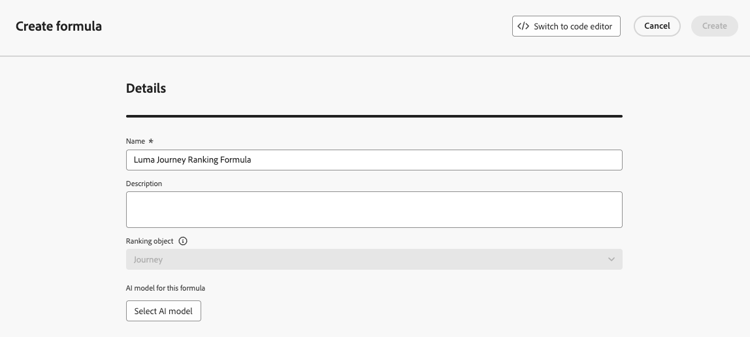
note NOTE The ranking object is the entity that the ranking formula will apply to. By default, the ranking object is set to Journey. -
Optionally, click Select AI model to set the model that will be used as a reference to build your ranking formula. Learn more
-
In the Criterion 1 section, specify which journeys you want to apply a ranking score to by doing the following:
- select a journey attribute (such as journey name, tags, priority, or other journey properties);
- select a logical operator;
- add a matching condition - you can either type/select a value, or choose a profile attribute.
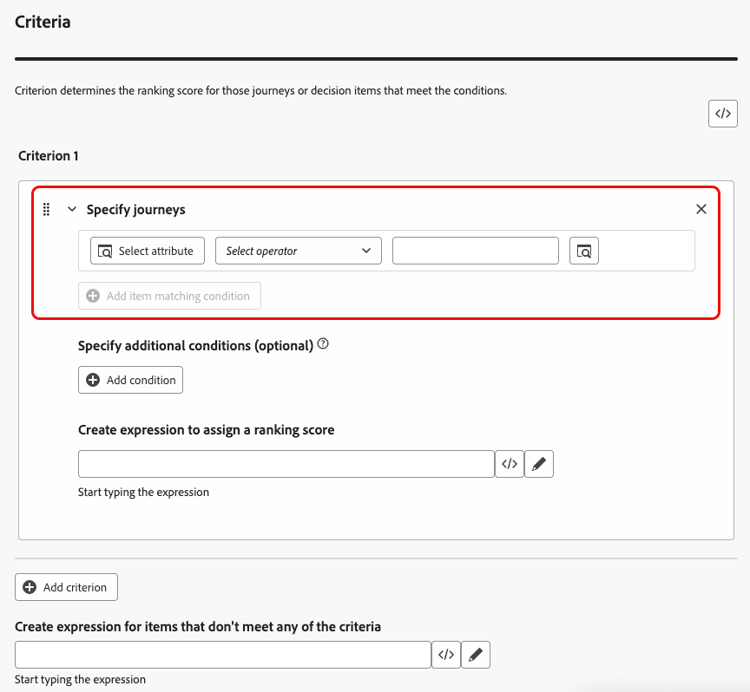
-
Optionally, you can specify additional elements to refine the matching conditions for your criteria to be true.
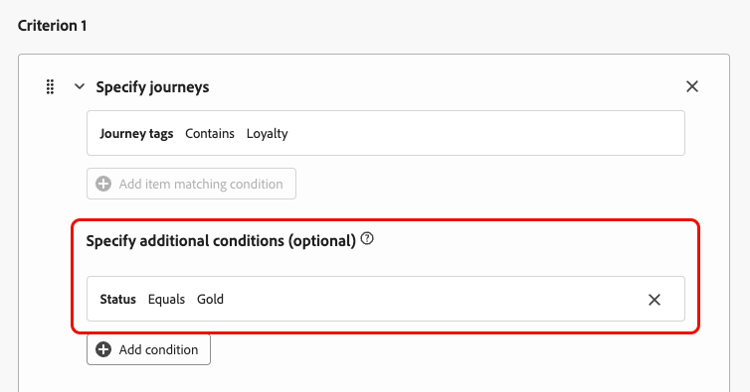
For example, you defined Criterion 1 such as Journey tags contain Loyalty. Additionally, you can add another condition such as if the Loyalty status equals Gold, then Criterion 1 is true.
-
Create an expression that will assign a ranking score to the journeys that meet the condition defined above. You can reference any of the following:
-
a variable:
- the journey priority, which is a manual value assigned to the journey when creating a journey;
- the score that came out of the AI model that you optionally selected above;
-
an attribute:
- any attribute that might live on the profile, such as any externally derived propensity score;
- a journey attribute;
-
a static value that you can assign in a free format;
-
a combination of all the above.
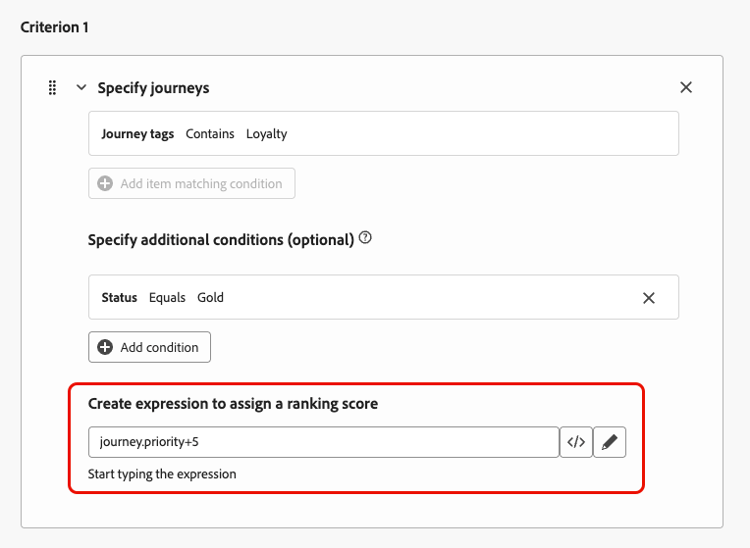
-
-
Click Add criterion to add one or more criteria as many times as needed. The logic is as follows:
- If the first criterion is true for a given decision item, it takes precedence over the next ones.
- If not true, the decisioning engine moves on to the second criterion, and so on.
-
Once you defined all your criteria, in the last field, you can build an expression that will be assigned to all journeys that do not meet the above criteria.
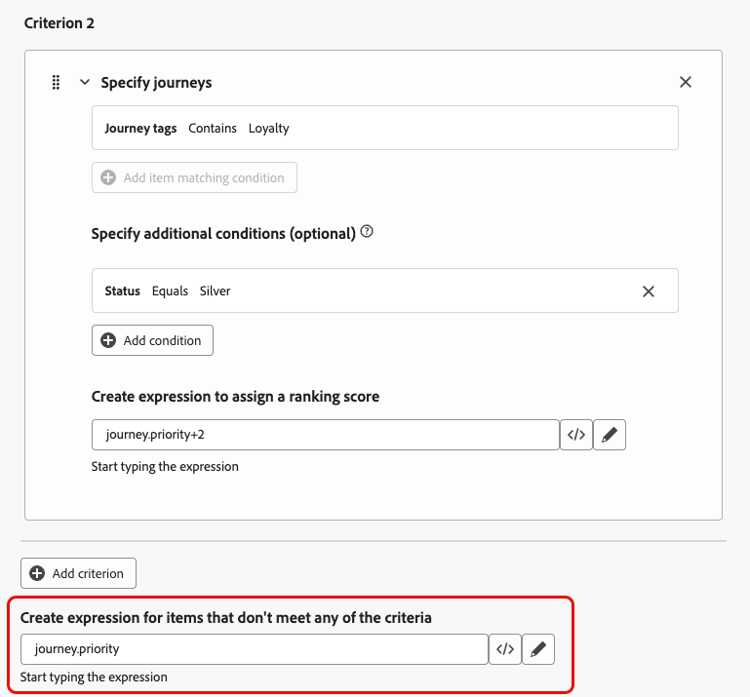
-
Click Create to complete your ranking formula.
You can now select this formula from the list to view its details, and edit or delete it. It is then available when you configure a rule set. Learn how
Ranking formula examples journey-ranking-formula-example
Consider the examples below.
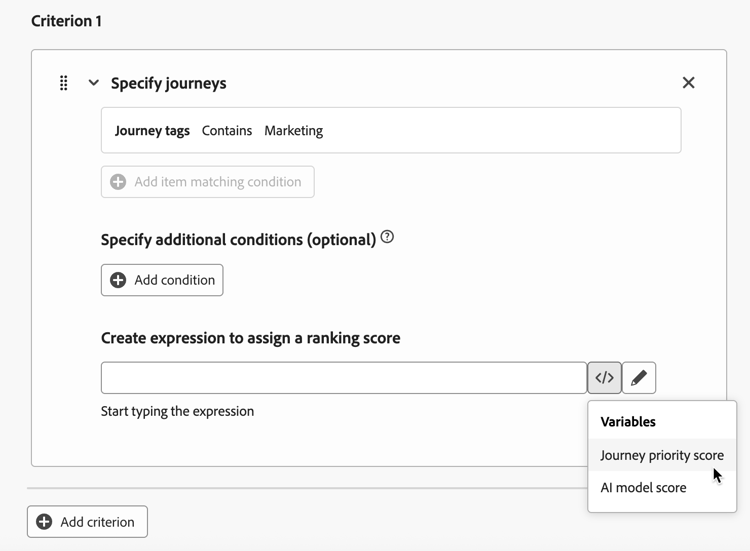
If the journey has a “Marketing” tag, the ranking score is the journey priority.
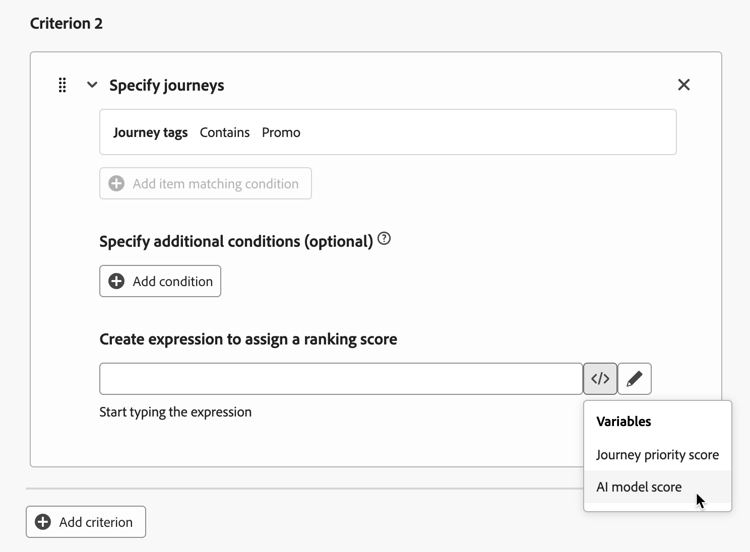
If the journey has a “Promo” tag, the ranking score is the AI model score.
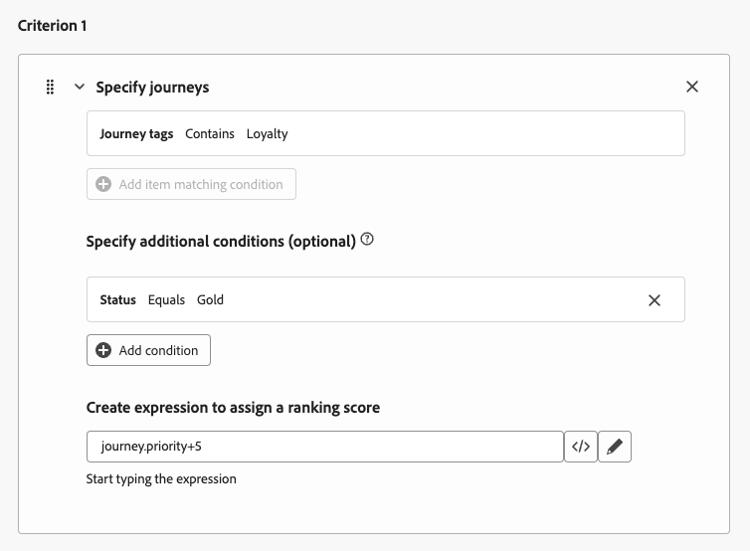
If the journey has a “Loyalty” tag and the profile’s loyalty status is Gold, the ranking score that is used is the journey priority plus 5.
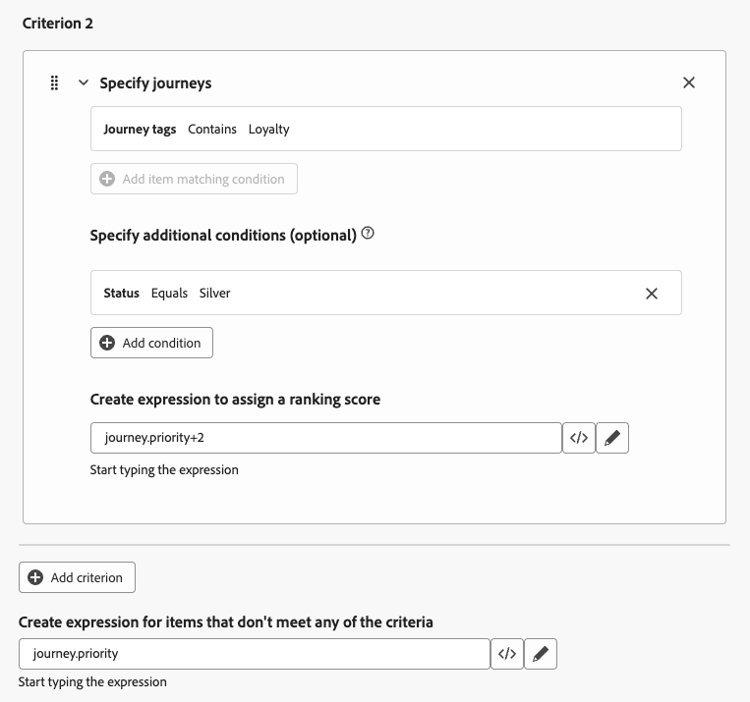
If the journey has a “Loyalty” tag and the profile’s loyalty status is Silver, the ranking score is the journey priority plus 2.
If none of the above conditions are met, the ranking score that is used is the journey priority.
Use the code editor journey-ranking-formula-code-editor
To express ranking formulas in PQL syntax, switch to the code editor using the dedicated button on top right of the screen. For more on how to use the PQL syntax, refer to the dedicated documentation.
You can then leverage journey attributes, profile attributes, and static values to build your ranking formula.
Assign the formula to a rule set assign-formula-to-ruleset
To use a formula to rank your journeys, you need to assign it to a rule set.
-
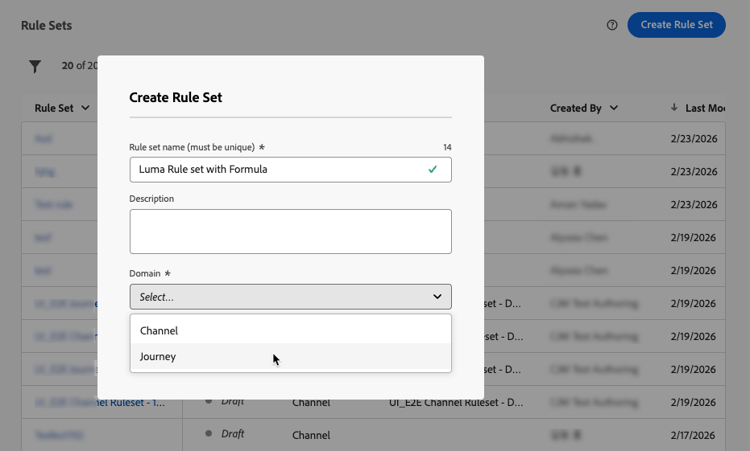
From the Business rules menu, create a rule set you want to use for journey arbitration. Learn how
-
Make sure you select the Journey domain.
-
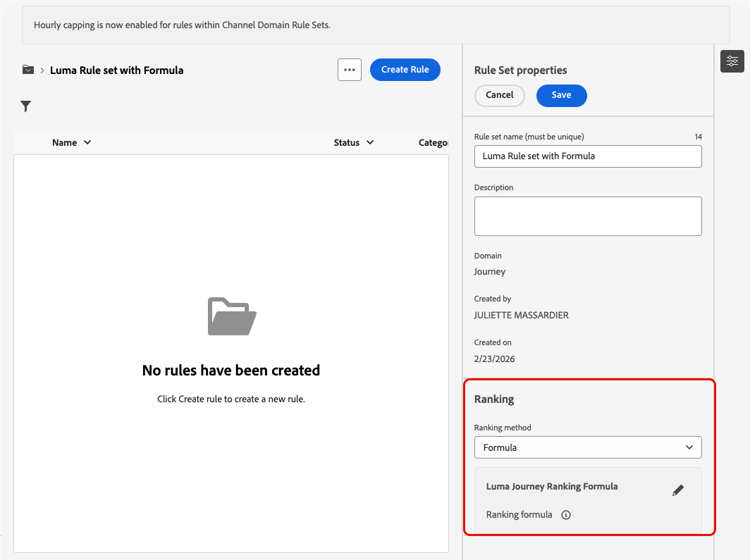
In the rule set properties, set the Ranking method to Formula (instead of the default Priority).
-
Select the ranking formula that you created from the drop-down list.
-
Create the journey capping rules you want to add to the rule set. Learn how
-
Save the rule set.
Now the formula is assigned to the rule set. You can then apply that rule set to your journeys.
Apply the rule set to a journey assign-rule-set-to-journey
To assign the rule set to a journey, follow the steps below.
-
Create or open the journey you want to assign the rule set to. Learn how to create a journey
-
In the journey properties, select the rule set from the drop-down list. Learn how.
note NOTE Only one rule set can be applied to a journey at a time. -
Save the journey.
All journeys that use this rule set will be ranked with the selected formula when the cap is applied.
To monitor how your rule sets and ranking formulas perform, see the Journey Capping and Conflicts section in the Overview report. To investigate discards at the Data Lake level and identify whether a profile was excluded due to a cap being reached (CAP_REACHED) or a lower priority (LOWER_PRIORITY), use the queries available in this section.
This section contains structured knowledge intended to support interpretation, retrieval, and question answering related to this topic.
For complete understanding, this information should be combined with the documentation on this page. Neither source is intended to stand alone; the page describes the feature, while this section provides additional context that helps disambiguate terminology, intent, applicability, and constraints.
- TL;DR: This page explains how to create ranking formulas that dynamically rank journeys based on journey attributes, profile attributes, or AI model scores, and how to assign them to a rule set so the best journey is selected per profile when journey caps apply.
Intents:
- Create a ranking formula with one or more criteria in Orchestration ranking > Ranking formulas
- Assign ranking scores using variables (journey priority, AI model score), attributes, static values, or a combination
- Optionally reference an AI model with Select AI model
- Express a formula in PQL syntax using the code editor
- Assign the formula to a journey-domain rule set and apply that rule set to journeys
Glossary:
- Ranking formula: An expression that dynamically ranks journeys based on journey attributes, profile attributes, or AI model scores (product-specific)
- Ranking object: The entity that the formula applies to; by default set to Journey (product-specific)
- Journey priority: A manual value assigned to the journey when creating it (product-specific)
- Ranking method: Rule set setting that selects Formula instead of the default Priority (product-specific)
- Criterion: A condition (journey attribute, logical operator, matching condition) with an expression that assigns a ranking score (product-specific)
Guardrails:
- This feature is currently in Limited Availability; contact your Adobe representative to gain access.
- Ranking formulas are only available to organizations that have purchased the Decisioning add-on offering.
- Formulas are assigned at the rule set level, not on individual journeys.
- To use a formula, set the rule set Ranking method to Formula instead of the default Priority, and select the Journey domain.
- Switching to the code editor (PQL syntax) will prevent you from reverting back to the default builder view for this formula.
- Only one rule set can be applied to a journey at a time.
- Criterion logic: if the first criterion is true for a decision item it takes precedence over the next ones; otherwise the decisioning engine moves on to the next criterion, and so on.
- Example expressions keep weights verbatim: journey priority; journey priority plus 5 (Loyalty tag with Gold status); journey priority plus 2 (Loyalty tag with Silver status).
Terminology:
- Canonical name: ranking formula — Acronym: n/a — variants: journey arbitration ranking formulas, journey ranking formula
- Synonyms: none
- Do not confuse: “ranking formula” (a dynamic expression) ≠ “journey priority” (a static manual value) ≠ “AI model score” (a trained model output referenced in a formula)
- Do not confuse: “Formula” ranking method ≠ “Priority” ranking method (the default)
FAQ:
- Q: What can a ranking formula reference? — A variable (journey priority or AI model score), an attribute (profile or journey attribute), a static value, or a combination of these.
- Q: How is precedence decided across criteria? — The first criterion that is true for a decision item takes precedence; otherwise the decisioning engine evaluates the next criterion.
- Q: Are formulas assigned per journey? — No, formulas are assigned at the rule set level; the rule set is then applied to journeys.
- Q: What happens if I switch to the code editor? — You express the formula in PQL syntax, and this prevents reverting back to the default builder view for that formula.
- Q: When is the formula applied? — When the cap is applied; all journeys using the rule set are ranked with the selected formula.