On this page: Build AI models that dynamically rank journeys so the best-performing journey is selected for each profile when journey entry caps apply.
Adobe Journey Optimizer helps you control which journeys a profile can enter when they qualify for more than the system allows. To do so, you can use rule sets to define caps on journey entry or concurrency. When a profile is eligible for more journeys than the cap allows, the priority assigned to each journey determines which journeys are selected.
Instead of using priority, you can also use AI models in your ranking formulas to dynamically rank journeys based on trained model scores.
Create an AI model create-ai-model
To create an AI model for journey ranking, follow the steps below.
-
Create a dataset where conversion events will be collected. Learn how
-
Access the Orchestration ranking section, then select the AI models tab. The list of previously created AI models is displayed.
-
Click Create AI model.
-
Specify a unique name and, if needed, a description for the AI model.
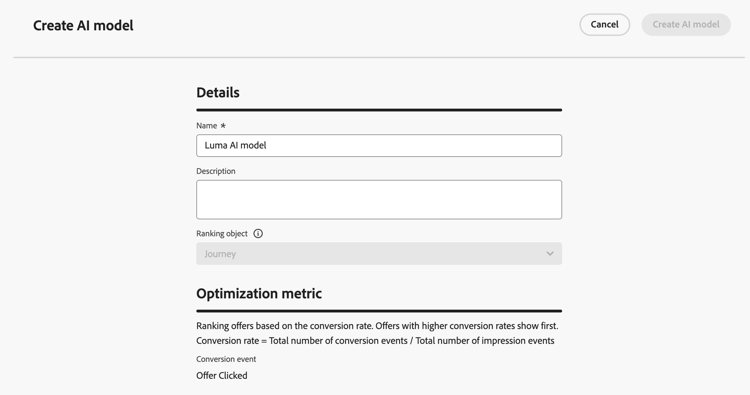
note NOTE The ranking object is the entity that the ranking formula will apply to. By default, the ranking object is set to Journey.
-
In the Optimization metric section, all metrics from your default Customer Journey Analytics data view display in the list. Select the metric that you want to optimize your model on.
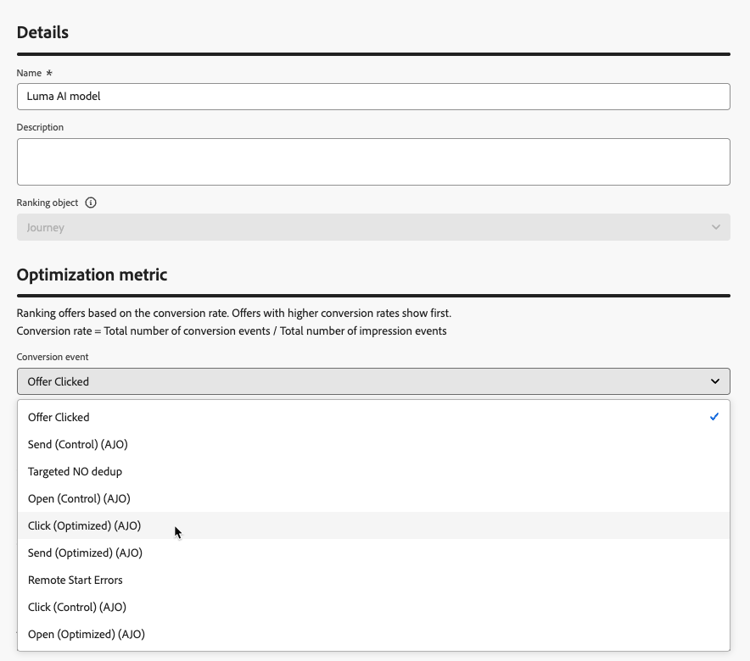
Journey Optimizer ranks based on the conversion rate (Conversion rate = Total number of conversion events / Total number of impression events). The conversion rate is calculated using:
- Impression events (items that are displayed)
- Conversion events (items that result in clicks or conversions)
These events are automatically captured using the Web SDK or the Mobile SDK. Learn more in the Adobe Experience Platform Web SDK overview.
-
Select the dataset(s) where the conversion and impression events are collected. Learn how to create such datasets in this section.
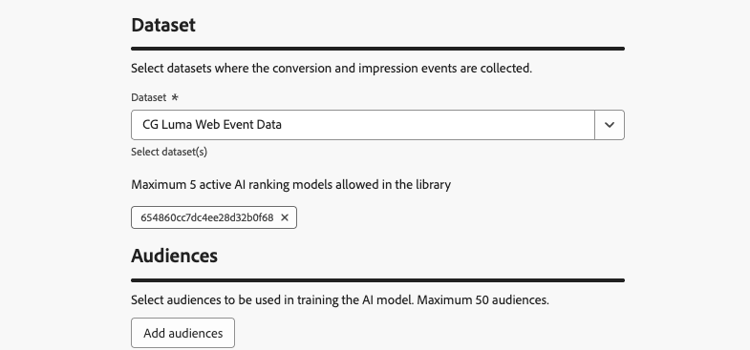
note caution CAUTION Only the datasets created from schemas associated with the Experience Event - Proposition Interactions field group are displayed in the drop-down list. You can select up to 5 datasets. -
Select the segment(s) to use to train the AI model.
note NOTE You can select up to 50 audiences. -
Save and activate the AI model.
The AI model is now available for selection when you create a ranking formula.
Reference the AI model in a formula to rank journeys reference-ai-model
You can now set the AI model as a reference to build a ranking formula, then assign the formula to a rule set and apply the rule set to your journeys. To do so, follow the steps below.
-
Create a ranking formula. Learn how
-
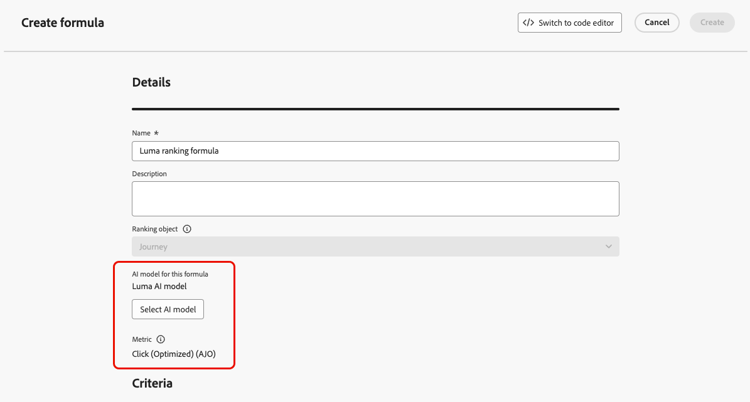
Use the Select AI model button to select the AI model you want to use in the formula.
-
In at least one of the Criterion sections, define a condition and select AI model score as the ranking method. For example, if the journey has a “Promo” tag, the ranking score is the AI model score.
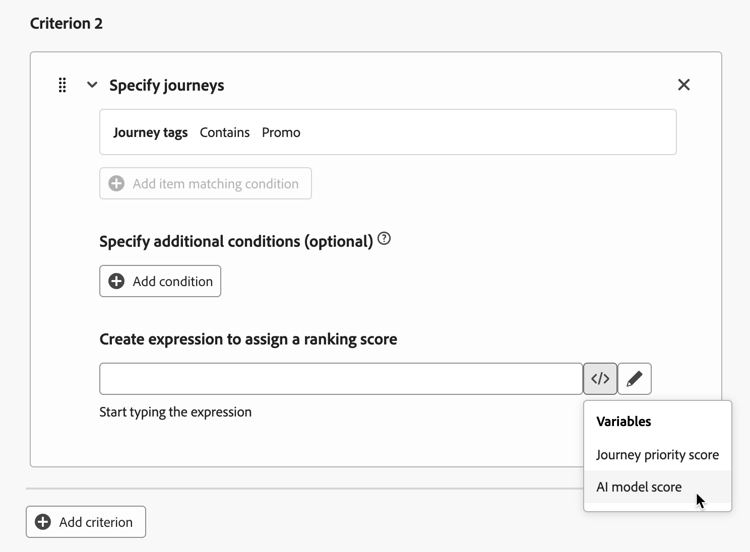
-
Click Create to complete your ranking formula.
-
Now create a rule set and select the formula that you created as the ranking method. Learn how
-
Create the journey capping rules and save the rule set.
-
Apply the rule set to the desired journeys and save them. Learn how
note NOTE Only one rule set can be applied to a journey at a time.
All journeys that use this rule set will be ranked with the formula referencing the selected AI model when the cap is applied.
This section contains structured knowledge intended to support interpretation, retrieval, and question answering related to this topic.
For complete understanding, this information should be combined with the documentation on this page. Neither source is intended to stand alone; the page describes the feature, while this section provides additional context that helps disambiguate terminology, intent, applicability, and constraints.
- TL;DR: This page explains how to create AI models that dynamically rank journeys based on trained model scores, and how to reference them in ranking formulas so the best-performing journey is selected per profile when journey entry caps apply.
Intents:
- Create an AI model in the Orchestration ranking > AI models tab
- Choose an Optimization metric from the default Customer Journey Analytics data view
- Select the datasets and segments used to train the model
- Reference an AI model in a ranking formula using AI model score as the ranking method
- Assign the formula to a rule set and apply it to journeys so ranking applies when a cap is reached
Glossary:
- AI model: A trained model whose scores dynamically rank journeys, used in ranking formulas instead of static priority (product-specific)
- Ranking object: The entity that the ranking formula applies to; by default set to Journey (product-specific)
- Conversion rate: Total number of conversion events / Total number of impression events; the basis on which Journey Optimizer ranks (product-specific)
- Impression events: Items that are displayed (product-specific)
- Conversion events: Items that result in clicks or conversions (product-specific)
- AI model score: Ranking method that uses the AI model’s score in a formula criterion (product-specific)
Guardrails:
- This feature is currently in Limited Availability; contact your Adobe representative to gain access.
- AI models are only available to organizations that have purchased the Decisioning add-on offering.
- Only datasets created from schemas associated with the Experience Event - Proposition Interactions field group are displayed in the drop-down list.
- You can select up to 5 datasets where the conversion and impression events are collected (hard limit).
- You can select up to 50 audiences to train the AI model (hard limit).
- Impression and conversion events are automatically captured using the Web SDK or the Mobile SDK.
- Only one rule set can be applied to a journey at a time.
Terminology:
- Canonical name: AI model — Acronym: n/a — variants: journey arbitration AI models, AI model score
- Synonyms: none
- Do not confuse: “AI model” (trained model producing scores) ≠ “ranking formula” (the expression that references priority, attributes, or AI model score) ≠ “journey priority” (a manual value)
- Do not confuse: “impression events” (items that are displayed) ≠ “conversion events” (items that result in clicks or conversions)
FAQ:
- Q: When are AI model rankings applied? — When a profile is eligible for more journeys than the cap allows; all journeys using the rule set are ranked with the formula referencing the AI model.
- Q: What metric does the AI model optimize on? — A metric you select from the default Customer Journey Analytics data view; ranking is based on conversion rate (Total number of conversion events / Total number of impression events).
- Q: How many datasets and audiences can I use? — Up to 5 datasets and up to 50 audiences.
- Q: Which datasets can I select? — Only datasets created from schemas associated with the Experience Event - Proposition Interactions field group.
- Q: How do I use the AI model in a formula? — Use the Select AI model button, then in at least one Criterion set AI model score as the ranking method.