On this page: Learn how to enable Message Export on email and SMS channel configurations to write sent message content to an Adobe Experience Platform dataset and transfer it to your own storage.
Message Export lets you transfer sent email and SMS message content from Journey Optimizer to your own storage via Adobe Experience Platform destinations, which enable you to deliver data out of Experience Platform into external endpoints.
With this feature, the content of email and SMS messages sent via Journey Optimizer which have been marked for export are written to the Experience Platform AJO Message Export Dataset.
Records are then retained in the dataset for seven calendar days from ingestion, during which you can export them out to the external system of your choice.
Message Export is a supported alternative when you need to review or retain the exact content sent to an individual — for example, for customer-care, compliance, or downstream-system use cases. It does not generate or return a mirror page URL; it exports the sent message content and related metadata so your organization can store and display the information in its own systems.
➡️ For common questions and answers, see the Message Export FAQ.
Guardrails
- This feature only supports the Email and SMS channels.
- Records in the AJO Message Export Dataset are retained for seven calendar days from ingestion.
- Backfill is not supported for messages sent before enabling Message Export as described below.
Enable message export enable-message-export
The onboarding process for the Message Export feature consists of two steps:
- Set up the export dataflow in Experience Platform;
- Enable Message Export at the channel configuration in Journey Optimizer.
Set up the export dataflow set-up-export-dataflow
Before being able to export your data, set up the export process by defining the Experience Platform destination and the dataset export flow.
For detailed steps, supported cloud destinations, required permissions, and more information, see this section.
-
Choose an Experience Platform destination type. A list of available destination platforms that are ready to receive data is available on this page.
-
In Experience Platform, configure your destination by defining credentials, bucket/container, path prefix, and security options. Learn how
-
Create a dataset export flow using the following data:
- Source dataset: select AJO Message Export Dataset.
- File format: select JSON or Parquet (choose one based on downstream tools).
- Schedule: ensure it runs within the 7-day retention window.
Enable message export in the channel configuration config-message-export
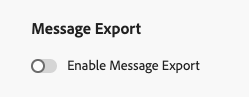
To apply Message Export to your campaigns and journeys, you must enable the dedicated option at the channel configuration level. Follow the steps below.
-
In Journey Optimizer, edit or create the desired Email or SMS channel configuration.
-
Select the Enable Message Export option.
-
Save your changes and submit your channel configuration.
Once you have sent messages via campaigns or journeys using this channel configuration, email and SMS messages are written to the AJO Message Export Dataset. You can then access the records in the dataset and export them to your selected storage destination based on the export dataflow that you defined.
Access exported message data access-exported-data
After messages have been sent using a channel configuration with Message Export enabled, you can access and review the exported data in the AJO Message Export Dataset.
To view the exported message data:
-
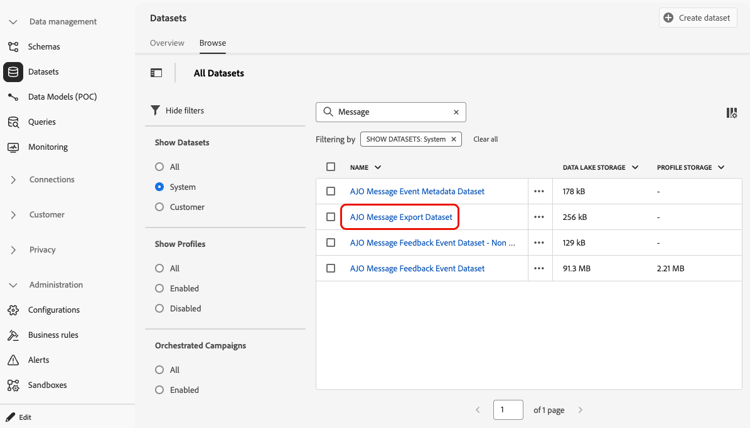
In Journey Optimizer, navigate to Data management > Datasets in the left navigation. Learn more about datasets
-
Make sure you are displaying system-generated datasets.
-
Select the AJO Message Export Dataset from the list.
-
On the dataset details page, click Preview dataset to view the most recent records.
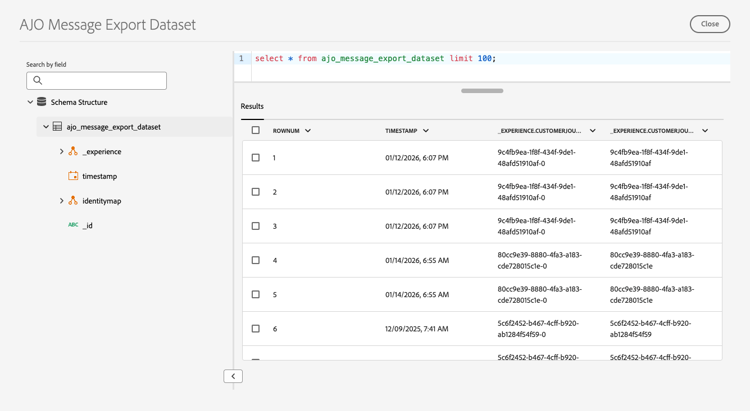
The dataset contains comprehensive information for each message sent via the channel configuration with Message Export enabled, including: subject line, message body, recipient email address or phone number, sender address or phone number, date and time sent, personalization data, and more.
➡️ For a full view of the dataset structure and all available fields, see the AJO Message Export schema.
All records in the dataset are retained for seven calendar days from ingestion. During this retention period, you can access the data for compliance audits, legal inquiries, or export it to your own storage system via the configured Experience Platform destination.
Sample exported JSON sample-exported-json
The examples below show the overall shape of records written to the AJO Message Export Dataset for SMS and email. Values such as identifiers, schema references, timestamps, and content are illustrative; your exports reflect your sandbox, schema, and sent messages.
Expand each section to view the full sample JSON.
| code language-json |
|---|
|
| code language-json |
|---|
|
Message Export FAQ message-export-faq
Message Export supports:
- SMS
Message Export creates a system-generated dataset in Adobe Experience Platform that contains a snapshot of the message at send time. This dataset can then be exported to supported destinations (for example, cloud storage or third-party systems).
Message Export is designed as an enablement mechanism for customers to move message data out of Adobe systems—customers are responsible for transforming, storing, and managing the data in their own archival or compliance solutions.
Yes. The exported HTML can be used to reproduce the original sent message in a browser.
However, reproduction depends on the availability of externally hosted assets (such as images). Message Export does not embed media files directly in the export.
Message Export includes HTML content with references (URLs) to images and other media. Media assets are not embedded in the export.
If an image or asset URL becomes invalid, restricted, or unpublished after send time, Message Export cannot recover that asset.
Data is stored exactly as it appears in the rendered message:
- Personalization values rendered into the message (for example, first name) appear as text.
- Encrypted elements (such as tracked links) remain encrypted.
- Message Export does not automatically anonymize or redact rendered message content.
Message Export data follows a 7-day retention window within Adobe Experience Platform.
Customers should export the data within this period and store it in their own systems if longer retention is required.
There is no trial or “try-before-you-buy” option for Message Export.
Customers may validate their downstream systems using sample export files, since Message Export relies on standard AEP dataset and destination functionality.
No. Message Export is an enabler, not a full archival or compliance product.
Customers are expected to:
- Export message data from Adobe
- Transform or enrich as needed
- Store and manage the data in their own archival or compliance systems
Customers typically use Message Export for:
- Regulatory or compliance review
- Message archival
- Integration with third-party systems
- Internal audit or support workflows
- Analytics beyond Adobe applications
Message Export does not:
- Embed external images or media assets
- Provide unlimited or long-term data retention in Adobe systems
- Offer a trial environment
- Automatically archive messages outside Adobe
- Generate, expose, or reconstruct a mirror page URL