On this page: Set up a LINE channel configuration, from the interface or the API, so Adobe Journey Optimizer can authenticate with the LINE Messaging API and send messages to your customers.
-
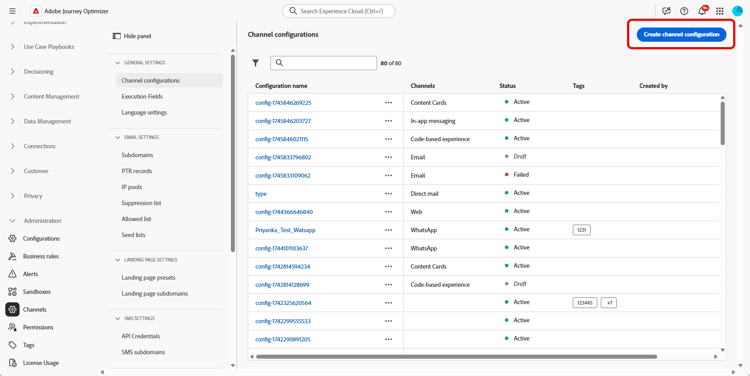
Access the Channels > General settings > Channel configurations menu, then click Create channel configuration.
-
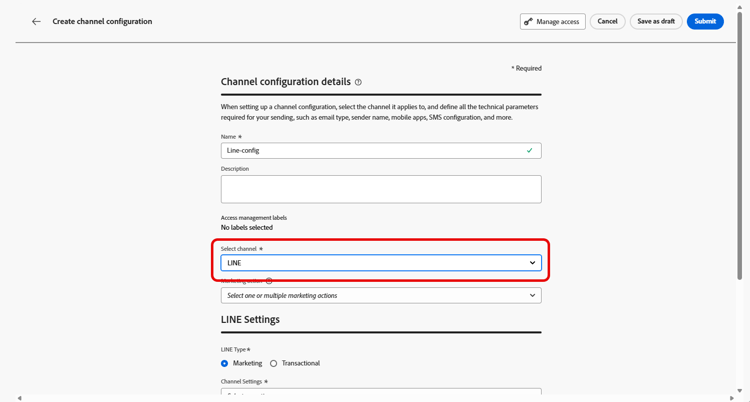
Enter a name and a description (optional) for the configuration, then select the channel to configure.
note NOTE Names must begin with a letter (A-Z). It can only contain alpha-numeric characters. You can also use underscore _, dot.and hyphen-characters. -
To assign custom or core data usage labels to the configuration, you can select Manage access. Learn more on Object Level Access Control (OLAC).
-
Select LINE channel.
-
Select Marketing action(s) to associate consent policies to the messages using this configuration. All consent policies associated with the marketing action are leveraged in order to respect the preferences of your customers. Learn more
-
Select the type of message for the configuration:
- Marketing: For promotional messages, such as weekly promotions for a retail store. These messages require user consent and should comply with LINE’s policy regarding user opt-ins.
- Transactional: For non-commercial messages, such as order confirmations, password reset notifications, or delivery updates. These messages can be sent even to users who have unsubscribed from marketing communications but are strictly limited to specific transactional contexts.
-
Select your Channel settings.
Reach out to your Adobe representative to set up your Channel settings.
-
Select your LINE user ID you want to map. This is the identifier used to link messages to individual users within your LINE channel.
note NOTE The LINE user ID you map here must already exist on your customers’ Real-Time Customer Profile. Capture the LINE user ID (for example, through LINE Login or the LIFF SDK), ingest it into Adobe Experience Platform, and stitch it to a known identifier with Identity Service so that Journey Optimizer can reach the unified profile. Learn more about identity in Journey Optimizer. For an end-to-end example of unifying LINE user IDs with customer profiles using Identity Service, see the community article Unifying LINE User IDs with Customer Profiles using AEP Identity Stitching. -
Type-in your Sender Name, such as your brand’s name.
-
Submit your changes.
You can now select your configuration when creating your LINE message.
Configure the LINE Channel settings API line-api
This API sets up channel settings that store the necessary authorization and configuration details for connecting to the LINE Messaging API. These settings enable Adobe Journey Optimizer to authenticate and send messages through LINE using the provided credentials.
Endpoint
POST https://platform.adobe.io/journey/imp/config/channel-settings
Request Body
{
    "name": "your_defined_name",
    "channelRegistryId": "line",
    "channel": "line",
    "channelSettings": {
        "channelId": "your_line_channel_id",
        "channelSecret": "your_line_channel_secret"
    }
}
Channel Settings Response
{
"id": "3603ed66-ae86-42b8-8a90-d4b4e54e7c3b",
"name": "your_defined_name",
"channelRegistryId": "line",
"channel": "line",
"channelSettings": {
    "channelId": "your_line_channel_id",
    "channelSecret": "your_line_channel_secret"
    },
    "channelPublicationId": "v1_line",
    "createdAt": "2025-07-30T12:00:00.000Z",
    "modifiedAt": "2025-07-30T12:00:00.000Z",
    "isFromLatestVersion": true,
    "_etag": "\"eab98d24-18af-48ae-90f9-e59d4f8cfb2b\""
}
This section contains structured knowledge intended to support interpretation, retrieval, and question answering related to this topic.
For complete understanding, this information should be combined with the documentation on this page. Neither source is intended to stand alone; the page describes the feature, while this section provides additional context that helps disambiguate terminology, intent, applicability, and constraints.
- TL;DR: This page explains how to create a LINE channel configuration, from the interface or the API, so that Journey Optimizer can authenticate with the LINE Messaging API and send messages to your customers.
Intents:
- Create a LINE channel configuration from the Channel configurations menu
- Associate consent policies to the configuration through marketing actions
- Choose the message type (Marketing or Transactional) for the configuration
- Map the LINE user ID and define the Sender Name
- Configure the LINE Channel settings through the API
Glossary:
- Channel configuration: The configuration created from Channels > General settings > Channel configurations for which you enter a name, a description (optional), and the channel to configure (product-specific)
- Marketing action: The setting used to associate consent policies to the messages using this configuration, so that customer preferences are respected (product-specific)
- Channel settings: The connection settings that store the authorization and configuration details for connecting to the LINE Messaging API (product-specific)
- LINE user ID: The identifier used to link messages to individual users within your LINE channel (product-specific)
- Sender Name: The name, such as your brand’s name, entered for the configuration (product-specific)
Guardrails:
- Configuration names must begin with a letter (A-Z) and can only contain alphanumeric characters, underscore, dot, and hyphen.
- Marketing messages require user consent and should comply with LINE’s policy regarding user opt-ins.
- Transactional messages can be sent even to users who have unsubscribed from marketing communications but are strictly limited to specific transactional contexts.
- The LINE user ID mapped here must already exist on your customers’ Real-Time Customer Profile.
- For the Channel settings field, reach out to your Adobe representative to set up your Channel settings.
- The API uses headers including a user token from your technical account, the client ID from Adobe Developer Console, the IMS Organization ID, the sandbox name, and Content-Type application/json.
Terminology:
- Canonical name: LINE channel configuration — Acronym: n/a — variants: channel configuration
- Do not confuse: “Marketing” (promotional messages requiring user consent) ≠ “Transactional” (non-commercial messages limited to specific transactional contexts)
- Do not confuse: “Channel settings” (authorization and connection details for the LINE Messaging API) ≠ “Marketing action” (associates consent policies to the configuration)
FAQ:
- Q: What characters are allowed in a configuration name? — The name must begin with a letter (A-Z) and can only contain alphanumeric characters, underscore, dot, and hyphen.
- Q: What is the difference between a Marketing and a Transactional configuration? — Marketing is for promotional messages that require user consent, while Transactional is for non-commercial messages that can reach unsubscribed users but are strictly limited to specific transactional contexts.
- Q: Does the LINE user ID need to exist beforehand? — Yes, the LINE user ID mapped in the configuration must already exist on your customers’ Real-Time Customer Profile.
- Q: How are the Channel settings set up? — Reach out to your Adobe representative to set up your Channel settings.
- Q: Can the Channel settings be configured through the API? — Yes, the page describes an API (POST to the channel-settings endpoint) that sets up Channel settings storing the authorization and configuration details needed to connect to the LINE Messaging API.